How to Control Product Visibility Within Categories
| User Role | Access |
|---|---|
| Brand Manager | ✅ |
| Area Manager | ❌ |
| Store Manager | ❌ |
Overview
You can choose which products are visible in each category for a specific menu. This feature lets you use a single category and show or hide certain products as needed, making menu management easier and more flexible.
What is Category Product Visibility?
- Category product visibility lets you decide which products appear in a category for a specific menu.
- You do not need to create separate categories for different menus—just use one category and adjust the visible products.
- This helps you keep your menus organized and efficient.
How to Change Product Visibility in a Category
Follow these steps to show or hide products in a category for a menu:
-
Select All Stores or the specific store you wish to update in the Management Center.
-
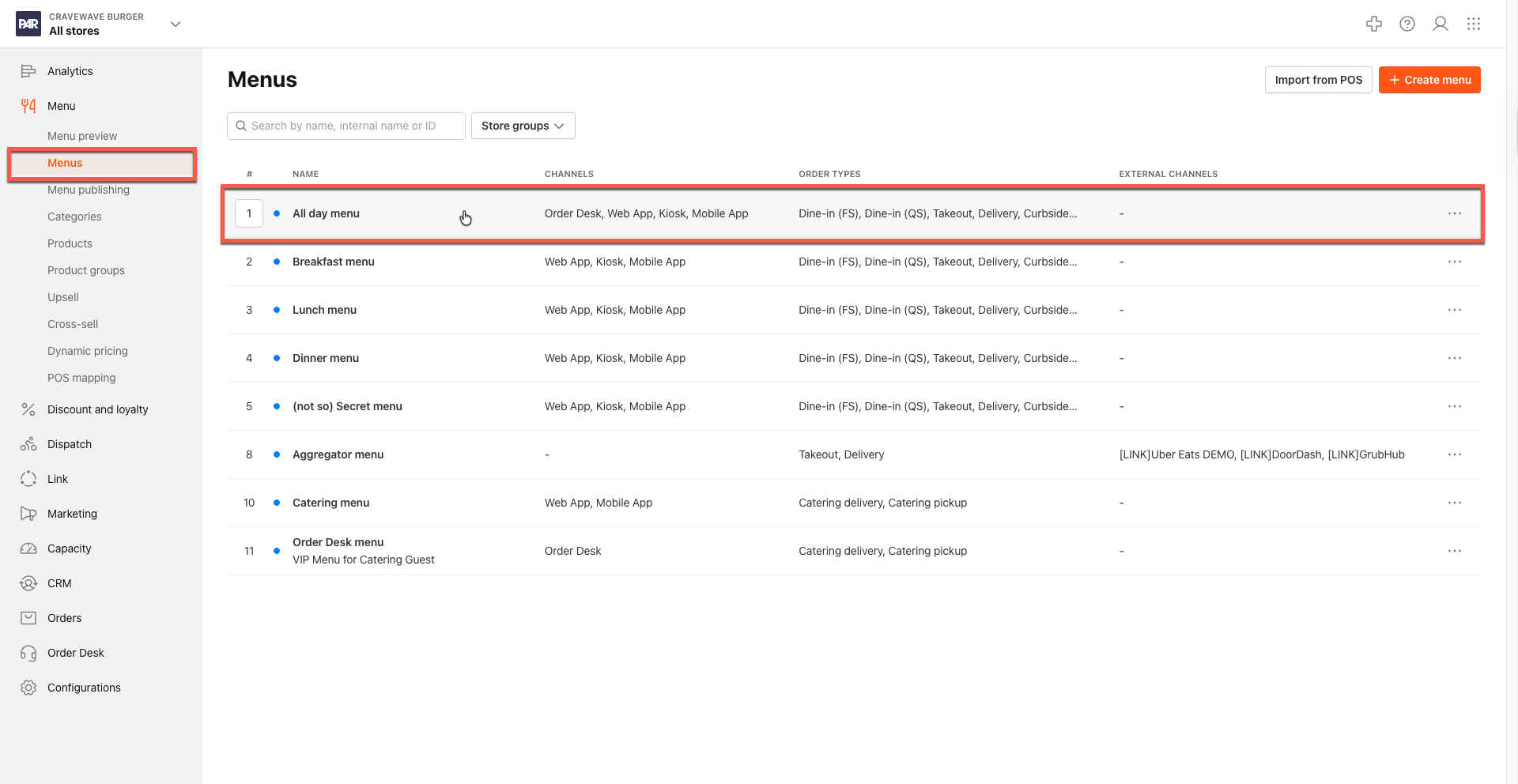
Navigate to Menu > Menus.
-
Click on the Menu you wish to update.
-
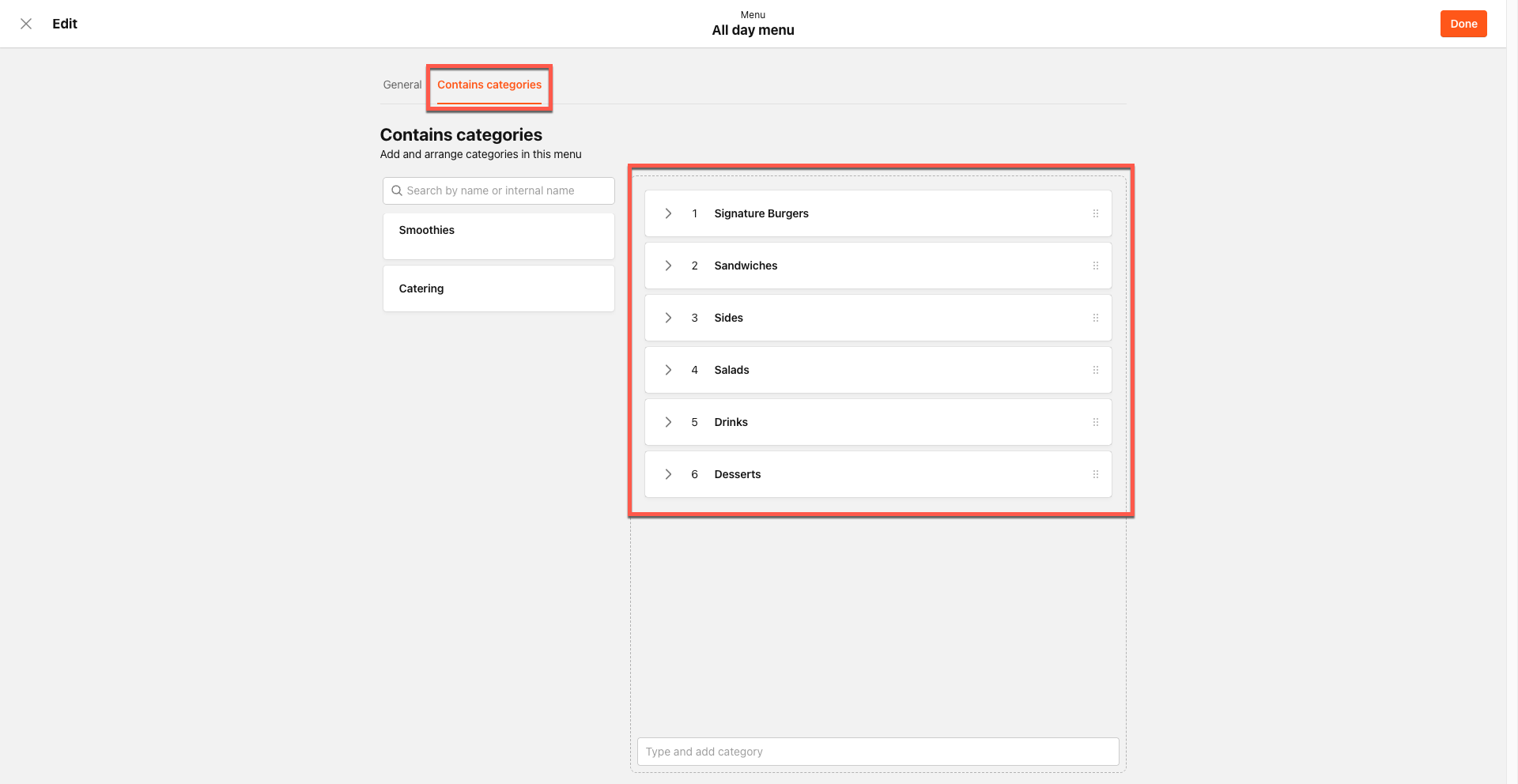
Click Contains Categories.
-
You will see a list of categories in the menu. Expand the category you want to change.
-
Hover over the product you want to update.
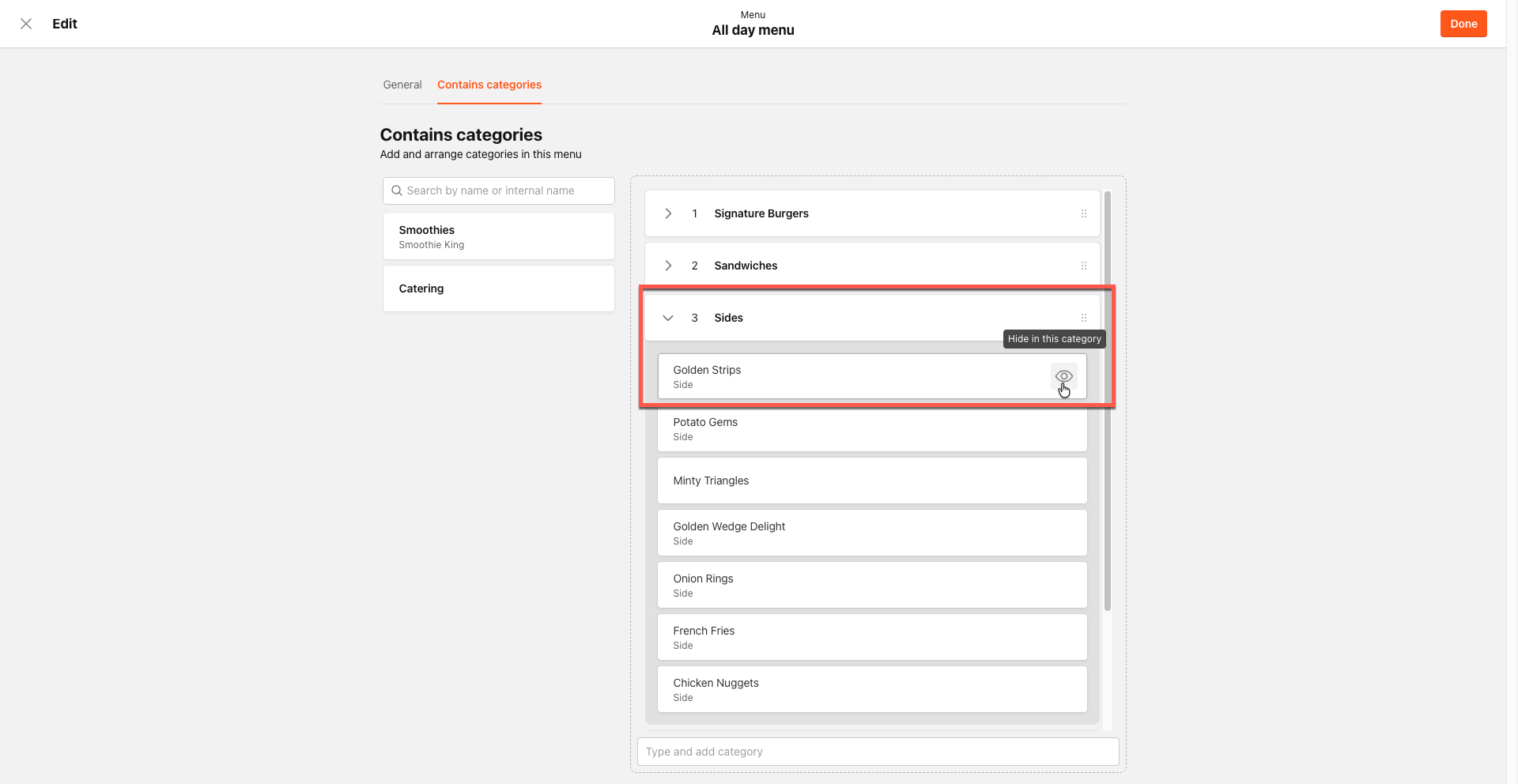
- Click the eye icon next to the item to hide or unhide it.
- You can only manage the first level of products (not nested products or groups).
- If you hide a product that contains groups or other products, all items inside will also be hidden.
- If you hide all products in a category, the category itself will be hidden from the menu.
-
After making your selections, click Done.
Important Notes
- You cannot manage or unhide nested products from the category view. To do this, go to the core product level.
- You cannot reorder products inside the category from this view.
- This feature only works for products directly inside a category (first level).
Tips
- Use this feature to keep your menus simple and avoid creating duplicate categories.
- Always attach the category to the menu and save before editing product visibility.
