Half & Half Configuration: Toppings and Modifiers
Learn how to configure half-and-half topping mappings at the modifier group level and the product level in PAR Ordering Management Center.
Overview
Half and half lets you split a topping or modifier across two halves of a product. For example, you can put different toppings on each half of a pizza. In Management Center, you map each modifier item to a left-side and right-side variant, and PAR Ordering resolves the correct item and price when a guest makes their selection at checkout.
Previously, you had to set up these mappings individually on every product. You can now configure half-and-half mappings once at the modifier group level, and the configuration automatically applies to every product that uses that group. You can override individual products when needed.
Before you begin
- You must have brand-level access to Management Center to create or edit half-and-half mappings. Store-level users can view existing mappings but cannot make changes.
- Half-and-half configuration requires Menu V2. Contact your PAR representative if you are unsure which menu version your brand uses.
- Left-side and right-side variants must belong to the same modifier group or a sibling modifier group under the same parent. Variants from unrelated product groups are not available for mapping.
- Both the left side and right side must be set before a mapping can be saved. Partial pairs cannot be saved.
Configure half-and-half at the modifier group level
Setting up half-and-half at the modifier group level saves time when you have multiple products that share the same modifier groups. You configure the mapping once on the group, and every product connected to that group inherits the configuration automatically.
-
In Management Center, navigate to Menu and open the modifier group you want to configure.
-
Select the Half and whole tab. The tab displays a list of the products associated with this modifier group.
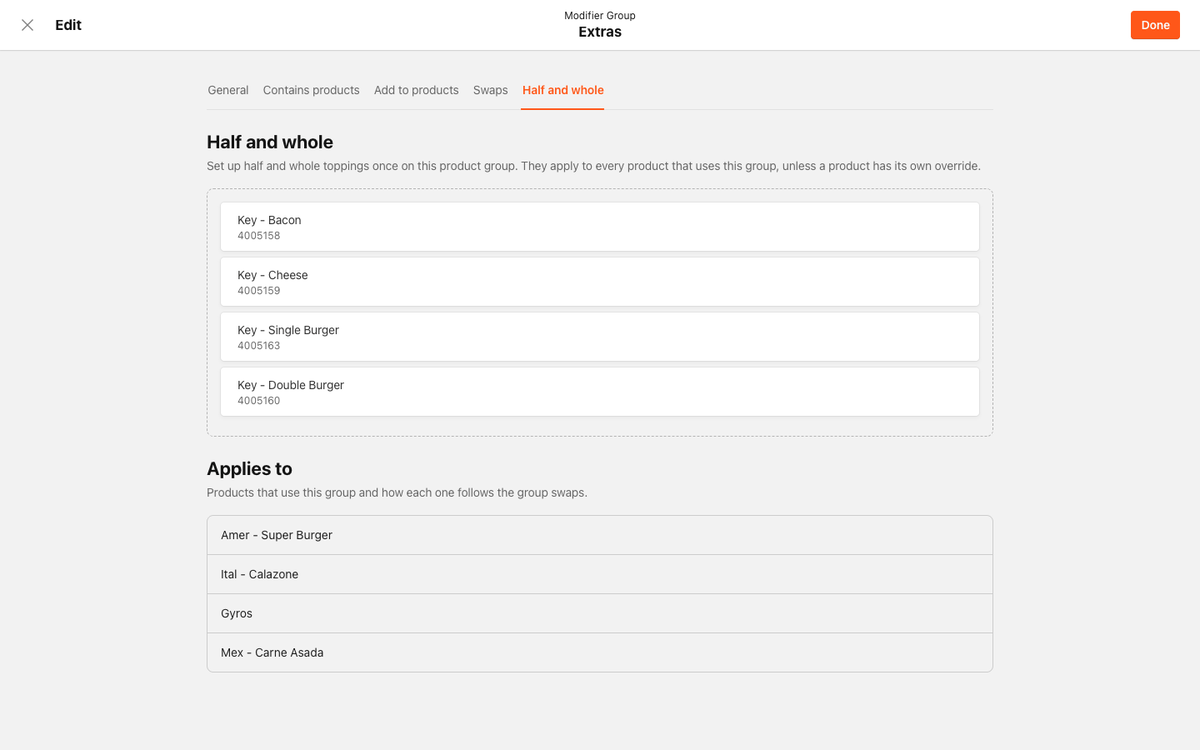
-
For a product in the list, select the left-side variant:
-
Select Add left side next to the product.
-
In the picker modal, browse or search for the modifier item you want to use as the left half. Only items from the same modifier group or a sibling modifier group are available.
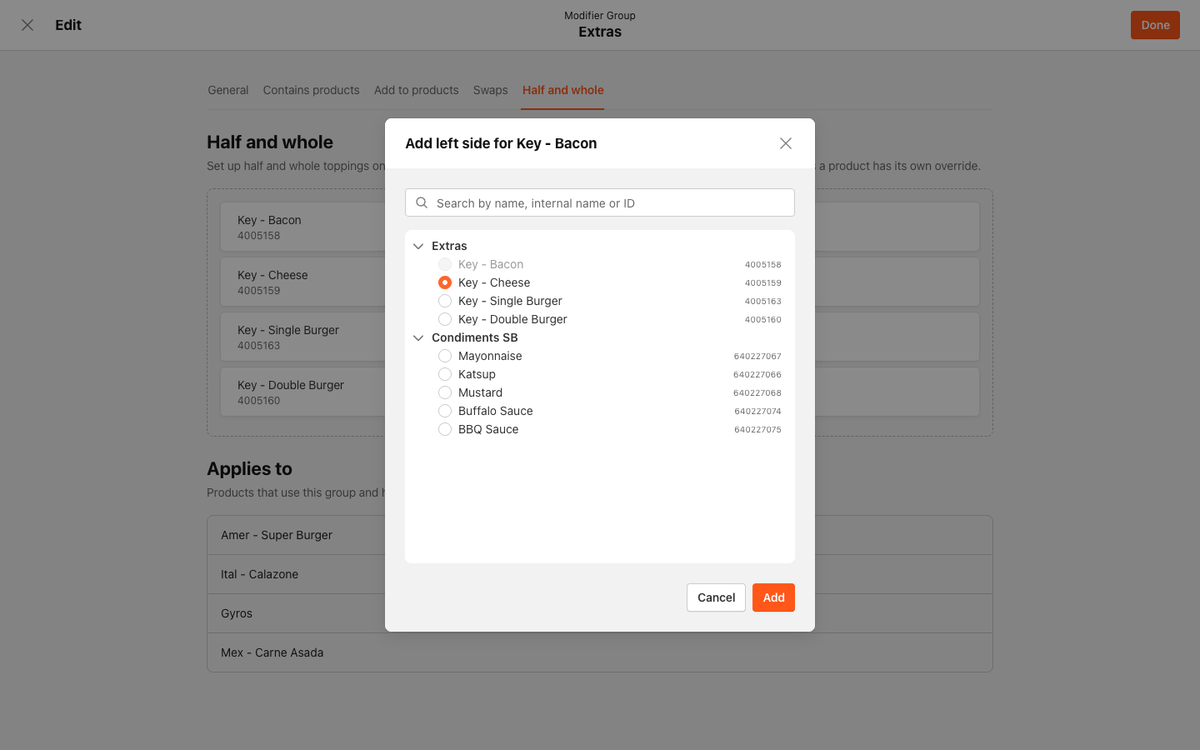
-
Select the item and select Add.
-
-
Select the right-side variant:
- Select Add right side next to the same product.
- Search for and select the modifier item for the right half.
- Select Add.
-
Repeat steps 3-4 for any additional products listed in the tab.
-
When you are done configuring, select Done to save your changes.
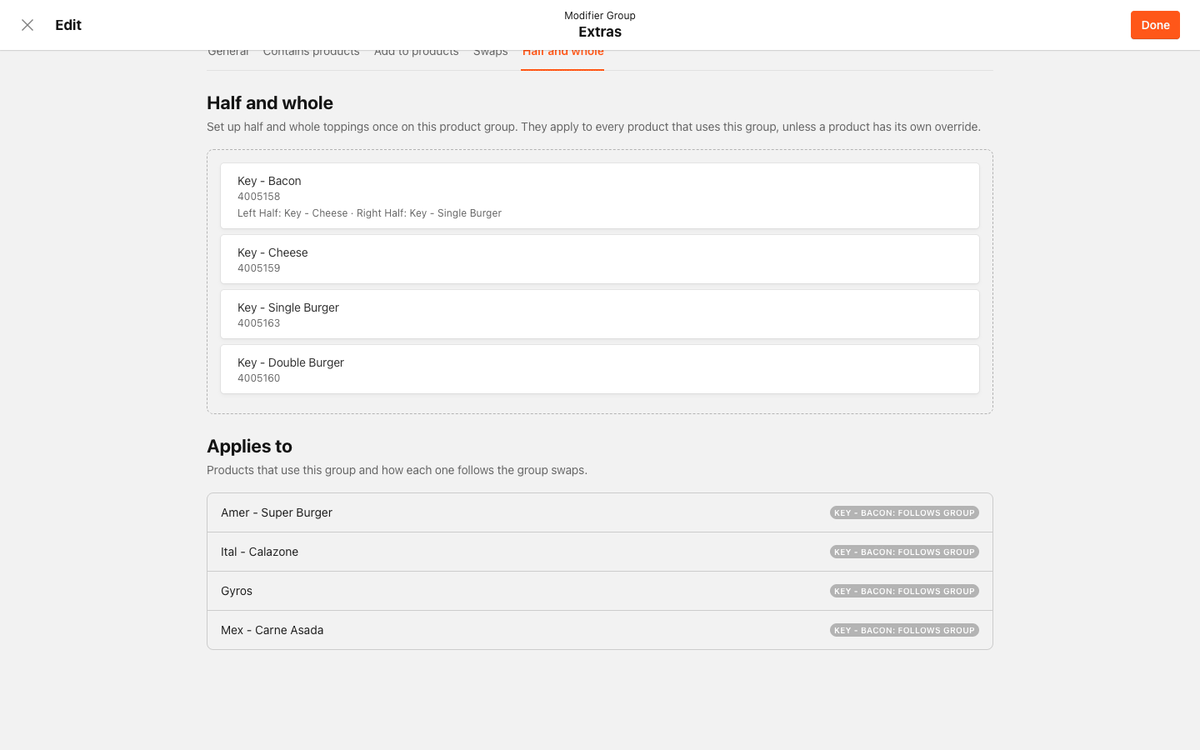
After saving, an Applies to section appears on the tab. It lists every sellable product that uses this modifier group, with each product labeled either follows group (inherits the mapping you just set) or override (has a product-specific mapping that is not affected by the group configuration).
A mapping is only saved when both sides are set. If you add only one side and select Done, the incomplete mapping is not saved.
Configure half-and-half at the product level
You can also configure half-and-half directly on an individual product. Use this approach when a product needs a configuration that is different from what the modifier group provides, or when you are setting up half-and-half on a product whose modifier group does not have a group-level mapping.
- In Management Center, navigate to Menu and open the product you want to configure.
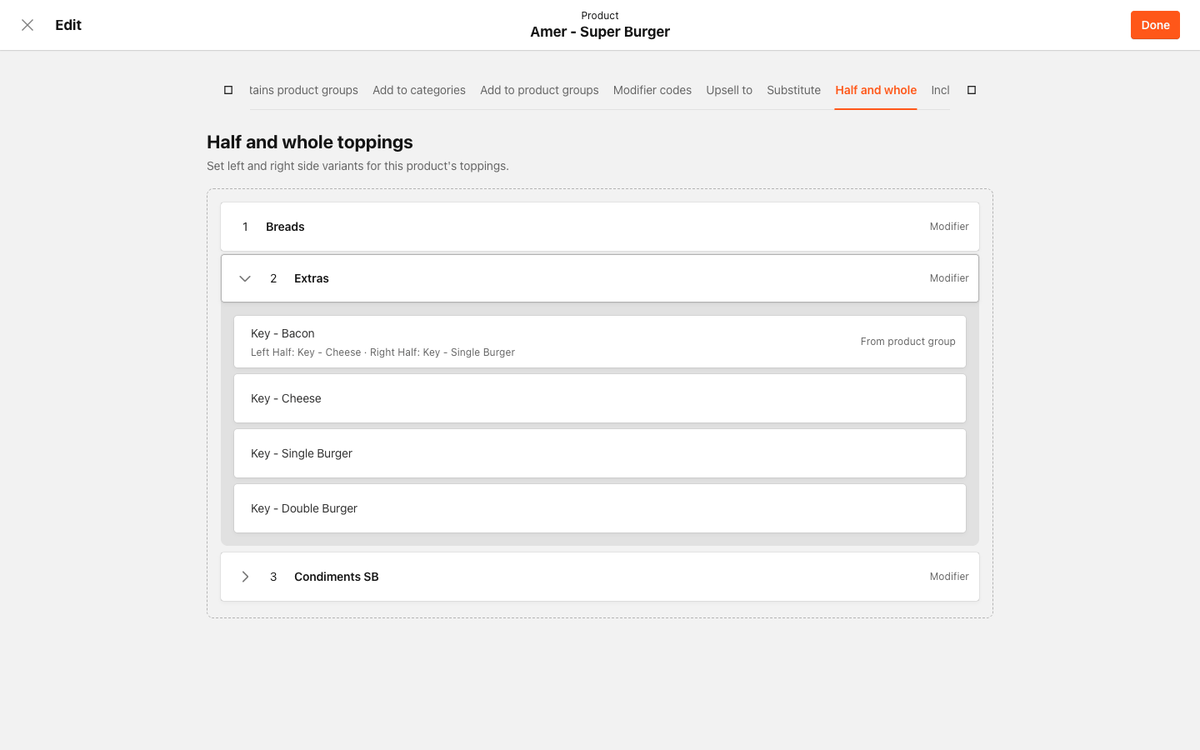
- Select the Half and whole tab. The tab shows the modifier groups associated with this product and their current half-and-half configuration. If a mapping was inherited from the modifier group, it displays a From product group badge.
- To add a new mapping, select Add left side next to the modifier item you want to configure.
- In the picker modal, browse or search for the left-side variant and select Add.
- Select Add right side and repeat the process to set the right-side variant.
- Select Done to save your changes.
To update an existing mapping, select Manage left side or Manage right side next to the modifier item. The picker modal opens with the current selection highlighted. Update the selection and select Save.
Override a group-level mapping for a specific product
When a modifier group has a group-level half-and-half mapping, every connected product inherits it by default. If a specific product needs a different configuration, you can override the group mapping for that product without affecting any other products.
- Open the product in Management Center and select the Half and whole tab.
- Locate the modifier item that has an inherited mapping (shown with a From product group badge).
- Select Manage left side or Manage right side and choose the new variant for that product.
- Select Save. The product now uses its own mapping instead of the group default. Future changes to the modifier group mapping do not affect this product.
To remove a product-level override and return the product to the group default:
- Open the product and select the Half and whole tab.
- Next to the overridden modifier item, select Revert to group default. The product re-inherits the current group mapping and is linked to any future group-level changes.
If the group-level mapping is no longer valid when you revert (for example, if one of the mapped variants has been removed from the catalog), the revert is rejected and the product keeps its override. No configuration is silently cleared.
How inheritance and overrides work
Group-level and product-level mappings interact in a few ways worth knowing before you configure.
- When you save a mapping on a modifier group, it applies to every sellable product that uses the group, including products that reach the group through nested modifier groups (for example: product > sizes > size variant > group). Only top-level sellable products receive the pair. Intermediate components do not.
- If a product already has its own mapping, saving or updating the group-level mapping does not overwrite it.
- When you add a modifier group to a product, the product automatically inherits any existing group-level mapping. When you remove a modifier group from a product, the inherited mapping is removed. Product-level overrides are not affected in either case.
- If you delete the mapping from a modifier group (clearing both sides), the mapping is removed from all products that were following the group. Products with overrides are not affected.
- Mappings imported via menu import follow the same inheritance and override behavior.
