Group Ordering
Group Ordering lets a registered customer (the host) start a shared cart, invite others to join, and place a single order for the group. Each participant adds their own items to the session. The host pays and submits the combined order at checkout. The receipt and kitchen ticket show each participant's items individually.
Before You Begin
Before you can use Group Ordering, confirm the following:
- Group Ordering must be enabled at both the brand level and the store level in Management Center. If either toggle is off, the Start a group order option does not appear on the menu. Contact your PAR representative to confirm whether Group Ordering is available for your account.
- Group Ordering is only supported on product-structure (v2) menus. stores using item-structure (v1) menus do not have access to this feature, regardless of toggle settings.
- The host must be logged in to a registered customer account. Participants do not need an account to join.
Enabling Group Ordering in Management Center
Two toggles in Management Center control Group Ordering: one at the brand level and one at the store level. Both must be on for the Start a group order option to appear on the ordering menu.
Step 1: Enable Group Ordering at the brand level:
-
In Management Center, navigate to Brand > Configurations > Order Types.
-
Select the order type you want to enable Group Ordering for.
-
Click the General tab.
-
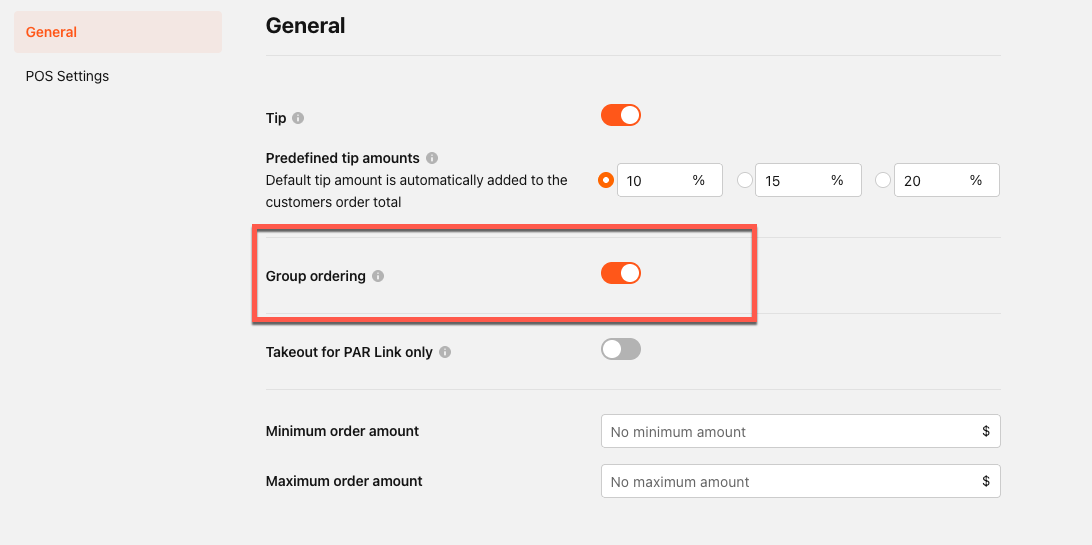
Turn on the Group Ordering toggle.
-
Click Save.
Step 2: Enable Group Ordering at the store level:
-
In Management Center, navigate to Store > Configurations > Order Types.
-
Select the same order type.
-
Click the General tab.
-
Turn on the Group Ordering toggle.
The store-level toggle is locked if the brand-level toggle is off. Enable the brand-level toggle first.
-
Click Save.
Once both toggles are on, the Start a group order option appears on the ordering menu for that order type.
Guest Experience
Group Ordering involves two roles: the host and participants. The host starts and manages the session and pays at checkout. Participants join via a shared link and add their own items.
Starting a Group Order
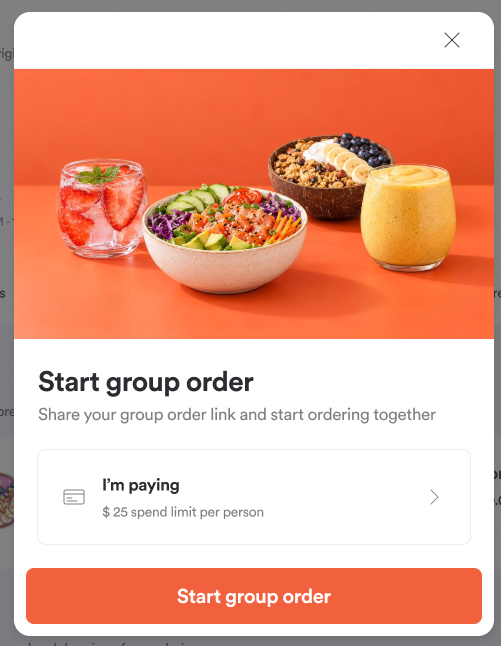
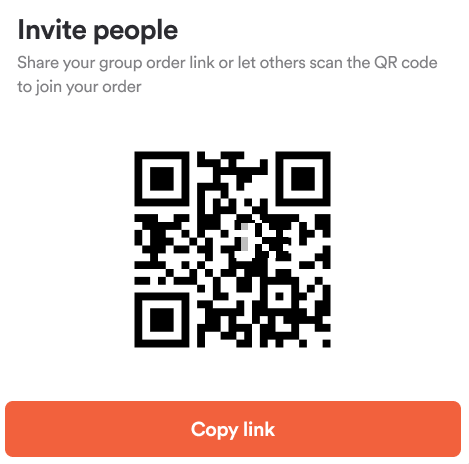
The host must be logged in to a registered account to start a group order. From the ordering menu for their chosen store and order type, the host selects Start a group order. They can optionally set a per-person spending limit to cap what each participant can add to their cart. The host then copies the share link or QR code and sends it to the group. The session is now open.
Joining the Session
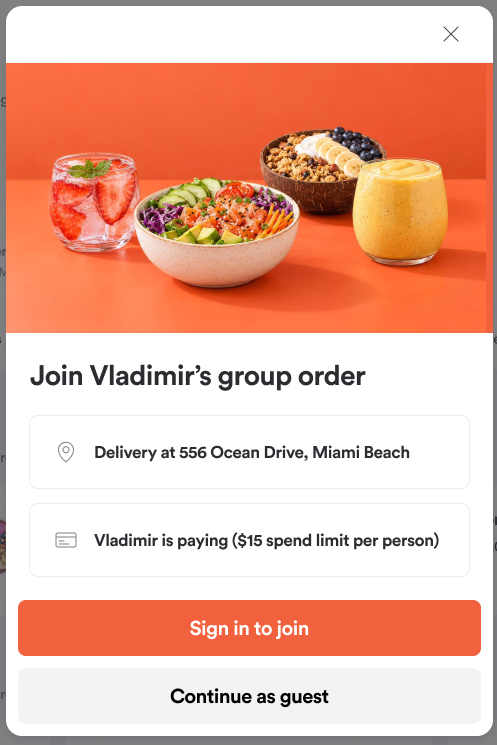
Participants do not need a registered account to join. When a participant opens the invite link or scans the QR code, they see the store name, order type, and any spending limit the host has set. They enter a display name and select Join. They are taken directly to the ordering menu for that store and order type.
If a participant is already logged in to a registered account, their name is pre-filled automatically. Their session also resumes automatically if they close and reopen the link.
Adding Items
Once in the session, all participants, including the host, browse the menu and add items to their own cart. The shared cart drawer shows everyone's items and running subtotals in real time.
A few things to know:
- Each participant can only edit items in their own cart.
- If a participant reaches their spending limit, they receive a notification before any additional item can be added.
- The host can see the combined order total. Participants can only see their own cart subtotal.
- The host can edit any participant's cart, for example, to add or remove an item on someone's behalf.
- Only the host can apply discounts and promotional codes. They apply to the entire order.
Locking and Placing the Order
When everyone has finished adding items, the host locks the session and places the order. The host reviews all participants' carts in the shared cart drawer, makes any needed edits, and applies any applicable discount or promo code. The host then selects Lock order.
When the host locks the session, participants who have not added items or have not marked their cart as ready are removed from the session. Participants who remain see a notification that the order is locked and can no longer add or change items. They can still leave the session after it is locked, up until the host initiates payment.
The host reviews the merged cart at checkout and completes payment. The order is placed as a single transaction. The receipt and kitchen ticket list each participant's items separately under their display name.
Viewing Group Orders in Management Center
Management Center and the tablet ordering app display group orders in read-only view. There are no group-order-specific admin actions in either interface.
- Orders Overview, Call Center, Delivery Hub, and Order Lookup: The product list for a group order is broken out by participant name rather than appearing as a flat list. Any user with permission to view orders sees this breakdown automatically. No additional permissions are required.
- Order scope filter: In the Orders list, you can filter to show personal orders only or group orders only.
- Tablet ordering app: The order detail screen shows the per-participant product breakdown when the order has multiple participants.
There is no dedicated Group Order Details page, participant count summary, or group-order admin action in Management Center or the tablet app. The per-participant breakdown appears inside the existing order-details view.
Reordering, Editing, and Canceling Group Orders
Group orders support the same post-order actions as standard orders. The original host can reorder or edit a placed group order. Group orders can also be canceled and refunded through the standard workflows.
Notes:
- No option to remove a participant. The host cannot remove a participant from an active session. Locking the session removes any participant who has not added items.
- No session deadline. A deadline for when participants must finish adding items is not configurable or visible in the ordering menu.
- Discounts and donations are host-only. Guests cannot apply discounts or donations to their own cart.
- Host pays for the full order. The host pays the combined total. Per-participant payment is not supported.
Frequently Asked Questions
- Do participants need to create an account to join a group order? No. Participants only need to enter a display name. If a participant is already logged in, their name is pre-filled, and their session resumes automatically if they reload the page.
- Can more than one person pay? No. Only the host pays, once, for the combined order. Per-person spending limits cap what each participant can add, but the host always pays the full amount.
- Why can a participant not see the total order price? Only the host can see the combined order total. Each participant sees only their own cart subtotal. This is intentional.
- Can the host remove someone from the session? Not through the ordering interface. The host can lock the session, which removes any participant who has not added items or marked their cart as ready.
- Does Group Ordering work on all menus? No. Group Ordering only works on product-structure (v2) menus. It is not available on item-structure (v1) menus. Both the brand-level and store-level Group Ordering toggles in Management Center must also be on.
- What happens after the host locks the order? Participants with items in their cart who marked ready remain in the session. Participants with empty carts or who did not mark ready are removed. Remaining participants see a notification that the order is locked and can no longer add or change items. They can still leave until the host initiates payment.
- Where can I see which items belong to which participant after the order is placed? The receipt shows each participant's items under their display name. Management Center and the tablet ordering app show the same per-participant breakdown in the order-details view.
