Charitable Donations
With Charitable Donations, your guests can add a charitable donation to their order at checkout. You choose the charity and configure how guests can give. Donations appear on receipts and order emails. Use the built-in reports to track what your brand owes each charity.
There are two ways guests can give:
- Round up for charity rounds the order total up to the next whole dollar. The difference is the donation (for example, a $8.30 total rounds up to $9.00, so the donation is $0.70).
- Donate more lets guests pick from up to 3 preset amounts, or enter a custom amount.
You can enable one or both options per charity. Guests see whichever giving options you've turned on.
Key facts:
- Available on the web app and kiosk. Third-party marketplace orders (for example, DoorDash or Uber Eats) are not eligible.
- Only one donation applies per order. If a guest changes their selection, the new one replaces the previous.
- The donation is added on top of the order total. It does not reduce revenue.
- Fund distribution to the charity is your responsibility. PAR Ordering collects donations as part of the order total and provides reporting, but does not remit funds directly to charities.
Prerequisites
Before you activate a charity at any location:
- Set up the required POS entity (service charge or surcharge) in your POS system, then complete the POS mapping step in the Management Center. For instructions, see Charitable Round-Up: POS Integrations.
- Contact your PAR representative to confirm this feature is enabled for your account.
Setting Up a Charity
Create the Charity
-
In the Management Center, go to Configurations > Taxes & Fees > Donations.
-
Click Add Donation to create a new donation type at the brand level.
-
Fill in the donation details:
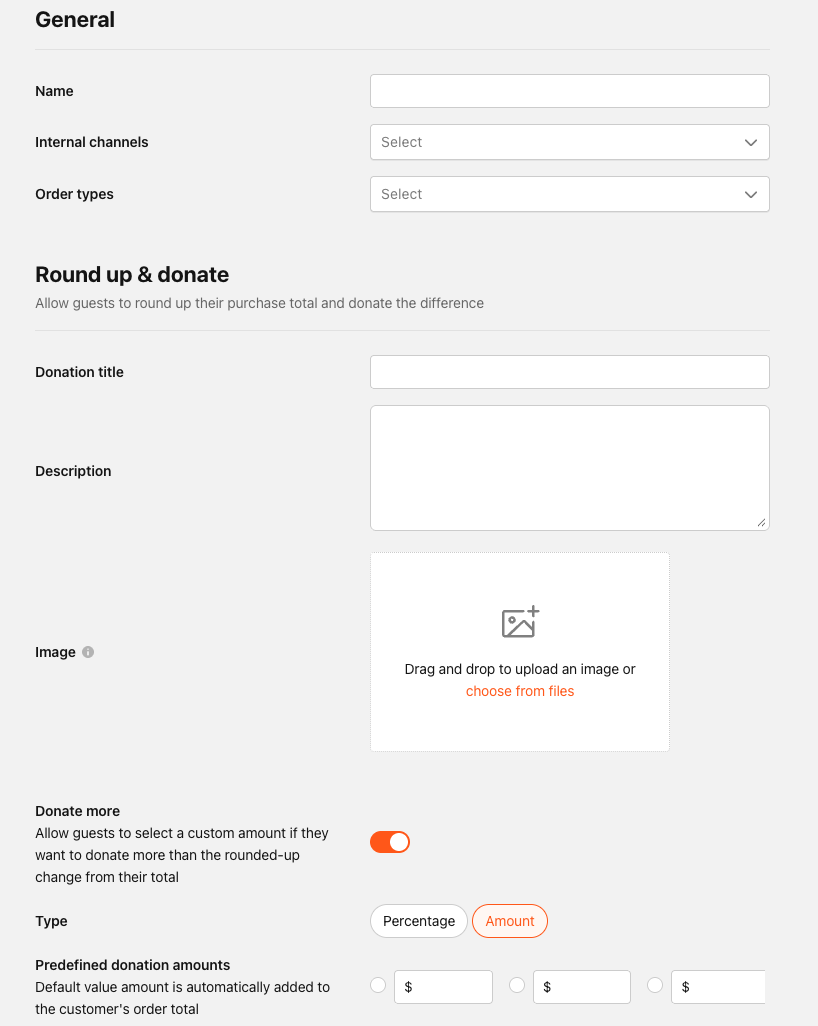
Field Description Name An internal admin name for your records. Not shown to guests. Internal Channels Select which channels this will be available on (i.e., mobile and Web orders) Order Types Select the order types the donation option will be available on Donation Title The customer-facing name shown to guests at checkout. Description A short message shown on the donation card at checkout. Image Your charity's logo or image. Displayed on the donation card. Donate More Toggle to allow guests to select a custom amount if they want to donate more than the rounded-up change from their total Type Choose between a percentage of the total bill or a set amount Predefined Donation amounts Enter up to three options for either percentage or amount -
Click Save.
Guest Checkout Experience
Web App
At checkout, an eligible guest sees the donation card showing your charity's title, description, and image. The guest chooses one of the following:
- Round up adds the round-up amount with one tap. The order total updates immediately.
- Donate more lets the guest select a preset amount, or tap Other to open the custom amount modal and enter a different amount.
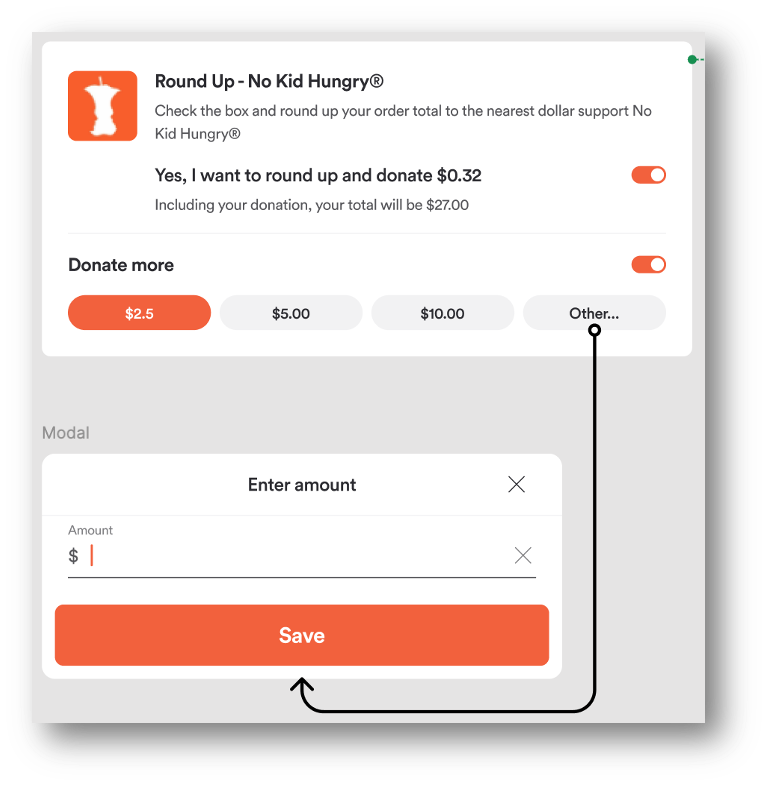
The donation appears as a separate line in the order summary and is added to the amount charged. Changing a selection replaces the previous donation. Only one donation applies per order.
The round-up option only appears when the order total isn't already a whole dollar amount. If there's nothing to round up, guests still see the Donate more option (if you've enabled it).
Kiosk
The kiosk checkout experience mirrors the web app. Guests see the same donation card with the same giving options. The donation line renders on the kiosk receipt and is added to the payable.
Post-Order Receipt
The donation appears as a separate line on the order confirmation email (HTML and plain text) and on the PDF receipt, labeled with your charity name and the amount given.
Refunds
| Refund Type | Behavior |
|---|---|
| Full refund / cancellation | The donation is returned and excluded from payout totals and reporting. |
| Partial refund | The donation is kept in full. It is not automatically adjusted on partial refunds. |
Donation Reporting
PAR Ordering provides several ways to track and reconcile donations.
Order Statistics Export
The Order Statistics export includes a Donation column showing the donation amount per order and in totals. Use this to cross-reference donations against sales data.
Donation Payout Report
The Donation Payout report shows what your brand owes to each charity for a given period. It includes the per-charity order count, total donation amount, and a grand total.
To run it on demand:
- In the Management Center, go to Data Export.
- Select Donation Payout from the report type picker.
- Set your date range and generate the report.
The report is available as a downloadable XLS.
Canceled orders and fully refunded orders are excluded from payout totals. Partial refunds keep the full donation amount.
Scheduled Reports
You can add the Donation Payout report to a scheduled Brand Statistics Report. Set your recipients and schedule, and the report is delivered automatically.
PAR Ordering collects donations as part of the order total and provides reporting, but does not remit funds to charities. You are responsible for distributing collected donations to your designated charity. Set up a regular remittance schedule (for example, monthly) and reconcile against the Donation Payout report.
- Charitable Donations is available on the web app and kiosk only. In-store and POS terminal prompts are not supported.
- Third-party marketplace orders (for example, DoorDash, Uber Eats) are not eligible.
- Only one donation per order is supported.
- PAR Ordering does not generate tax receipts or donation acknowledgment documentation for guests.
- Tax treatment of charitable contributions varies by jurisdiction. Consult your tax advisor regarding deductibility and reporting obligations.
