Charitable Donations: POS Integration
When a guest adds a donation at checkout, PAR Ordering injects the donation onto the POS as a non-revenue line item. The donation prints on the check and settles correctly without counting as food and beverage sales or triggering additional sales tax.
This article covers the one-time POS setup for each supported connector and the Management Center mapping that ties them together. It applies to PAR POS (Brink), Toast, and POS Next connectors that support custom fees (Xenial, Qu, Simphony, and similar), on first-party orders only: web app, mobile app, and kiosk.
How a Donation Reaches the POS
The donation is added on top of the order total. The guest pays for it, but it is not part of the taxable or food and beverage total.
On any integrated order that carries a donation, PAR Ordering injects the donation twice: once on the price/calculate call and again on submit. The totals still reconcile if a round-up amount is recalculated between the two calls.
The donation lands as a non-revenue line on PAR POS, or a deferred-revenue item on Toast, so it stays out of net sales in POS reporting. On POS Next connectors, the POS provider controls the revenue classification.
Only one donation is injected per order. Orders without a donation are not affected.
Before You Start
Set up the donation in the Management Center first, following the companion article, Charitable Donations. Donations are created at the brand level and activated at the venue level.
You also need:
- A store on v2 ordering
- Access to your POS back office to create the backing item or surcharge
- Access to Management Center to complete the mapping
Where to Configure the Mapping
In the Management Center, go to Brand (All Stores) > Configurations > Store Groups, then open the store group with the Integration purpose.
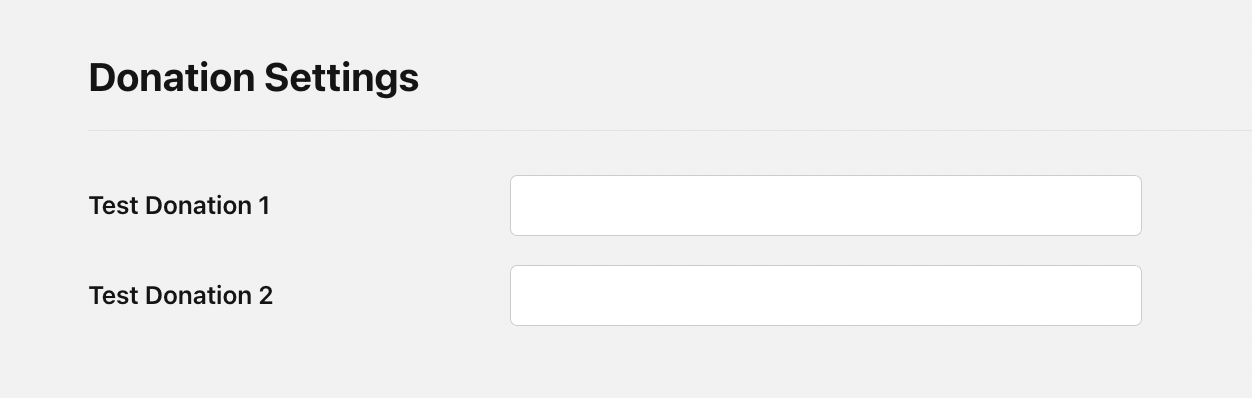
As soon as one donation exists at the brand level, a Donation Settings section appears in the same place you manage Custom Fees. This is where you enter the POS entity ID for each donation.
PAR POS & POS Next connectors:
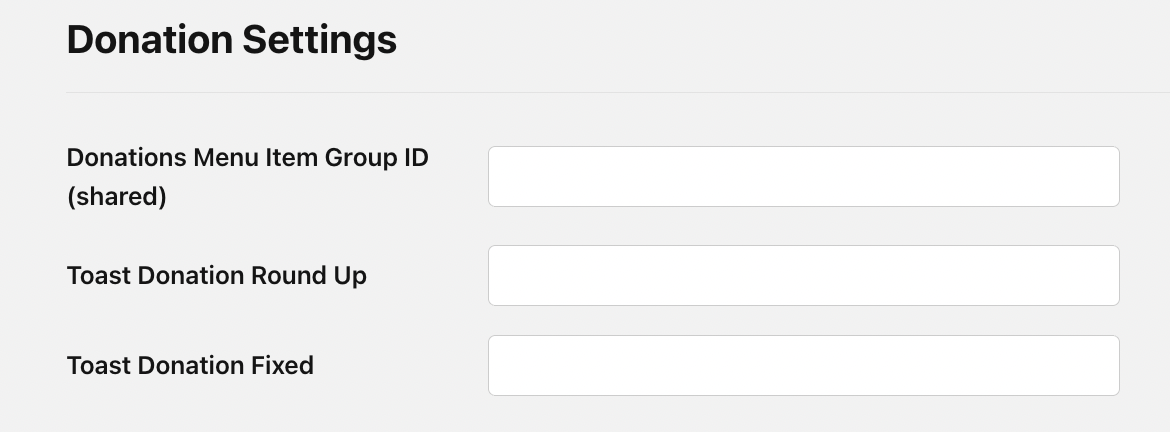
Toast POS:
Store Group vs. Store Level
You can set Donation Settings at two levels:
- Store group sets one mapping for the whole brand or store group.
- Store overrides the mapping for an individual store.
At order time, PAR Ordering reads the store-level mapping first, then falls back to the store group. If one store needs a different item or surcharge ID, set it at the store level. Otherwise, the store-group value applies to every store under it.
One Field Per Donation
Donation Settings shows one field for every donation that exists at the brand level, each labeled with the donation's name. The fields are static: a brand-level donation always has a field, whether or not it is currently active at that store.
This means you never have to redo the POS mapping when a store switches which donation it runs. Adding or removing a donation at the brand level adds or removes its field automatically, the same way Custom Fees behave.
If a donation has no mapping at either the store or store-group level, any order carrying that donation fails with a configuration error that names the connector and the donation. Make sure every donation you activate has a mapped ID.
PAR POS (Brink)
Step 1: Create the Backing Item in Settings Editor
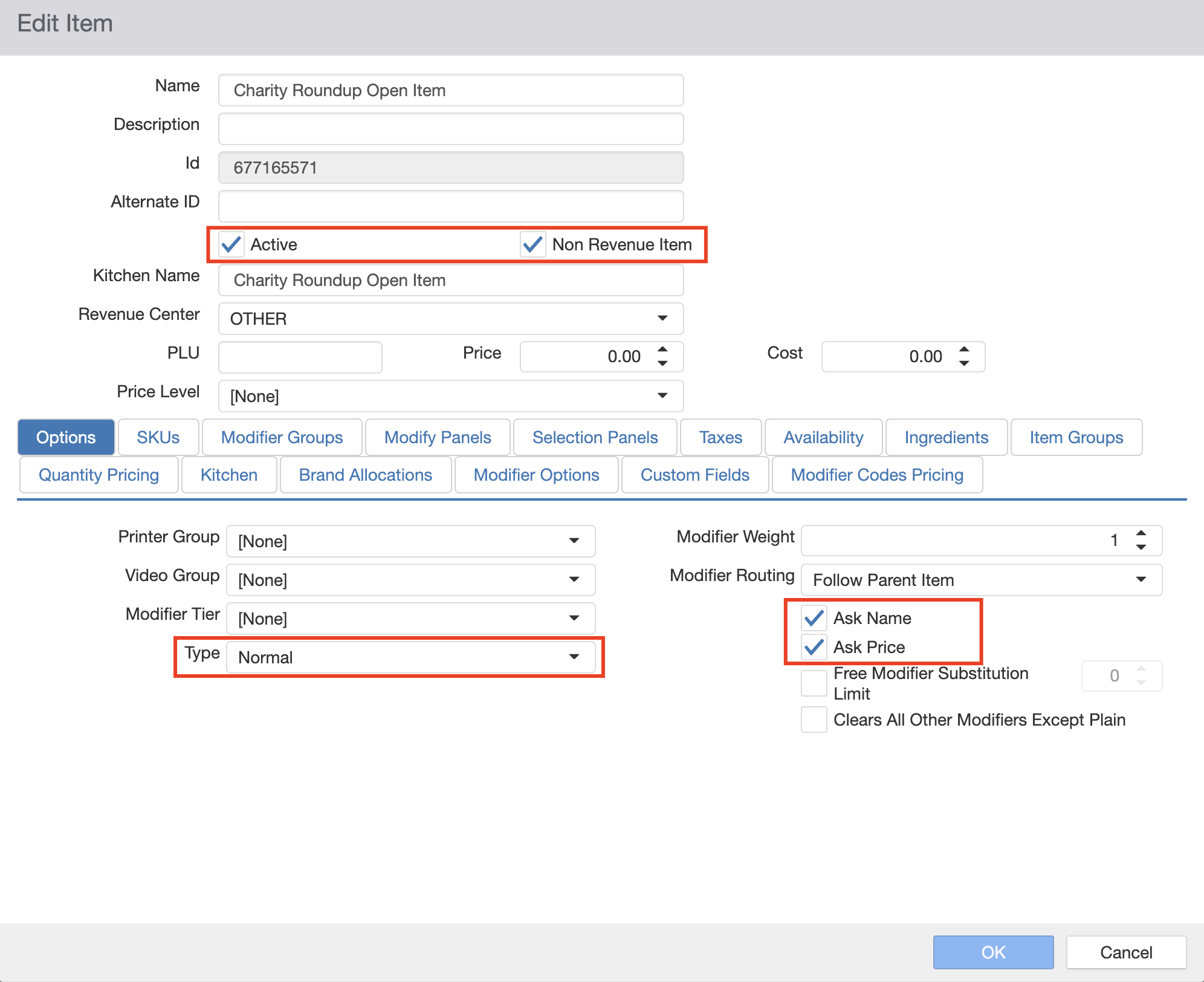
Create a normal item in Settings Editor with the following flags all enabled:
- Ask Price lets the platform set the donation amount per order.
- Ask Name lets the platform set the donation title per order.
- Non-Revenue Item keeps the donation out of net sales.
Because the name and price are set per order, one shared non-revenue item can back every donation. You can enter the same Item ID in each donation's field under Donation Settings.
On the check, the donation appears as a line on this backing item. The description is the donation's title, the price is the donation amount, and the note reads "Fee."
Step 2: Map in the Management Center
- Go to Brand (All Stores) > Configurations > Store Groups and open the store group with the Integration purpose.
- Under Donation Settings, enter the Item ID in each donation field.
- Save.
Toast
Step 1: Create a Backing Item in the Toast Back Office
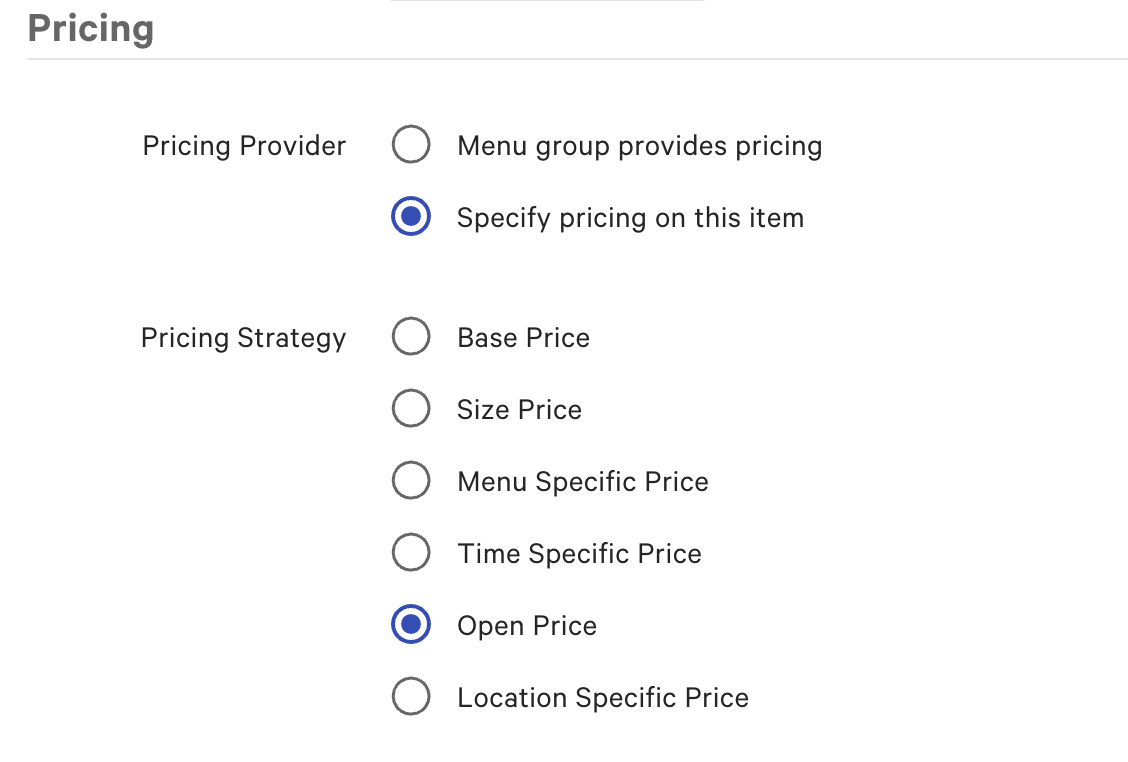
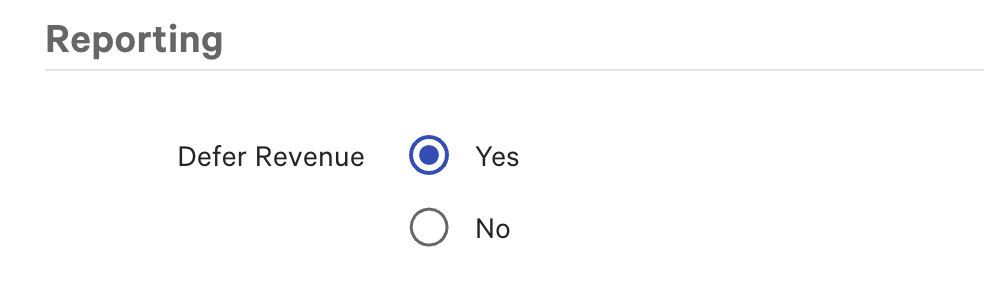
Create one open-price item per donation in the Toast back office, with Defer Revenue enabled on each item.
Toast does not accept a per-order name override on open-price items. The check and POS reporting show the Toast item's own name, not the donation title. Name each Toast item to match its donation so the check reads correctly.
Step 2: Map in the Management Center
- Go to Brand (All Stores) > Configurations > Store Groups and open the store group with the Integration purpose.
- Under Donation Settings, enter the Donations Menu Item Group ID. This is the POS ID mapped to the PAR Ordering Category ID for the group these items belong to. This field is shared across all donations.
- Enter each donation's item GUID in its own field.
- Save.
If you map any donation item GUID, the Donations Menu Item Group field is required. Management Center flags it if you leave it blank.
POS Next Connectors (Xenial, Qu, Simphony, and Others)
POS Next connectors route the donation as a surcharge.
Step 1: Create the Surcharge in Your POS Next Provider
Create the surcharge in your POS Next provider's configuration using the same custom-fee or surcharge mechanism you use for other fees. The POS provider controls whether the surcharge is classified as non-revenue.
Donation injection is available on POS Next connectors that already support custom fees. If your connector does not have custom-fee support yet, contact your PAR representative to enable donation routing.
Step 2: Map in the Management Center
- Go to Brand (All Stores) > Configurations > Store Groups and open the store group with the Integration purpose.
- Under Donation Settings, enter the Surcharge ID in each donation field.
- Save.
Field Reference
| Connector | Fields in Donation Settings | Where You Create the Backing Object | POS Reporting Treatment |
|---|---|---|---|
| PAR POS (Brink) | One Item ID per donation | Settings Editor: item with Ask Price, Ask Name, Non-Revenue Item | Non-revenue item |
| Toast | One item GUID per donation, plus one Donations Menu Item Group ID | Toast back office: one open-price item per donation, Defer Revenue on | Deferred-revenue item |
| POS Next (custom-fee capable) | One Surcharge ID per donation | POS Next provider config: surcharge | Set by the POS provider |
Guest Receipt
On the check, the donation appears as a separate line at the donation amount.
- PAR POS shows the donation title as set in the Management Center.
- Toast shows the Toast item's own name.
In POS reporting, the donation settles as non-revenue on PAR POS or deferred revenue on Toast, and it is not included in net sales or food and beverage revenue. Any tax the POS applies to the donation line is reflected like any other item.
For refunds and voids, the donation line follows the standard item or surcharge void path. Payout reporting excludes fully refunded and canceled orders and keeps the donation on partial refunds. See the Charitable Donations article for details.
Troubleshooting
| Symptom | Cause | Fix |
|---|---|---|
| An order fails with a configuration error naming a connector and donation | The active donation has no mapped ID at the store or store-group level | Add the donation's Item ID, GUID, or Surcharge ID under Donation Settings |
| The check shows the wrong name on Toast | Toast displays the item's own name, not the donation title | Rename the Toast donation item to match the donation |
| A donation is counted as sales in POS reporting | The backing item is not flagged non-revenue or deferred revenue | Enable Non Revenue Item (PAR POS) or Defer Revenue (Toast) on the backing item |
| Toast won't save Donation Settings | A donation item GUID is mapped but the Donations Menu Item Group is blank | Enter the group ID |
| A store switched its active donation and the line stopped appearing | The now-active donation has no mapped ID | Confirm the donation has a mapped ID. The field is static, so it should already be there. |
FAQ
Do I need to re-map the POS every time a store changes which donation it runs? No. Every brand-level donation keeps its own static field, so the mapping is always there no matter which donation is active.
Can I use one backing item for all donations? On PAR POS, yes. A single Ask Price, Ask Name, non-revenue item can back every donation. On Toast, no. The check shows the item's own name, so you need one open-price item per donation.
Does anything change for brands that don't use donations? No. With no brand-level donations, there is no Donation Settings section and no donation line is ever injected.
Does this affect marketplace orders? No. Donations are first-party only (web app, mobile app, kiosk) and are not injected onto marketplace delivery flows.
