Uber Eats
Pull two report types in a single request from the Uber Eats Merchant Portal: Payment details and Inaccurate orders.
-
Log in to Merchant Portal using admin credentials.
-
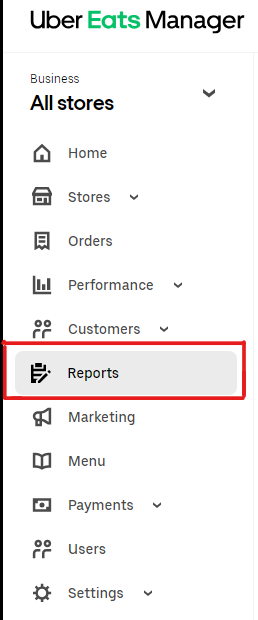
From the navigation bar on the left side of the screen, click Reports.
-
On the Reports page, click Create report in the top right corner.

-
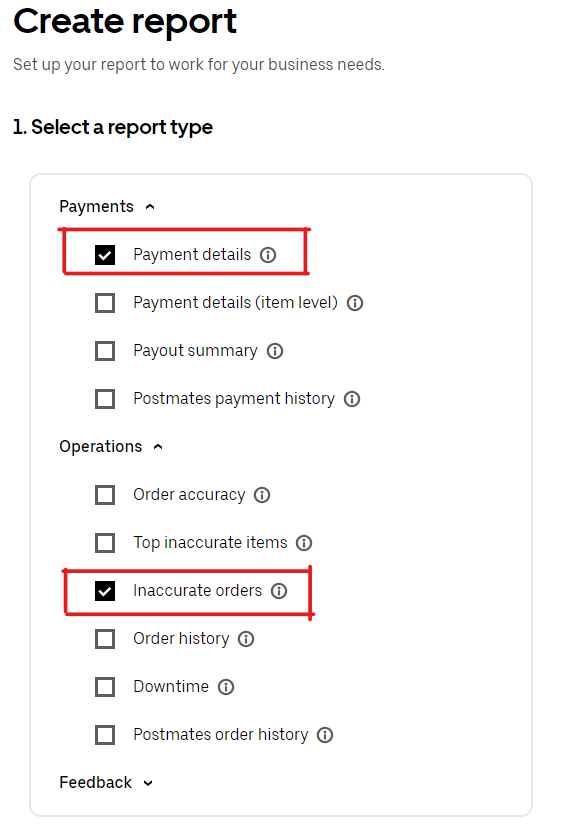
Select a report type:
- Click the Payments drop-down menu and select Payment details.
- Click the Operations drop-down menu and select Inaccurate orders.
-
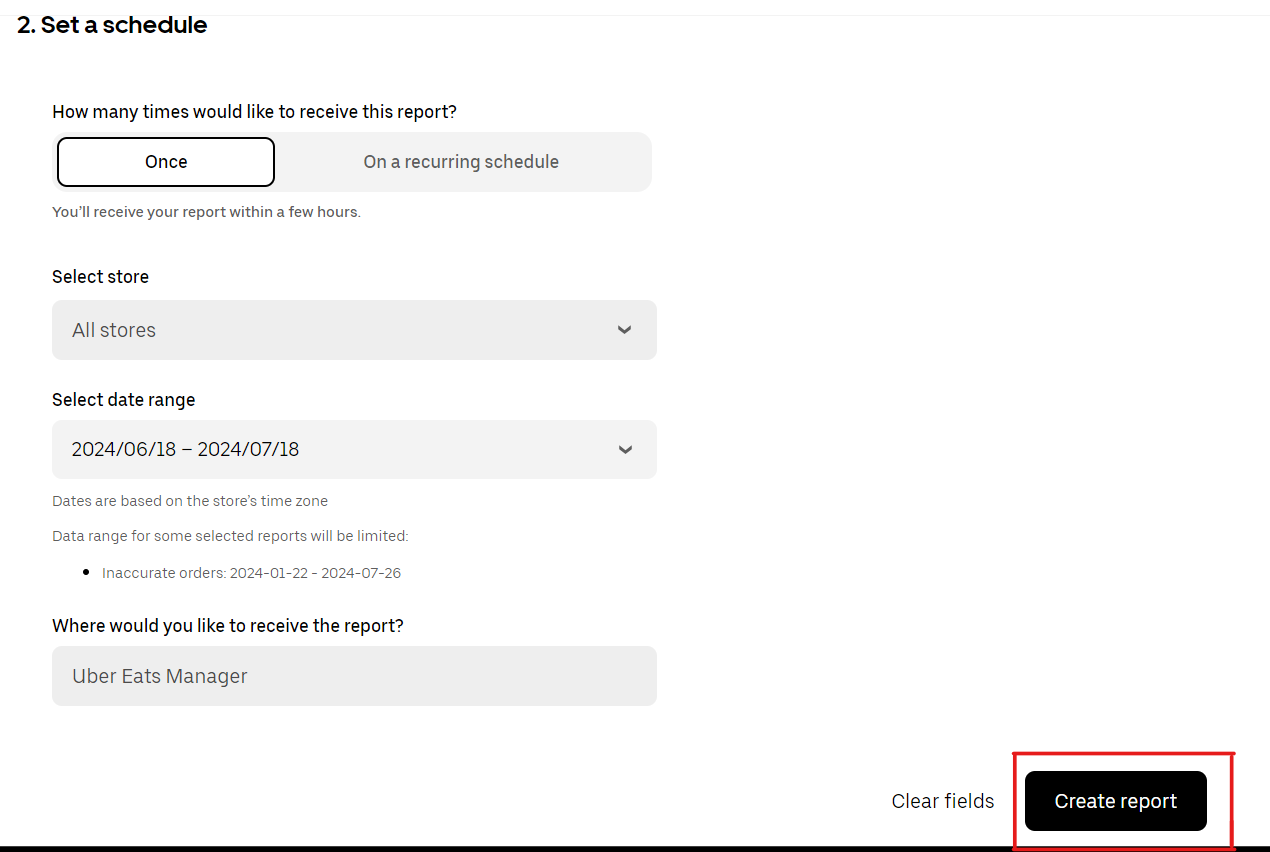
Set a schedule:
- How many times would you like to receive this report? — Once
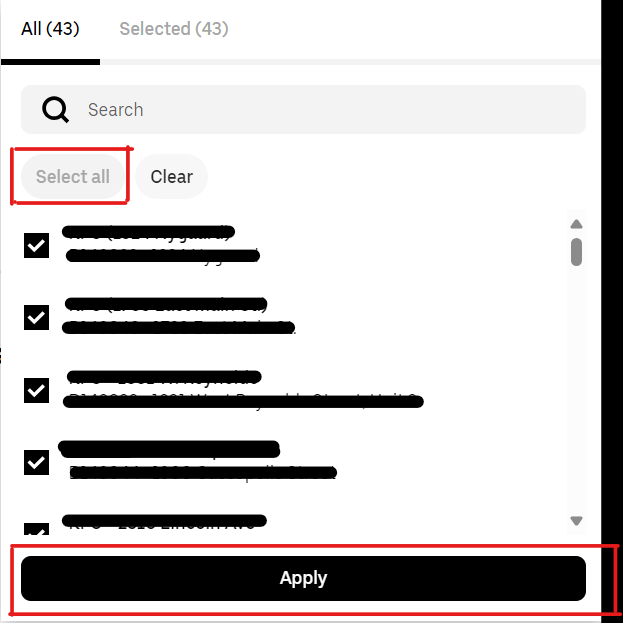
- Select store — click the drop-down menu, click Select all, then click Apply.
- Select date range — select a full month.
- Click Create report at the bottom of the screen.
-
You will be redirected to the Reports page. Your report may take a few minutes to a few hours to generate. Once the buttons under Action read Download, the reports are ready to be downloaded.
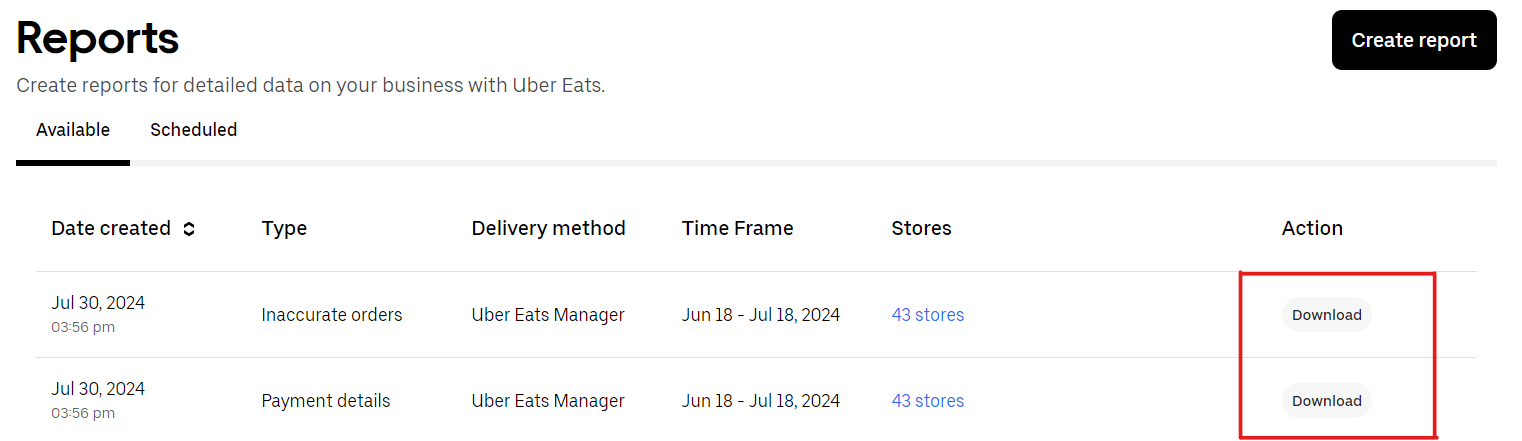
If the reports are taking longer than expected, Uber Eats also sends an email to your inbox to notify you when the reports are ready.