DoorDash
There are 2 separate reports that must be run for DoorDash: the Transaction Report and the Operations Report. Both are required for +Recovery reconciliation.
Transaction Report
-
Log in to Merchant Portal.
-
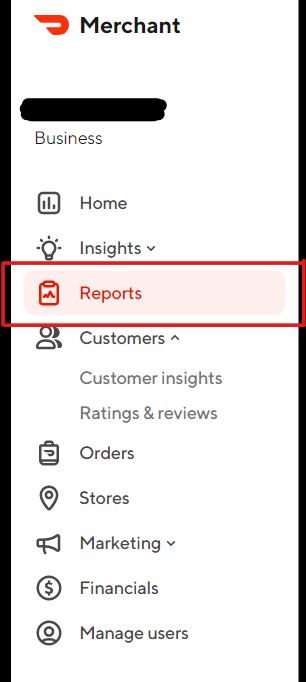
From the navigation bar on the left side of the screen, select Reports.
-
On the Reports page, click Create Report in the top right-hand corner.

-
Configure the report using the below criteria:
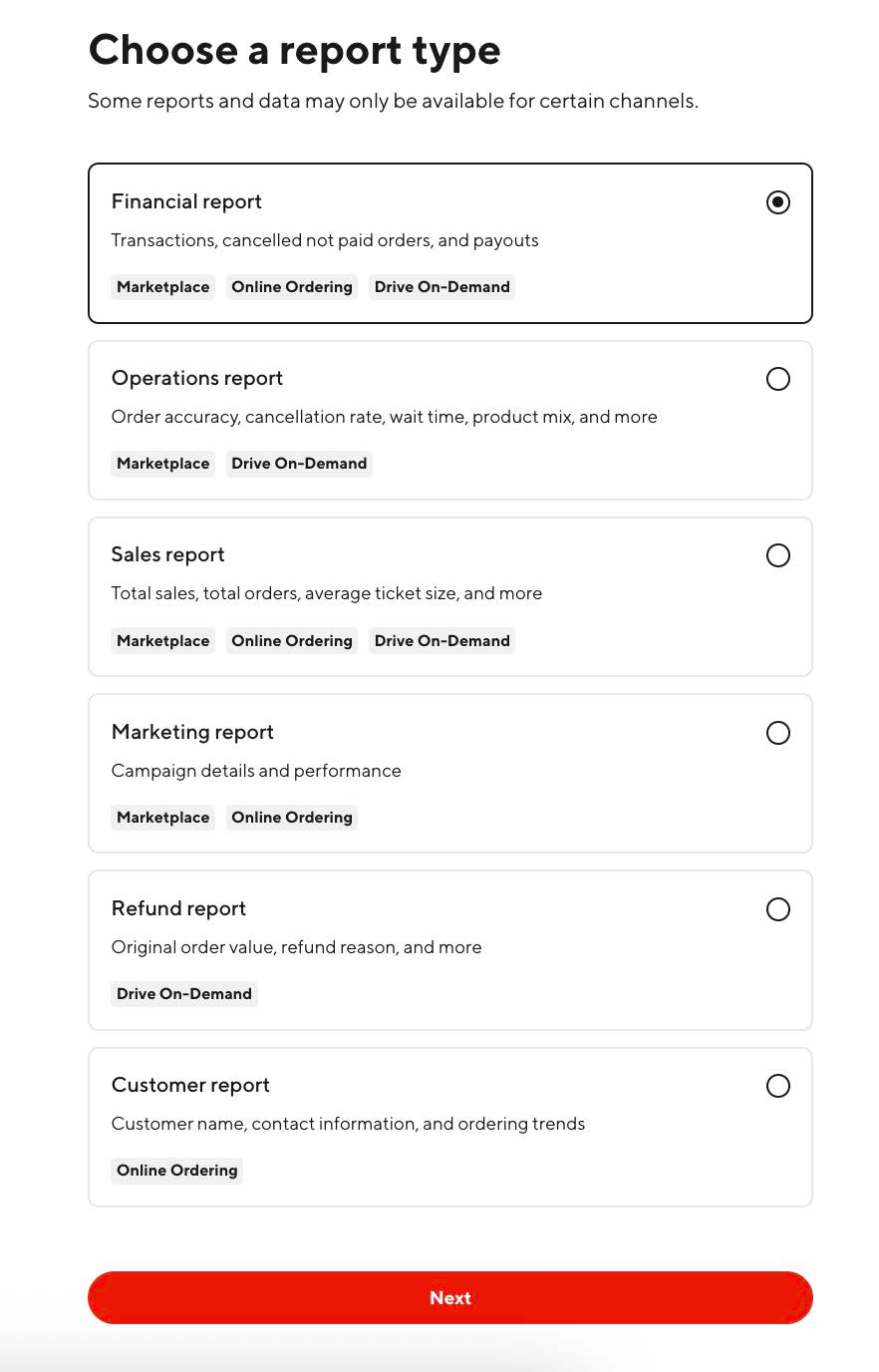
- Choose a report type — Financial report
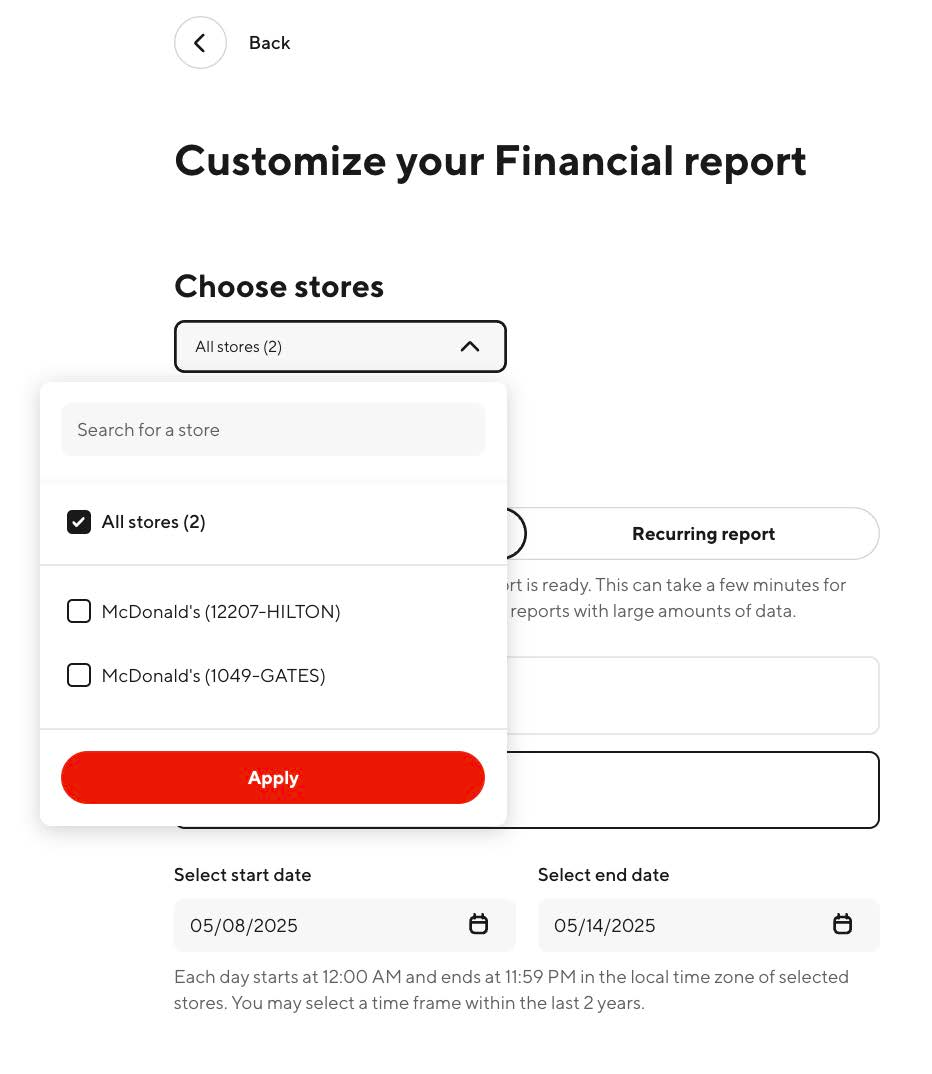
- Choose stores — choose the applicable stores, then click Apply.
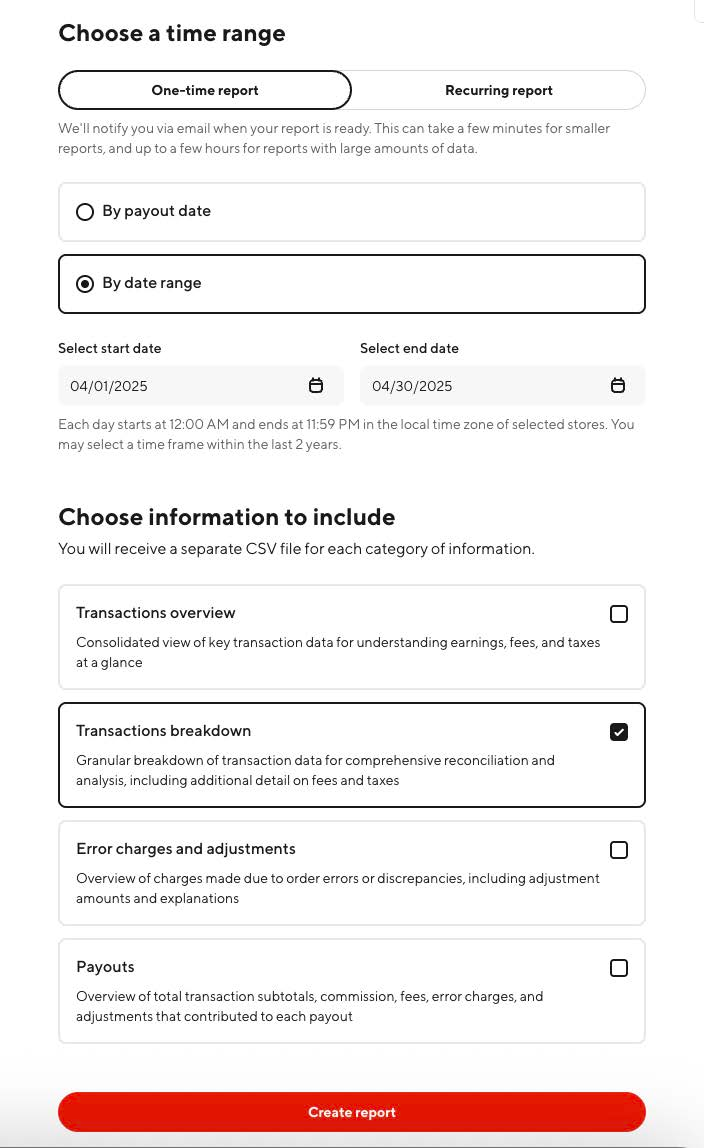
- Customize your report — choose One-Time report.
- Click By date range and select a start date and end date (select a full month).
-
Select Transactions breakdown, then click Create Report.
-
You will be redirected to the Reports page. Download the report when it's ready by clicking the icon under Action on the right side of the page.
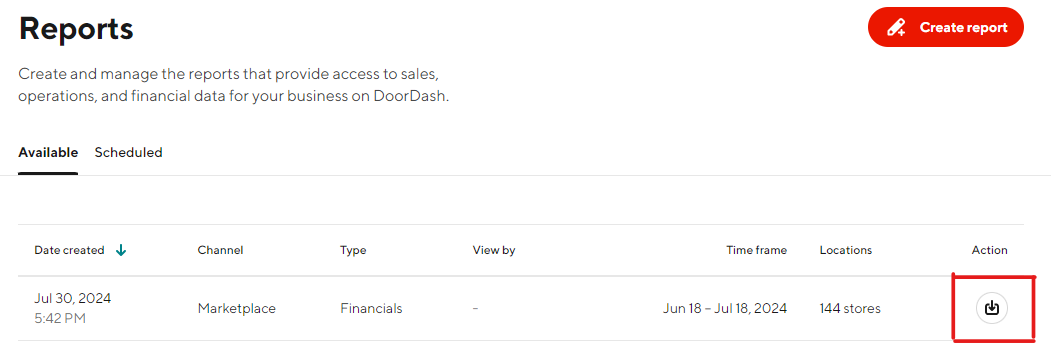
Files will be zipped into a folder called reconciliationFiles….
Operations Report
-
Log in to Merchant Portal.
-
From the navigation bar on the left side of the screen, select Reports.
-
On the Reports page, click Create Report in the top right-hand corner.
-
Configure the report using the below criteria:
- Choose a report type — Operations report
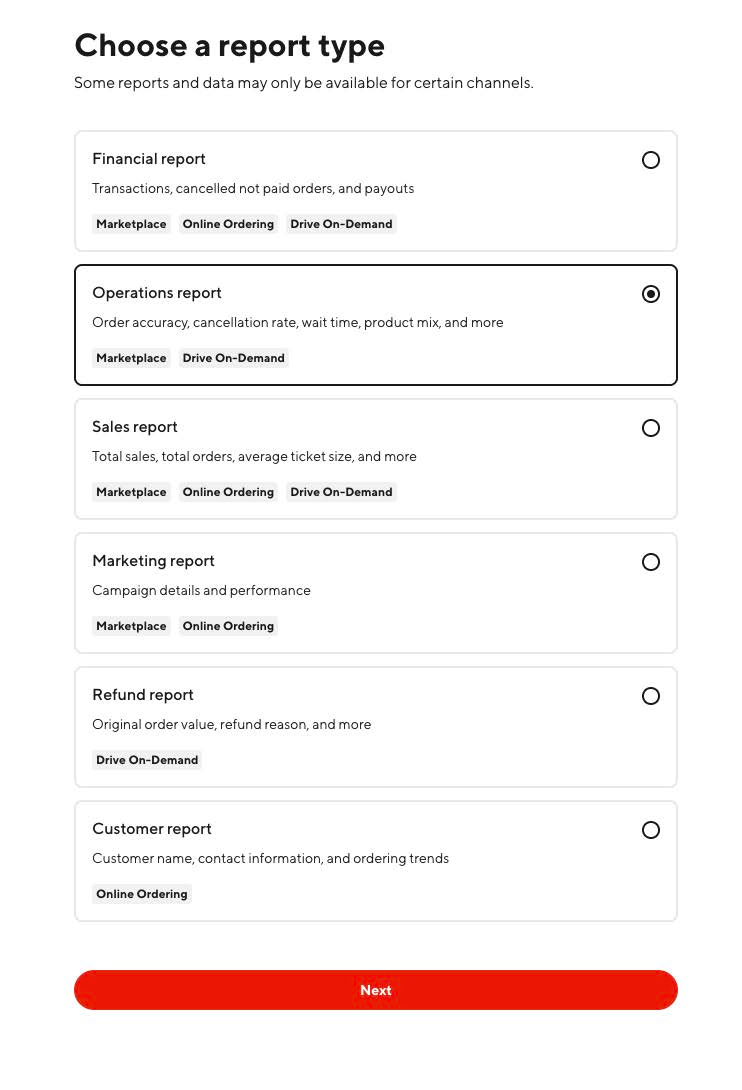
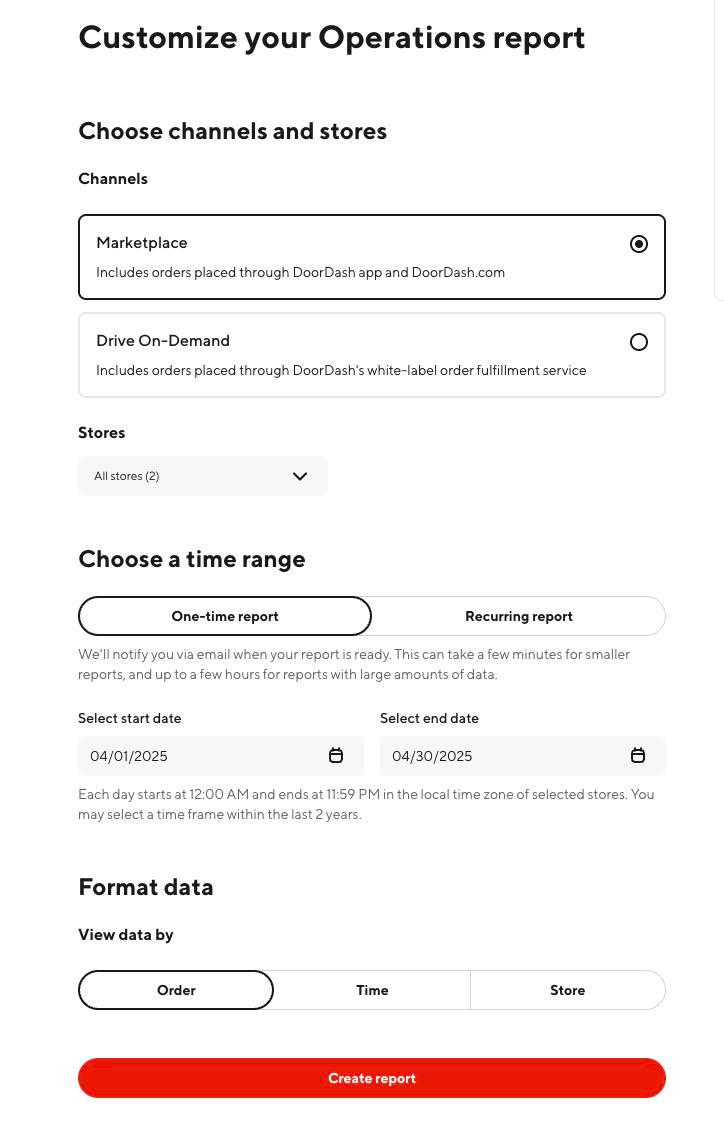
- Choose channels — Marketplace
- Choose stores — the default will have All stores listed.
- Choose a time range — select One-Time report.
- Choose a start and end date — select a full month.
- Select View data by — Order
- Click Create report.
-
You will be redirected to the Reports page. Download the report when it's ready by clicking the icon under Action on the right side of the page.

Files will be zipped into a folder called Operations_Quality_viewByOrder….