Check Details Report - Check Basket
The Check Basket Analysis Report is designed to contrast a group of checks ‘in the basket’ and compare them to checks ‘out of the basket’ and/or the entire population of checks.
Parameters
- Date From: Select Start Date to view from.
- Date Thru: Select End Date to view through.
- Unit: Select Unit to view.
- Include DC Alignment: Check to populate DC item detail fields.
The Check Basket Analysis Report is designed to contrast a group of checks ‘in the basket’ and compare them to checks ‘out of the basket’ and/or the entire population of checks. For a check to be placed in the basket it must meet all criteria selected n the parameter slide-out panel. Select up to three search criteria from up to three check detail subjects (Sales, Discounts, and Payments). For example, to place only those checks that contained a ‘Burger’ and a ‘Shake’ into the basket, enter ‘Burger’ into Search 1, and ‘Shake’ into Search 2, and also enable the Sales subject to be ‘Yes’. The basket would contain summary data for only those checks that met both of the search criteria qualifications.
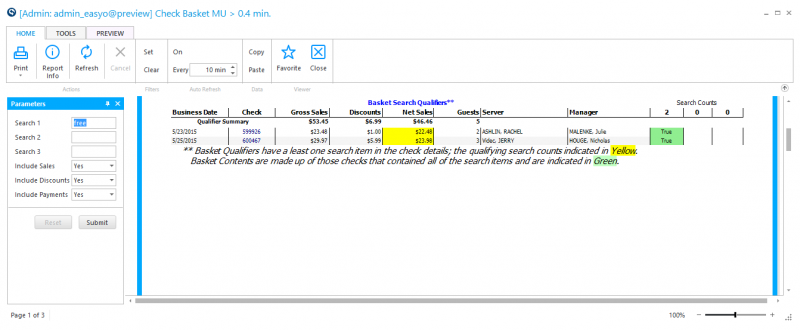
The Basket Qualifier section details all checks that meet any, if not all, of the qualifying criteria, to make it into the basket. Use this section, for example, to find checks that did sell a shake, but did sell a burger and then click on the check number to drill into the check details to see what other sales did accompany the shake (if any).
Basket search criteria data entry is free-text (there is no lookup helper). Search results are always based upon POS codes and descriptions. Carefully consider when entering a search value so that only desired results are included in the Basket Qualifier. For example, were you to search for an ‘A’ in payment details to look for checks paid by Amex your results would also return Visa, Amex and Cash related checks because all these payment descriptions have the letter 'A' within them. Criteria selection is not case sensitive; entering an 'A' is the same as entering an 'a'. Do not use wildcards such as '%' or '*' for criteria selection; your criteria selection is automatically interpreted as '%selection%'. If you don’t need all three search criteria for the basket, leave the unwanted searches blank. Click the < Submit> button starts the search and builds the report.
Report Sections (Click one of the links below to review the particular topic)
Check Summary by Server/Cashier
Check Basket Summary
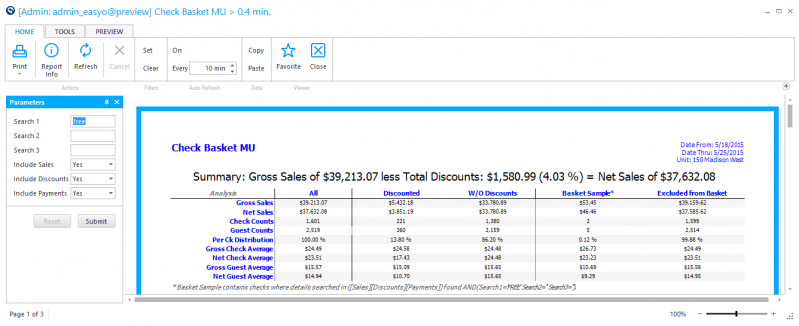
The Check Basket Summary section provides a check count for each search criteria. If all search criteria are found to be included within the check basket the count is shaded in green. If only a partial match was found for the basket the count is shaded in yellow. If a basket qualifying check was found to be partially discounted, the net sales amount is shaded in yellow, but if the entire basket qualifying check is discounted to zero net sales is shaded in red.
Check Basket Qualifiers
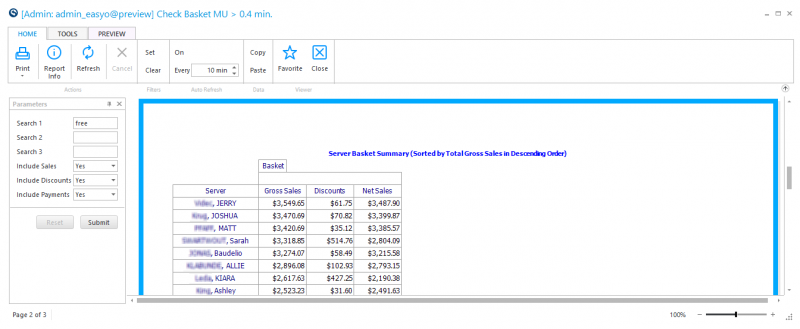
Check Summary By Server/Cashier
The report is a useful tool for analyzing purchasing behavior as well as the interaction of any item, discount, or payment within a single check. The report is designed to be executed for one restaurant at a time, and depending upon transaction count volume, may be executed for up to a month of date range. (You might be able to run the report for longer than a month, but it may become slow.) The report is designed to be executed 'Ad-Hoc' due to the at-report-time parameter selection and should not be scheduled.