Group Associates Report
The Smart Groups - Publishers and Subscribers Report (RDC_GroupAssociates_Rept) displays a comprehensive view of how your Smart Groups are assigned across resources in Data Central.
You can view the report from different perspectives:
- Publisher: Publishers are the Smart Groups themselves, and this report view organizes by how the Smart Groups are assigned out (Item, Vendor, Task Associations, etc.) with Smart Groups assigned for those purposes listed underneath.
- Subscriber: Subscribers are all members assigned to a group, and this view displays different membership types (such as User Associations, Unit Associations, Sales Item Linking Associations, etc.) with Smart Groups used for that membership type listed underneath.
- Both: This view displays a combination of the Publisher and Subscriber associations.
Parameters
-
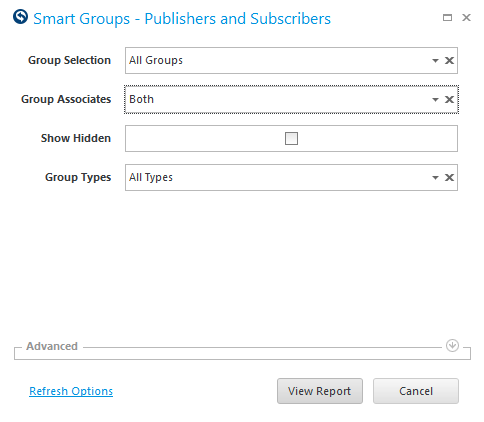
Group Selection: Select a specific Smart Group to view (including it's children).
-
Group Associates: Select Publishers, Subscribers, None, or Both.
This field is not defaulted to a value, and will result in no information if you click View Report without making a selection.
Quick Note: Selecting None will display Smart Groups that are not assigned to any resources.
-
Show Hidden: Check to view Smart Groups that are hidden and no longer in use.
-
Group Type: Select a Group Type to view (see What are the Different Types of Smart Groups?).
Subscribers View
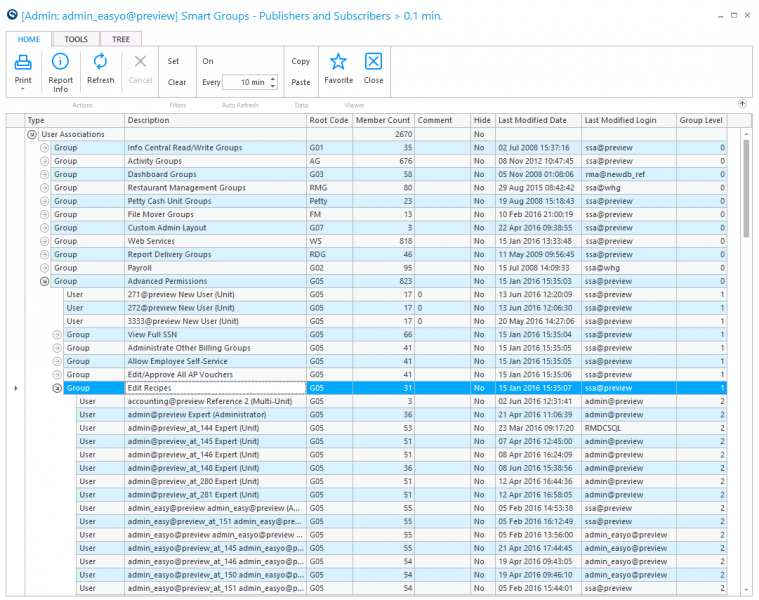
The Subscribers view displays different membership types (such as User Associations, Store Associations, Sales Item Linking Associations, etc.) with Smart Groups used for that membership type listed underneath. Expanding details will show the members assigned that Smart Group.
Quick Note: This example shows the report starts with an assignment type of User Associations, then shows all the Smart Groups that are assigned to Logins, and expanding details of each group shows which Logins the Smart Group is assigned to.*
Publishers View
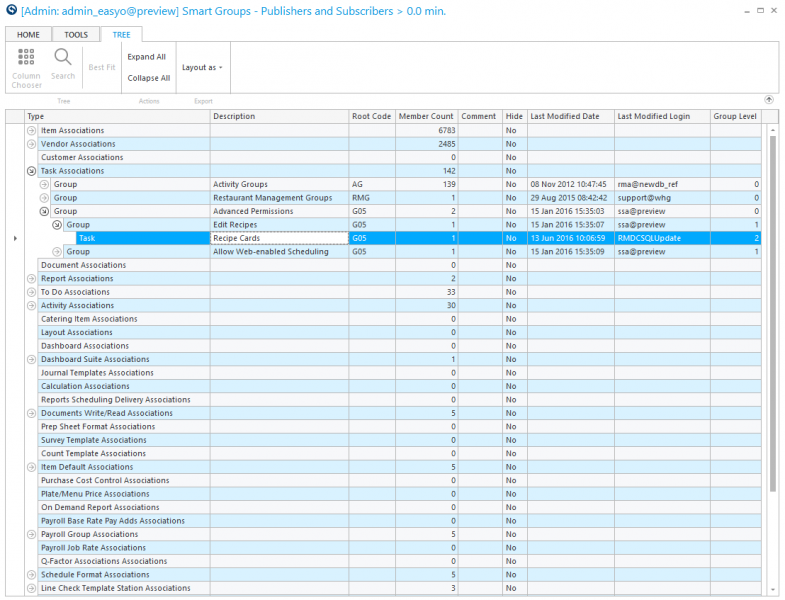
The Publisher view organizes by how the Smart Groups are assigned out (Item, Vendor, Task Associations, etc.) with Smart Groups assigned for those purposes listed underneath.
For Example: This shows the report starts with how the Smart Group is associated to Items, Vendors, Tasks, etc. Below how the Smart Group is assigned out (Task Association for example), the Smart Group(s) are listed (Edit Recipes Smart Group). Expanding details shows the specific resource associated with the Smart Group (for example, the Recipe Card Task).
Explanation of Columns
- 'TYPE' column: indicates the type of association. In the Publisher view, it is where the Smart Group is used. In the Subscriber's view, it is the type of association.
- 'DESCRIPTION' column : the name for the resource. For the Group type, it is the name given to your Smart Group.
Quick Note: The Description column will change based on the type. For example, a type of User displays individual Logins listed in the Description Column. A Task type will show the Data Central Activity (Edit Recipes) that is associated with the Smart Group..
- 'ROOT CODE' column : the root code for the Smart Group.
- 'MEMBER COUNT' column : the number of associations for the Smart Group.
- 'COMMENT' column : comments entered for the Smart Group.
- 'HIDE' column : Yes/No field indicating if the Smart Group is hidden and no longer in use.
Quick Note: Show Hidden must be checked in parameters when first launching the activity for hidden groups to display.
- 'LAST MODIFIED DATE' column : displays the last date modified for the row. For a Smart Group, it is the last time the Smart Group was edited. For members, it is when the Smart Group was assigned to the resource.
- 'LAST MODIFIED LOGIN: column indicates who performed the last modification.
- 'GROUP LEVEL' column: indicates the level for the resource.
For Example, the Edit Recipes Smart Group is Level 1, which indicates it is a sub-group of the Advanced Permissions Smart Group. This type of structure is often used to create a parent group that grants all advanced permissions to certain users, and create sub-groups to assign specific permissions. The members of the Smart Group are one level below the Smart Group they are assigned to.