Group Tree Report
Use this report to display a tree view of your Smart Groups with the resources assigned to the Smart Group underneath them.
Parameters
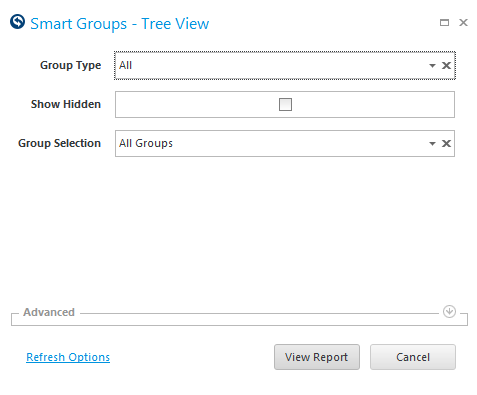
- Group Type: Select a Group Type to view.
- Show Hidden: Check to view Smart Groups that are hidden and no longer in use.
- Group Selection: Select a specific Smart Group to view (including it's children).
Columns
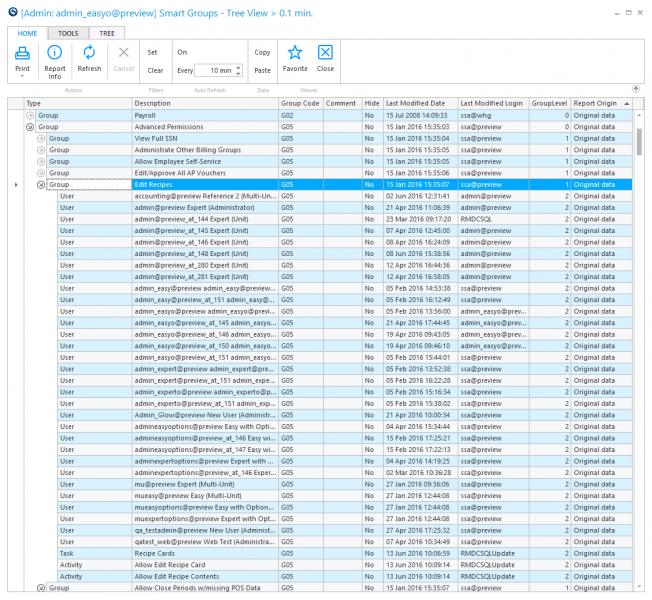
By reading through the columns, you can see a Smart Group at the top of the tree view along with details of who last modified it an when, and the group level. Underneath the Group row of the tree, you see all members the group has been assigned to, often including user Logins, and Tasks. This is a great report to understand how your Smart Groups are assigned across resources in Data Central.
-
'TYPE' column : indicates the type of resource used in assignment. The top level is Group (the Smart Group you created), and beneath are the different members you assigned the Smart Group to, such as Users, Activities and Documents.
For Example: We are exploring the Edit Recipes Smart Group, which is a sub-group of the Advanced Permissions Smart Group.
-
'DESCRIPTION' column : the name for the resource.
For the Group type, it is the name given to your Smart GroupFor Example
can see many rows with the Type of User with the individual Logins listed in the 'DESCRIPTION' column. You can also see the Smart Group is applied to Recipe Cards and the Advanced Permissions of Allow Edit Recipe Card and Allow Edit Recipe Contents. All users assigned to the Smart Group will have access to Recipe Cards, and all users will have the ability to edit recipe contents. -
'GROUP CODE' column: the code for the Smart Group.
-
'COMMENT; column: comments entered for the Smart Group.
-
'HIDE' column: Yes/No field indicating if the Smart Group is hidden and no longer in use.
Quick Note: Show Hidden must be checked in parameters when first launching the activity for hidden groups to display.
-
'LAST MODIFIED DATE' column: displays the last date modified for the row. For a Smart Group, it is the last time the Smart Group was edited. For members, it is when the Smart Group was assigned to the resource.
-
'LAST MODIFIED LOGIN' column: indicates who performed the last modification.
-
'GROUP LEVEL' column: indicates the level for the resource.
For Example, the Edit Recipes Smart Group is Level 1, which indicates it is a sub-group of the Advanced Permissions Smart Group. This type of structure is often used to create a parent group that grants all advanced permissions to certain users, and create sub-groups to assign specific permissions. The members of the Smart Group are one level below the Smart Group they are assigned to.
-
'REPORT ORIGIN' column: should read Original Data indicating the row information comes from Data Central.