Inventory Value Validation Report
Use this report to find suspicious inventory values entered.
The number of warnings will appear in the Inventory Warnings header at the top left of the report. The red text indicating the number of warnings is also a hyperlink, that once clicked, runs the Inventory Troubleshooting Report (Inventory Troubleshooting Report),  which will show all items that need to be reviewed according to multiple differing indicators. Use this report to view labor values by employee, date and job and verify each POS employee is linked to a DC employee.
Parameters
- Unit: Select the Unit to view.
- Inventory Date: Select the inventory entry date to view.
- Account Reporting Group: Select the group of accounts to view.
- Account: Select the account to view.
- Suspicious Only: Put a check to only show items that need attention.
- Count Location: Select the location(s) to view.
- Smart Filter: Enter a choice - All records, only estimated items, only counted items, only not counted items, only marked as verify.
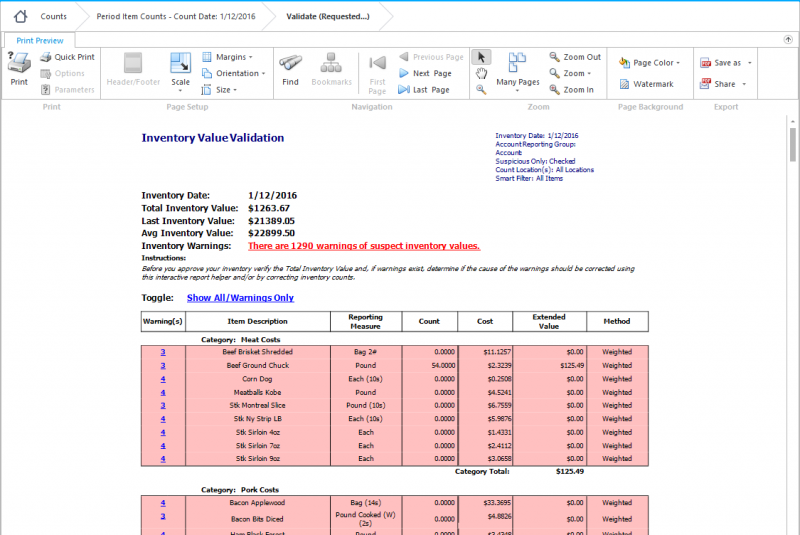
Inventory Warnings: Shows how many items should be reviewed. Clicking on this hyperlink will run the Inventory Troubleshooting report (RDC_InventoryTroubleshooting_rpt) which shows all items that need to be reviewed according to multiple different indicators.
Want to quickly find and review something specific?
Use
 at the top of the report.
Warnings
If there is a value in the Warning(s) column, there are warnings for that specific item. The number shown relates to how many warnings there are for this item. Click the number and it will display the warning(s) are associated with this item.
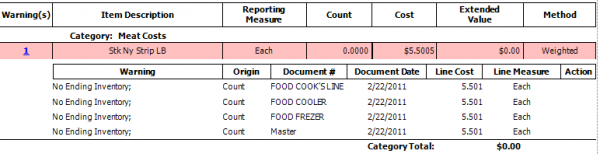
When you click the hyperlink in the Warning(s) column, it will bring you to the top of the report. You will need to scroll down to view the specific item you clicked.
Quick Note: An issue lists one time per location. Therefore, a single issue, such as No Ending Inventory, may list multiple times.
What Issues Display as a Warning?
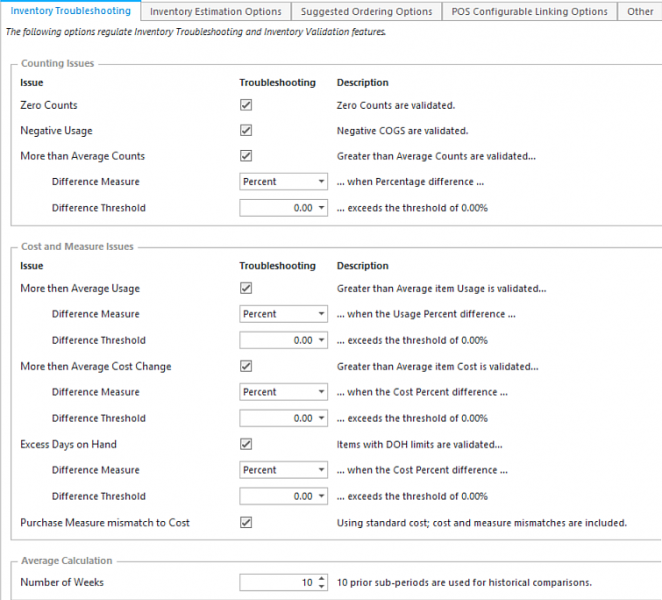
The issues that display when you validate counts is determined by the Administrator in Application Settings.
Making Corrections
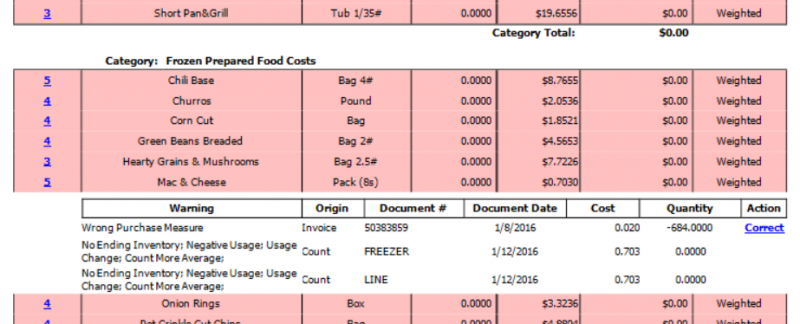
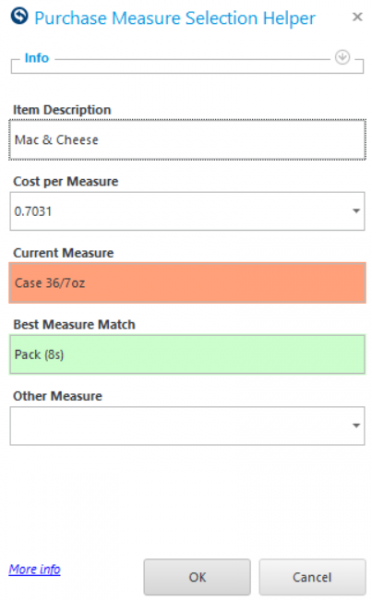
In some instances, Data Central can identify a potential fix to an error and suggest a correction. For example, when it appears an incorrect purchase measure is used for an item. The Action column will display a Correct hyperlink to trigger a suggested correction.
-
Click the Correct link.
-
Make appropriate corrections.
-
Click OK.
Be sure to investigate the error and only make corrections that correct your inventory since the updated information impacts multiple activities.