UKG Pro HCM Webhooks Setup
To configure UKG Pro HCM Webhooks, you will need the following information provided by PAR OPS in the email that you received this document with:
- Webhook URL
- HMAC Secret
Instructions
- Navigate to https://webhooks.ukg.net and log in.
- Click Add Subscription.

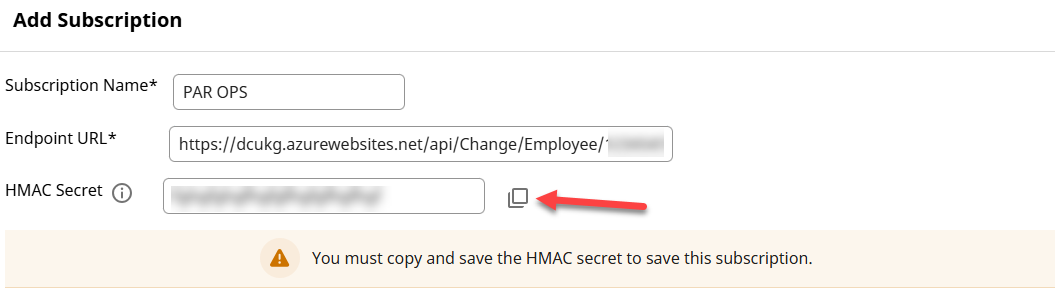
- In the Subscription Name box, enter "PAR OPS".
- In the Endpoint URL box, enter the URL provided by the PAR OPS integrations team. This URL is unique to your subscription in PAR OPS.
- In the HMAC Secret box, enter the secret that was provided to you by the PAR OPS integrations team via the one-time secret link.
- To save the subscription, UKG requires you to copy the HMAC Secret using the copy icon to the right of the box.
- On the Event Selection tab, check the following events from the list of Available Events:
- Employee Address Updated
- Employee Email Address Change
- Employee Hire Date Change
- Employee Hourly Pay Rate Change
- Employee Identification Number Change
- Employee Job Details Change
- Employee Personal Name Change
- Employee Phone Number Change
- Employee Termination Details Change
- Employee Work Location Change
- Employment Status Change
- Job Details Change
- Person Hired
- Person Rehired
- Person Terminated
- Person Transferred
- Work Location Change
- Click the right arrow to move the selections to the Selected Events box.
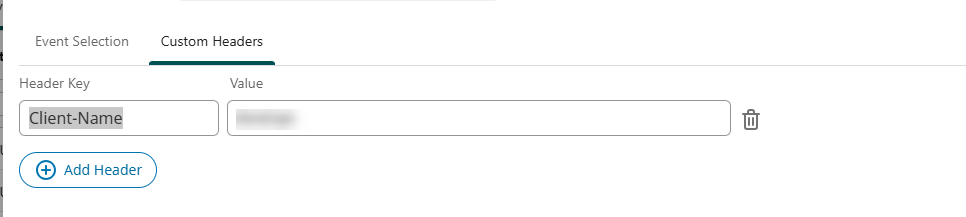
- On the Custom Headers tab, enter "Client-Name" in the Header Key box. In the Value box, enter the name of your company (ex: PAR OPS).
- Click Save in the bottom right corner to finish and activate the webhook.
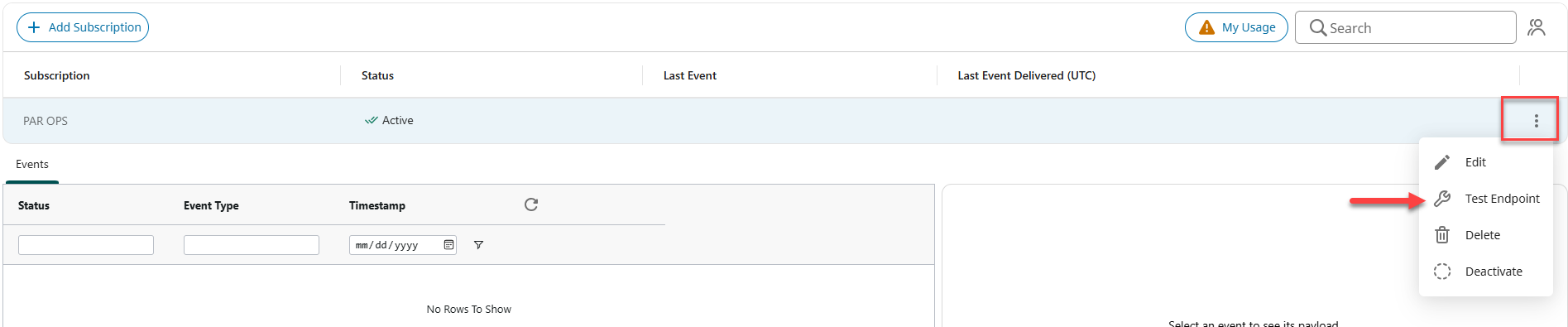
- After the subscription has successfully saved, click the three stacked dots to see more actions next to the PAR OPS row.
- Click Test Endpoint.
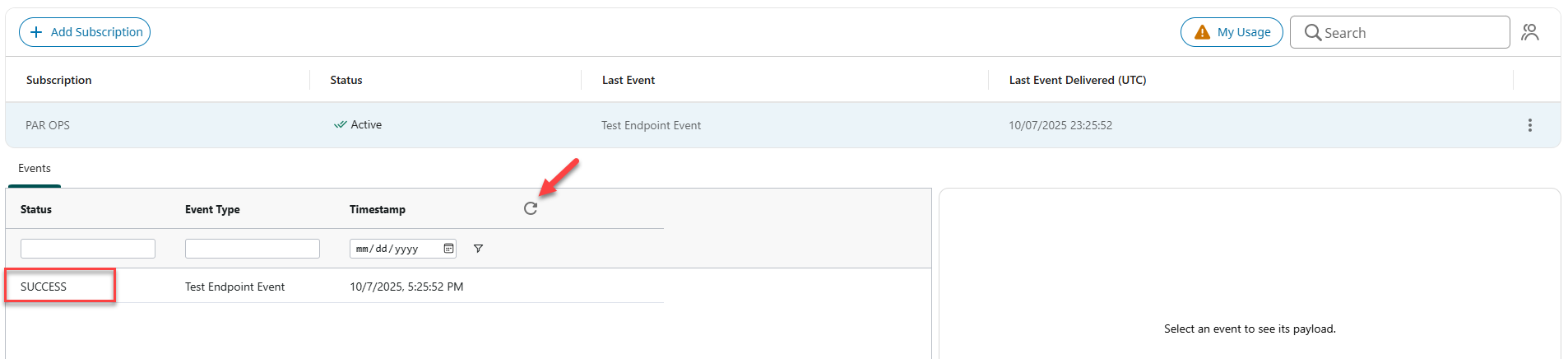
- Click the refresh icon to see the test event details. If you do not see a SUCCESS message in the Status column, reach out to PAROPSIntegrations@partech.com with your company name and the details provided in the Event Status section when clicking on the Test Endpoint Event row.