isolved Client Setup
To integrate with isolved HCM, PAR OPS requires API credentials from your isolved tenant. This guide outlines the information needed to establish the connection.
Information Required
PAR OPS needs the following three pieces of information:
- API Base URL — the base URL for your isolved tenant (e.g.,
https://{tenant}.myisolved.com/rest) - Client ID — the Client ID for the isolved API application
- Client Secret — the Client Secret for the isolved API application
- Legal IDs — optional
A common mistake is sending https://identity.myisolved.com — this is the isolved sign-in page, not your tenant URL. Your Base URL will look different from the sign-in page URL.
How to Obtain API Credentials
If your organization already has an API application configured in isolved, your isolved administrator can provide the Base URL, Client ID, and Client Secret.
If you do not yet have an API application set up, contact your isolved HCM Representative and request that an API application be created for the PAR OPS integration.
Getting Your Legal IDs (Optional)
- Log in to your isolved portal.
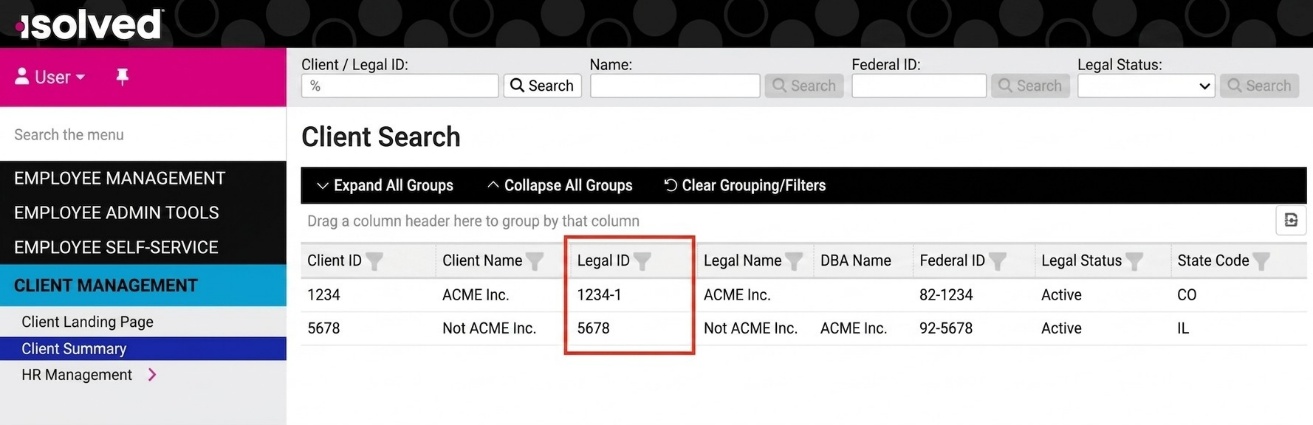
- In the left-hand navigation, go to Client Management > Client Summary.
- Under the Legal ID column of the displayed table, take note of the number(s) displayed for the Legal Name that you want to connect.
Locate the Email from PAR OPS
- Check your email inbox for an email from noreply-parops@partech.com with the subject line PAR OPS Integrations Credentials Request.
- This email contains a unique link to the credentials request form specific to your company. This link is only valid until you successfully provide credentials, or until the time indicated in the email has passed.
If the link is no longer valid, request a new link from the PAR OPS team.
- Click the Enter Credentials button in the email.
Enter Credentials
- After validating your email, you will be presented with the form to enter and validate your credentials.
- Enter the information from the previous steps.
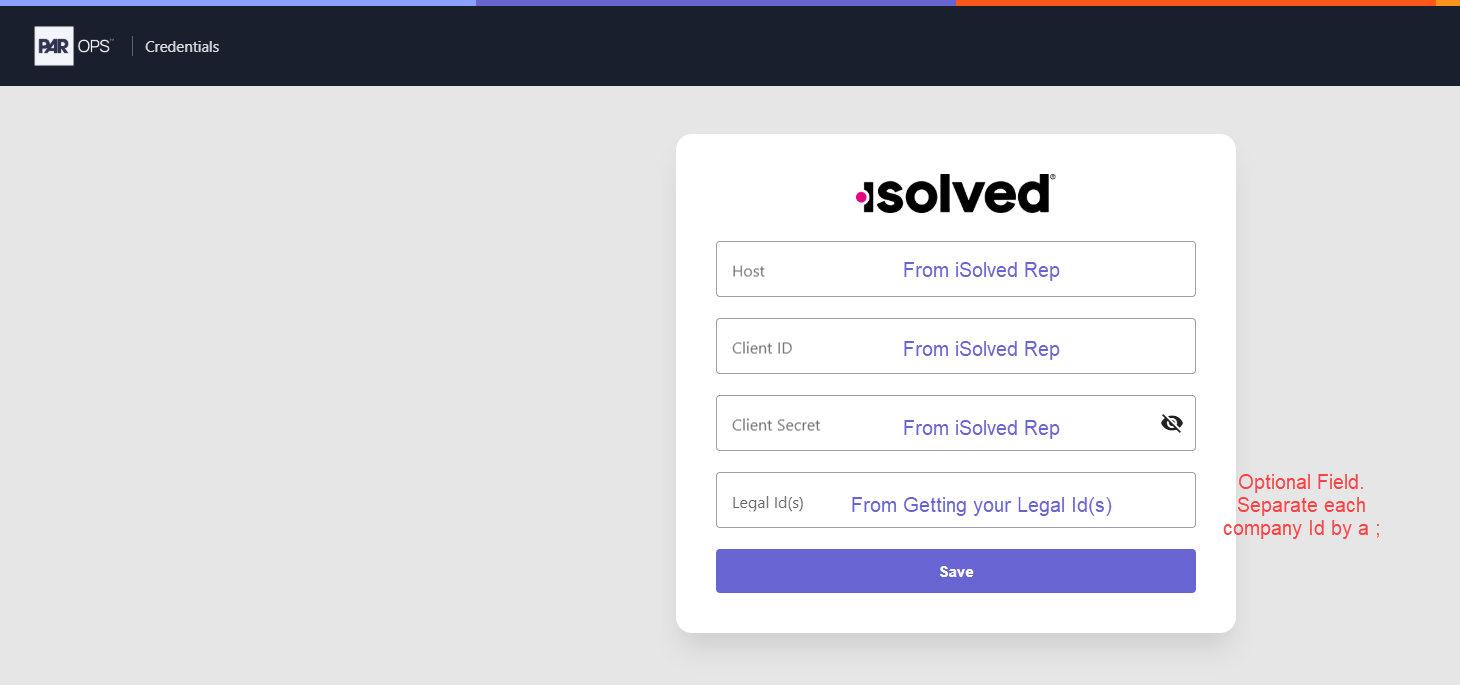
- After entering your credentials, click Save.
- If your credentials are valid, you will see a success message. You may close the window.
- If your credentials are invalid, you will see an error message from the isolved API.
If you run into issues, the PAR OPS team you're working with may have limited visibility into the cause of the error. For questions about the error or its cause, it's best to reach out directly to isolved.