Guest360 Guest Profiles
Guest Profiles is where you find and review individual guest records in Guest360. Every guest your business has identified through a transaction, whether or not they are a loyalty member, has a profile here. Use Guest Profiles to look up a specific guest, review their purchase history, check their loyalty and consent status, and build segments from their data.
To open Guest Profiles, select Guest Profiles from the left navigation.
Guest Profiles List
The Guest Profiles list shows all identified guests in your database. The total count appears above the list.
Use the search bar at the top of the list to find a guest by name, email, phone number, or ID.
Use the Sort by dropdown in the top right of the list to change the order of results. The default sort is (Lifetime Value) LTV: high to low.
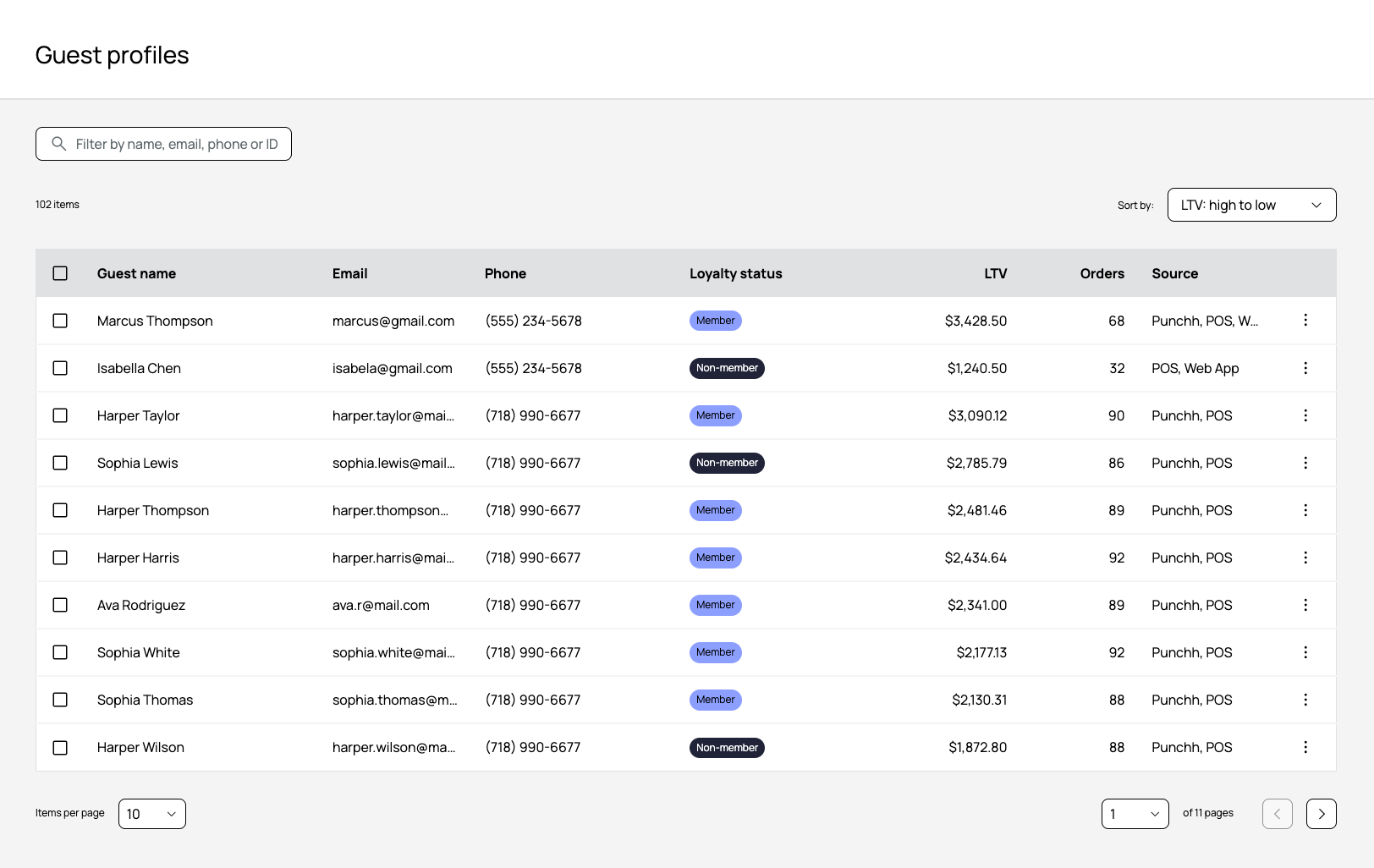
List Columns
Each row in the list shows this information for each guest:
| Column | Description |
|---|---|
| Guest name | The guest's full name. Select the name to open their profile. |
| The primary email address on file for the guest. | |
| Phone | The primary phone number on file for the guest. |
| Loyalty status | Displays Member if the guest has a loyalty account, or Non-member if they are a non-loyalty guest identified through a transaction. |
| LTV | The guest's lifetime value, representing their total spend across all identified transactions. |
| Orders | The total number of orders attributed to the guest across all connected data sources. |
| Source | The data sources where the guest has been identified, such as Punchh, POS, or Web App. Multiple sources may appear for a single guest. |
Individual Guest Profile
Select a guest's name from the list to open their profile.
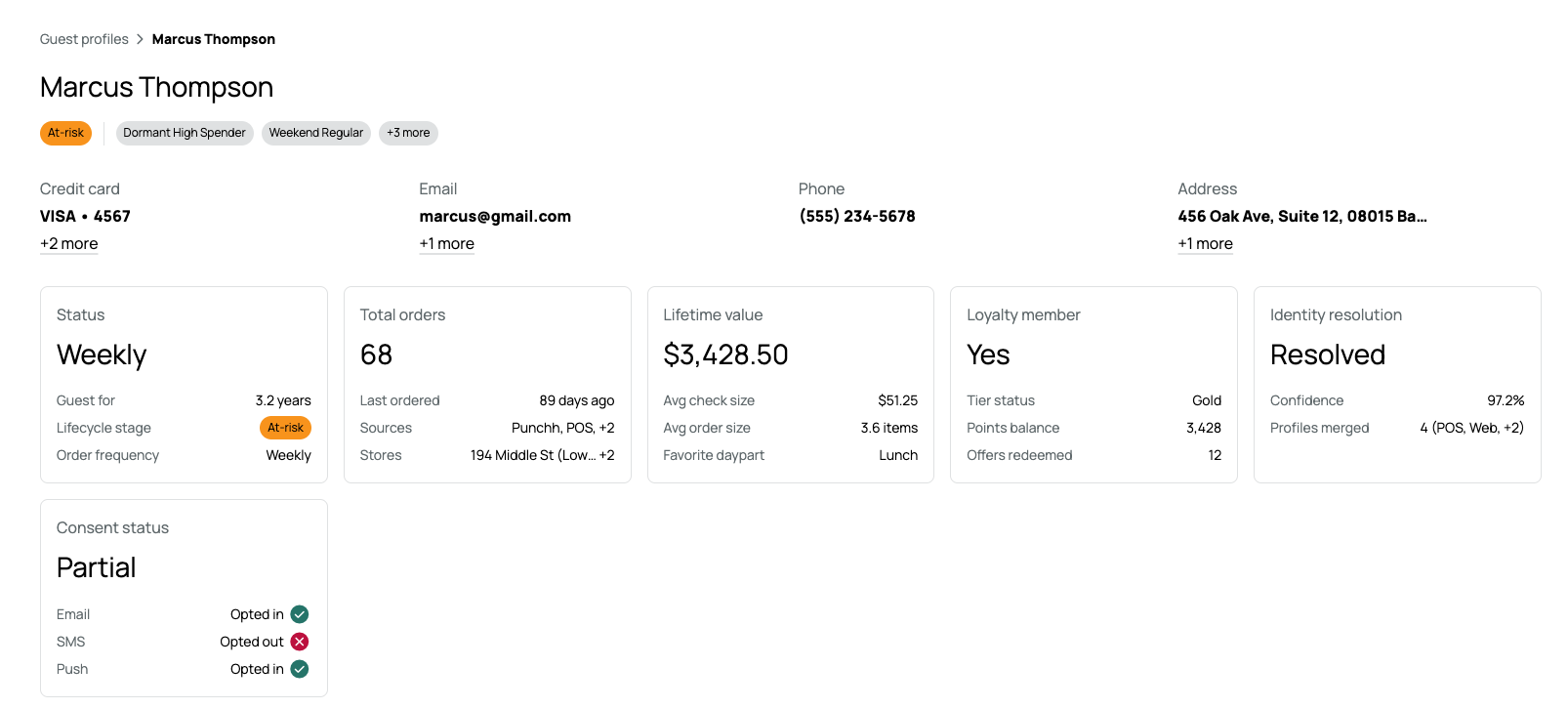
Lifecycle Stage and Segments
Below the guest's name, you will see the guest's current lifecycle stage and any segment tags applied to that guest.
The lifecycle stage always appears first and is assigned automatically by Guest360 based on the guest's transaction history. It uses the same six-stage rules as the Dashboard. It is never user-created or manually assigned.
Segment tags appear after the lifecycle. Up to two segment tags display, followed by a +N more option if the guest belongs to additional segments. Hover over the +N to reveal the full list.
Contact Information
The top of the profile shows the guest's known contact information across four fields:
- Credit card: The payment card(s) associated with the guest through transaction matching. Select +[number] more to see all linked cards.
- Email: The email address(es) on file. Select +[number] more to see all linked emails.
- Phone: The phone number on file.
- Address: The mailing address(es) on file. Select +[number] more to see all linked addresses.
Note: Contact information here comes from all connected data sources. A guest who has transacted through multiple channels may have more than one email, card, or address linked to their profile through Profile Stitching.
Summary Cards
Five summary cards display below the contact information. Each card gives you a snapshot of a key area of the guest's profile.
Status
Shows the guest's order frequency as the primary label, plus these details:
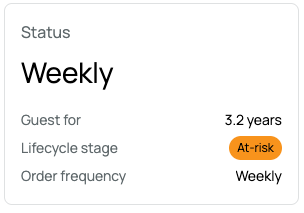
- Guest for: How long the guest has been in your database
- Lifecycle stage: The guest's current lifecycle stage (for example, At-risk, Returning, Loyal)
- Order frequency: How often the guest typically places an order
The primary order frequency label is calculated from the guest's average number of days between orders across their lifetime. There are seven possible values:
| Label | Average days between orders |
|---|---|
| First-time | Fewer than 2 lifetime orders |
| Daily | 2 days or fewer |
| Weekly | 3 to 13 days |
| Monthly | 14 to 44 days |
| Quarterly | 45 to 134 days |
| Semi-annually | 135 to 269 days |
| Yearly | More than 269 days |
Note: This label reflects the guest's lifetime order cadence. It is not the same as the Visit Frequency metric on the Guest360 Dashboard, which measures visit distribution across a selected date range.
Total Orders
Shows the total number of orders attributed to the guest, plus these details:
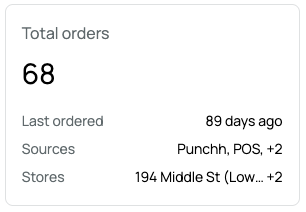
- Last ordered: How many days ago the guest placed their most recent order
- Sources: The data sources the orders came from (for example, Punchh, POS)
- Stores: The locations where the guest has ordered, ordered most recent first
The card shows the first store followed by +N for additional details. Hover over the count to see the full list.
Lifetime Value
Shows the guest's total lifetime spend, plus these details:
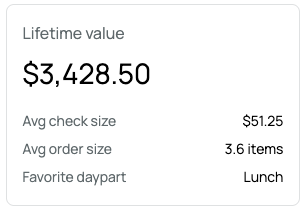
- Avg check size: The guest's average transaction dollar amount
- Avg order size: The average number of items per order
- Favorite daypart: The time of day the guest most frequently visits
Note: Lifetime value and average check size include all transactions attributed to this guest through Profile Stitching, including transactions placed before the guest enrolled in your loyalty program.
Loyalty Member
Shows whether the guest is a loyalty member, plus these details:
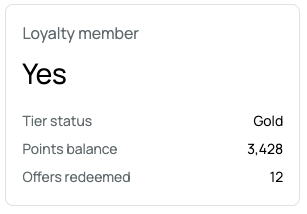
- Tier status: The guest's current loyalty tier (for example, Gold, Silver)
- Points balance: The guest's current redeemable point balance
- Offers redeemed: The total number of offers the guest has redeemed
For guests with a Loyalty member value of No, the tier and points fields will not apply.
Note: Loyalty member details come from Punchh. The card shows the guest's current loyalty account status at the time of the last data refresh.
Profile Stitching
Shows how many source profiles have been combined into this guest's record:
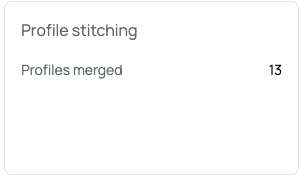
Profiles merged: The number of source profiles combined into this single guest record, along with the source channels (for example, POS, Web).
Profile Stitching is fully automated using exact identifier matching. For a full explanation of how matching works, see Profile Stitching.
Consent Status
The Consent Status card shows the guest's current marketing opt-in status across each channel:
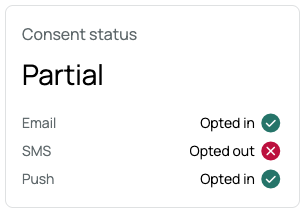
- Email: Opted in or Opted out
- SMS: Opted in or Opted out
- Push: Opted in or Opted out
The overall status label at the top of the card reflects whether the guest is opted in to all channels (Full), some channels (Partial), or no channels (None).
Note: Consent preferences are managed by the guest and can only be updated by the guest. Admins cannot change a guest's opt-in status from this screen. SMS opt-outs occur when a guest replies STOP to a marketing message.
Guest Activity
The Guest Activity section is a chronological feed of every recorded action and event associated with the guest. It appears below the summary cards and runs from most recent to oldest.
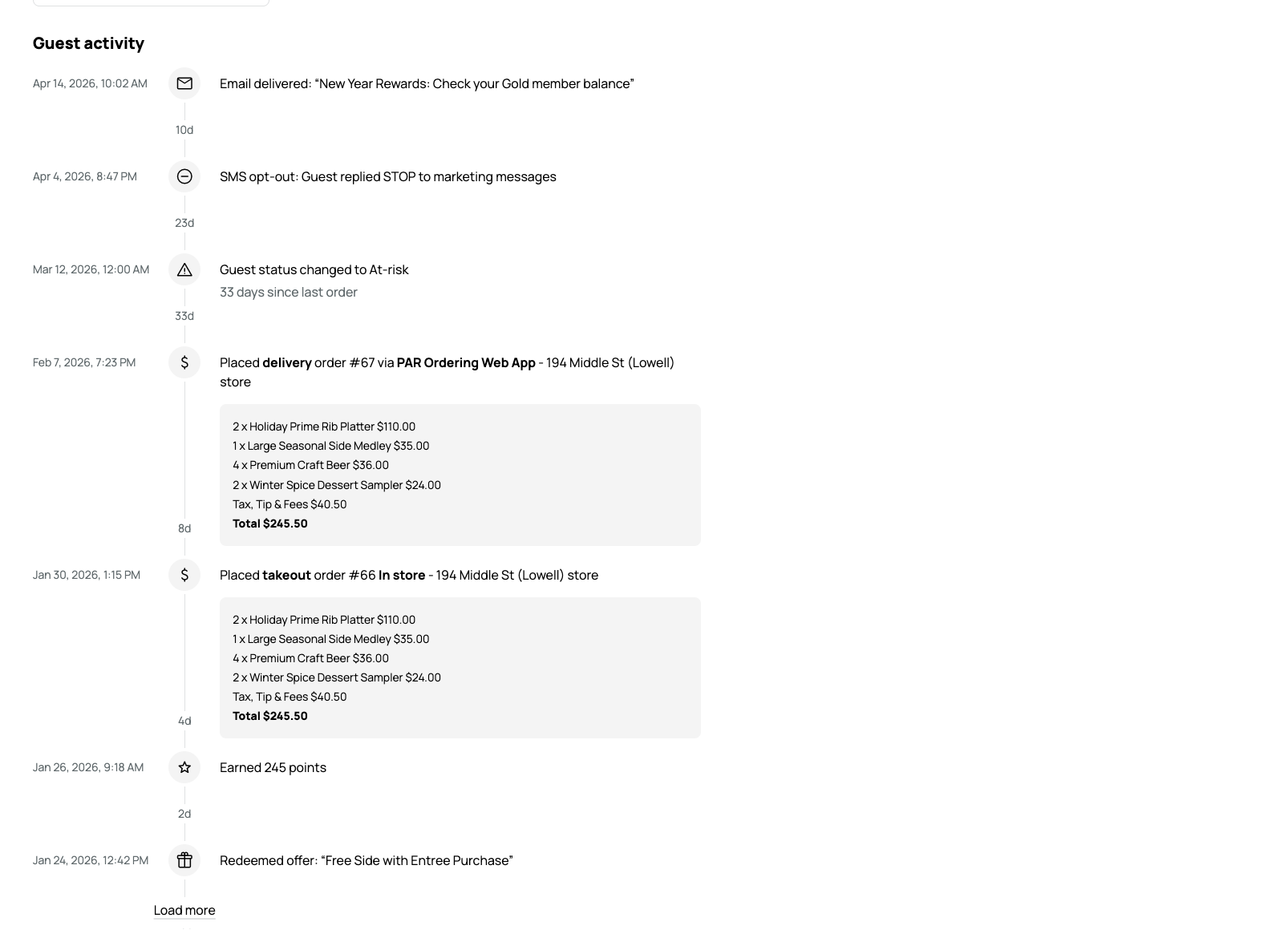
Each entry in the feed includes:
- The date and time of the event
- An icon indicating the type of event
- A description of what occurred
Event types include, but may not be limited to:
- Emails delivered to the guest
- SMS opt-outs and opt-ins
- Lifecycle stage changes, including the reason (for example, number of days since last order)
- Orders placed, including the order channel (for example, PAR Ordering Web App, In store), location, order number, and itemized receipt breakdown
- Loyalty points earned
- Offers redeemed
Select Load more at the bottom of the feed to view older activity.
Note: The Guest Activity feed in Guest360 shows events from all connected data sources, not only loyalty activity. This is different
