NCR Silver POS Punchh Integration (Pro & Essentials)
Settings Required for NCR Silver Essentials/Silver Pro Punchh Activation
| Setting | Setting Source | Setting Destination | Notes |
|---|---|---|---|
| NCR Silver Store ID | Setting must come from NCR Silver Support. silverpartnersuccess@ncr.com 1-877-270-3475 | PUNCHH PORTAL This value will be entered in Punchh Dashboard: Settings/Locations/POS/NCR Silver Store ID | Every site in Punchh will have a unique NCR Silver Store ID. This ID must be obtained from NCR. When talking to NCR Support, this comes from the NCR Technicians NCR SIlver Portal: Settings > Support > Advanced Product > Mode > Store ID |
| NCR Silver Merchant ID | Setting must come from NCR Silver Support. silverpartnersuccess@ncr.com1-877-270-3475 | PUNCHH PORTAL This value will be entered in Punchh Dashboard after the "Has NCR Silver Integration?" Checkbox is ticked: Cockpit/POS Integrations/NCR Merchant ID | This setting may be a single value for an entire brand or may also be a value per restaurant franchisee group. For franchiser's that have multiple brands and franchisees that operate different brands, their Merchant ID may be used across different brands in the Punchh dashboard. |
| NCR Discount Item Name | NCR SILVER BACK OFFICE The NAME of the discount item as setup in the NCR Back office for use by Punchh | PUNCHH PORTAL This value will be entered in Punchh Dashboard after the "Has NCR Silver Integration?" Checkbox is ticked: Cockpit/POS Integrations/NCR Discount Item Name | The details to properly setup a discount in the POS for use by Punchh will be added to this document at a later date. |
| NCR Receipt Message | Message as set in the Cockpit/POS Integrations/NCR Receipt Message and ALSO set in the NCR Back Office NCR Silver Dashboard/Settings/Customer/Loyalty Program/Message On Receipots Without Loyalty Member | PUNCHH PORTAL This value will be entered in Punchh Dashboard after the "Has NCR Silver Integration?" Checkbox is ticked: Cockpit/POS Integrations/NCR Receipt Message | |
| Server URL | NCR SILVER BACK OFFICE Static for ALL NCR Silver Punchh integrated locations. Ask Punchh for the appropriate URL that should be used: https://silver-api.punchh.com/silver/ , OR https://silver-api.us-west.punchh.com/silver/ For Development: https://sandbox.punchh.com/silver | NCR SILVER BACK OFFICE NCR Silver 3rd Party Loyalty Provider Setup screen: NCR Silver Dashboard/Settings/Customer/Loyalty Program/Server URL | |
| Access Token | PUNCHH PORTAL Cockpit/POS Integrations/NCR Access Token | NCR SILVER BACK OFFICE NCR Silver Dashboard/Settings/Customer/Loyalty Program/Access Token | The Punchh portal cockpit settings is the source of this value. This access token will be the same for ALL Brand/Client sites for this brand. In the case that a client has multiple brands (Different Punchh Program settings by Brand), this same access token may be used across the multiple brands |
NCR Silver Site Network Readiness Validation
For NCR Silver to work, each location terminal must be able to communicate to https://silver-api.punchh.com and https://silver-api.us-west.punchh.com
To validate that this site is accessible
- Open a web browser from each POS tablet
- Navigate to the following websites:
https://silver-api.punchh.com/ping , https://silver-api.us-west.punchh.com/ping - A white page with OK should appear
- If this doesn't happen, please refer to NCR Silver POS Firewall Setup.
Configuring the Punchh Dashboard for NCR Silver
- Login to www.punchh.com with the business login
- Select the Business in which user wants to configure NCR Silver
- Navigate to Cockpit >POS Integration
- Enable the check box 'Has NCR Silver Integration?'
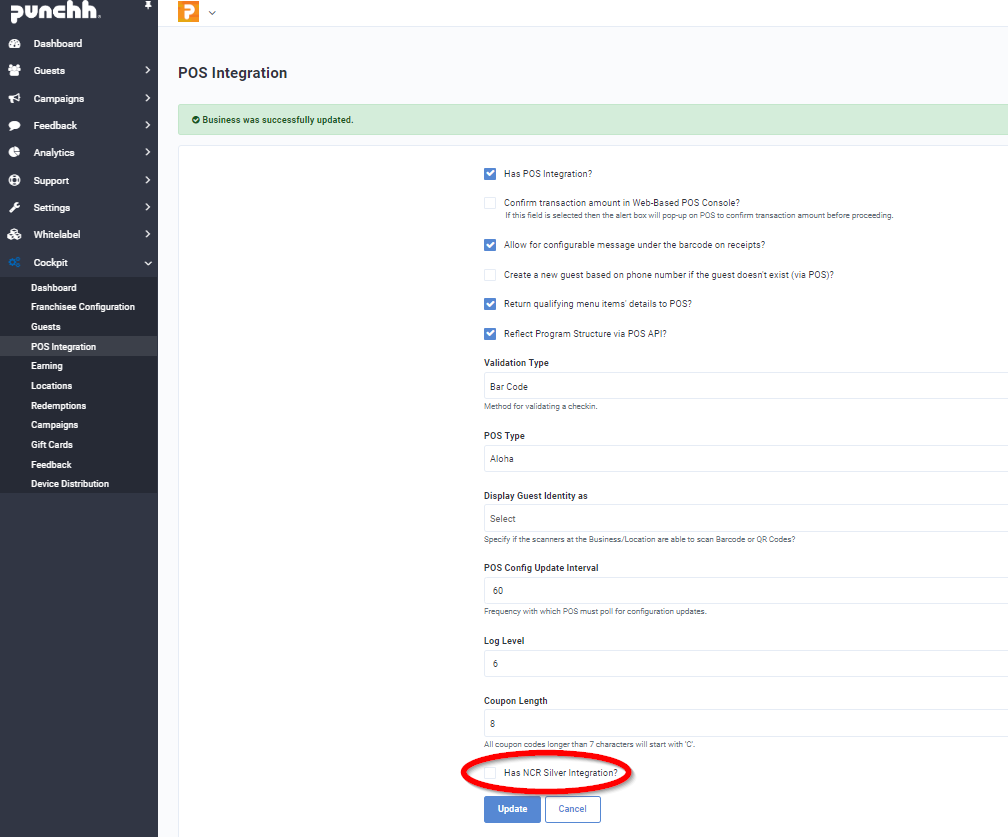
- Click 'Update' to update the cockpit settings
- The required fields on the Punchh dashboard will be added to the page
(Use the table above to obtain the values for each value)
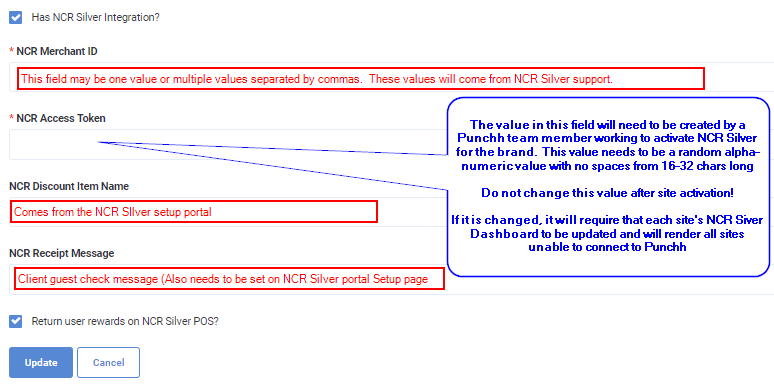
- Click update 'Update' the settings
- Navigate to 'Settings' >'Locations'
- Click on 'Add New Location' or can 'Edit' any existing location
- Open the POS tab and complete the settings NCR Silver POS
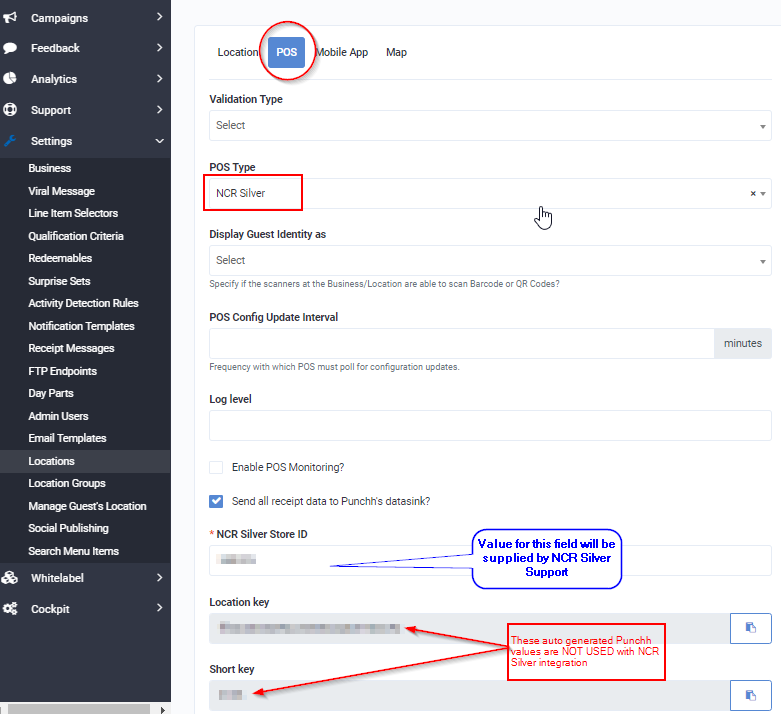
- Click on 'Add the Location' or 'Update the Location' button
Configuring the NCR Silver Configuration for Punchh
- Open the NCR Back Office portal and navigate to Settings/Customer/Loyalty Program
- In the loyalty setup section set the following settings:
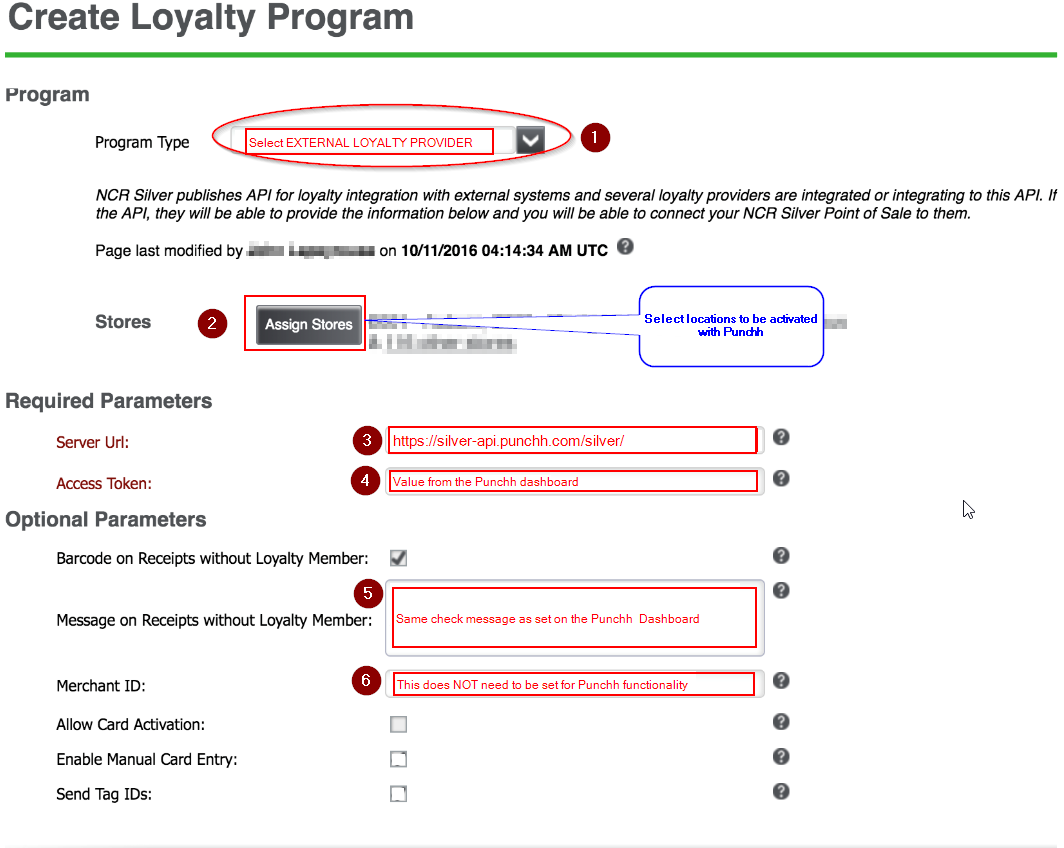
The site will now be ready for activation validation
