Aloha POS - Hidden Punchh UI
Overview of Hidden Punchh UI
Customers on Aloha using Redemptions 2.0 can now opt for a mobile-driven, streamlined in-store experience. With this feature enabled, guests can scan and redeem pre-selected rewards and offers with minimal action needed from the POS operator.
- No interactive Punchh UI will be displayed, except for a success or error message box.
- User look-up can be performed by scanning a long QR code, which can be scanned anytime on the guest’s mobile app.
- User look-up is also supported by scanning a long QR code after pressing the Punchh loyalty button on the POS.
- This feature can be used only with Redemptions 2.0.
- The guest and reward will be applied automatically when the POS operator presses the Punchh loyalty button on the POS.
- Only pre-selected or auto-selected Punchh discounts will be applied.
Prerequisites
- The QR code scanner must be set up as an HID (Human Interface Device) or keyboard input.
- The QR code scanner must send the "Enter" key after successfully reading the QR code.
Initial Configuration
The Aloha PunchhInter.config file includes a uimode setting to enable this feature.
Add or set the value of uimode to NONE as follows:<uimode value="NONE" />
Supported values:
FULL: Full Punchh UI modeNONE: Hidden Punchh UI mode
Note: Full system restart is required on both the back-of-house (BOH) machine and the front-of-house (FOH) machine after making changes to the PunchhInter.config file.
Scanning Options for Hidden Punchh UI
The hidden Punchh UI mode has two different scanning options that determine the flow of the user interaction for both the guest and the POS operator: anytime scan enabled vs. disabled. These options are described in the following sections.
The Aloha PunchhInter.config file includes a scananytime setting to enable this feature.
Add or set the value of scananytime to True as follows:<scananytime value="True" />
Supported values:
True: Anytime scan is enabled.False: Anytime scan is disabled.
Note: Full system restart is required on both the back-of-house (BOH) machine and the front-of-house (FOH) machine after making changes to the PunchhInter.config file.
What’s Not Supported
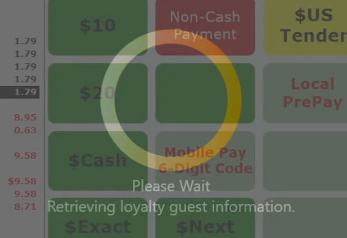
- No UI interactions are available; only a semi-transparent loading panel is shown while processing Punchh loyalty.
- POS operators cannot interact with a guest’s loyalty account, meaning they cannot select rewards in-store. The guest must pre-select any Punchh discounts, or the business must opt in for auto-selection of Punchh discounts.
Anytime Scan Enabled
The guest's QR code can be scanned on the mobile app before the POS operator presses the Punchh loyalty button. This allows flexibility for the POS operator when the guest presents the mobile app for scanning, as there is no need to wait until the POS operator presses the Punchh loyalty button on the POS screen.
After the POS operator presses the Punchh loyalty button, the operator flow is as follows:
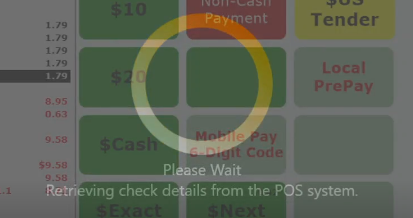
- Check details are retrieved from the POS system.
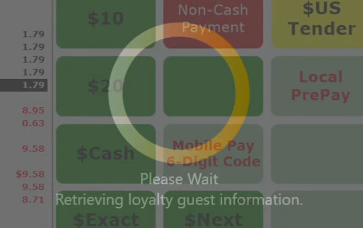
- The guest’s loyalty information is retrieved.
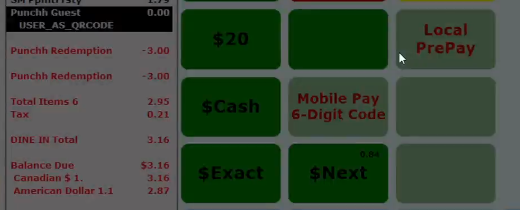
- The applicable Punchh discounts are applied.
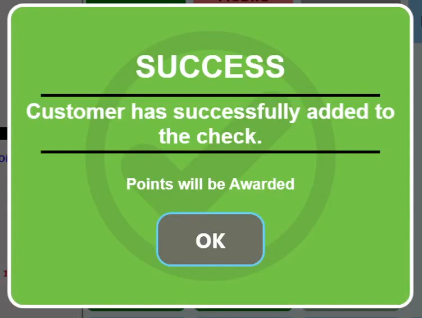
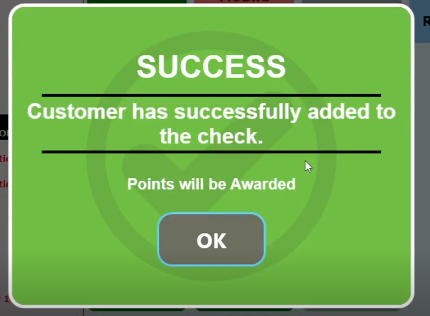
- The success message appears, and the operator presses the OK button. (The verbiage on this screen may vary.)
Anytime Scan Disabled
The customer's QR code can be scanned on the mobile app only after the POS operator presses the Punchh loyalty button on the POS screen.
After the POS operator presses the Punchh loyalty button, the operator flow is as follows:
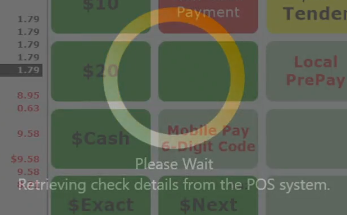
- Check details are retrieved from the POS system.
- The operator is prompted to scan the guest’s QR code.
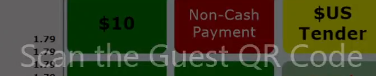
- The operator scans the guest’s QR code.
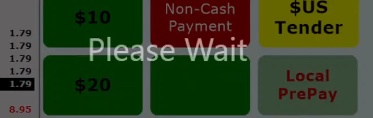
- The guest’s loyalty information is retrieved, and the applicable Punchh discounts are applied.
- The success message appears, and the operator presses the OK button. (The verbiage on this screen may vary.)