Twitter Mapping
This article was previously titled "Social Publishing."
Link your Twitter pages to pages in your mobile app. You can link your social pages at both a company and a location, store level. You must have a connected, authorized page in order to accept customer feedback.
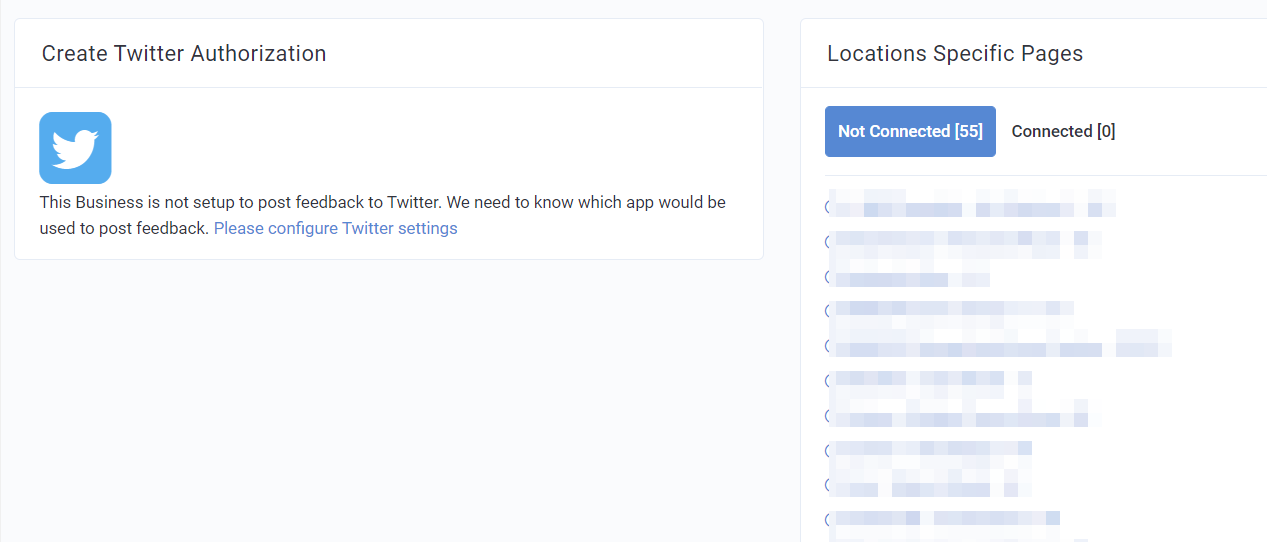
Set Up Twitter Mapping
To link your social media pages to your company's mobile app, navigate to Store Locations > Twitter Mapping. You'll need your login username and password.
Twitter Authorization
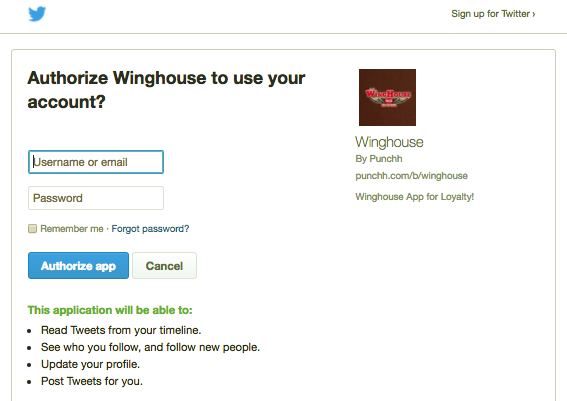
To link your company's Twitter account to the Punchh dashboard:
- Navigate to Store Locations > Twitter Mapping.
- Click on the Twitter icon to open the authorization page on Twitter.
- Enter the username/email and password for the associated account.
- Click Authorize app to finish.
Authorize Twitter Mapping for Locations
Do you maintain Twitter pages for specific stores? If so, you can link those pages and enable feedback publishing on a per-location basis. To do so you'll follow the same process as above for your company-wide pages.
- Click on the name of one of your locations on the right.
- Click on the Twitter logo to link your social pages.
