Labor Groups & Lanes
Labor Groups
Labor groups are defined for reporting of hours on the Hourly Labor By Labor Group report. To create a new labor group, click the Add button. To edit a labor group, click its name in the list.
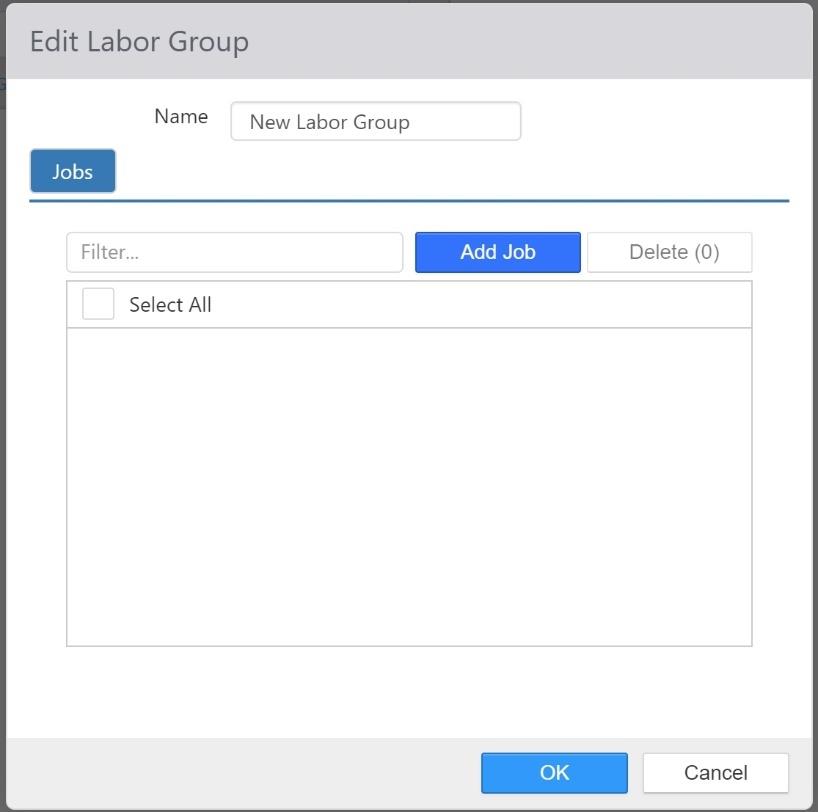
- Name: Name of the Labor Group
- Selected Jobs: Jobs included in the Labor Group
Lanes
A lane is a collection of open orders in a quick serve environment and determines how numbers are automatically numbered. To create a new lane, click the Add button. To edit a lane, click its name in the list.
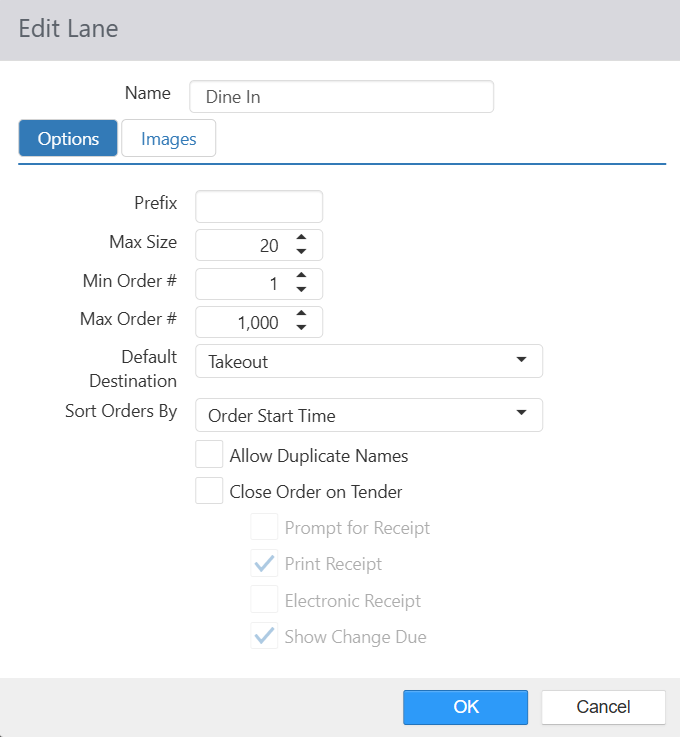
- Name: Name of the Lane
Options Tab
- Prefix: String to display before the order name/number in the lane.
- Max Size: Maximum number of open orders allowed in the lane.
- Min Order Number: Number assigned to the first order opened in the lane.
- Max Order Number: Last number assigned to an order opened in the lane, next number assigned will be the Min Order Number.
- Default Destination: Default destination of new orders opened in the lane.
- Sort Orders By: Allows the user to select how orders are sorted/displayed on the Lane Control panel. Options are "Order Start Time" and "Order Send Time".
- Order Start Time – sorts the orders by the time at which the order was first started on the register
- Order Send Time – sorts the orders by the time at which the order was first sent to the kitchen
- Allow Duplicate Name: Allow more than one open order of the same name in the lane.
- Close Order on Tender: When checked orders in this lane are automatically closed when the tender is processed.
- Prompt for Receipt: Prompt employee to select one of these options when order is closed: No Receipt, Print, Email, or Both
- If Tip and Signature has been enabled and set to Customer Display mode in Options, this prompt will be displayed on the customer-facing screen for the guest.
- Print Receipt: Print receipt when order is closed.
- Electronic Receipt: Prompt for email address for delivery of electronic receipt when order is closed.
- Show Change Due: Display the change due dialog when order is closed.
- Prompt for Receipt: Prompt employee to select one of these options when order is closed: No Receipt, Print, Email, or Both
Images Tab
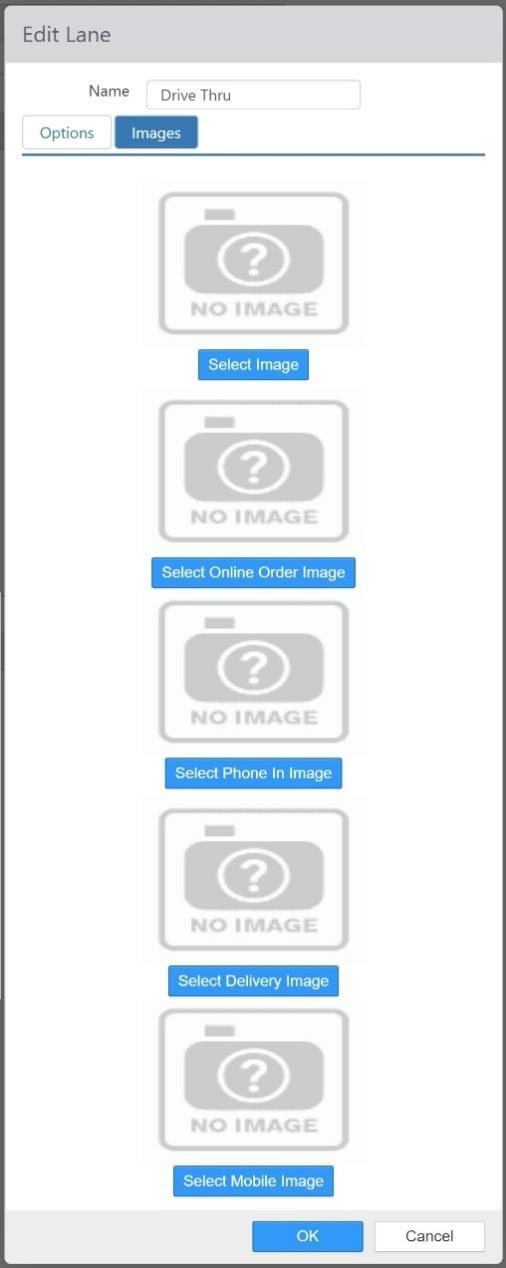
- Image: Default image to display for each order in the lane.
- Online Order Image: Image to display orders with an order source of Customer Portal or API.
- Phone In Image: Image to display for future orders entered into the Register.
- Delivery Image: Image to display orders with a destination that has Delivery enabled.
- Kiosk Image: Not implemented.
- Mobile Image: Image to display orders with an order source of Customer Portal Mobile.
