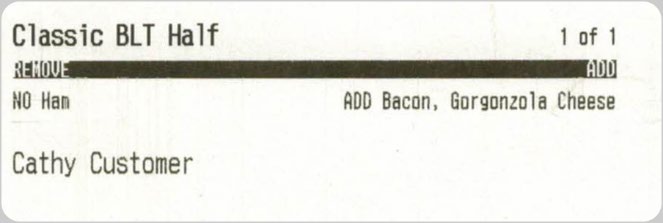
Epson TM-L90 Label Printer Label Formatting Guide
Creating labels in Settings Editor
The first step in setting up the label printer is to create the labels it will print in Settings Editor.
NOTE: While it is possible to set up the printer itself first (see Configuring the Epson TM-L90 label printer), one of the steps in that procedure is to choose the labels that the printer will print. This step cannot be completed unless labels are defined.
-
Go to the Labels page in Settings Editor.
-
Click the Add button.
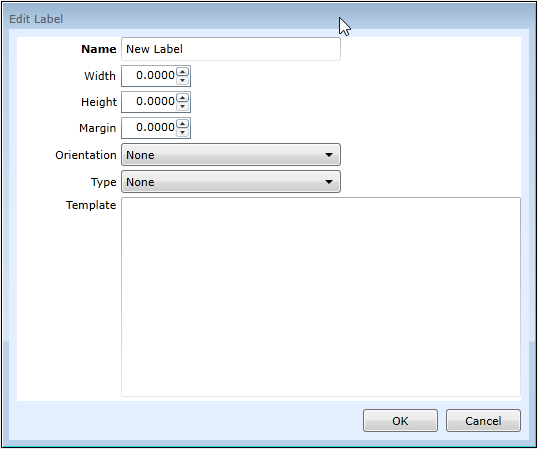
The Edit Label dialog opens.
-
In the Name field, enter a name for the label
-
Set the Width, Height, and Margin for the label (in inches).
NOTE: Margin is the distance between labels on the label roll.
-
In the Orientation drop-down list, select Horizontal or Vertical.
-
In the Type drop-down list, select Item or Summary
NOTE: Item labels contain information about a specific item on an order. Summary labels contain information about entire orders.
-
In the Template field, enter the script to format the label and its contents.
NOTE: The script for formatting labels is described in The Epson label script. Example labels are described in Example labels.
Configuring the Epson TM-L90 label printer
Once labels have been formatted, the printer can be configured in Settings Editor.
-
Go to the Printers page in Settings Editor.
-
Create a new printer by clicking the Add button.
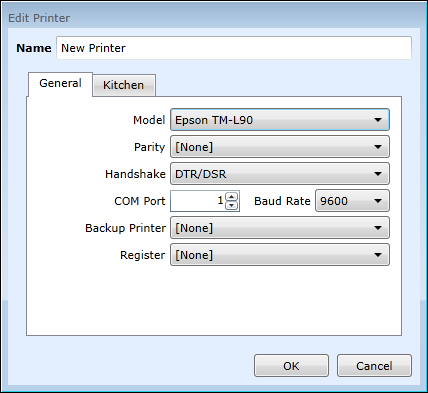
The Edit Printer dialog opens.
-
In the Model drop-down list, select Epson TM-L90.
-
Leave the Parity, Handshake, and Baud Rate options at their defaults.
-
Enter the number of the COM port that the printer is connected to in the COM Port field.
-
Choose a setting in the Backup Printer drop-down list according to your policy or preference.
-
In the Register drop-down list, select the register that the printer is attached to.
-
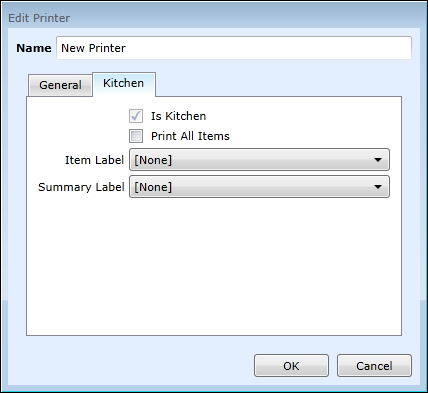
Select the Kitchen tab.
NOTE: For the Epson TM-L90 label printer, the Is Kitchen check box is automatically checked and cannot be unchecked.
-
Leave Print All Items unchecked.
-
In the Item Label drop-down list, select the item label that you want this printer to print.
-
In the Summary Label drop-down list, select the summary label that you want this printer to print.
NOTE: Although you are permitted to select values for both Item Label and Summary Label, you are only required to select a value for one of them.
-
Click OK to close the Edit Printer dialog.
-
Save and Publish the changes.
The Epson label script
The information that is entered into the Template field can be plain text, replaceable parameters, or formatting tags.
Formatting tags
The Epson TM-L90 label printer recognizes the following formatting tags. All tags must have accompanying closing tags (for example, <Bold> . . . </Bold>) and be nested properly. Tags are case-sensitive.
| Tag | Description |
|---|---|
<Invert> |
Prints white text on a black background. The black background bleeds off the edge of the label to the left and right and either the top or bottom if appropriate. |
<Right> |
Aligns the text on the right margin. |
<Center> |
Aligns the text in the center of the line. |
<Bold> |
Prints the text in boldface. |
<FontB> |
Prints the text in a smaller typeface. |
<DoubleHeight> |
Prints the text twice as tall as the default. |
<DoubleWidth> |
Prints the text twice as wide as the default. |
<Bottom> |
Prints the text at the bottom of the label. |
Replaceable Parameters
PAR POS recognizes and appropriately replaces the following replaceable parameters on labels printed to an Epson TM-L90 label printer. All replaceable parameters must be enclosed in percentage signs (% . . . %) and are case-sensitive.
| Parameter | Description |
|---|---|
%Destination% |
The destination of the item or order (as configured on the Destinations page in Settings Editor). |
%FutureOrderDate% |
Prints the date that the future order is due. |
%FutureOrderPhoneNumber% |
Prints the phone number entered for a future order. |
%FutureOrderTime% |
Prints the time that the future order is due. |
%ItemCount% |
The total number of items ordered. |
%ItemList% |
NOTE: Must be used with a label Type of Summary. Prints a list of all items (but not modifiers) with each item's price. Item prices reflect the price of any modifiers applied to them. |
%ItemModifiers% |
Displays a list of all item modifiers with their modifier code abbreviations, if any, as they would be printed on a kitchen chit. If a note was entered for the item, the note is displayed at the top of the modifier list. |
%ItemModifiersRemoveAddHorizontal% |
NOTE: Must be used with a label Orientation of Horizontal. Displays a list of all item modifiers with their modifier code abbreviations, if any, grouped under two headings: "REMOVE" and "ADD". The REMOVE section is printed on the left, and the ADD section is printed on the right. If a note was entered for the item, the note is displayed at the top of the ADD list. NOTE: Modifiers with a modifier code of type NO, SUB, or FOR appear under the REMOVE heading; all others appear under the ADD heading. |
%ItemModifiersRemoveAddVertical% |
NOTE: Must be used with a label Orientation of Vertical. Displays a list of all item modifiers with their modifier code abbreviations, if any, grouped under two headings: "REMOVE" and "ADD". The REMOVE section is printed first, with the ADD section below it. If a note was entered for the item, the note is displayed at the top of the ADD list. NOTE: Modifiers with a modifier code of type NO, SUB, or FOR appear under the REMOVE heading; all others appear under the ADD heading. |
%ItemName% |
Inserts the item name of the ordered item. |
%ItemNumber% |
Inserts the number assigned to the item by the auto-numbering function. |
%ItemXofY% |
Displays the item number (in sequence as ordered) and the total number of items ordered in this format: "Item 2 of 3" |
%OrderId% |
The identification code for the order. |
%OrderName% |
Prints the order name. If there is no order name, it prints the customer name. If there is no customer name, it prints the Lane prefix and the order number. |
%SKU% |
The SKUs of the items on the label, separated by commas. |
%Totals% |
Prints an order total section with each of the following lines: - Sub-Total $0.00 - Discounts $0.00 - Promotions $0.00 - Surcharges $0.00 - Tax $0.00 - Total $0.00 - Paid $0.00 - Balance $0.00 Discounts, Promotions, and Surcharges only appear if their value does not equal zero. |
Example labels
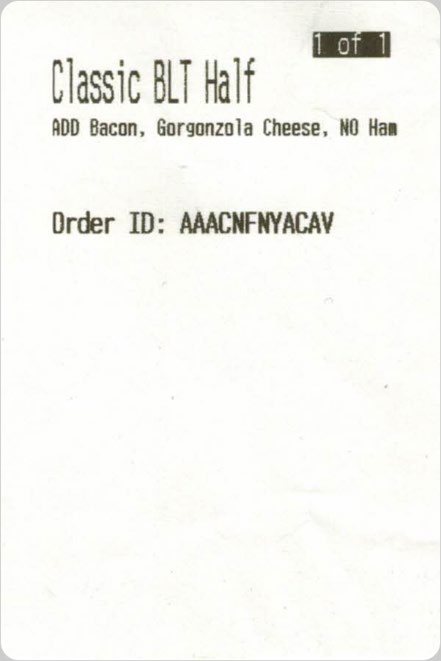
Vertical item label
-
Name: Item
-
Width: 3 (inches)
-
Height: 2
-
Margin: 0.2
-
Orientation: Vertical
-
Type: Item
-
Template:
%ItemXofY% %ItemName% %ItemModifiers% Order ID: %OrderId%
Horizontal item label
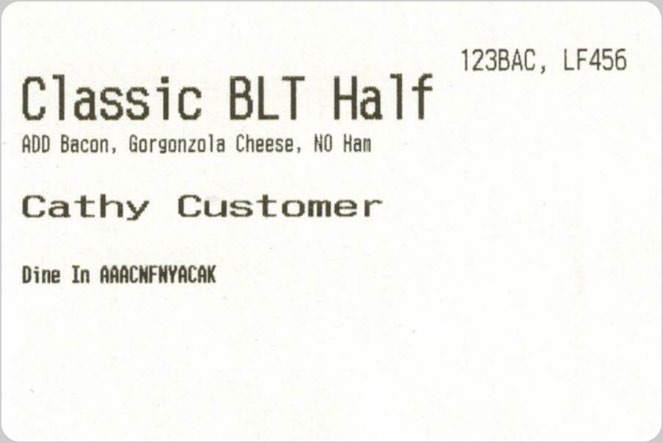
-
Name: Order
-
Width: 3 (inches)
-
Height: 2
-
Margin: 0.2
-
Orientation: Horizontal
-
Type: Item
-
Template:
%SKU% %ItemName% %ItemModifiers% %OrderName% %Destination% %OrderId%
Short horizontal item label
-
Name: Item Small
-
Width: 3 (inches)
-
Height: 1
-
Margin: 0.2
-
Orientation: Horizontal
-
Type: Item
-
Template:
%ItemName% %ItemXofY% %ItemModifiersRemoveAddHorizontal% %OrderName%