PAR POS™ In-Store Resilience Release Notes (5.0m+)
Rev 05
Overview
A new architecture optimization has improved PAR POS's in-store resilience. Now, in the event of primary register failure, the backup register takes over, operating independently, without dependence on above-store/cloud services.
This ensures seamless store operations even in the case of an internet outage, resulting in reduced downtime, revenue loss mitigation, and enhanced customer satisfaction.
Important Note Regarding 5.0n.r2 and 5.14 Patches (6/10/25)
To decrease the frequency of state synchronization issues observed between terminals during periods of brief connectivity loss, guardrails have been added to prevent the following three actions on the Backup Primary for a default 15 minutes after it starts hosting:
- Clocking Out
- Checking Out
- Cash Drawer Assignment
Users will observe a new message on the terminal notifying them of network instability every five minutes, making them aware in case they want to take action in resolving connectivity issues to their Primary. After 15 minutes, the Backup Primary will resume in allowing the three actions that were temporarily blocked, with the assumption that the Primary will be down for longer than a brief lapse in connection.
The default time and specific actions being prevented can be configured specific to the customer's need if this is not desired behavior - however, this brief limitation on the Backup Primary should reduce the amount of synchronization failures observed in production.
Situational Examples of In-Store Resilience
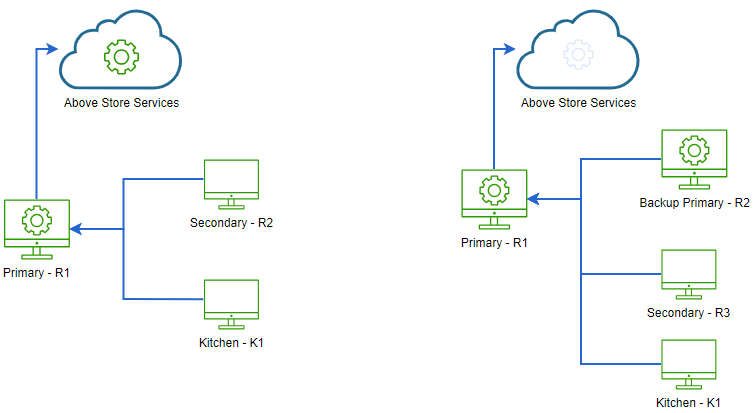
Example #1: Primary Register is Online
Current Behavior (left) vs. In-Store Resilience Behavior (right): Secondary Registers Connected to Primary Register
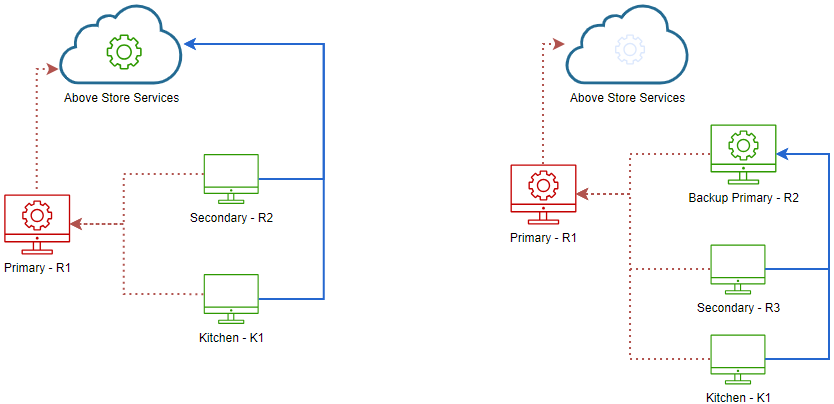
Example #2: Primary Register is Offline
Current Behavior (left): Secondary Registers Connect to Cloud/Above-Store Services
In-Store Resilience Behavior (right): Secondary Registers Connect to Backup Primary Register
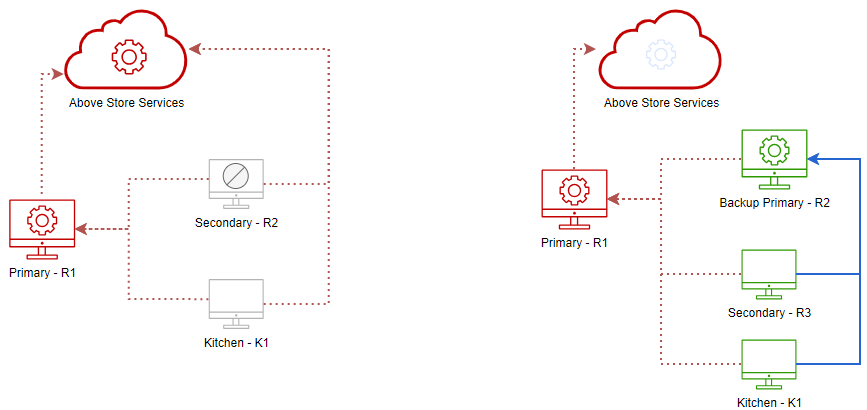
Example #3: Both Primary Register and Above-Store Services Offline
Current Behavior (left): Secondary Registers are Down with no Connection
In-Store Resilience Behavior (right): Secondary Registers Connect to Backup Primary Register (No Interruption)
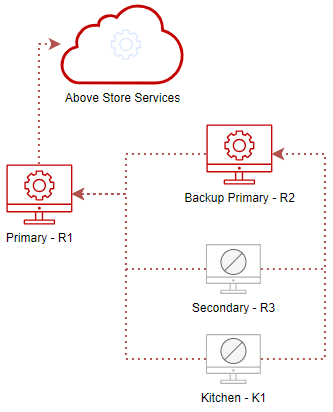
Example #4: Primary Register, Backup Primary Register, and Above-Store Services are Offline
Current Behavior: N/A
In-Store Resilience Behavior: All Registers Down with No Connection
Feature Optimization Recommendations
To optimize the benefit of the enhanced in-store resilience feature offered in the 5.0m Release, it is highly recommended that the following are of the utmost quality:
| Category | Recommendation |
|---|---|
| POS Terminals | Utilize a PCI-compliant operating system and ensure the operating system is kept up to date. |
| Network Hardware | Wall jacks, network cables, ethernet ports, etc. should all be high quality. |
| Network Connectivity |
|
| Internet Connection | Only high speed internet should be used. |
| Topology | Terminals should be powered on at all times to ensure uninterrupted functionality, BMS patch applications, version upgrades, and End of Day publishing. |
| Hosts | The Primary Register and Backup Primary Register now act as Hosts - it is imperative that they are always online and in-sync to successfully receive Publishes and execute the End of Day process. |
| Data | Do not rename or delete database files located on the register - this puts the synchronization of the Primary and Backup registers in jeopardy. |
Feature Configuration
Several steps must be taken to ensure this feature is ready for enablement at your location. Important things to note regarding this feature:
- Primary Register is already included in the Terminal Topology by default.
- Kitchen terminals are NOT allowed to act as a backup.
- Single-register locations cannot implement this feature - the primary register transitions to offline mode after a connection loss, as it currently does.
- The "Allow primary" option (Settings Editor > Registers) is no longer functional and will be removed in a future release.
Review Terminal Topology
-
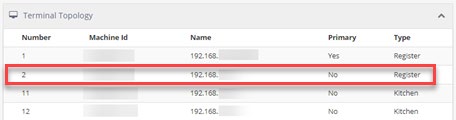
Navigate to Admin Portal > Home > Devices > Terminal Topology
-
Ensure a secondary register is present in the topology
-
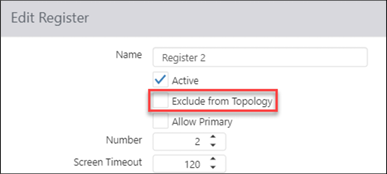
If no secondary register is present, navigate to Admin Portal > Configuration > Settings Editor > Registers
-
Select the register to act as the backup
-
Uncheck the "Exclude from Topology" checkbox and publish
Testing and Validation
To test and validate feature functionality, perform the following:
- Ensure a minimum of two registers are NOT excluded from the topology
- Turn off the internet connection.
- This will be your DSL or cable modem.
- The primary and all secondary registers will continue to function but in offline mode, just as they currently do.
- Unplug the network cable from the primary register.
- Prior to 5.0m, all secondary registers showed an error message "Waiting for connection to server" (HARD DOWN).
- In version 5.0m and beyond, all secondary registers briefly display an error message, stating "Waiting for connection to server", but the backup primary swiftly assumes control and continues operating in offline mode. The remaining secondary registers subsequently recover and also operate in offline mode.
- Plug the network cable back into the primary register.
- The primary register and backup primary register synchronize with each other, while the remaining secondary registers briefly show an error message stating "Waiting for connection to server".
- Turn on the internet connection.
- The primary register synchronizes with the cloud server.
- All registers show they are online.
Important Configuration Notes
- The Feature Flag for this functionality must be turned on prior to configuration.
- If only one secondary register has "Exclude from Topology" unchecked, it automatically becomes the backup register.
- If multiple secondary registers have "Exclude from Topology" unchecked, the register that connects to the primary register first after feature enablement becomes the backup by default.
- After the backup register has been elected, the primary register is assigned a new entry (
BackupPrimaryTerminalNumber="#") in theC:\brink\pos\register.cfgfile. This may be manually changed to any eligible secondary register by following the steps below:- On the primary register only, close register.exe.
- Open
C:\brink\pos\register.cfgin Notepad. - Change
BackupPrimaryTerminalNumber="#"to any eligible register - Save, Exit, and start register.exe.
Using a Tablet as Backup Primary
While this practice is generally discouraged, in the case of locations that rely on a single fixed terminal, using a tablet as a backup primary is vastly superior to having no backup at all.
IMPORTANT: If the tablet battery dies or the tablet goes out of Wi-Fi range, digital orders will halt, as will in-store device sync and the ability to run End of Day. It is imperative that the tablet stays docked (connected to AC power and the wired network) to avoid significant issues. Compliance with these requirements is critical to avoid store disruption.
End of Day Requirements
In order to successfully run End of Day when using a tablet as the backup primary, the following requirements must be adhered to:
- PAR POS must be online
- Both the primary register and the backup primary tablet must be:
- Powered on
- Online
- Synchronized with each other and the cloud
- Backup primary tablet must be docked
FAQ
Q: In the event of a power loss or network failure of the primary register, will the secondary register (backup primary) still enable normal operation of offline mode?
A: Yes, in the event of a power loss or network failure of the primary register, the secondary register (backup primary) facilitates the normal operation of offline mode.
Q: What is the impact on online ordering when the primary register loses power or experiences network failure?
A: The impact is the same as it is today: In the event of a primary register power loss or network failure, online ordering will not be available, as the backup primary does not currently support online orders. However, this feature will be considered for a future release.
Q: What occurs if the location completely loses its internet connection?
A: If internet connectivity is lost, offline mode operates normally with the primary register acting as the host as it does today (prior to 5.0m). However, online orders will still fail.
Q: Are there circumstances in which offline mode is not functional?
A: Yes, under the following conditions:
- The internet connection is unavailable.
- The primary and backup primary registers are both having a power loss or network failure.
Q: What happens if the local area network (LAN) or switch in the store experiences an outage?
A: The primary and backup primary registers will both operate independently in offline mode. Meanwhile, the remaining secondary registers will show an error message stating "Waiting for connection to server".
Q: In the event of a power loss or network failure of the primary register, upon recovery, does the primary register attempt self-correction, or is it necessary to make a support call in this situation?
A: When the Primary connection reestablishes itself, it automatically initiates self-correction and resynchronizes with both the backup primary and the cloud server.
Q: In the event of a power loss or network failure of the primary register, will the End of Day run while the secondary register (backup primary) is operational?
A: No, both the Primary and Backup Primary registers must be online for the End of Day process to be executed.
Q: What terminals are eligible to serve as a backup primary?
A: Only secondary registers that are NOT excluded from topology.
Q: As an Operator, how can I test this feature and validate its functionality?
A: Assuming you have a minimum of two registers in the Terminal Topology:
- Turn off your internet connection.
- This will be your DSL or cable modem.
- The primary and all secondary registers will continue to function but in offline mode, just as the currently do.
- Unplug the network cable from the primary register.
- Prior to 5.0m, all secondary registers showed an error message "Waiting for connection to server" (HARD DOWN).
- In version 5.0m and beyond, all secondary registers briefly display an error message, stating "Waiting for connection to server", but the backup primary swiftly assumes control and continues operating in offline mode. The remaining secondary registers subsequently recover and also operate in offline mode.
- Plug the network cable back into the primary register.
- The primary register and backup primary register synchronize with each other, while the remaining secondary registers briefly show an error message stating "Waiting for connection to server".
- Turn on your internet connection.
- The primary register synchronizes with the cloud server.
- All registers show they are online.
Q: What is the impact on the changeset publishing process when the primary register loses power or experiences network failure?
A: The impact is the same as it is today - in the event of a primary register power loss or network failure, the changeset publishing process will not be available, as the backup primary does not currently support the changeset publishing process. However, this feature will be considered for a future release.
Q: What is the impact on the end of day process when the primary register loses power or experiences network failure?
A: The impact is the same as it is today - in the event of a primary register power loss or network failure, the end of day process will not be available, as the backup primary does not currently support the end of day process. However, this feature will be considered for a future release.
Q: What is the impact on synchronizing historical data to the cloud when the primary register loses power or experiences network failure?
A: The impact is the same as it is today - in the event of a primary register power loss or network failure, synchronizing historical data to the cloud will not be available, as the backup primary does not currently support synchronizing historical data to the cloud. However, this feature will be considered for a future release.
In-Store Resilience Enhancements in 5.0m
Extended Local Register Database Backup to 30 Days [BRNK-33562 & BRNK-34355]
Adds the ability to configure the retention period of the local register.sdf during the End of Day process in the register.exe.config file.
This enhancement addresses the issue in which customers reported missing data on support calls. The support team typically receives calls 1-2 weeks after the initial problem. At that point, the backup data on the system has often already been purged, making it difficult to recover lost information. To prevent this from happening, the default backup retention period has been extended to 30 days.
- Default = 30 days (previously 5 days)
- Max = 30 days
- Minimum = 7 days
Configuration Details
- Close/exit register.exe on the primary register
- Navigate to the c:\brink\pos folder
- Open register.exe.config with Notepad
- Edit
<add key="BackupRetentionPeriodInDays" value="30" />- Add this line under "app settings" if it is not present
- Change the "value" to the desired number
- Save and Exit
- Close the c:\brink\pos folder
- Start register.exe
Warning Message when C Drive Available Storage is Low [BRNK-33563]
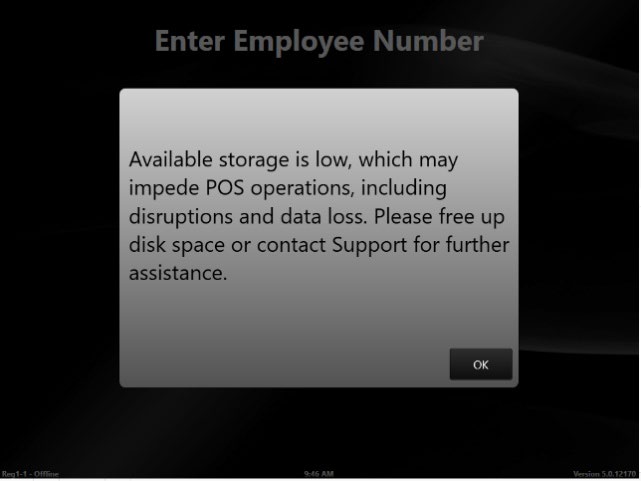
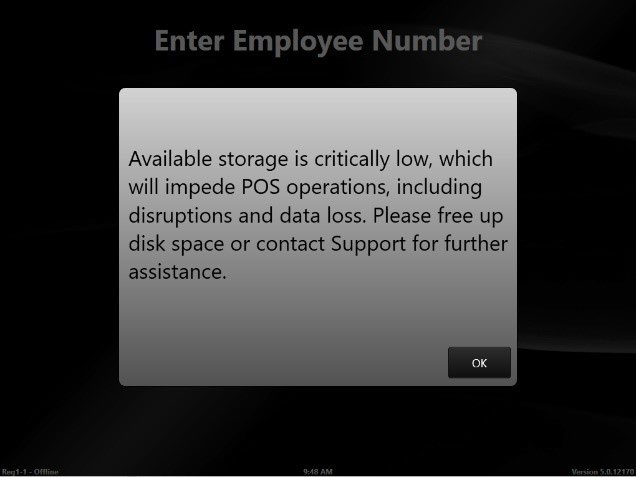
A warning message now displays when a user logs into a register and the local C drive is under 100mb ("low") and 20mb ("critically low"). When low disk space occurs, there is a risk of data loss and degradation of register functionality.
Updated the Dynamic Binding Variable %Register% to Include Terminal Role [BRNK-34185]
To improve clarity in identifying the Primary and Backup Primary (if enabled) on the register, the %Register% variable has been updated to display the register name followed by the terminal role--either (P) for Primary or (BP) for Backup Primary. This update helps users quickly determine the roles of different registers, enhancing workflow efficiency and reducing confusion.
For example:
- "Register 1" becomes "Register 1 (P) Register 1 (P) - Online"
- "Register 2" becomes "Register 2 (BP) Register 2 (BP) - Online"
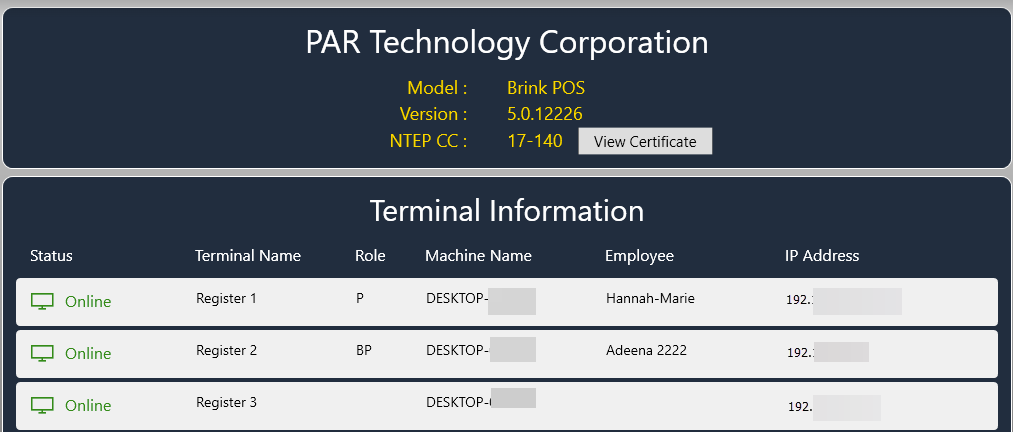
Improved Terminal Status Information in System Information Window [BRNK-34360]
System Information button behavior now displays terminal information when accessed from the Primary Register only for greater system insight.
In-Store Resilience Issues Resolved in 5.0m (build 5.0.12260)
| Description | ID |
|---|---|
| Resolved issue in which a large number of synchronization failures occurred due to out-of-order events on the Above Store Services. | BRNK-33790 |
| Resolved issue in which a large number of synchronization failures occurred due to multiple registers editing the same order. Added an additional layer to prevent this from happening, especially under unstable network conditions. | BRNK-33718 |
Version History
| Version | Date | Updates |
|---|---|---|
| 01 | 5/2/24 | Initial Version |
| 02 | 7/24/24 | Added content to the FAQ section |
| 03 | 9/24/24 | Added bullet #4 to the Important Configuration Notes section (manually changing the backup terminal) |
| 04 | 1/23/25 | Added the Using a Tablet as Backup Primary section |
| 05 | 6/10/25 | Added Important Note for 5.0n.r2 and 5.14 Patches (6/10/25) |
