Daily Sales Summary Report
The daily sales summary report can be printed on the register printer by pressing a button on the register. It can also print automatically when End of Day is run. It shows a summary of sales for the location for that day.
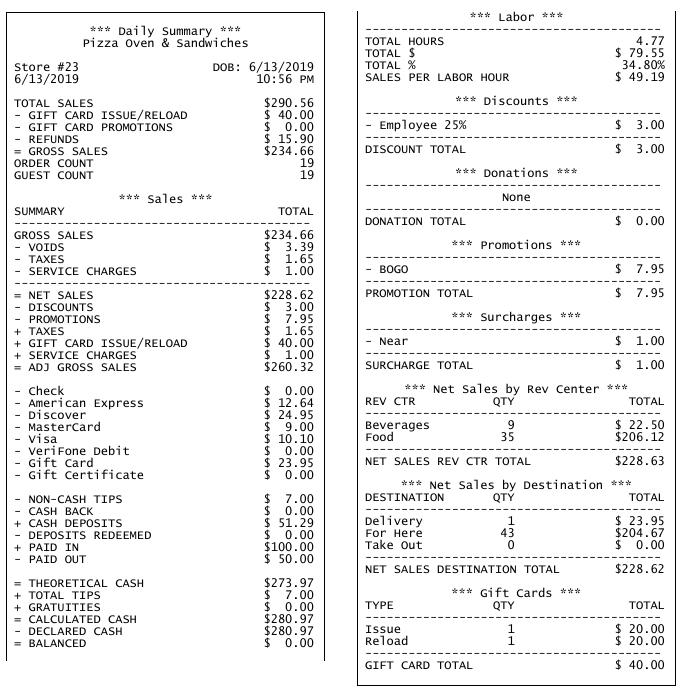
Example daily sales summary report
Report Settings
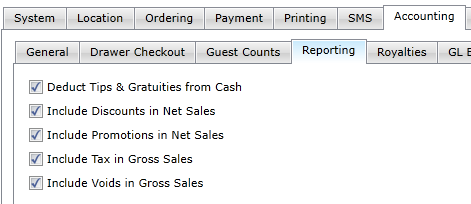
Many of the fields are calculated based on other data in the report, and how those fields are calculated depends on settings that are made in the Settings Editor under Options > Accounting > Reporting.
Accounting > Reporting options
| Option | Description |
|---|---|
| Deduct Tips & Gratuities from Cash | Deducts all tips and gratuities from THEORETICAL CASH and displays the total in CALCULATED CASH |
| Include Discounts in Net Sales | Includes the total of all discounts in NET SALES |
| Include Promotions in Net Sales | Includes the total of all promotions in NET SALES |
| Include Tax in Gross Sales | Includes all taxes collected in GROSS SALES |
| Include Voids in Gross Sales | Includes the total of all voided items and orders in GROSS SALES |
Report Layout
The header of the drawer checkout report contains information about the location, the date of the report, the till owner, and other relevant information:
Header
- The top line is always "*** Daily Summary ***". This is so that it won't be confused for a customer receipt or a Drawer Checkout report.
- The second line is the name of the location (as configured in Options > Location > General in Settings Editor).
- The third line displays the store number and the business date for which the report was run.
- The fourth line displays the date and time at which the report was run.
TOTAL SALES, etc.
The next section displays the total sales, a calculation for gross sales, and the order and guest counts.
| Line | Description |
|---|---|
| TOTAL SALES | The total amount of money collected from sales for the date. |
| GIFT CARD ISSUE/RELOAD | The total amount collected for new gift cards issued and existing gift cards reloaded. |
| GIFT CARD PROMOTIONS | The total amount discounted from order prices because of gift card promotions (as configured in Promotions in Settings Editor). |
| REFUNDS | All amounts returned to customers for orders on prior dates. |
| VOIDS | All amounts returned to customers for orders on the same date. NOTE: VOIDS only appears in this position if Include Voids in Gross Sales is NOT selected in Options > Accounting > Reporting. |
| TAXES | The total amount of all taxes collected on the date. NOTE: TAXES only appears in this position if Include Tax in Gross Sales is NOT selected in Options > Accounting > Reporting. |
| GROSS SALES | TOTAL SALES - GIFT CARD ISSUE/RELOAD - GIFT CARD PROMOTIONS - REFUNDS - VOIDS (only if Include Voids in Gross Sales is selected) - TAXES (only if Include Tax in Gross Sales is NOT selected) |
| ORDER COUNT | The total number of orders at the location on the date. NOTE: Gift card issues and reloads are not counted as orders. |
| GUEST COUNT | The total number of orders multiplied by a factor defined in Options > Accounting > Guest Counts in Settings Editor. |
Sales
The next section shows the calculations made for Total Sales, Gross Sales, Net Sales, and Adjusted Gross.
| Line | Description |
|---|---|
| GROSS SALES | See Gross Sales in previous section. |
| VOIDS | All amounts returned to customers for orders on the same date. NOTE: VOIDS only appears in this position if Include Voids in Gross Sales is selected in Options > Accounting > Reporting. |
| TAXES | The total amount of all taxes collected on the date. NOTE: TAXES only appears in this position if Include Tax in Gross Sales is selected in Options > Accounting > Reporting. |
| DISCOUNTS | The total amount deducted from orders because discounts. NOTE: DISCOUNTS only appears in this position if Include Discounts in Net Sales is NOT selected in Options > Accounting > Reporting. |
| PROMOTIONS | The total amount deducted from orders because discounts. NOTE: PROMOTIONS only appears in this position if Include Promotions in Net Sales is NOT selected in Options > Accounting > Reporting. |
| SERVICE CHARGES | The total amount collected for service charges (as configured in Surcharges in Settings Editor). |
| NET SALES | GROSS SALES - VOIDS (only if Include Voids in Gross Sales is selected) - TAXES (only if Include Tax in Gross Sales is selected) - DISCOUNTS (only if Include Discounts in Net Sales is NOT selected) - PROMOTIONS (only if Include Promotions in Net Sales is NOT selected) - SERVICE CHARGES |
| DISCOUNTS | The total amount deducted from orders because discounts. NOTE: DISCOUNTS only appears in this position if Include Discounts in Net Sales is selected in Options > Accounting > Reporting. |
| PROMOTIONS | The total amount deducted from orders because discounts. NOTE: PROMOTIONS only appears in this position if Include Promotions in Net Sales is selected in Options > Accounting > Reporting. |
| TAXES | A repeat of the previous TAXES entry. |
| GIFT CARD ISSUE/RELOAD | A repeat of the previous GIFT CARD ISSUE/RELOAD entry. |
| SERVICE CHARGES | A repeat of the previous Service Charges entry. |
| ADJ GROSS SALES | NET SALES - DISCOUNTS (only if Include Discounts in Net Sales is selected) - PROMOTIONS (only if Include Promotions in Net Sales is selected) + TAXES + GIFT CARD ISSUE/RELOAD + SERVICE CHARGES |
| Check | The total amount of sales paid with checks. |
| [Credit Cards] | There is a line for each type of credit card payment accepted. Each line shows the total amount of sales paid with that type of credit card. |
| [Processor] Debit | The total amount of sales paid with debit cards. [Processor] is the name of the debit card processing service. |
| [Other Payment Services] | There is a line for each type of additional payment service accepted. Each line shows the total amount of sales paid with that service. |
| Gift Card | The total amount of sales paid with gift cards. |
| Gift Certificate | The total amount of sales paid with gift certificates. |
| House Account | The total amount of sales charged to house accounts. |
| NON-CASH TIPS | The total amount of tips collected on orders paid for with a payment type other than cash. |
| CASH BACK | The total amount of cash given to customers as "cash back" from debit transactions. |
| CASH DEPOSITS | Includes all cash deposits received for future orders that are to be picked up or delivered on a later date. Does NOT include deposits paid with other tender types. |
| DEPOSITS REDEEMED | Includes all deposits for orders that were closed out during the reporting period, regardless of tender type. |
| PAID IN | All cash added to drawers while they were assigned on the date. |
| PAID OUT | All cash removed from drawers while they were assigned on the date. |
| TOTAL TIPS | NON-CASH TIPS + any cash tips that were collected. NOTE: TOTAL TIPS only appears in this position if Deduct Tips & Gratuities from Cash is selected in Options > Accounting > Drawer Checkout in Settings Editor. |
| THEORETICAL CASH | ADJ GROSS SALES - Check - [Credit Cards] - [Processor] Debit - [Other Payment Services] - Gift Card - Gift Certificate - House Account - NON-CASH TIPS - CASH BACK + CASH DEPOSITS - DEPOSITS REDEEMED + PAID IN - PAID OUT + TOTAL TIPS (only if Deduct Tips & Gratuities from Cash is NOT selected) + GRATUITIES (only if Deduct Tips & Gratuities from Cash is NOT selected) |
| TOTAL TIPS | NON-CASH TIPS + any cash tips that were collected. NOTE: TOTAL TIPS only appears in this position if Deduct Tips & Gratuities from Cash is NOT selected in Options > Accounting > Drawer Checkout in Settings Editor. |
| GRATUITIES | The total amount of all gratuities paid to staff (as configured in Surcharges in Settings Editor). NOTE: GRATUITIES only appears in this position if Deduct Tips & Gratuities from Cash is NOT selected in Options > Accounting > Reports in Settings Editor. |
| CALCULATED CASH | THEORETICAL CASH + TOTAL TIPS (only if Deduct Tips & Gratuities from Cash is selected) + GRATUITIES (only if Deduct Tips & Gratuities from Cash is selected) |
| DECLARED CASH | The amount of cash in all drawers at checkout, as entered by the employee who ran the drawer checkout. |
| OVER/BALANCED/SHORT | DECLARED CASH - CALCULATED CASH. If the value is positive, this line is labeled OVER. If the value is negative, this line is labeled SHORT. If the value is zero, this line is labeled BALANCED. |
Labor
The next section shows labor statistics.
| Line | Description |
|---|---|
| TOTAL HOURS | The total number of hours worked by all employees on the date. |
| TOTAL $ | The total cost of all labor at the location for the date. |
| TOTAL % | TOTAL $ ÷ NET SALES × 100 |
| SALES PER LABOR HOUR | GROSS SALES ÷ TOTAL HOURS |
Discounts, Donations, Promotions, and Surcharges
The next several sections of the report show totals for various categories. Each category is broken down by type, and the totals for each type are shown one per line, with a grand total at the bottom.
Net Sales by Rev Center and Net Sales by Destination
The next two sections of the report show totals and quantities for sales by revenue center and sales by destination. Each is broken down by type. Each line shows the name of the revenue center or destination, the number of items sold in that revenue center of destination, and the total amount collected for the revenue center or destination. A grand total is listed at the bottom.
Gift Cards
The last section displays transactions specific to gift cards: new cards issued, cards reloaded, and cards cashed out.
| Line | Description |
|---|---|
| Issue | QTY shows the total number of new gift cards issued. TOTAL shows the total amount collected for new gift card balances. |
| Reload | QTY shows the total number of gift cards reloaded. TOTAL shows the total amount collected for gift card reloads. |
| Cash Out | QTY shows the total number of gift cards cashed out. TOTAL shows the total amount paid for gift cards that were cashed out. |
| GIFT CARD TOTAL | Issue + Reload - Cash Out |
