Punchh Single Scan Flow (SSF) Setup/User Guide
Version 02 – 2/2/26
Overview
Punchh SSF allows for a contactless payment and loyalty experience for customers and cashiers.
POS Requirements
For this feature to work on the POS:
-
Punchh loyalty must be configured.
-
External Payment Type must be configured in Settings Editor.
-
External Payment Processor must be set to “Punchh” in Integrations Portal.
Configuration
Integrations Portal – External Payment Processor
-
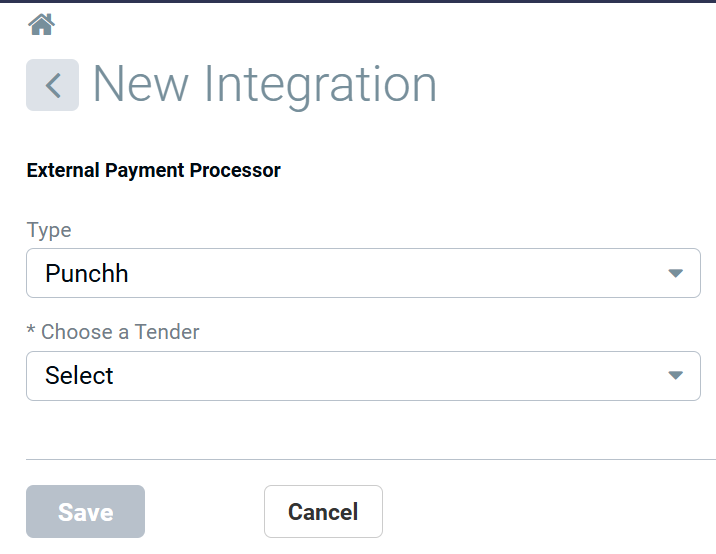
Navigate to the Integrations Portal > All tab > External Payment Processor.
-
Select “Punchh” from the Type dropdown menu.
-
Select the appropriate tender from Choose a Tender dropdown.
-
Click Save.
Settings Editor - Add External Tender
-
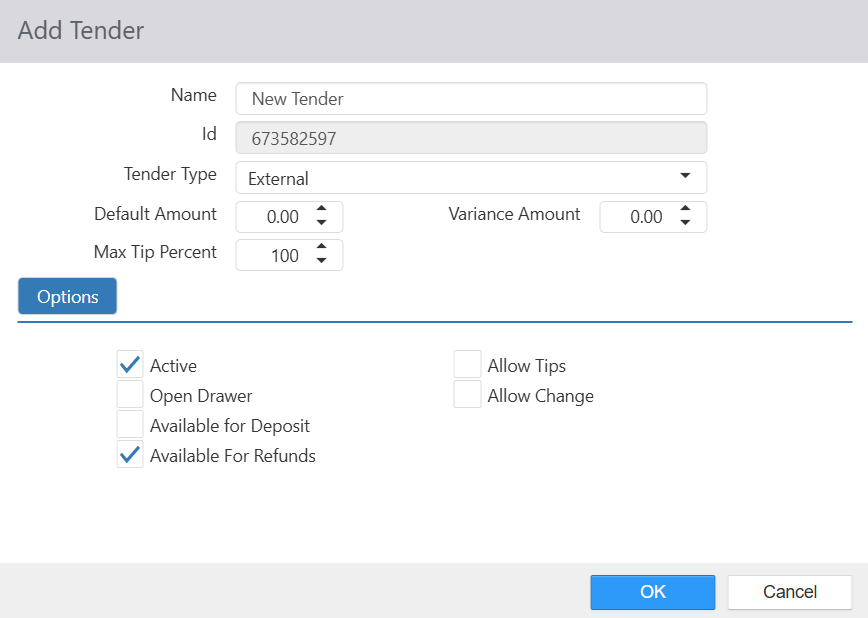
Navigate to Settings Editor > Tenders > Add New Tender.
-
Enter a Name for the tender with the convention “Single Scan Code – [card type]”.
- (example: Single Scan Code – VISA)
-
Select “External” from the Tender Type dropdown.
-
Populate remaining fields/values/options as desired.
-
Click OK when configuration is complete.
-
Repeat Steps 1-5 to add multiple Single Scan Code tenders.
Configure Punchh Loyalty Integration
-
Navigate to Admin Portal > Integrations Portal.
-
Select the ALL tab on the portal home page.
-
Select Loyalty under the “Solutions” section.
-
Click the plus sign icon “
 “ to add an integration to an active list of integrations.
-
Populate the fields with the following values:
| Field | Value |
|---|---|
| Type |
“Punchh” Note: “Punchh 2.0” is used for Redemption 2.0/Multiple Redemption purposes. |
| Allow PAR POS™ Customer Usage |
Allows non-PAR POS loyalty providers to utilize the PAR POS customer database. Note: This box should be checked. If unchecked, contact a PAR POS integration technician for guidance |
| Base URL 1 | pos.us-west.punchh.com/api/pos |
| Base URL 2 | pos.us-west.punchh.com |
| Location Key | Provided by Punchh |
| Default Discount |
Choose desired discount from the dropdown Note: To appear in the dropdown, discounts must be
|
| Timeout (Seconds) |
Timeout period if Punchh cannot be reached (default = 8) |
| Hide offer display | Prevents the offer display screen from automatic display when customer scans QR code for identification |
| Loyalty Sign Up | Allows the guest to sign up for loyalty via cashier action on the POS |
Triggering Single Scan Flow
Important Note: Punchh SSF is only triggered by scanning the Punchh QR code after the customer order is taken – there is no register button to trigger the flow. In addition, the order does not automatically close out. External payments must be closed with the Close Order button.
-
Customer orders items.
-
Customer presents Punchh app with QR code.
-
When order is complete, cashier scans QR code.
-
POS assigns the following to the order:
-
Customer
-
Selected offers
-
Payment
-
Reporting for Single Scan Flow with Credit Cards
Credit Card Tender Reports separate data through categories by credit card type (example: “Single Scan Code – Mastercard”, “Single Scan Code – VISA”, etc.) to streamline the reconciliation process.
Tender Detail Report
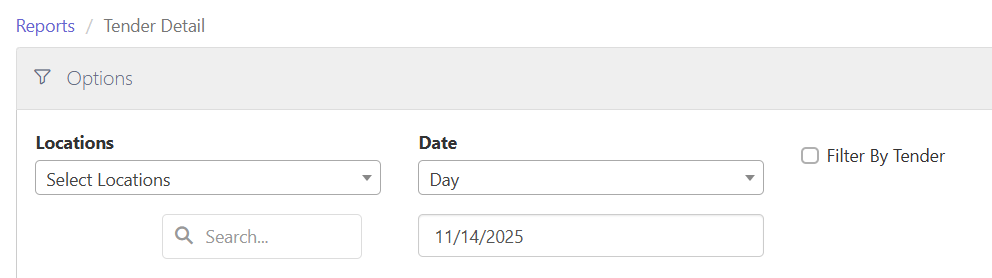
This report displays order details grouped by Tender Type and sorted by Tender and Transaction Time. This report may be generated for one or multiple locations, within a specified date range, and filtered by Tender Type.
To view the report:
-
Navigate to Admin Portal > Reports > Accounting > Tender Detail.
-
Specify the Location/s and Date.
-
Click View Report.
Tender Summary
This report displays all tenders and their total amounts collected sorted by Tender Name. This report may be generated for one or multiple locations within a specified date range.
To view the report:
-
Navigate to Admin Portal > Reports > Accounting > Tender Summary.
-
Specify the Location/s and Date.
-
Click View Report.
Reporting for Single Scan Flow with Gift Cards
New and improved reporting clearly identifies the sources of Single Scan Flow Gift Card transactions. This enhancement provides better insights into where each transaction originates, ensuring more accurate and efficient reporting. When guests perform gift card transactions using the single scan flow, the POS reporting now specifies the source of each transaction.
Key Use Cases
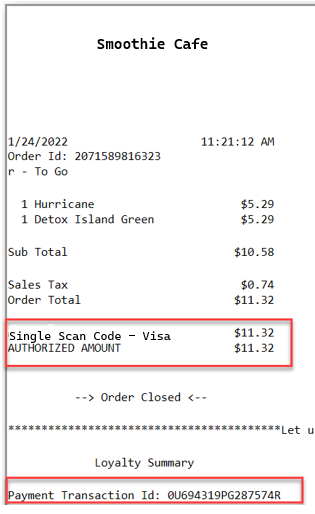
Earn and Pay Using QR Code Generated from App
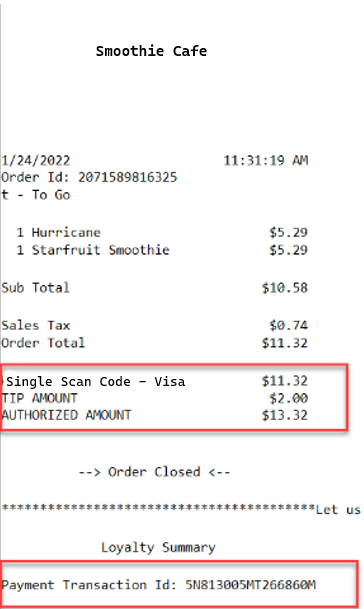
The POS shows the payment when approved and cashier closes the order. If configured to print receipts, the receipt reflects payment with transaction ID.
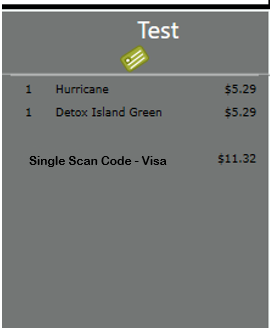
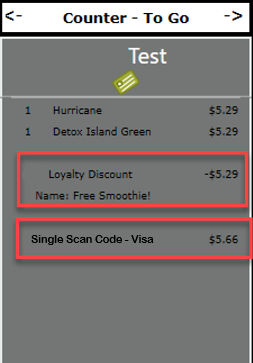
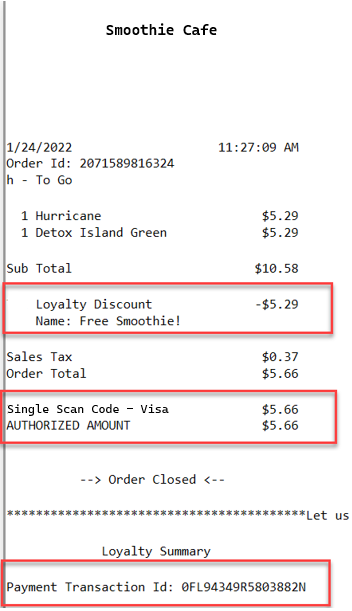
Redeem and Pay with QR Code Generated from App
POS shows the selected redemption, payment (when approved), and cashier closes the order. If configured to print receipts, the receipt reflects payment with transaction ID.
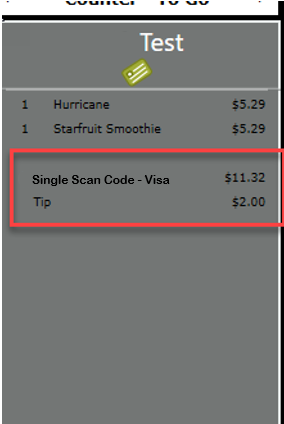
Pay with QR Code Generated from App with Added Tip
POS shows payment with tip amount selected from the app and cashier closes the order. If configured to print receipts, the receipt reflects payment with tip and transaction ID.
Refunding a Punchh SSF Order
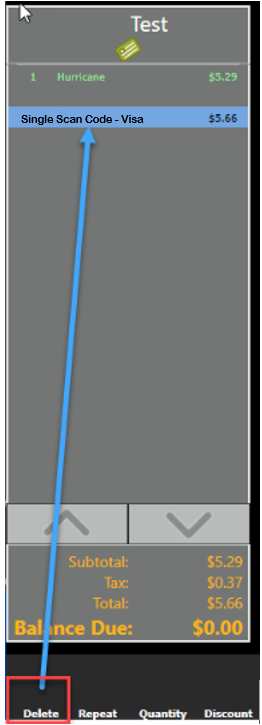
Cashier simply deletes the payment line from the order, which triggers a refund to the guest.
Other Use Cases
Change to an Order after Scanning App QR Code
The cashier must:
-
Remove the payment
-
Clear the customer
-
Rescan the QR code
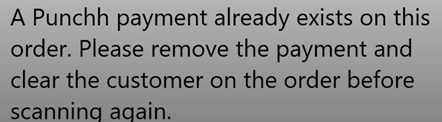
- Note: POS displays a message if QR code is rescanned and payment/customer has already been applied
Incorrect Reward Selected and POS Displays Redemption Error
Current Process:
-
Redemption error displays on POS
-
Cashier selects “OK” to clear error
-
Payment is applied
-
Cashier deletes payment and clears customer
-
Customer selects correct redemption offer and rescans QR code
Future Release Process:
-
Redemption error displays on POS
-
POS presents available rewards for customer to choose
-
Once reward is chosen, PayPal payment is applied
Customer wants Different Payment Type after QR Code Scan
If QR code has been scanned, the process cannot be “stopped”.
The cashier must:
-
Delete the payment (refund) from the POS
-
Tender out the order with a new payment type
