How Do I Order a Combo?
Combos provide discounts on items that are frequently ordered together. This guide explains three options for ordering Combos: Auto, where items are automatically grouped and combined when qualifying items are ordered; using the Make Combo Button, where the cashier manually groups and combines items into a combo; and with a Pre-configured Button, where a single press orders all items in the combo along with the discount.
Option 1: Auto Combo
- Ring in the combo items, such as an entree, side, and drink
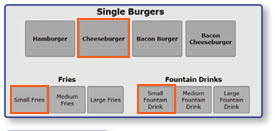
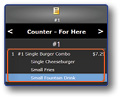
Note: The items will be grouped into a combo item.
Option 2: Use the Make Combo Button
-
Ring in the combo items, such as an entree, side, and drink
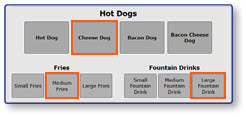
-
Select all items in the combo in the order window
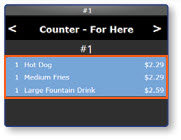
-
Select the Make Combo button
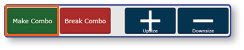
Note: The items will be grouped into a combo item. You can use the Upsize or Downsize buttons to change the size of a side or drink.
Option 3: Use a Pre-Configured Combo Button
- Select a pre-configured Combo Meal Button from the menu
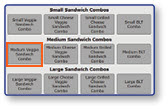
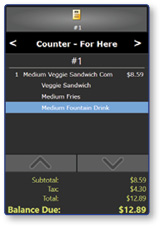
Note: The combo item containing the entree, side and drink will be added to the Order Window.
