How Do I Modify an Item?
Log In to the Register
- Log into the register by entering your PIN, swiping your card, or scanning your fingerprint at the sign-in screen.
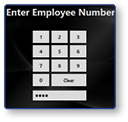
Note: If logging into the register for the first time of the day, select a Job, Clock In, and Assign a Cash Drawer.
Enter Items to Start Order
- To start a new order, select an Item
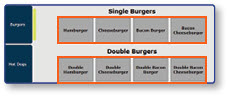
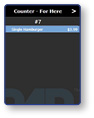
Note: Ensure that the item is highlighted in the panes.
Select the Modify Button
- Select the Modify button
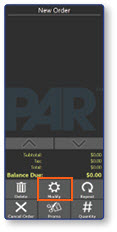
Note: Once the modify button has been selected, the available modifiers (or the selected item) will be displayed on the right.
How Do I Remove a Modifier?
- Select the Modifier that is to be removed from the item.
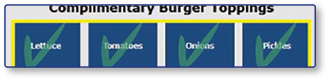

Note: Once you select the item to be removed, a red X will appear to indicate the modifier has been removed.
How Do I Add a Modifier?
- Select the Modifier that is to be added to the item.
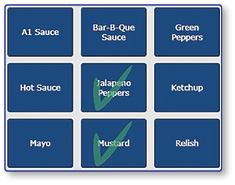
Note: Once you select the item to be added, a green check mark will appear to indicate the modifier has been added.
- Select Done to return to the home screen.