Opening the Menu Screen
Supported from v4.1
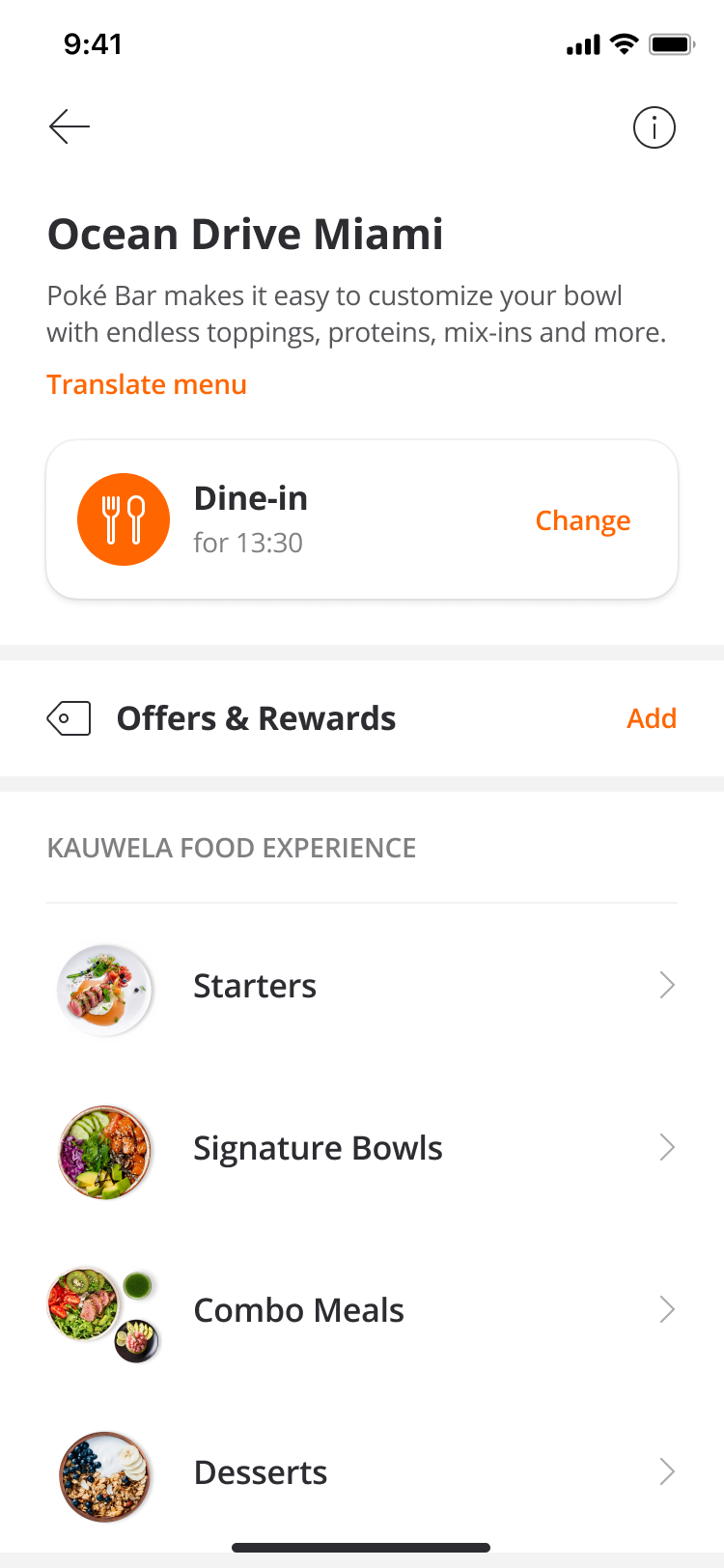
To enable customers to place their order faster, you are able to take your users directly to a store's menu when they open the app. You are even able to pre-select the order type for them and add a table number.
You'll need your app's URL scheme to do this. Please reach out to your Success Manager or open a ticket through one of our open a ticket if you don't have your URL scheme yet.
| Deeplink Scheme | [app-scheme]://order?venue_id=VENUEID&order_type_id=ORDERTYPEID &table_number=TABLENUMBER |
| Firebase Deeplink Scheme | {"event": "deep_link", "deep_link_url": "[app-scheme]://order?venue_id=VENUEID&order_type_id=ORDERTYPEID &table_number=TABLENUMBER"} |
Venue ID
VENUEID in the Deeplink Scheme has to be replaced with the ID of the Venue that you want to link to. You can find the Venue ID in the URL of the CMS when you have selected the Venue:

Order Type ID
order_type_id is optional and does not need to be provided. If you want to pre-select an order type, you need to replace ORDERTYPEID with the ID of the order type that you want to link to:
| Order Type | ID |
|---|---|
| Dine-in (FS) | 1 |
| Dine-in (QS) | 4 |
| Takeout | 6 |
| Curbside | 8 |
Table Number
table_number is optional and can only be provided if the order_type_id is 1. If you want to pre-select a table number, you need to replace TABLENUMBER with the Table Number that you added in the CMS.
Examples
| Use Case | Deeplink |
|---|---|
|
[app-scheme]://order?venue_id=123&order_type_id=1 &table_number=50 |
|
[app-scheme]://order?venue_id=123&order_type_id=1 |
|
[app-scheme]://order?venue_id=123&order_type_id=4 |
|
[app-scheme]://order?venue_id=123&order_type_id=6 |
|
[app-scheme]://order?venue_id=123&order_type_id=8 |
| Open Venue with ID 123 | [app-scheme]://order?venue_id=123 |
