Punchh Account History
This article explains how to enable Punchh Account History in Management Center and what guests see once it is enabled.
Overview
Punchh Account History lets loyalty members view their Punchh loyalty transaction history directly within the PAR Ordering experience on web and mobile. Guests can see a log of how their points were earned, redeemed, or adjusted.
The feature is off by default. Enabling it requires both a configuration in Management Center and the correct Punchh API version.
Before You Begin
Before you enable Punchh Account History, confirm that both of the following are active in your Punchh account:
- Account History 2.1 for Dashboard API
- Account History 2.1 for Mobile API
Contact your PAR representative if either API is not yet enabled.
Enable Punchh Account History
To enable Punchh Account History for your brand:
-
Log in to Management Center.
-
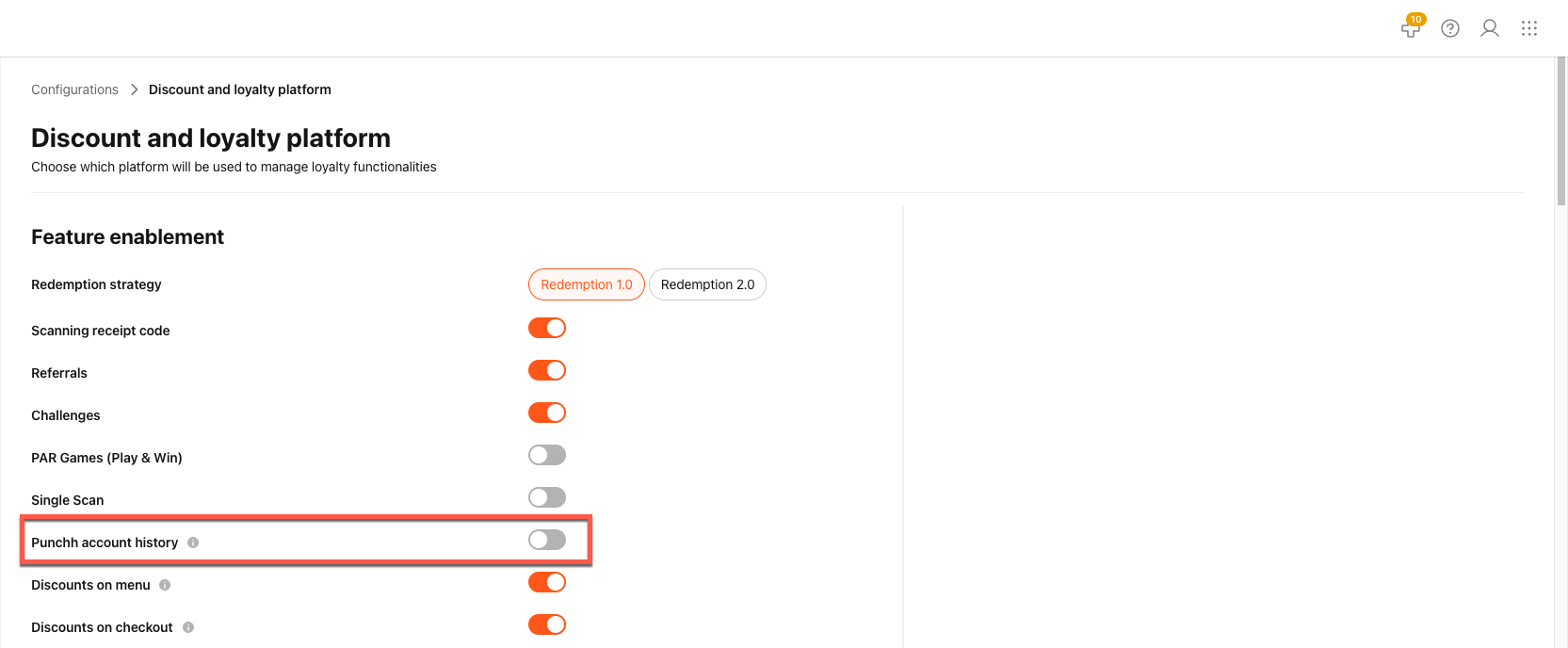
Select Brand level (all stores) > Configurations > Discount and loyalty platform > Feature enablement.
-
Locate the Punchh account history toggle in the Punchh feature flags section. Tip: An information tooltip next to the toggle displays the Punchh API requirements for this feature.
-
Turn the toggle on.
The toggle is off by default for all brands. Turning it off hides the Loyalty History section from all guests and stops all account history requests.
What Guests See
Once the toggle is on, loyalty members can access their transaction history from the Loyalty or Profile section of the ordering experience. The feature works on both web and mobile.
Web App
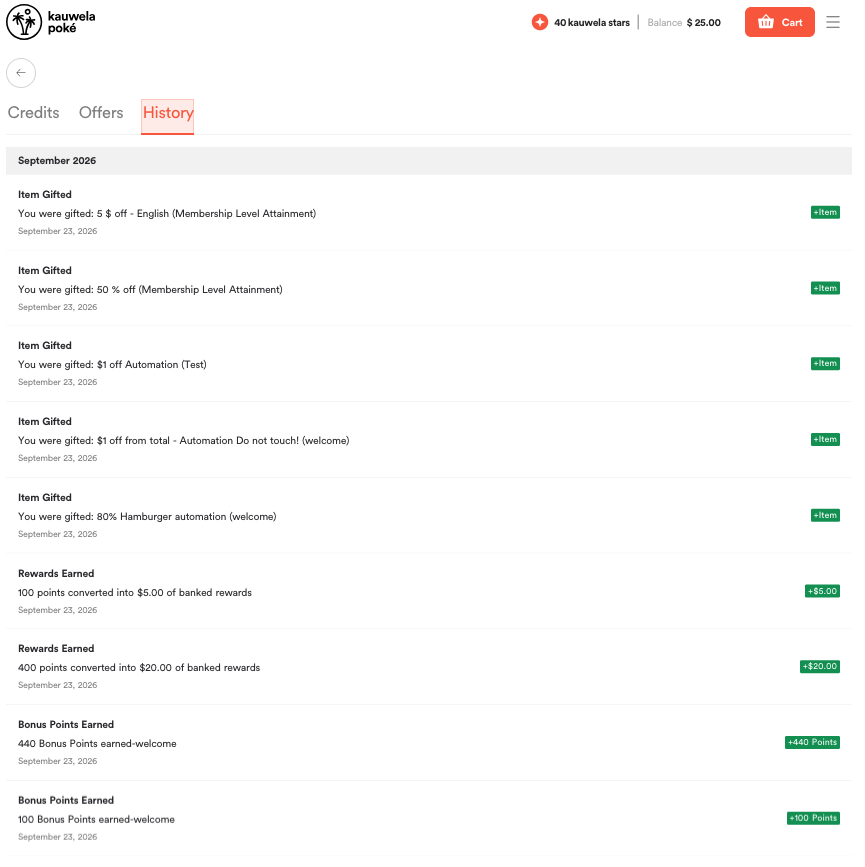
The Loyalty History section appears in the guest's account. Each transaction entry displays the following:
| Field | Description |
|---|---|
| Date | When the transaction occurred |
| Transaction type | For example, Points Earned, Points Redeemed, Purchases, or Bonus Events |
| Description | A brief note about the transaction, such as "Earned from $25 purchase" or "Redeemed for Free Dessert" |
| Points change | Points added (+) or deducted (−) from the account |
The history refreshes automatically each time a guest logs in or navigates to the Loyalty section.
Mobile App
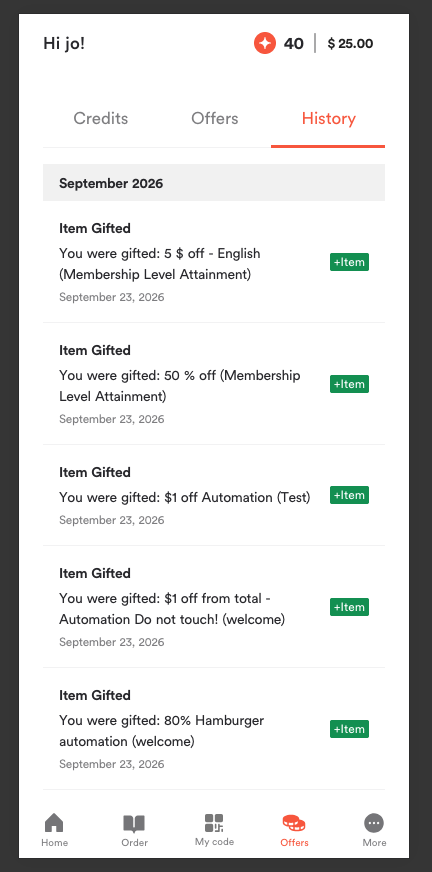
The mobile app shows the same transaction fields. Guests access the Account History screen from the loyalty or profile area of the app.
Transaction history is read-only on both web and mobile. Guests cannot edit, adjust, or export their loyalty history.
If no transactions are on record, the screen displays a "No Records" message.
