Order Ready Screen for Web, Mobile and Kiosk
This feature only relates to restaurants where there is a POS integrated order number display. This feature can be enabled via the CMS venue level settings.
Overview
The aim of this functionality is to use POS-provided order ready screen ticket code as the order number identifier with our Kiosk, Web and Mobile Apps for cash payments to check a pickup number when a restaurant has the Order Number Display.
These are the scenarios to consider (and we'll go through them in more details in just a moment):
- When a cash payment order is placed, so the Customer can see and use that number to pay the Order at the cash register
- When a restaurant has implemented the Order Number Display, so the Customer can check and see when the Order is ready to be collected and at the same time use that number to pickup the order
- This is a mix of the above two cases: the Customer has placed a cash payment order and, at the same time, the restaurant has implemented an Order Number Display, which means that the Order number will be used for paying and picking up the order
So far, this feature is compatible with:
- Mediaworks (rPOS)
- Micros POS
- Symphony POS
There will be more POS systems added and we will be communicating that in the specific Release Notes articles corresponding to the release time.
POS ticket code = Order number only becomes available after the order is exported to the POS. This means that for orders scheduled in advance, it will not become immediately available.
CMS Configuration
The restaurants can make the POS ticket code display on all their Channels (Mobile, Web, and Kiosk) by enabling the Venue Level Flag Use POS Order Number Display
This flag will only be visible for venues that have Dine-in (QS) or Takeout order types enabled and not a plain integration.


Mobile App
Cash payment
Available for: Dine QS, Takeout - In restaurant
- After placing the ASAP order, the Order Number becomes visible immediately on the order confirmation status screen
- You don't need to enable the CMS flag for cash payments. The CMS flag is there only to tell us whether the Venue is using an order ready screen so we show the correct order number on Mobile, Web and Kiosk Apps. We will always show the POS Order Number for cash payments regardless - if only you have the POS Integration.
Cash payment is an already existing feature and might get updated.
-
After placing the preorder, the order number place holder is shown with a proper message that informs the user that the order number will appear once it becomes available
-
When the order is sent to the POS, the user should receive a push notification with the order number that has become available
-
Once the order number has become available the order number component should automatically be updated with new information on the order status screen
-
For smart orders, no matter if it is ASAP or Preorder, the order number shouldn't be available before the customer arrives
Plain integration
- When POS is not integrated with the restaurant we’re using menu ordering code instead of POS ticket code
- Since the menu order code is immediately available, the ASAP and Preorder flow is completely the same
Order Number Display
Available for: Dine QS, Takeout - In restaurant
-
After placing the ASAP order, the order number becomes visible immediately on the order confirmation status screen
-
After placing the preorder, the order number place holder is shown with a proper message that informs the user that the order number will appear once it becomes available
-
When the order is sent to the POS, the user should receive a push notification with the order number that has become available
-
For smart orders, no matter if it is ASAP or Preorder, the order number shouldn't be available before the customer arrives
Cash payment + Order number display
Available for: Dine QS, Takeout - In restaurant
-
After placing the ASAP order, the order number becomes visible immediately on the order confirmation status screen
-
After placing the preorder, the order number place holder is shown with a proper message that informs the user that the order number will appear once it becomes available
-
When the order is sent to the POS, the user should receive a push notification with the order number that has become available
-
Once the order number has become available the order number component should automatically be updated with new information on the order status screen
-
For smart orders, no matter if it is ASAP or Preorder, the order number shouldn't be available before the customer arrives
Web App
Cash Payment
Available for: Dine QS, Takeout
POS integration
- After placing the ASAP order, the order number becomes visible immediately on the order confirmation status screen and SMS with order number is sent to the customer
- After placing the preorder, the order number place holder is shown with a proper message that informs the user that the order number will appear and sent in SMS once it becomes available
- When the order is sent to the POS, the user should receive the SMS with the order number information that has become available
Plain integration
- When POS is not integrated with the restaurant we’re using menu ordering code instead of POS ticket code
- Since the menu order code is immediately available, the ASAP and Preorder flow is completely the same
Order Number Display
Available for: Dine QS, Takeout - In restaurant
-
After placing the ASAP order, the order number becomes visible immediately on the order confirmation status screen and SMS with order number is sent to the customer
-
After placing the preorder, the order number place holder is shown with a proper message that informs the user that the order number will appear and sent in SMS once it becomes available
-
When the order is sent to the POS, the user should receive the SMS with the order number information that has become available
-
If the user remains on the screen long enough and the order number has become available the order number component should automatically be updated with new information on the order status screen
Cash Payment + Order Number Display
Available for: Dine QS, Takeout - In restaurant
- After placing the ASAP order, the order number becomes visible immediately on the order confirmation status screen and SMS with order number is sent to the customer
- After placing the preorder, the order number place holder is shown with a proper message that informs the user that the order number will appear and sent in SMS once it becomes available
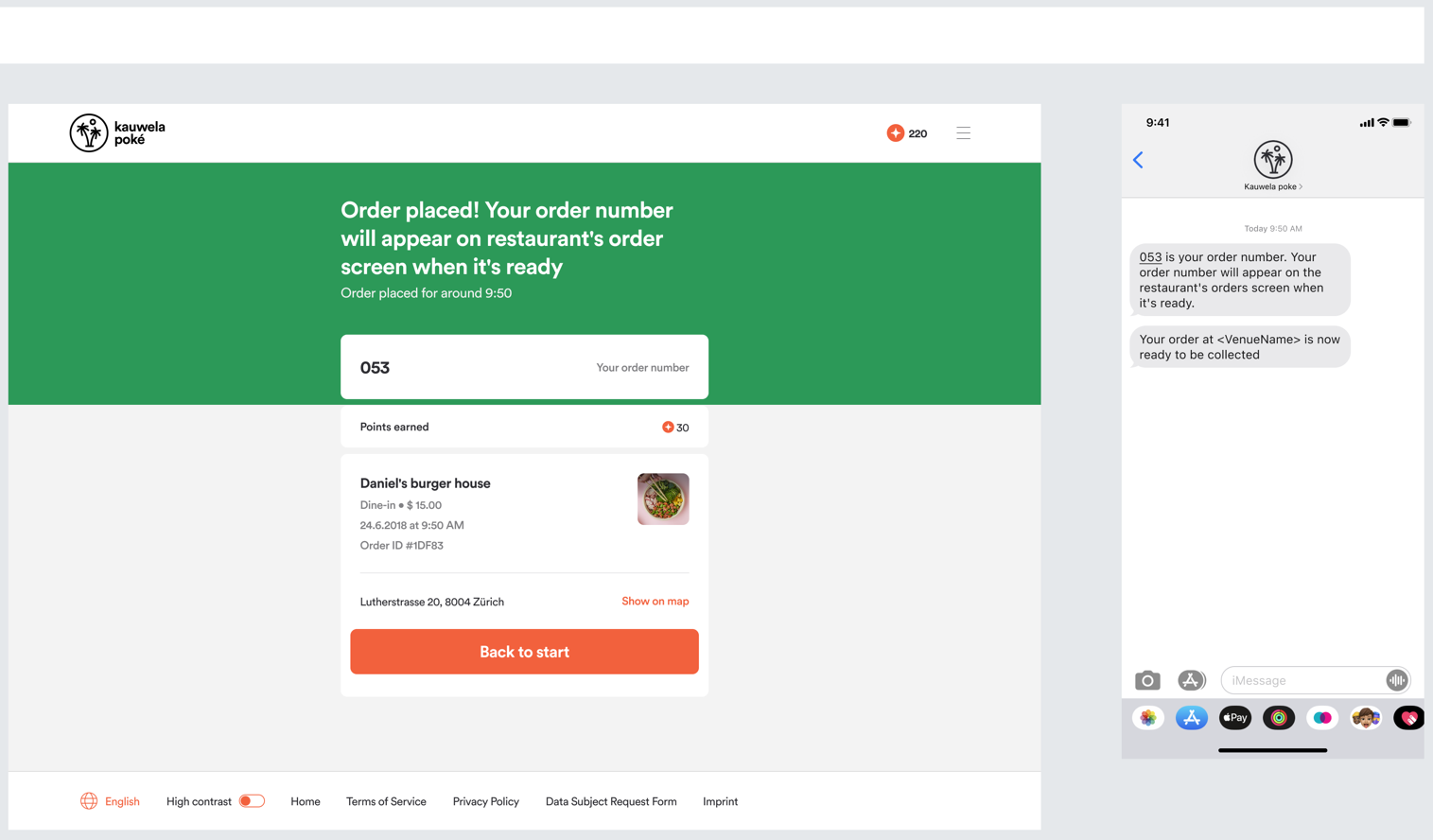
- When the order is sent to the POS, the user should receive the SMS with the order number information that has become available
- If the user remains on the screen long enough and the order number has become available the order number component should automatically be updated with new information on the order status screen
Logged in user or guest user experience for the Web App is completely the same.
Kiosk App
The Customer is using the Order Number as an order identifier to pay (in case of cash payment) and see on the order number display when the order is ready to be collected.
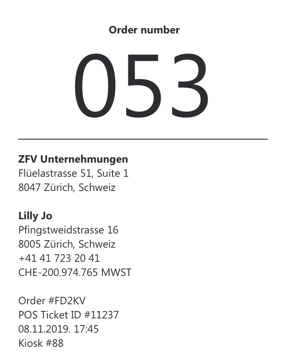
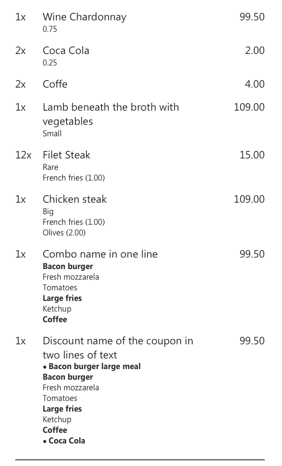
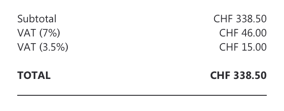
After placing the ASAP order, the Kiosk prints a receipt. The order number listed at the top of the receipt will be the POS ticket code instead of the Menu pick-up code.