How to Work with Route Drafts
How do I work with Route Drafts?
- On the Route Preview View the User clicks Save Draft button if they can not select the driver yet
- The sequence of Orders is saved as Draft - a sequenced list of Orders, but it isn't assigned to any Driver
- Confirmation message Route Draft saved is displayed and the User is taken to Order Assignment mode
Another scenario can be as follows:
-
On the Route Preview View, if the User clicks Cancel they will see a confirmation popup:
- Discard route? with the following buttons:
- Discard
- Save As a Draft
- Discard
- Once the User clicks Save as a Draft - the Draft will be saved
- Once the User clicks Discard the Route is discarded and the User is taken back to the Order Assignment View
- If the Driver is selected, they will not be saved for the Route Draft (the dropdown is added to the screen only for the Assignment and starting Route)
- If one or several Orders are not in Unassigned status when the Route draft is saved, the User will be asked for confirmation - should we save the Route Draft without the unavailable Orders
- Discard route? with the following buttons:
The Route Drafts are displayed in Order Assignment mode and can be edited or assigned to Drivers or DSPs later:
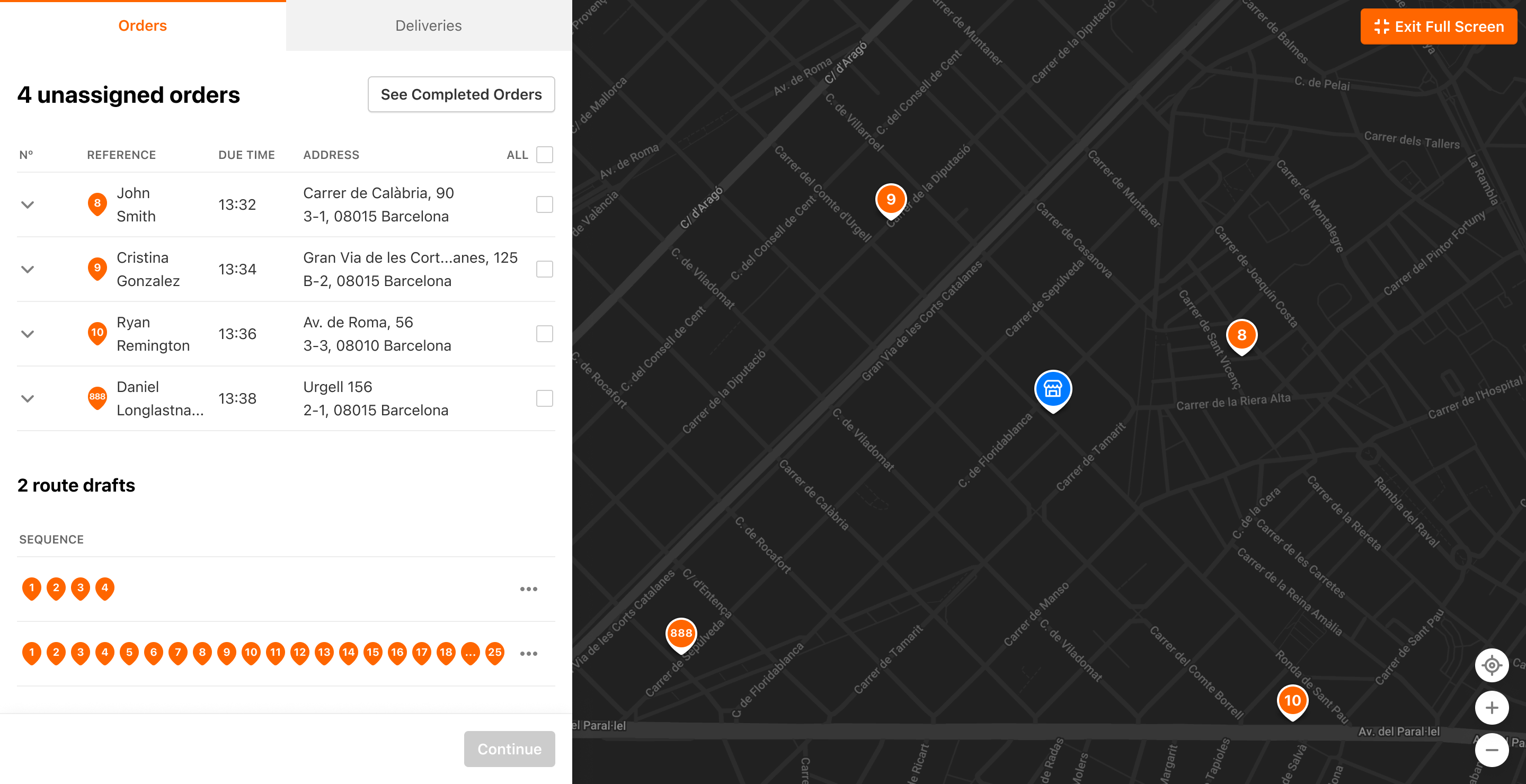
The Order can be present in several Route Drafts, but once the route gets assigned to a Driver o a DSP - all the Orders of that confirmed Route are removed from correspondent Route Drafts.
