How to Use the Orders Section in the Ordering Pilot App
Understanding the Orders Interface
The Orders section is the core of the app, displaying all incoming, in-progress, and completed orders.
Top Navigation
- Allows users to switch between order statuses.
- Shows a counter for the number of orders in each status.
- The active section is clearly highlighted.
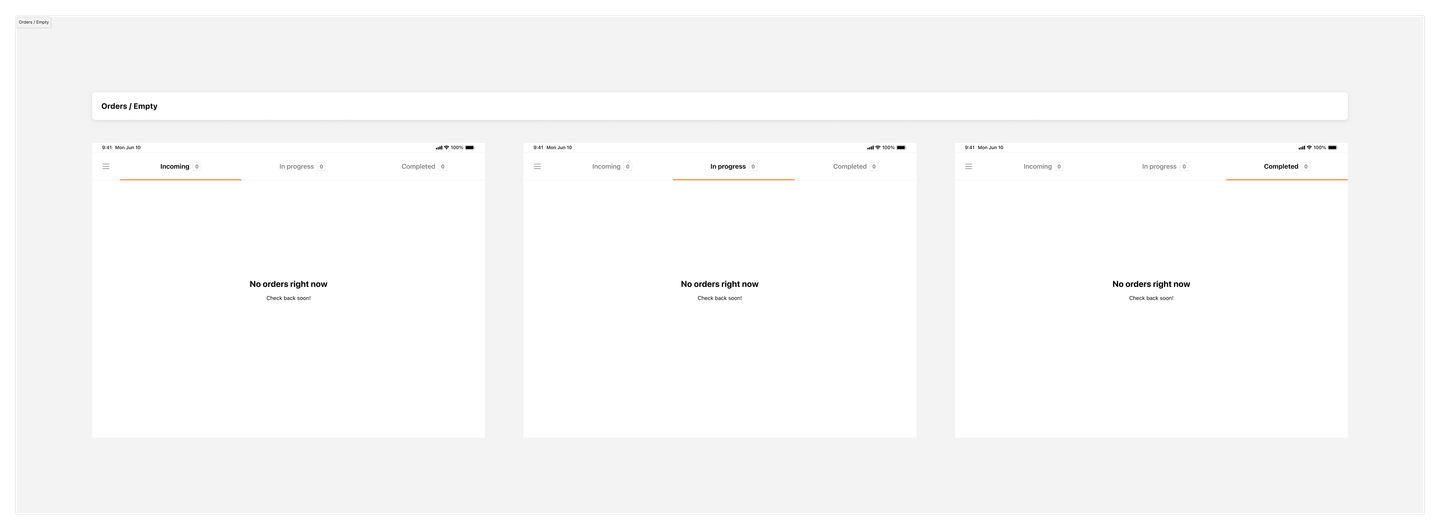
Empty Orders View
If there are no orders in a selected status:
- The app displays a dedicated empty state screen.
- This helps users quickly identify that no orders are currently available in that category.
Filled Orders View
When orders are present, the screen is split into two segments:
Left Segment: Order List
-
Displays all orders for the selected status.
-
Orders are sorted by pickup time:
- Sooner pickups appear at the top.
-
Each order shows:
- Order type icon and name
- Customer name and/or order number
- Pickup time (absolute or relative)
- Tags (e.g., Manual Order, POS Error, Arrived, External Channel, DSP)
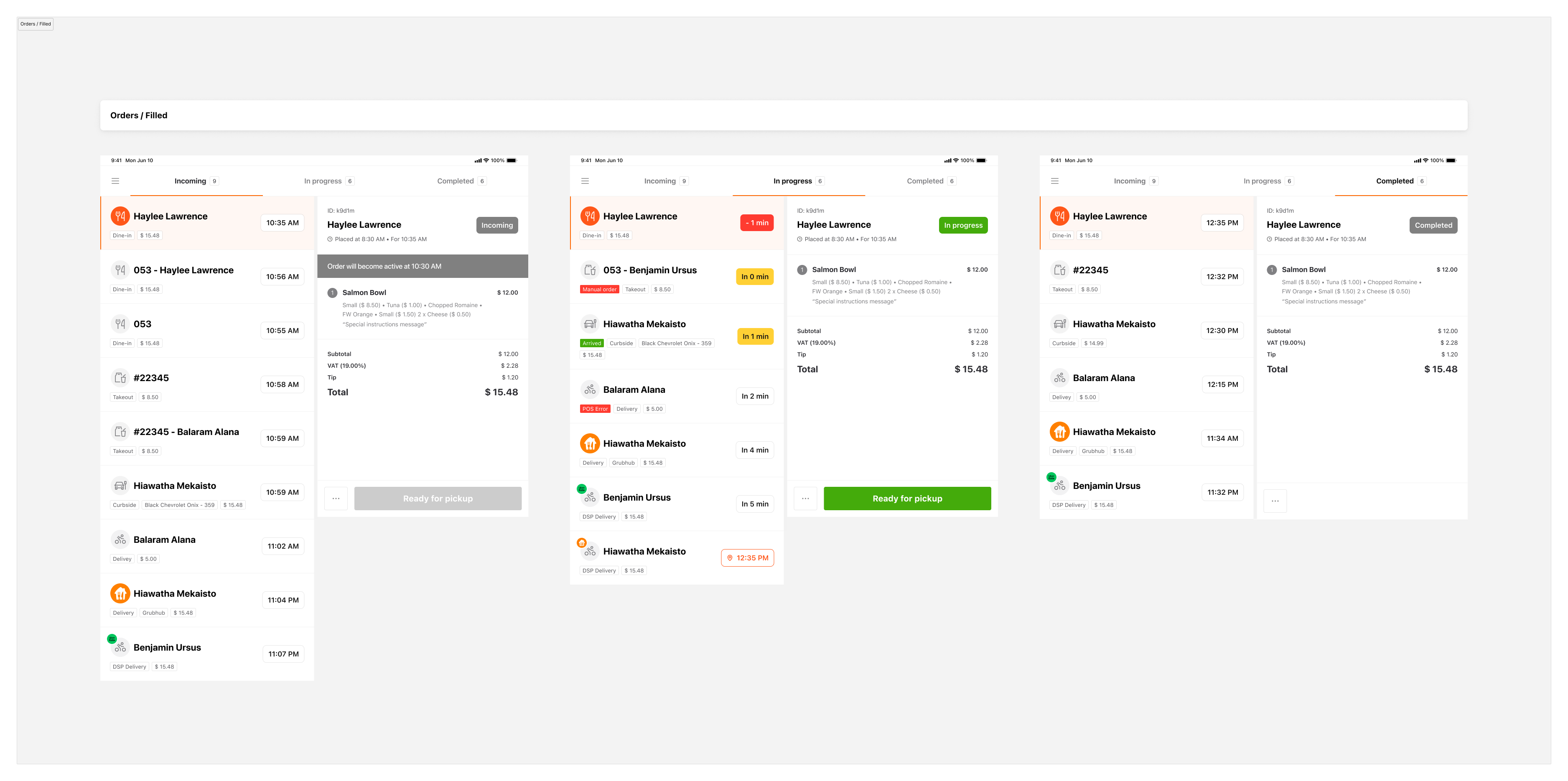
Right Segment: Order Details
-
Displays detailed information for the selected order:
- Order ID
- Customer and courier info
- Order creation, pickup, and delivery times
- Status tag
- Customer comments
- Product summary with quantities, prices, and comments
- Calculation breakdown (Subtotal, VAT, Total, Tip, Discounts, Fees, Refunds)
- CTA to mark order as completed
- Action menu for additional functions
Order Statuses Explained
Incoming Orders
- Received but not yet sent to the kitchen.
- Cannot be marked as completed.
- Transition to in-progress is based on pickup time – preparation time.
In-Progress Orders
-
Sent to the kitchen and being prepared.
-
Can be marked as completed.
-
Pickup time is shown in relative format:
- White: >1 min remaining
- Yellow: ≤1 min remaining
- Red: Overdue
Completed Orders
- Marked as completed.
- Automatically deleted after midnight daily.
- Sorted with most recent at the top.
Navigating and Interacting with Orders
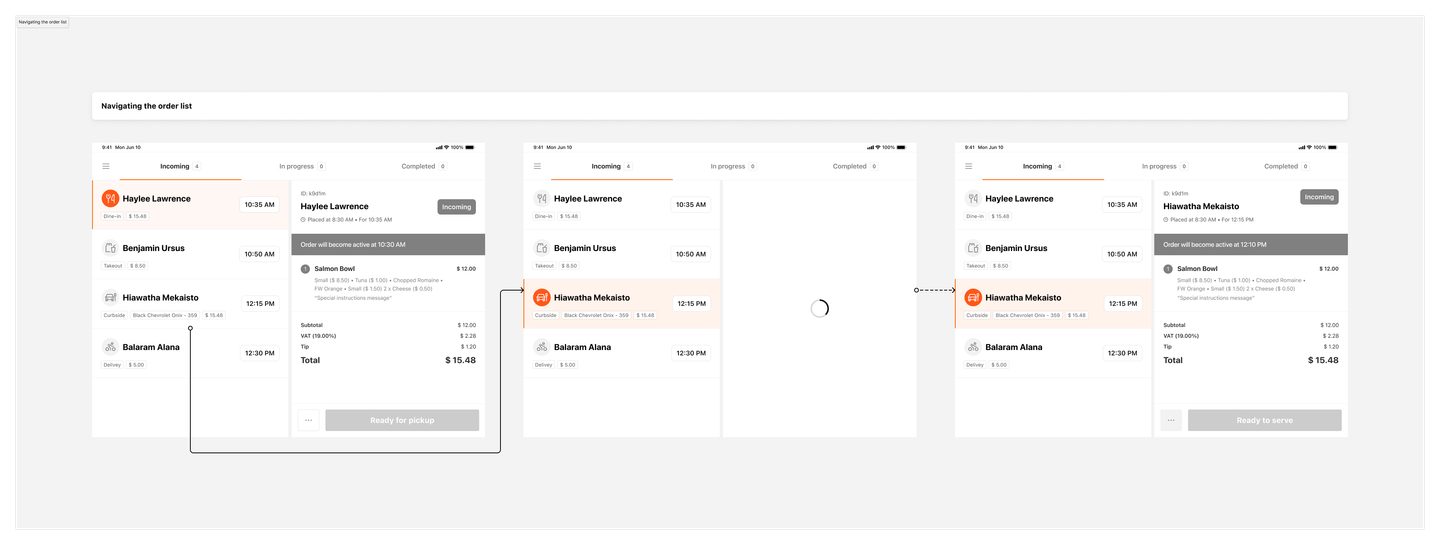
Selecting Orders
- Tap an order in the list to view its details.
- The selected order is visually highlighted.
Scrolling
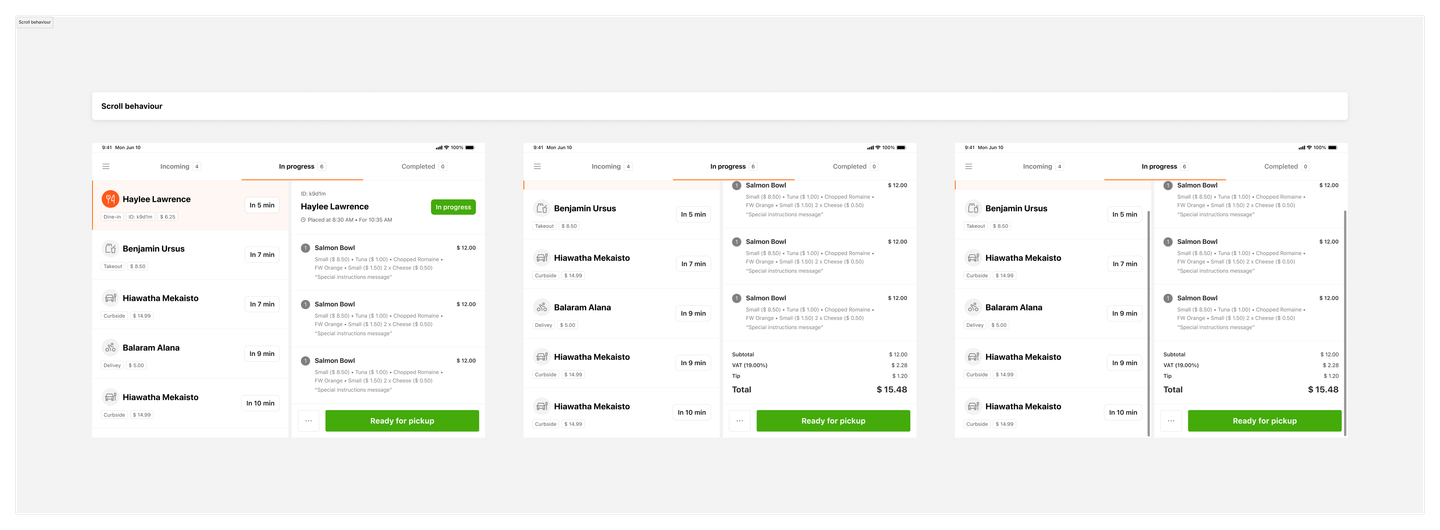
- Both segments support scrolling for long content.
- Top navigation and bottom bar remain fixed.
- Scroll indicators appear during interaction.
Action Menu
- Accessed via the three dots icon in the bottom bar.
- Menu options vary by order status:
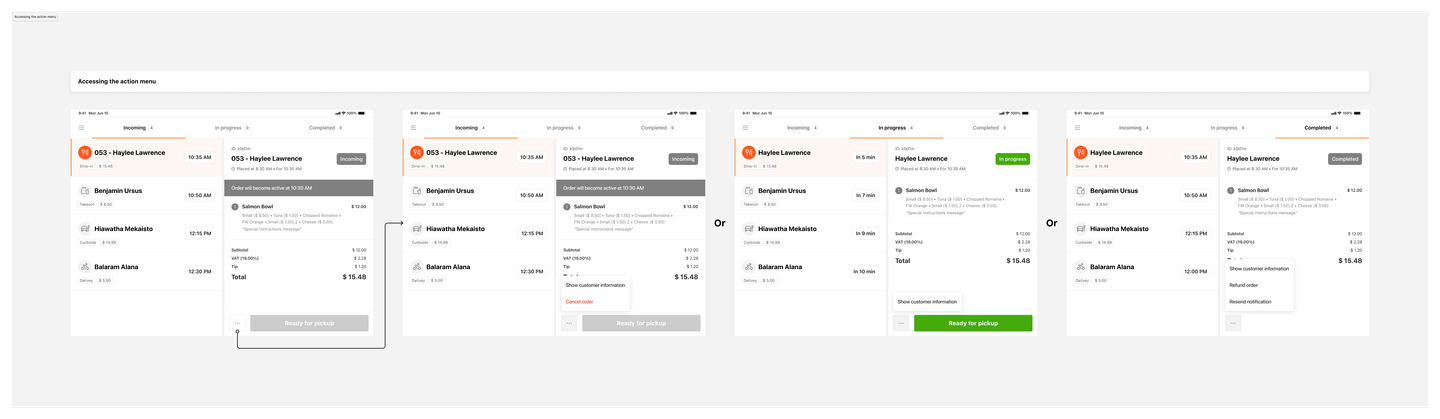
Incoming Orders
- Show customer info
- Show courier info (delivery only)
- Cancel order (not for Skip the Dishes Ex)
In-Progress Orders
- Show customer info
- Show courier info (delivery only)
Completed Orders
- Show customer info
- Show courier info (delivery only)
- Resend notification (Dine-in & Takeout only)
- Refund order
