How to Partially Refund an Order in V2
Brand and store managers can issue refunds directly from the order details drawer. Refunds can be full or partial, depending on the situation.
Order Status and Refund Eligibility
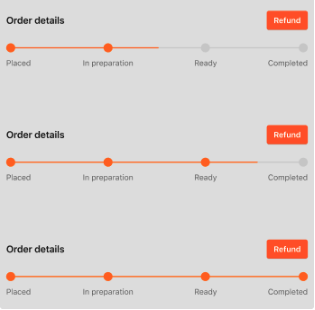
| Order Status | Can Refund? |
|---|---|
| Placed | ❌ |
| In Preparation | ✅ |
| Ready | ✅ |
| Complete | ✅ |
How to Process a Refund from the Order Details Drawer
Key Notes
Order details are only available at the store level.
Steps to Access Order Details
Navigate to the Management Center
Select : Store > Orders> Overview
Open the Order Drawer
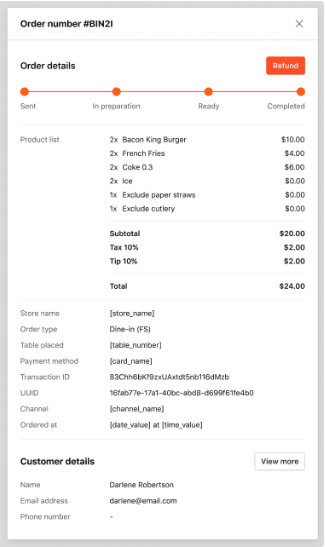
- Navigate to the specific order you want to refund and open its details drawer.
Select the Refund Option
- Click on the Refund button. This option is only available based on the order's current status (see table below).
Choose Refund Type
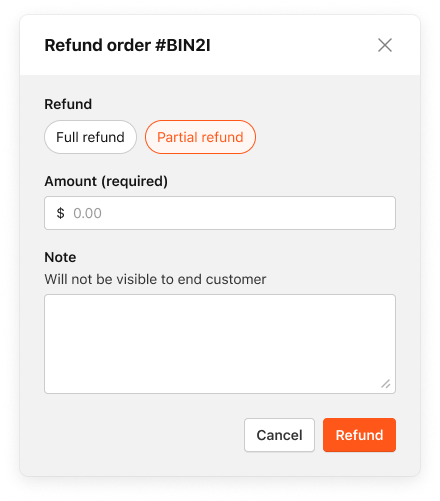
- In the refund modal:
- Select Full Refund to refund the entire amount.
- Select Partial Refund to refund a specific amount.
Enter Partial Refund Details (if applicable)
- Input the amount to be refunded.
- Optionally, add a note (internal use only, not visible to the customer).
Confirm the Refund
- Follow the on-screen prompts to complete the refund process.
What Happens After a Refund?
- Partial Refunds:
- The refunded amount appears below the order total.
- No items will be shown with a strikethrough (unlike full refunds).
- Notes and the name of the person who processed the refund will be visible in the order details.
- The payment status will update to Partially Refunded.
