How to Manage Languages?
Languages can be managed in the Management Center as well as in the CMS. This guide will walk you through language management in the Management Center for a user who has management permissions for Languages.
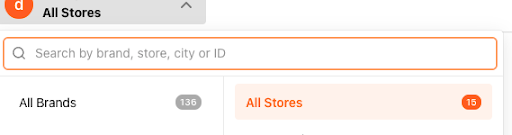
- Navigate to the brand’s All Stores navigation level
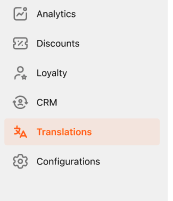
- Select Translations in the subnavigation
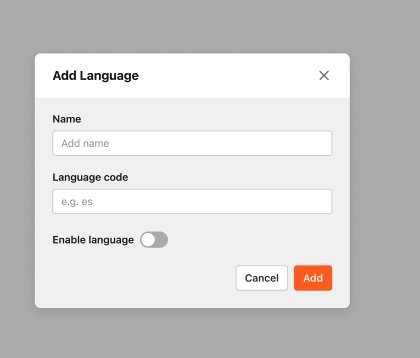
- To add a new language, select + Add Language

- Add the name, language code, and set the status to enabled or disabled
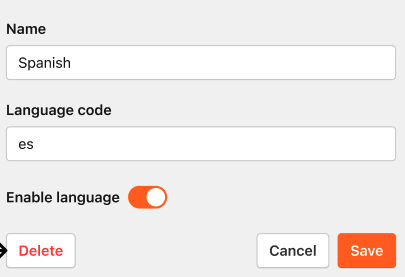
- To edit a language, select the “...” for the relevant language in the language table and select edit
- Edit the name, language code, or status
- To delete the language, select the “...” for the relevant language in the language table and select Delete
- You can also delete the language after selecting Edit and then selected Delete
- To delete the language, select the “...” for the relevant language in the language table and select disable
- You can also edit, disable, and delete the language from the language translation screen
