How to Manage Driver App?
Download App
Download the PAR Ordering Driver App from Google Play Store for Android and App Store for iOS:
Sign In
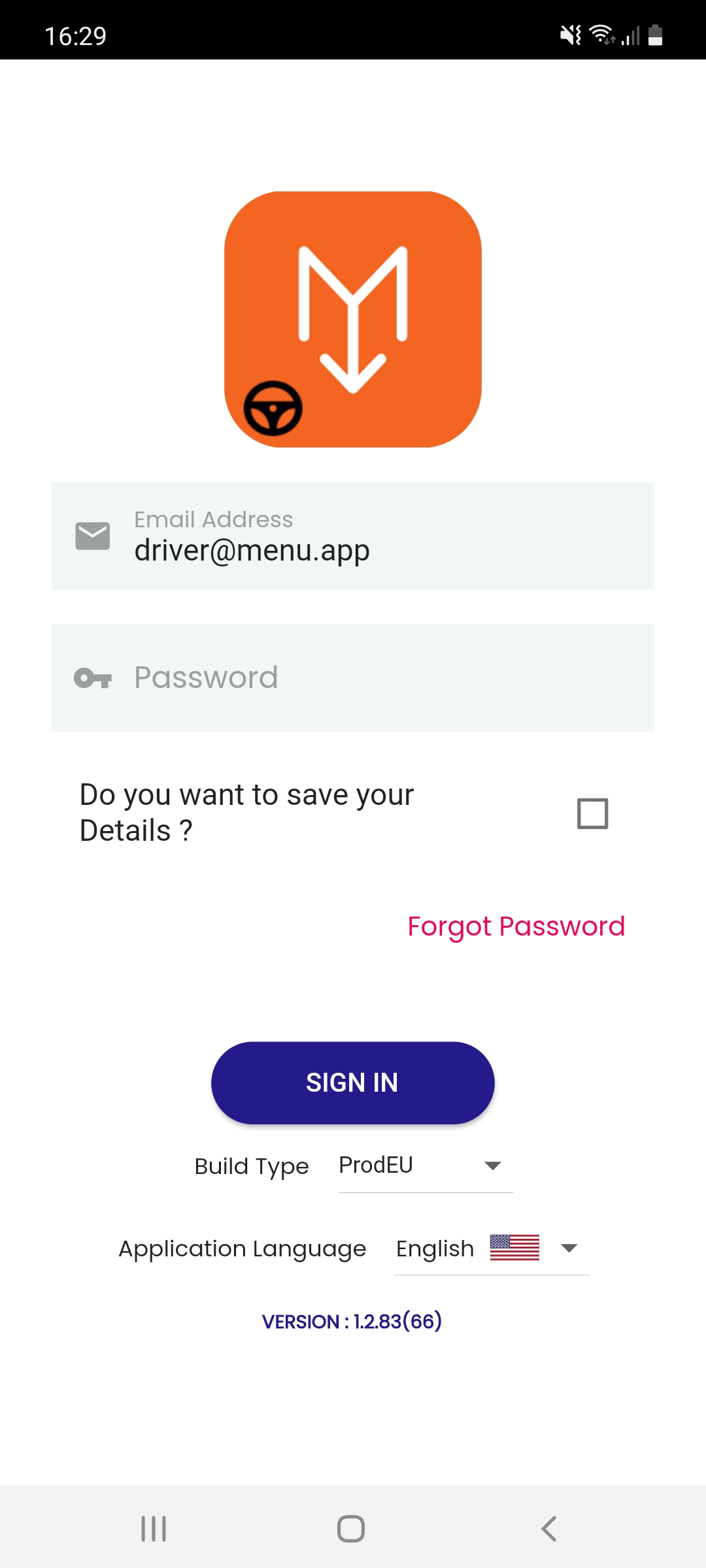
To log in, you need your account details provided by your Driver Manager or Store Manager.
You will get a Welcome email with a link to download the app and reset your password.
For more information, please contact the company you are working with and they will be able to set up your account.
Change Password
In the Change Password screen, you can change your login password. The initial one is provided to you by the Delivery Manager. You can change it whenever you want.
To change password:
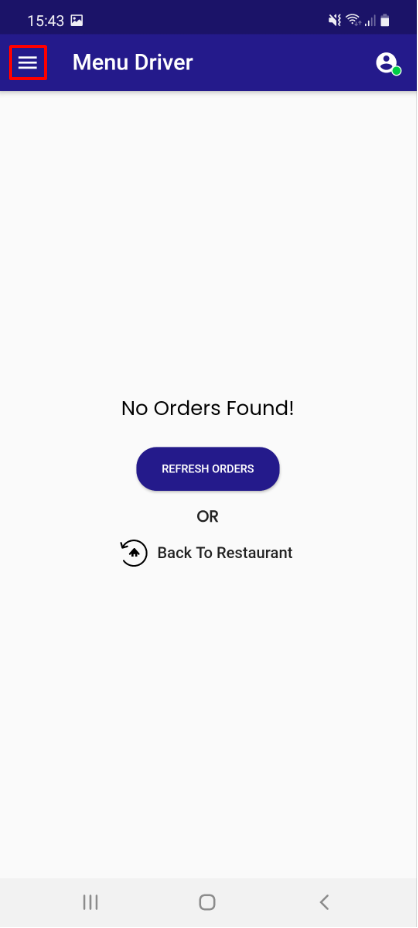
- Click the sidebar menu
-
Select Change Password
-
New Change Password screen appears
-
Enter Old Password, New Password and Confirm Password
-
Click CHANGE PASSWORD to complete the process
You've successfully changed your password.
Permissions and Availability
For more information on how to sign in, please go to How to sign in? section.
-
Once you logged in successfully, you will see the initial screen asking you to use your location
-
Opt for Allow While Using App
-
Opt for Keep Only While Using after the next screen appears
In order for you to receive Dispatch Orders, you need to be logged into the app and have your location turned on.
Profile Details
To see your Profile details:
-
Click the sidebar menu
-
Select My Profile
-
In this screen you can see more information on the account you are logged in with: user name and email address
Order History
Order History screen contains the list of Orders you have delivered in the last 24 hours.
-
If you click VIEW DETAILS, you will see more information about the Customer
-
If you click GO TO MAP the app will open the map providing you with the route taken to the Customer
Delivery
-
To start the Delivery, you need to click Start Delivery
-
Once you completed the delivery, you need to click End Delivery
-
Now you are available again to receive other deliveries
Vehicle
In the Switch Vehicle Type screen, you can change the vehicle you use for the delivery (Bike or Car).
To switch vehicles:
-
Click the sidebar menu
-
Select Switch Vehicle Type
-
New Switch Vehicle screen appears
-
Select the vehicle (Bike or Car)
Apart from selecting the vehicle, you can also set up your slot size i.e. how many deliveries you are able to complete in one ride.
- Click Switch Vehicle to complete the process and save the changes
You've successfully switched vehicles and set up slot size.
