How to Link a Product Group to a Product
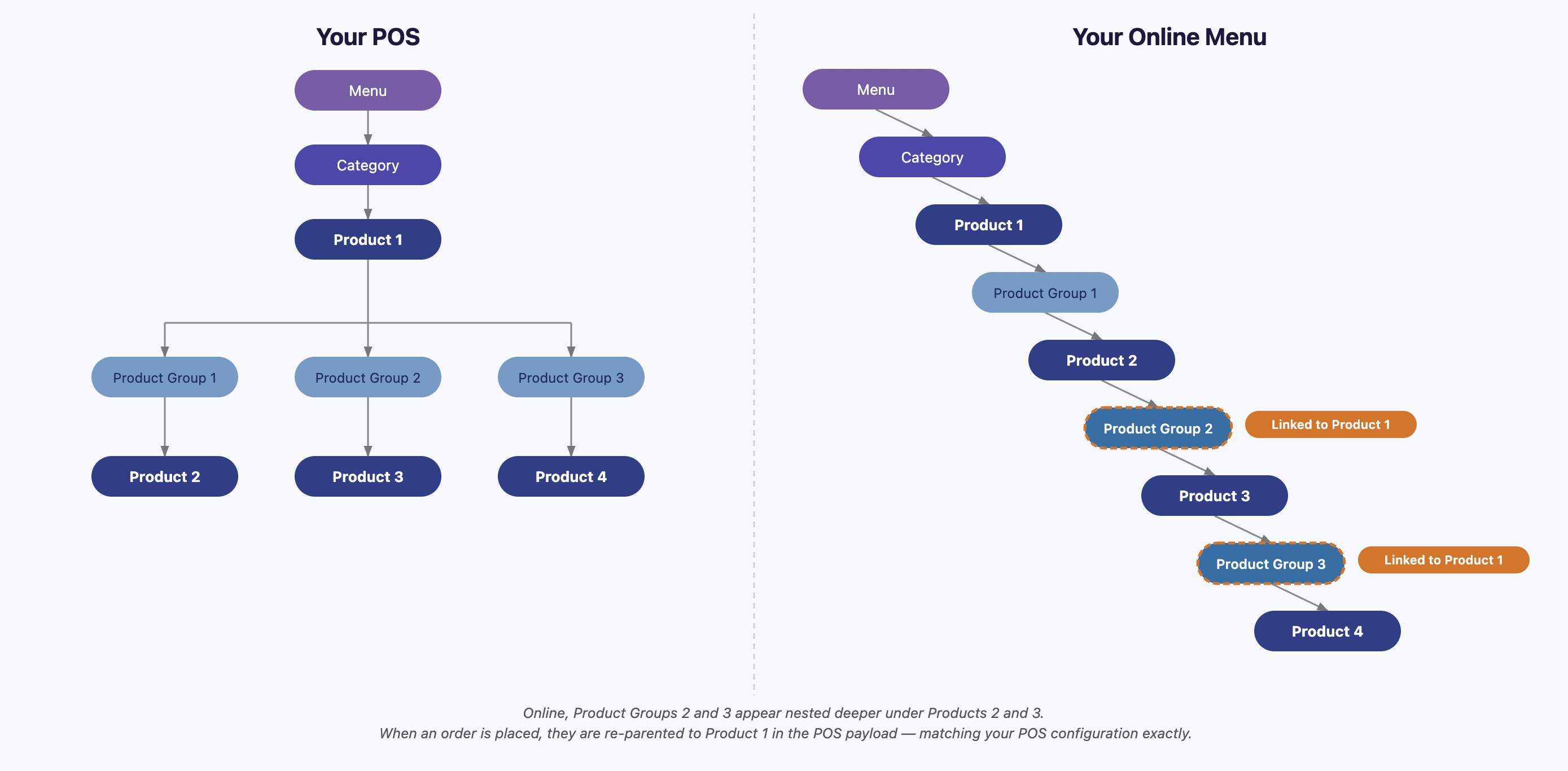
This article explains how to attach a modifier group to an ancestor product, controlling how that group is submitted in the POS order payload.
Prerequisites
Before you begin, make sure you have:
- A published menu in PAR Ordering with at least one product available in the menu preview drawer
- A Virtual Product Group (VPG) or Non-Virtual Product Group (NVPG) under the product you want to configure
- Brand-level manager permissions
Steps
-
Navigate to the menu that contains the product you want to configure.
-
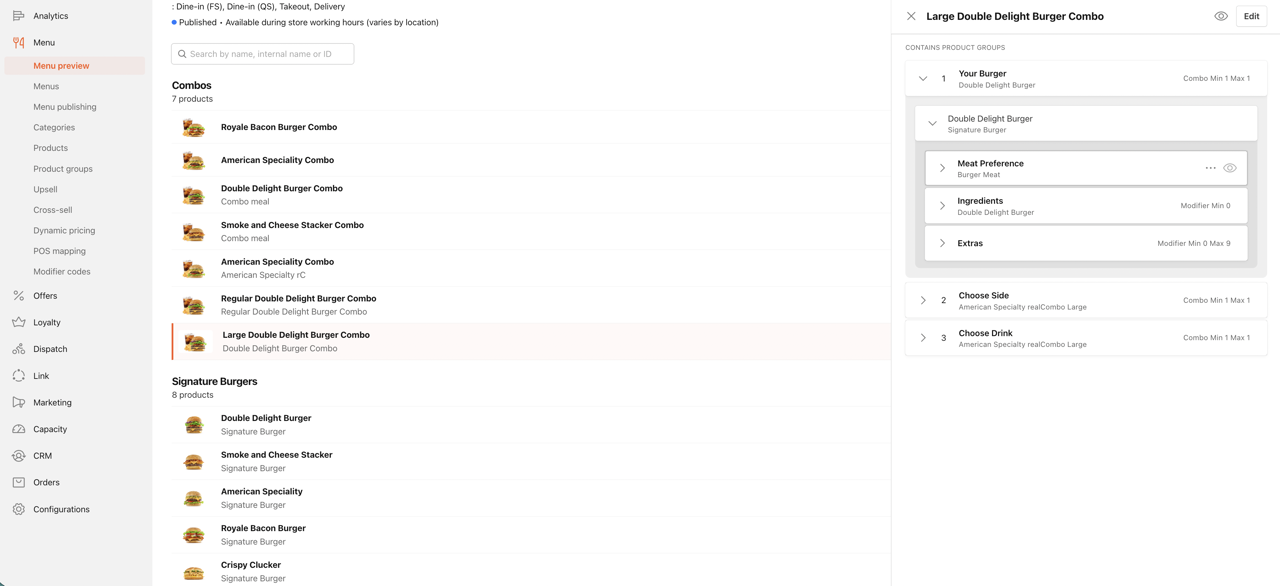
Open the product in the menu preview drawer.
-
Hover over the VPG or NVPG row you want to link. A three-dot menu (⋮) appears.
-
Click Link to product.
-
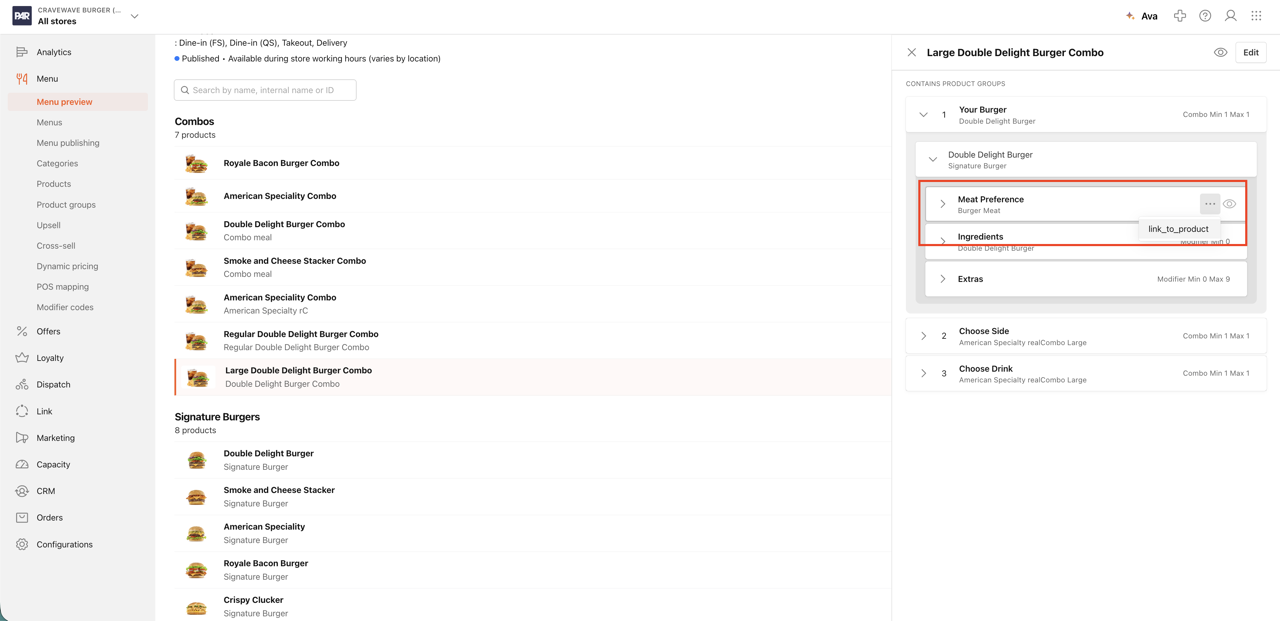
In the window that appears, select the ancestor product you want to link to.
- The list shows only ancestor products of the current group — from its immediate parent up to the category-level product.
-
Click Link to confirm.
-
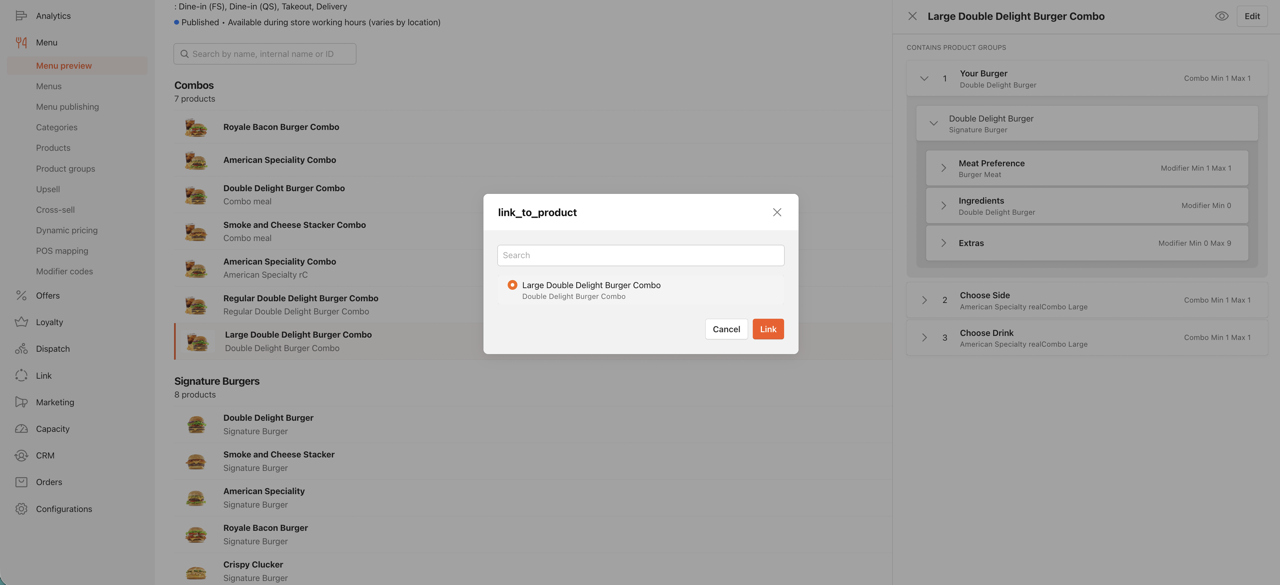
The modifier group now displays a chip indicating which product it is linked to. You can re-link to a different ancestor or remove the connection by clicking × on the chip.
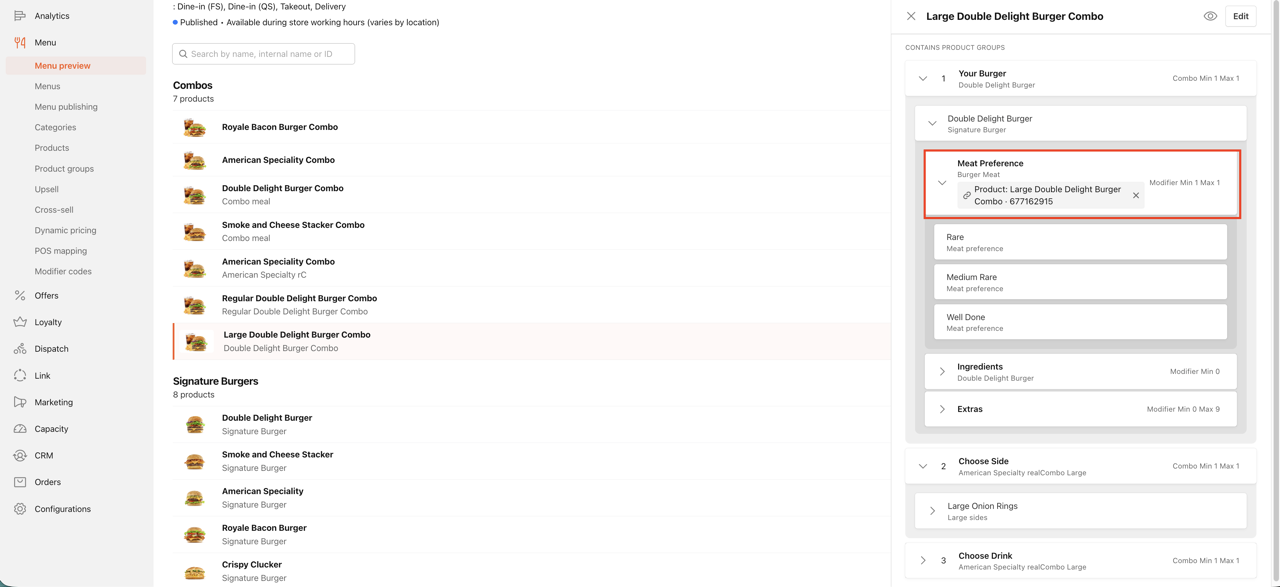
-
Distribute and publish your changes from brand to store level.
- The new POS payload structure takes effect on the next order.
This link is menu- and category-specific. The same product group can have a different Link to Product — or no link — in different menus or categories. When you configure the link from the preview drawer, it applies only to the menu and category you are currently viewing.
For Virtual Containers, Link to Product only takes effect when the Virtual Container is also linked to a POS product group. A Virtual Container linked to a product but not to a POS product group behaves the same as an unlinked Virtual Container. See How to Link a Virtual Container to a Product Group for setup steps.
What Happens When the Link Breaks
If the product group is detached from its parent product in the menu tree:
- The link is automatically cleared.
- The group reverts to its default behavior — attaching to its structural parent in the POS payload.
- Re-linking after re-attachment is manual.
Product Group Link State Reference
| State | PAR POS Order Injection |
|---|---|
| NVPG — unlinked | Attaches to its structural parent product in the POS payload |
| NVPG — linked to product | Attaches to the linked ancestor product in the POS payload |
| Virtual Container — linked to POS group only | Sent using the linked POS group's identity and hierarchy |
| Virtual Container — linked to both POS group and product | Sent as linked POS group, nested under the linked ancestor product |
| Virtual Container — linked to product only (no POS group link) | Same as unlinked — a product link alone has no effect on a Virtual Container |
Related Documentation
How to Link a Virtual Container to a Product Group
