How to Enable/Disable Category?
| User Role | Store Group | Store |
|---|---|---|
| Brand Manager | ❌ | ✅ |
| Area Manager | ❌ | ✅ |
| Store Manager | ❌ | ✅ |
Context
You can disable Category through the MC. Disabled Categories can also be re-enabled through the MC. The availability of Category is always controlled per Store even if the Store belongs to a Store Group.
To disable/hide a Category:
- Click on Store List at the top navigation bar
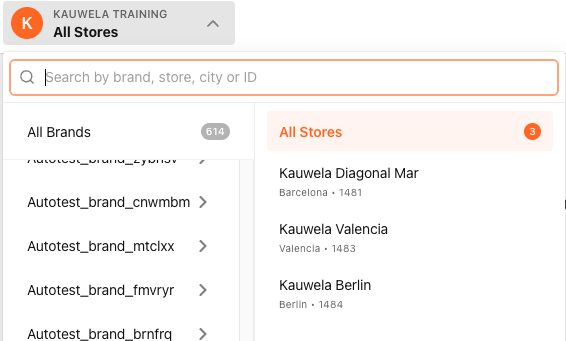
- Select Store
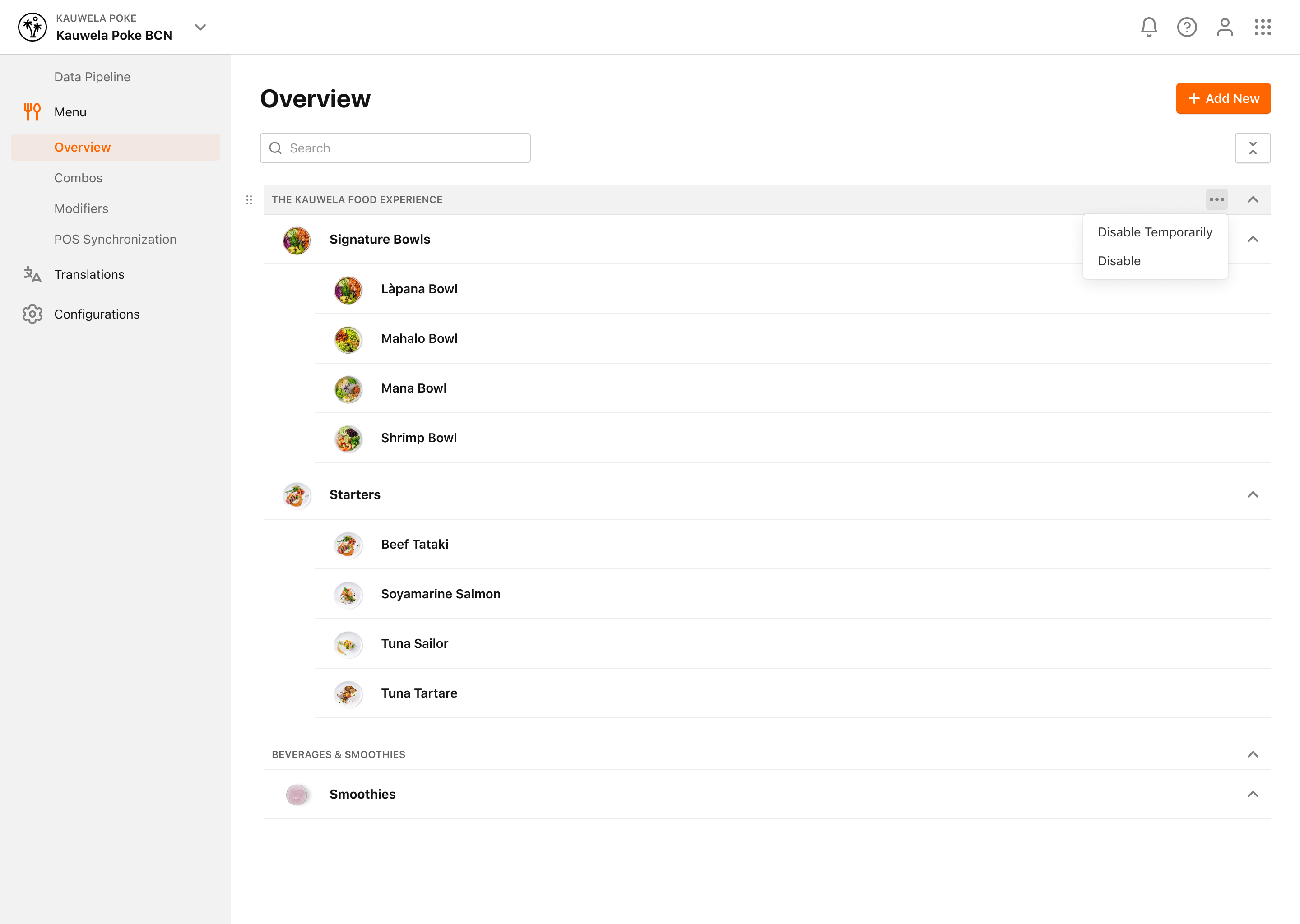
- Click Overview from the Menu on the side navigation bar
-
Select Category from the sidebar
-
Click on the 3 dots and select your option
-
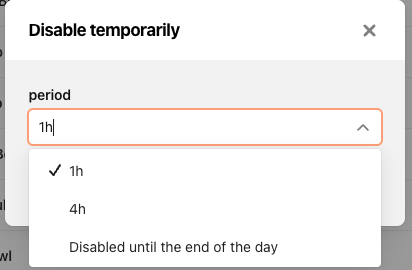
Disable temporarily: The Category would not be available. You can disable it for 1 hour, 4 hours or till the end of the day
- Disable: the Category would not be available
- Hide: the Category is hidden from the MENU Ordering & External Channels but it's visible in the Loyalty program
-
Disable temporarily: The Category would not be available. You can disable it for 1 hour, 4 hours or till the end of the day
-
Click Save to confirm the selection
Disabled Categories are not displayed on Channels. Temporarily disabled Categories (and their Subcategories and Items) are not visible on Channels, but are marked as Disabled in the MC.
To enable/show a Category:
-
Click on Store List at the top navigation bar
-
Select Store
-
Click Menu at the top navigation bar
-
Select Category from the sidebar
-
Click on the 3 dots and select your option
- Enable

- Show

- Click Save to confirm the selection
You can also enable/disable Categories by clicking on the Category itself and make the changes in the pop-up window that appears.
Categories and Subcategories that are empty (don’t have items or combo clusters) in Brand Menu will be shown in Store Menu. Same goes for Modifier Groups. Don't worry - neither Visibility nor Disable flags will affect Store Menu.
