How to Configure Item-Based Purchase Limits
This article explains how to configure minimum and maximum purchase quantities for individual menu items in the Management Center, and how those limits are enforced during ordering.
Overview
Item-based purchase limits let you control how many of a specific item a guest can order. You can set a minimum quantity, a maximum quantity, or both on any product in the Management Center.
Common use cases include:
- Catering minimums: Require guests to order at least a set quantity of an item once it is added to the cart (for example, a minimum of 10 units for a Sandwich Pack).
- Promotional caps: Prevent guests from claiming more than a set quantity of a promotional item (for example, a maximum of 2 free sauces per order).
Limits are enforced in two places:
- In the Web App: The quantity stepper, Add button, and inline messages reflect the configured limits in real time.
- On the server: The cart and order APIs re-validate quantities at checkout, so limits cannot be bypassed by a stale session or a modified request.
Prerequisites
Before you configure item-based purchase limits, confirm the following:
- You have access to the Management Center with menu editing permissions.
Item-based purchase limits apply to direct Web App and mobile ordering only. Third-party channels such as Uber Eats and DoorDash do not enforce these limits.
Configure Item-Based Limits in the Management Center
-
In the Management Center, navigate to Menu > Products > the product you want to update.
-
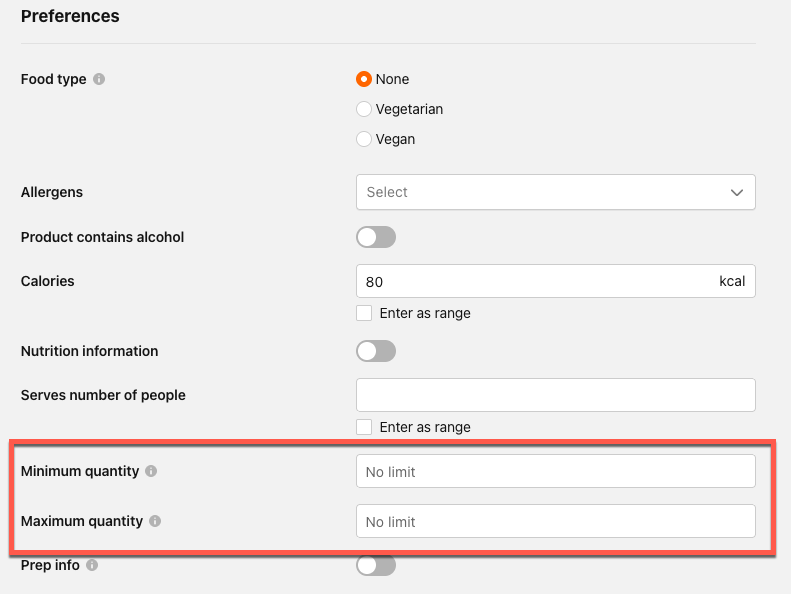
Click the General tab and scroll to the Preferences section.
-
In the Minimum quantity field, enter the minimum number of units a guest must order if they add this item to the cart. Leave blank for no minimum.
-
In the Maximum quantity field, enter the maximum number of units a guest can order. Leave blank for no maximum.
-
When you enter a value in either field, the Limits apply to option appears. Select one of the following:
- Per order: The limit applies to the combined quantity of this item across the entire order, regardless of how many separate lines it appears on in the cart. This option is selected by default and is recommended for most use cases, including promotional caps.
- Per cart item: The limit applies to each individual line of this item in the cart.
- Click Save.
The form reloads with the saved values. If the save fails, an inline error message identifies the issue.
The minimum and maximum limits on a product must share the same scope. You cannot set different scopes for each.
Validation rules
The Management Center validates your input before saving. The following conditions produce an inline error and block the save:
- A value of 0 or a negative number
- A non-integer value
- A maximum quantity that is lower than the minimum quantity
Leaving both the Minimum quantity and Maximum quantity fields blank removes all limits from the item and restores the default behavior.
What Guests See in the Web App
Guests see the following when ordering a product with limits configured:
Minimum quantity
- The quantity stepper opens preset to the configured minimum.
- An inline message tells the guest the minimum quantity required (for example, "Add at least 10 of this item").
- The guest cannot decrease the quantity below the minimum using the stepper. They can still remove the item from the cart entirely using the delete option.
Maximum quantity
- When the guest reaches the maximum, the stepper stops and an inline message indicates the limit (for example, "You can add up to 2 per order").
- When the Per order scope is set, the Add button is disabled once the limit is reached across all cart lines for that product.
At checkout
If limits change in the Management Center after a guest adds the item to the cart, the server re-validates at checkout. The guest receives an on-screen message, checkout is paused, and the cart refreshes automatically to reflect the current limits.
Important Notes
- Item-based limits apply to standalone cart items only. They do not affect modifier or combo group quantity rules.
- Products imported from a POS cannot have limits applied through POS sync. Configure limits directly in the Management Center.
- Item-based limits are not enforced on third-party ordering channels (such as Uber Eats and DoorDash) at this time.
