How to Configure Catering Approvals in the Management Center
Enable the Catering Approval Settings at the Brand level
- Sign in to the Management Center.
- Navigate to Configurations > Order Types > Catering Order Type.
- Locate the section titled Approvals.
You can set up the configuration options for both Pickup and Delivery independently.
Enable Approval Workflow for Catering Pickup
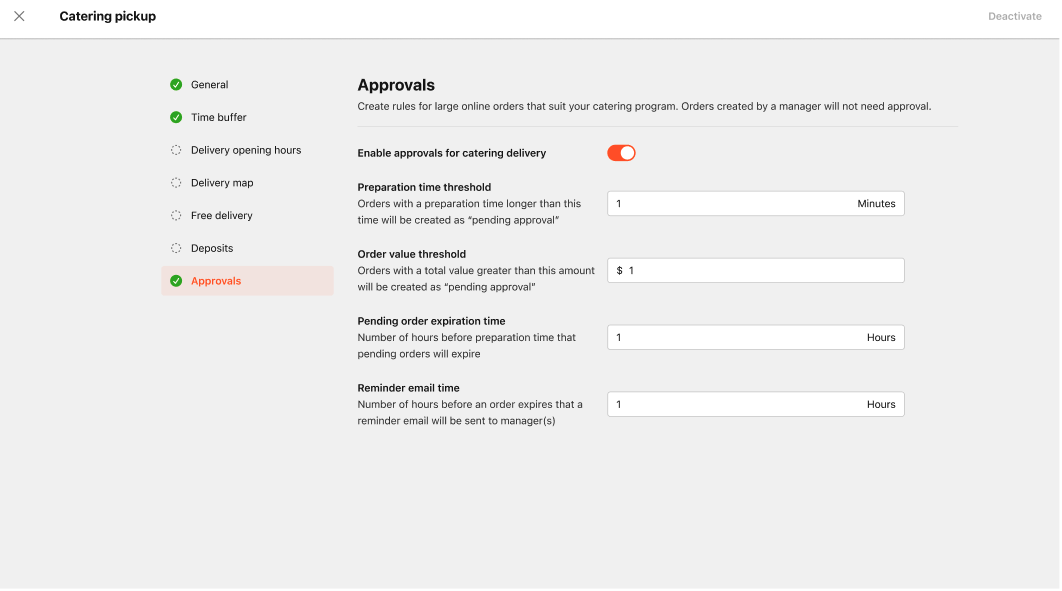
-
In the Catering Pick-up Order Types, Approval section, toggle on: Enable approvals for catering pick up
-
Configure the following settings:
-
Preparation time threshold
- Orders with a preparation time longer than this time will be created as “pending approval.”
-
Order value threshold
- Orders with a total value greater than this amount will be created as “pending approval.”
-
Pending order expiration time
- Number of hours before preparation time that pending orders will expire
-
Reminder email time
- Number of hours before an order expires that a reminder email will be sent to manager(s)
-
Result
All pickup orders will:
- Enter Pending Approval
- Require action from a Catering manager
- Auto‑reject if not addressed within SLA
Enable Approval Workflow for Catering Delivery
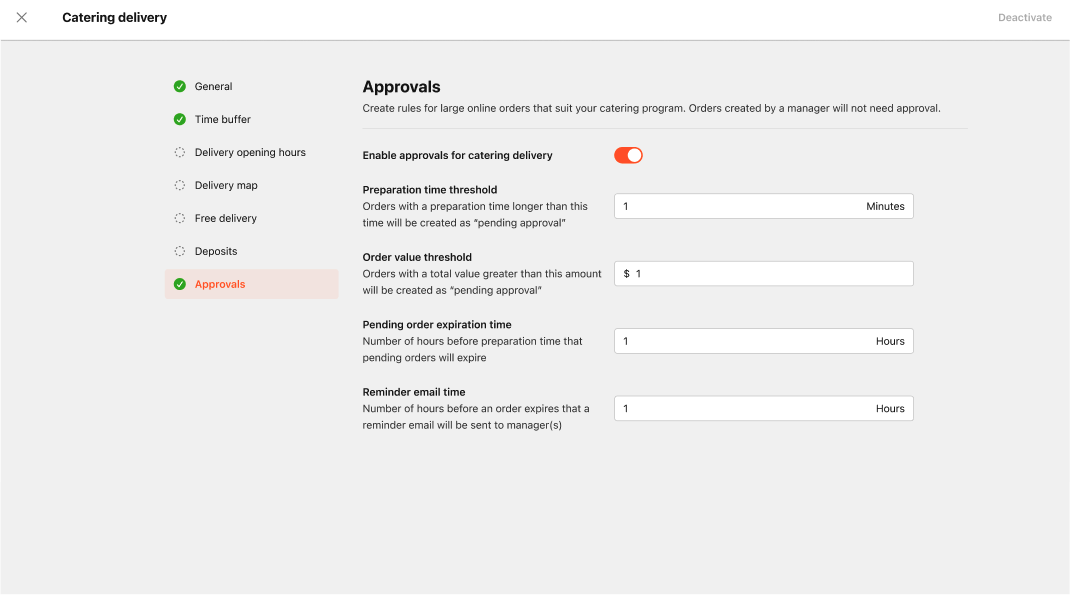
Steps
-
In the Catering Delivery Order Types, Approval section, toggle on: Enable approvals for catering pick up
-
Configure the following settings:
-
Preparation time threshold
- Orders with a preparation time longer than this time will be created as “pending approval”
-
Order value threshold
- Orders with a total value greater than this amount will be created as “pending approval.”
-
Pending order expiration time
- Number of hours before preparation time that pending orders will expire
-
Reminder email time
- Number of hours before an order expires that a reminder email will be sent to the manager(s)
-
Result
All delivery catering orders will:
- Enter Pending Approval
- Require action from a Catering manager
- Auto‑reject if not addressed within SLA
Setting the SLA for Auto‑Rejection (Pickup & Delivery)
Both Catering Pickup and Catering Delivery have their own SLA controls.
- Go to Approval Settings > Pending order expiration time Configuration.
- Choose time requirement (e.g., 2 hours, 4 hours, etc.).
What the SLA controls
If no action is taken before the SLA expires:
- Order status becomes Auto‑Rejected
- Customer receives a notification
- Order is removed from active workflows
- The calendar view removes the event automatically
