Customer Activity Timeline
The Activity Timeline shows recorded activity for a customer account in the PAR Ordering Management Center. Open it from the Customer Details page to see notes, leads, quotes, and catering orders in one place.
Before You Begin
To access the Activity Timeline, you must have the Manage Customers permission in the Management Center. This is the same permission that enables the Email personal data and Delete account options in the customer settings menu. There is no separate permission for the timeline.
Note: The Activity Timeline records catering order activity only. Standard takeout, pickup, and delivery orders do not appear in the timeline.
View the Customer Activity Timeline
-
Log in to the Management Center.
-
Navigate to CRM > Customers.
-
Click the customer account you want to review.
-
On the Customer Details page, click the three-dot icon in the upper-right corner.
-
Click Activity timeline.
-
The Activity timeline panel opens on the right side of the page and displays a newest-first list of events.
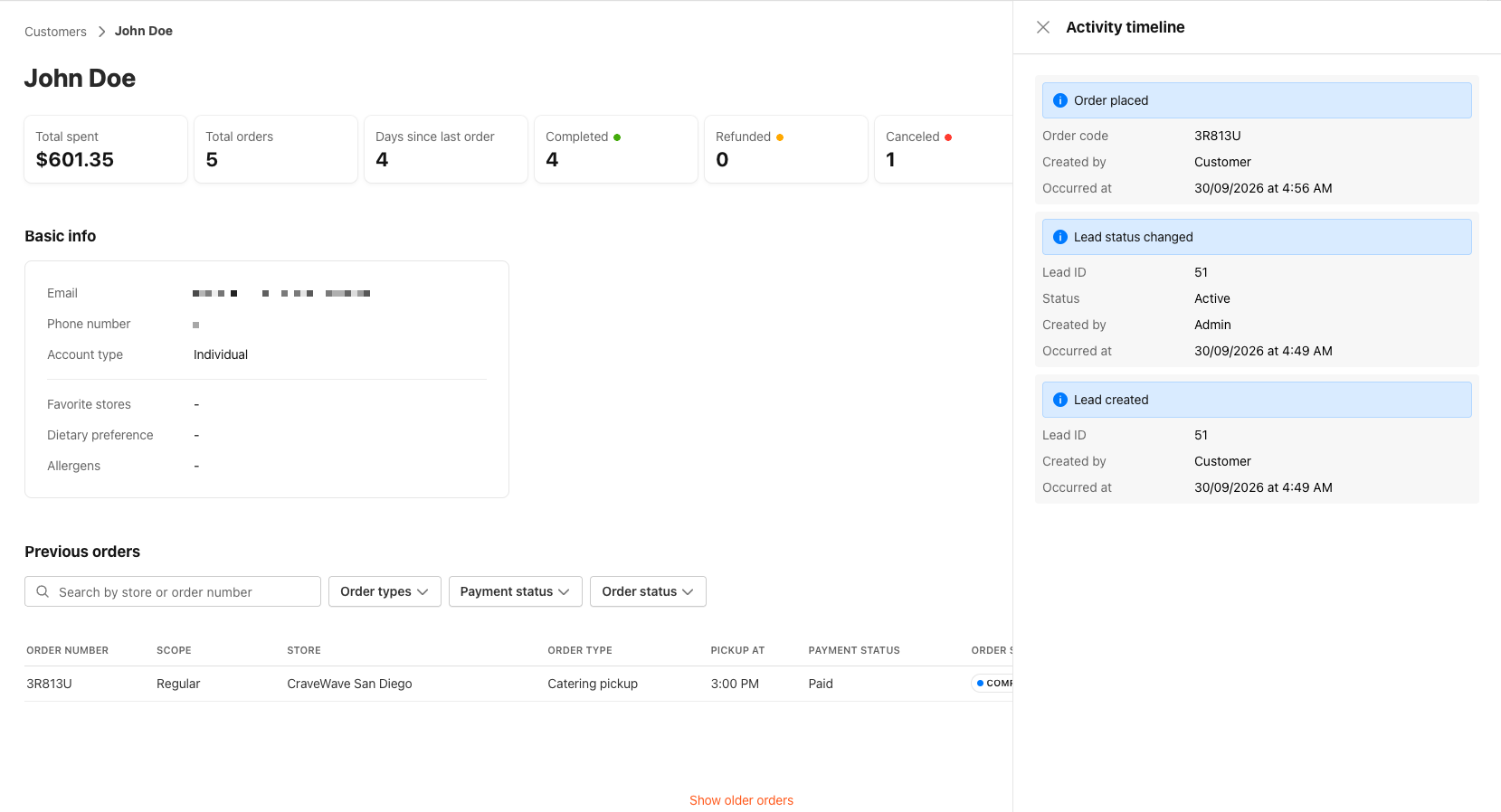 Each entry shows:
- The event type (for example, "Quote status changed" or "Note added")
- The associated record identifier (Note ID, Lead ID, Quote ID, or order code)
- A status label where applicable (for example, Approved or Canceled)
- Who performed the action: Admin (Name), Customer, or System
- The date and time in your local timezone
The timeline loads 20 entries at a time.
What Appears in the Timeline
The timeline records the following event types:
| Event | Description |
|---|---|
| Note added | A note is created on the customer account. |
| Note updated | An existing note is edited. |
| Note deleted | A note is removed from the account. |
| Lead created | A new lead is added for the customer. |
| Lead status changed | A lead moves to a new status. |
| Lead contact logged | A contact log entry is recorded (phone, email, or SMS). |
| Lead deleted | A lead is removed. |
| Quote created | A quote is created for the customer. |
| Quote status changed | A quote moves from one status to another (for example, Sent, Approved, or Declined). |
| Quote deleted | A quote is removed. |
| Catering order created | A catering order is placed for the customer. |
| Catering order status changed | A catering order is marked Ready or Canceled. |
| Order refunded | A full or partial refund is issued on a catering order. |
Frequently Asked Questions
Do regular takeout or delivery orders appear in the timeline?
No. Only catering order types generate timeline entries. A standard online or in-store order will not appear.
Can I edit or delete an entry in the timeline?
No. The Activity Timeline is read-only. Entries cannot be edited or deleted by any user, including administrators.
Why does a quote I just created not appear in the timeline yet?
If the quote is still in draft status, it does not appear in the timeline. The quote appears once it is sent or otherwise moves out of draft.
Why does an entry show "System" or a blank instead of an admin name?
If the system cannot map the admin's account to a name, the entry may show System or leave the name blank. The event details remain available.
Is there a separate permission for the Activity timeline?
No. Access to the timeline is part of the Manage Customers permission, which also enables Email personal data and Delete account in the customer settings menu. You cannot grant timeline access independently of those options.
