Catering Task and Activity Management
The Catering Task Manager in PAR Ordering is where your team tracks every to-do tied to a catering lead, quote, or order. No more spreadsheets or email chains to remember who was supposed to follow up. Build reusable task templates, assign them across your catering pipeline, log calls and emails on leads, and set up automations that handle assignment the moment a new lead, quote, or order comes in.
Prerequisites
- You must have an active PAR Ordering account with the Catering module enabled.
- Supported roles: Admin, Brand Manager, and Catering Manager.
- To enable the Catering Task Manager for your account, contact your PAR representative.
Managing Task Templates
Task templates are the to-do items you define at the brand level and reuse across leads, quotes, and orders. A template might be "Send contract" or "Schedule a site visit" — anything your team does repeatedly for catering accounts.
Creating a Task Template
-
In Management Center, go to CRM > Tasks.
-
Click Add task.
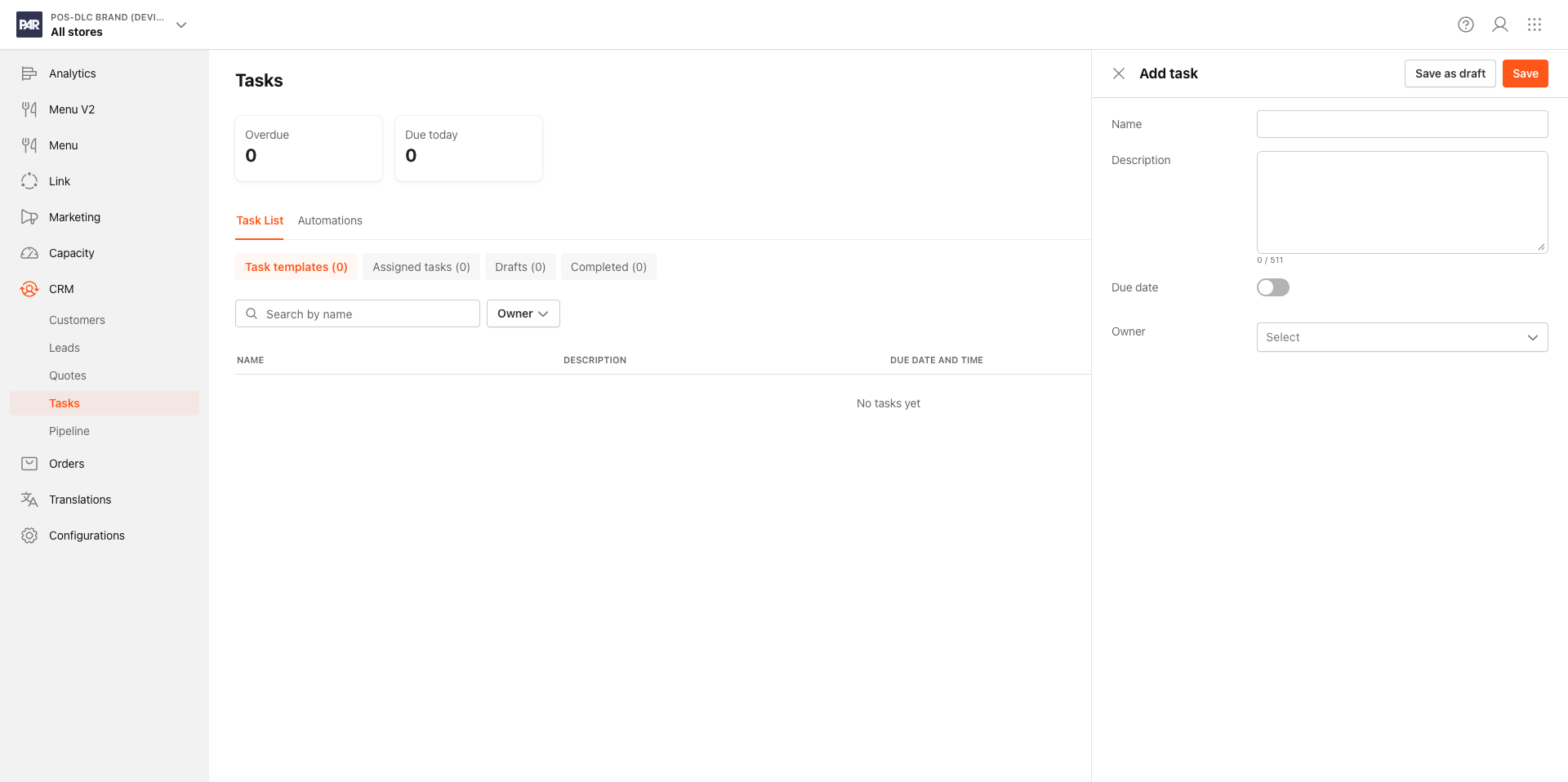
- Enter a Name for the task.
- Optionally, add a Description.
- Set a due date if needed. Options are Today, Tomorrow, Next week, or a Custom date.
- Optionally, assign one or more Owners.
-
Click Save as draft to continue editing later, or click Save to make the task available for assignment.
Publishing a task is permanent. You cannot revert it to draft. Make sure the name, description, and settings are final before you publish. A common issue: if you can't assign a task, check whether it's still in draft status.
Navigating the Task List
The Task Management section has two main tabs:
| Tab | What it shows |
|---|---|
| Overview | Stat cards and a task template table. Use the Published, Draft, and Archived sub-tabs to filter by status. |
| Contact log | A table of all contact log entries across leads, with an option to export the data. |
Due date information and override indicators only appear after a task has been assigned. You won't see them on unassigned templates.
Assigning Tasks
Published task templates can be assigned to any catering lead, quote, or order. Each assignment gets its own due date and owners. If you don't specify owners, the assignment inherits the owners from the task template. All owners receive an email notification on assignment and a daily reminder email for any tasks that are overdue or due within 24 hours.
- Open a catering lead, quote, or order in Management Center.
- Navigate to the Task List section within the record's detail drawer.
- Click Assign task.
- Select a published task template from the list.
- Optionally, set a Due date and add one or more Owners.
- Click Save.
You can only assign a given template to the same lead, quote, or order once. Assigning the same template a second time to the same record is not supported.
Marking a Task Complete
Once an assigned task is finished, mark it complete from within the lead, quote, or order detail view. There is no reopen-with-reason step — a task is either complete or not.
Logging Contact Activity
Contact logs give you a running record of every call, email, or text tied to a lead. Anyone on your team can open the lead and see exactly what's been done. You can also view all contact log entries across your brand from the Contact log tab in Customers → Task Management.
- Open a catering lead in Management Center.
- Navigate to the Contact logs section within the lead detail view.
- Click Add log.
- Select the contact type: Phone, Email, or SMS.
- Enter the date and time of the contact.
- Enter a Message (maximum 511 characters).
- Click Save.
Contact logs cannot be edited or deleted after saving. Timestamps are stored in UTC and displayed in your local time zone.
Setting Up Task Automations
Task automations skip the manual step of assigning tasks every time a lead, quote, or order comes in. Set up the rule once, specify the entity type, optional scoping criteria, and which task templates to apply — and PAR Ordering takes it from there.
A good use case: automatically assign a "Send welcome email" task to every new Wedding lead without touching it yourself.
Creating an Automation
-
In Management Center, go to CRM > Tasks.
-
Navigate to the Automations section.
-
Click Create automation.
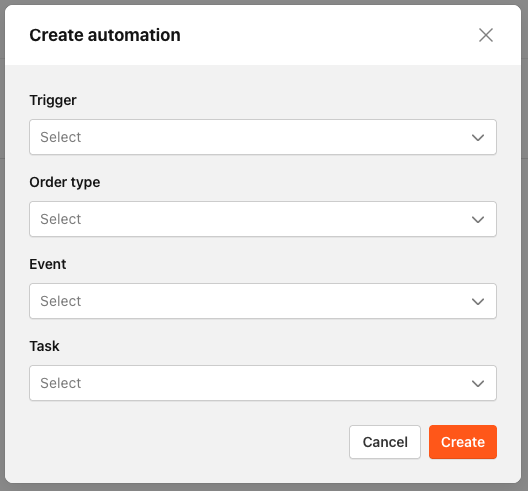
- Select the Trigger: New Lead, New Quote, or New Order created. (Only one per automation.)
- Optionally, select one or more Order types to scope the automation.
- Optionally, select one or more Event types to scope the automation. (For example, "Wedding" or "Corporate event.")
- Add the Task template to assign when this automation triggers.
-
Click Save.
How Task Automation Works
When a matching lead, quote, or order is created, PAR Ordering assigns the specified tasks in the background and notifies all owners by email. No manual step required.
A few things to know:
- One record can trigger multiple automations if it matches more than one configuration.
- For orders, automation only runs on catering order types that have a resolvable event type. Non-catering orders are ignored.
- Only published tasks can be used in automations.
- Every automated assignment is logged with a timestamp showing when it ran and which automation triggered it.
