Catering Orders
Currently, restaurant brands are typically receiving online catering orders via both aggregators and first party channels. PAR Ordering supports the following catering use cases for first-party online orders:
- Corporate catering
- Social event catering
Catering orders can be classified into two types:
- Delivery
- Pick-up
While Delivery is the more common option, Pick-up is also a good choice for Customers who prefer to collect their Orders themselves.
Catering Delivery
PAR Ordering Catering - Setup
Follow these steps to set up Catering Delivery as an order type in the Management Center.
Enabling Catering Orders - Brand level
- First, Brand Manager should activate (or deactivate) the Catering Delivery Order Type for their Stores within the Order Type configuration section at the Brand level
- After activation on Brand level, Store Managers will be able to view and manage the Catering Delivery Order Type for each Store. They'll see options to configure, activate, or deactivate it as needed
-
If the Order Type is initially configured and activated on the Store level and later deactivated on the Brand level, this Order Type will automatically be deactivated on the Store level as well. When the Order Type is reactivated on the Brand level, the Store will need to manually activate it again on the Store level
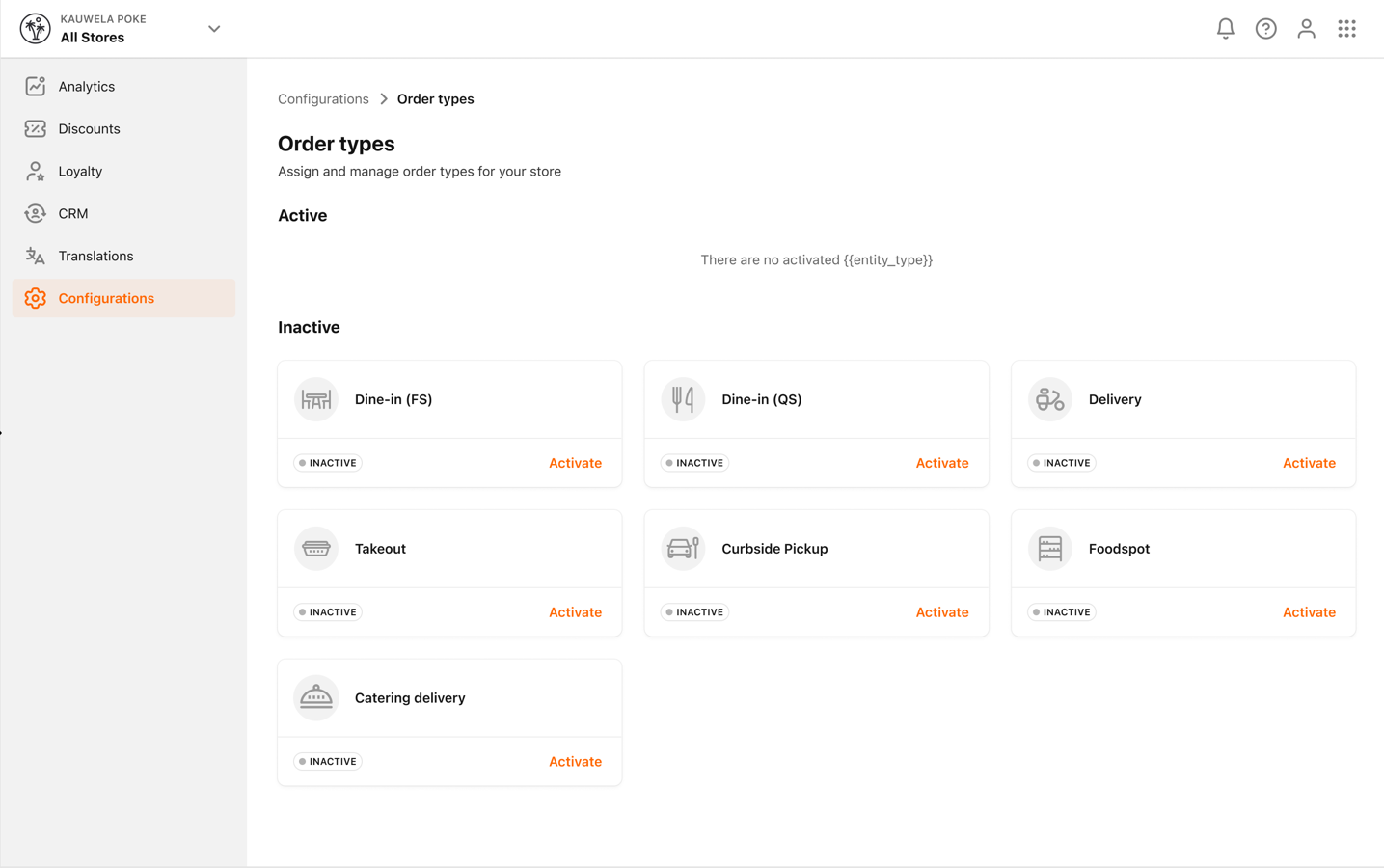
Configuration process - Store level
In order to activate the Catering Delivery Order Type on a Store level, the Store Manager should go through the four-step process of configuring it:
-
GENERAL SETTINGS (with pre-populated default values)
- Default tip configuration (default = 0)
- Maximum tip configuration (default = 0)
- Minimum order amount (default = 0)
-
TIME BUFFER SETTINGS (with pre-populated default values)
-
Order notice period configuration - it refers to the minimum time in hours required before Customers can place a Catering Order. Similar to the Default Preparation Time, this setting will be taken into account in the calculation to determine the earliest available pickup time for Customers on channel apps:
- The minimum notice period for placing an Order should be set at a minimum of 2 hours
- The default notice period for Orders will be set to 24 hours and can be adjusted as needed
-
Order cancellation period configuration - this is the time period prior to the pickup time during which Customers can cancel their Catering orders:
- The Order cancellation period should be set at a minimum of 1 hour
- The default cancelation period for Orders will be set to 12 hours, and can be adjusted as needed
The number of hours cannot be longer than the notice period
-
Orders are accepted in advance configuration
- By default, the flag for this setting will be enabled and set as 15 days in advance period, and can be adjusted as needed
- The maximum number of days in advance that Catering Orders can be scheduled for a Store is limited to 30 days. If order in advance switch is enabled then we see number of days there
Once enabled, the number of days cannot be set to 0
- The number of days cannot be less than the notice period
-
-
CATERING DELIVERY OPENING HOURS SETTINGS (no pre-populated values) - during the initial configuration, the Catering Delivery opening hours settings are not set, so the Store Manager needs to go through the process of configuring them. Once this step is completed, they can then proceed to configure other steps in the process
-
CATERING DELIVERY MAP SETTINGS
- The Store Manager will have the ability to set up catering-specific Delivery Zones, adjust Delivery Fees, and set minimum Order amounts for each Delivery Zone
Once all of the above steps are completed, the Catering Delivery can be activated as an Order Type.
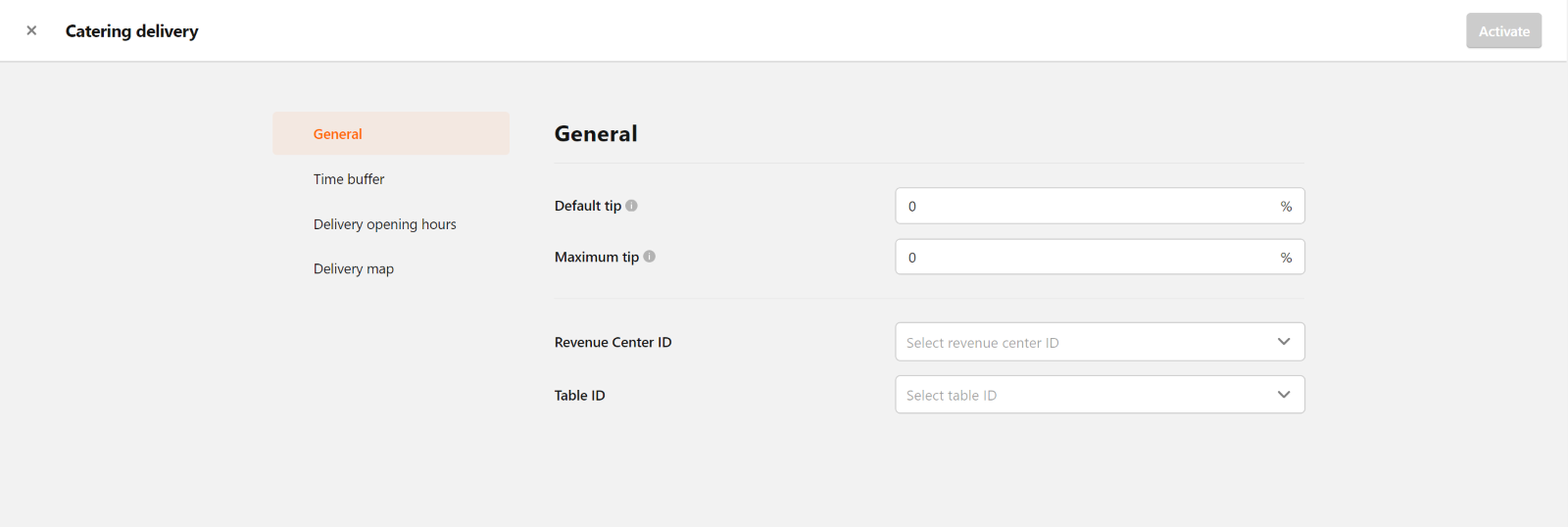
Catering Delivery Analytics – Brand Level (Management Center)
In the Management Center, under Analytics section, PAR Ordering will integrate Catering Orders into each of the existing performance sections that are currently displayed:
- Ordering performance dashboard - all data in charts will include Catering Delivery Orders and you can filter these charts by Catering Delivery Order Type
- Data export - all relevant data exports will include Catering Delivery Order Type
- Statistics - all statistics will include a breakdown of Catering Delivery Orders
Catering Delivery Analytics – Store Level (CMS)
- The Venue (Store) level statistic page will allow you to view all Catering Orders that have been processed through the system. You're also able to filter Catering Orders by selecting options such as catering area and/or Catering Order Type. These filtering options should enable you to focus specifically on Catering Orders and analyze their performance and Order details data within a specific Venue/Store.
- Additionally, the system will provide you with the ability to view Order details for Catering Orders, include Delivery and event-specific information, such as delivery address details, the number of attendees and any specific instructions or comments provided through the channel apps
-
Finally, it allows you to cancel or refund any Catering Order
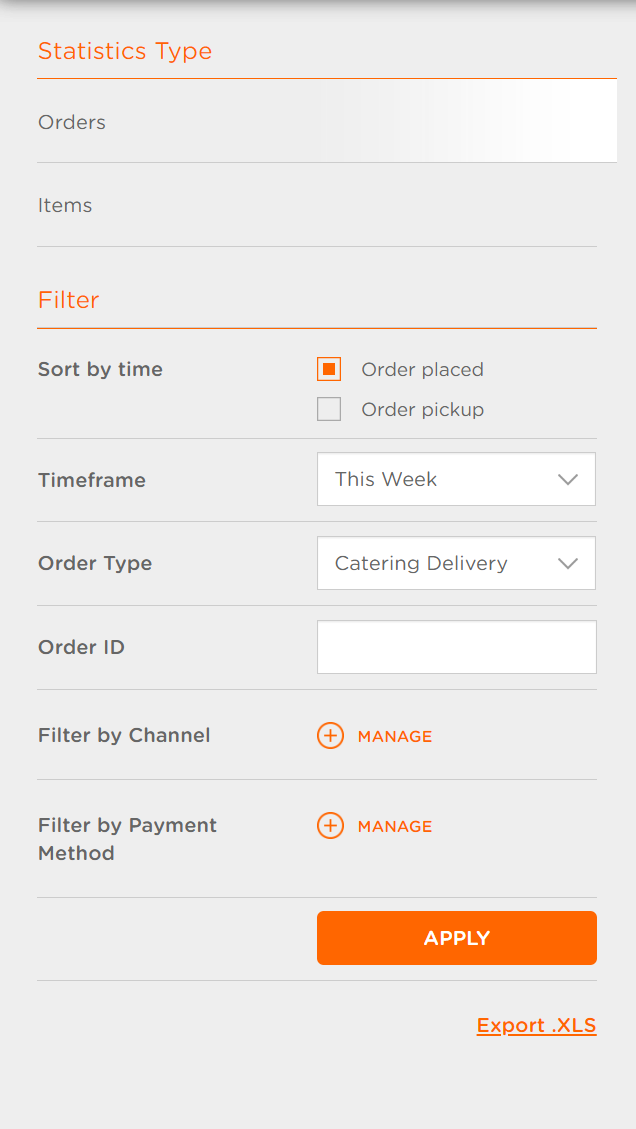
Catering Pickup
PAR Ordering Catering - Setup
Follow these steps to set up Catering Pickup as an order type in the Management Center.
Enabling Catering Orders - Brand level
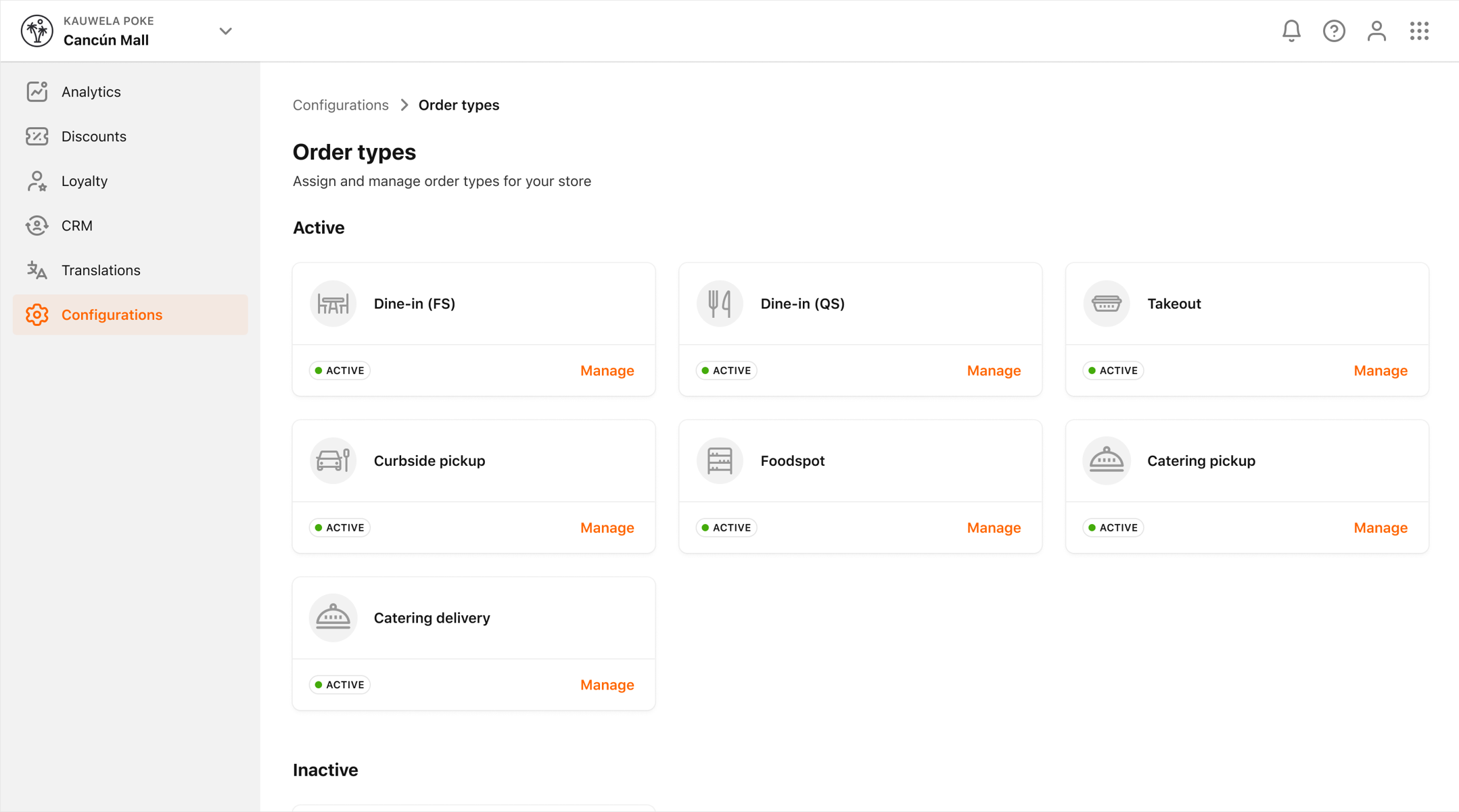
- First, Brand Manager should activate (or deactivate) the Catering Pickup Order Type for their Stores within the Order Type configuration section at the Brand level
- After activation on Brand level, Store Managers will be able to view and manage the Catering Pickup Order Type for each Store. They'll see options to configure, activate, or deactivate it as needed
-
If the Order Type is initially configured and activated on the Store level and later deactivated on the Brand level, this Order Type will automatically be deactivated on the Store level as well. When the Order Type is reactivated on the Brand level, the Store will need to manually activate it again on the Store level.
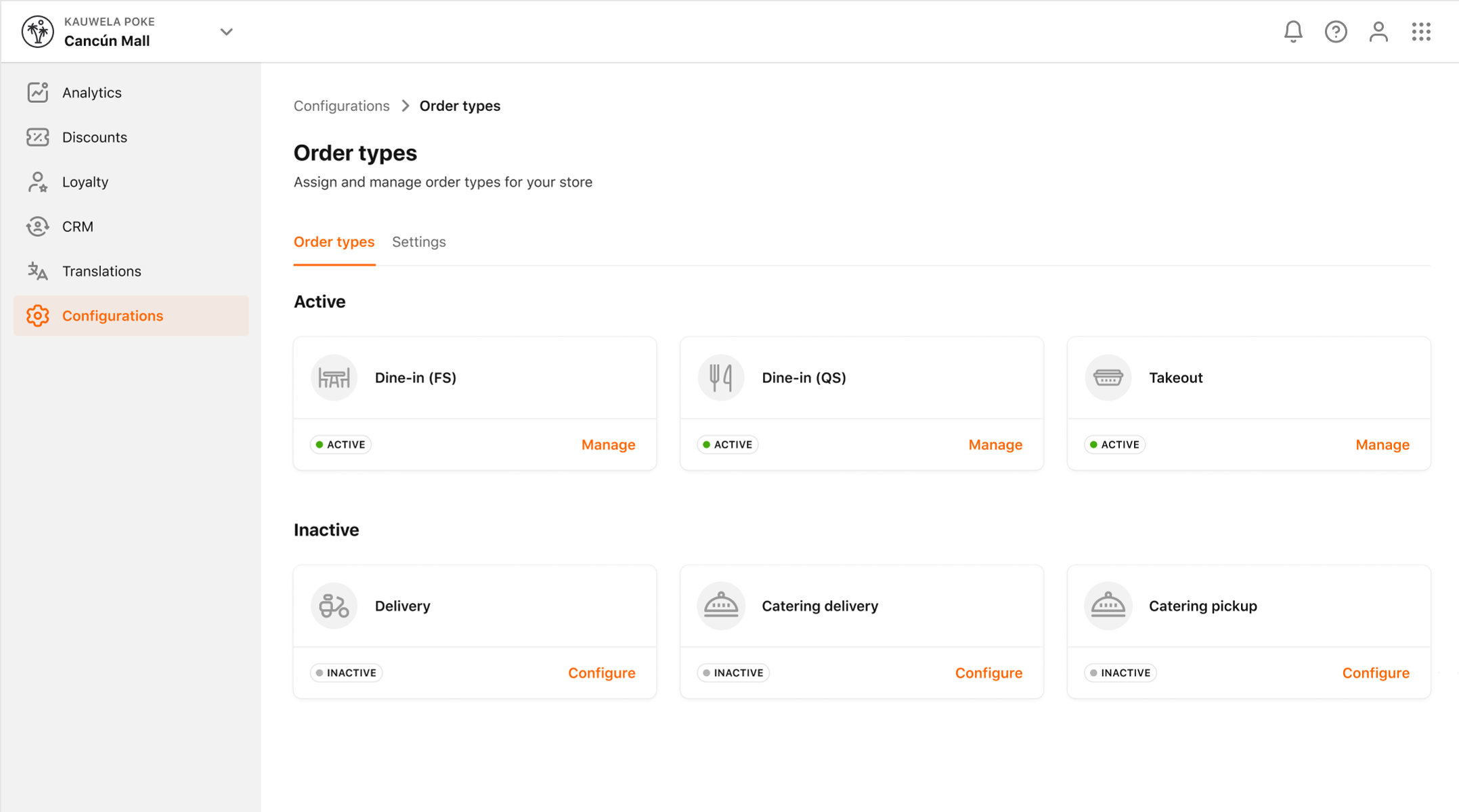
Configuration process - Store level
In order to activate the Catering Pickup Order Type on a Store level, the Store Manager should go through the three-step process of configuring it:
-
GENERAL SETTINGS (with pre-populated default values)
- Default tip configuration (default = 0)
- Maximum tip configuration (default = 0)
- Minimum order amount (default = 0)
-
TIME BUFFER SETTINGS (with pre-populated default values)
-
Order notice period configuration - it refers to the minimum time in hours required before Customers can place a Catering Order. Similar to the Default Preparation Time, this setting will be taken into account in the calculation to determine the earliest available pickup time for Customers on channel apps:
- The minimum notice period for placing an Order should be set at a minimum of 2 hours
- The default notice period for Orders will be set to 24 hours and can be adjusted as needed
-
Order cancellation period configuration - this is the time period prior to the pickup time during which Customers can cancel their Catering orders:
- The Order cancellation period should be set at a minimum of 1 hour
- The default cancelation period for Orders will be set to 12 hours, and can be adjusted as needed
The number of hours cannot be longer than the notice period
-
Orders are accepted in advance configuration
- By default, the flag for this setting will be enabled and set as 15 days in advance period, and can be adjusted as needed
- The maximum number of days in advance that Catering Orders can be scheduled for a Store is limited to 30 days. If order in advance switch is enabled then we see number of days there
Once enabled, the number of days cannot be set to 0
- The number of days cannot be less than the notice period
-
-
CATERING PICKUP OPENING HOURS SETTINGS (no pre-populated values) - during the initial configuration, the Catering Pickup opening hours settings are not set, so the Store Manager needs to go through the process of configuring them. Once this step is completed, they can then proceed to configure other steps in the process
Once all of the above steps are completed, the Catering Pickup can be activated as an Order Type.
Catering Pickup Analytics – Brand Level (Management Center)
In the Management Center, under the Analytics section, catering orders are included in the existing performance sections that are currently displayed:
- Ordering performance dashboard - all data in charts will include Catering Pickup Orders and you can filter these charts by Catering Pickup Order Type
- Data export - all relevant data exports will include Catering Pickup Order Type
- Statistics - all statistics will include a breakdown of Catering Pickup Orders
Catering Pickup Analytics – Store Level (CMS)
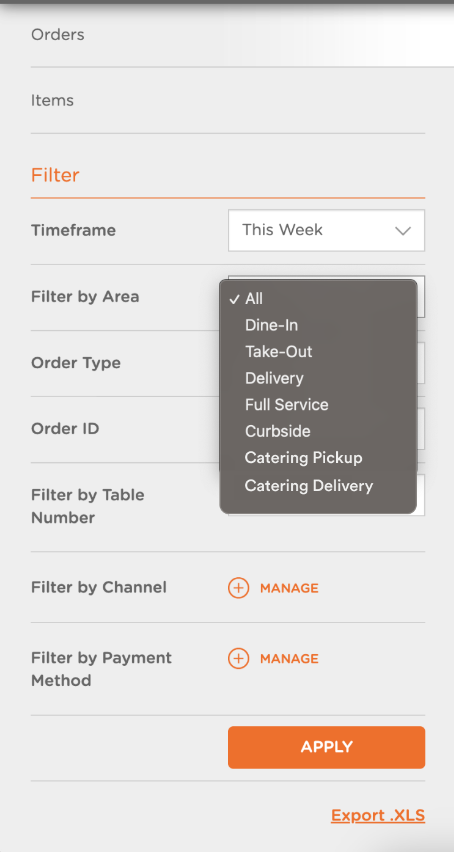
- The Venue (Store) level statistic page will allow you to view all Catering Orders that have been processed through the system. You're also able to filter Catering Orders by selecting options such as catering area and/or Catering Order Type. These filtering options should enable you to focus specifically on Catering Orders and analyze their performance and Order details data within a specific Venue/Store.
- Additionally, the system will provide you with the ability to view Order details for Catering Orders, include Delivery and event-specific information, such as delivery address details, the number of attendees and any specific instructions or comments provided through the channel apps
-
Finally, it allows you to cancel or refund any Catering Order
Pre-Authorization for Catering Orders
When pre-authorization is enabled for your brand, PAR Ordering places a hold on the customer's card for the full catering order amount at the time of checkout. This is a two-step process:
- Authorization: At checkout, PAR Ordering confirms the card is valid and that sufficient funds are available. The customer's card is not charged at this point.
- Settlement: The authorized amount is captured, and the customer's card is charged when the order is injected into the POS at the configured processing time.
The payment processing date and time are displayed at checkout so customers know when their card will be charged. A reminder notification is sent 24 hours before the final payment is processed.
Pre-authorization for catering orders must be enabled by your PAR Ordering representative.
