Catering Delivery - User Experience
Context
This article explains the journey your Customers will go on when ordering Catering. It shows the flow as they will see it either
in Mobile or Web App.
Before we dive in - we have quite a bit of information for you here. That's why we locked sections of this article in accordions. Simply click
on the title to expand/collapse them.
The visuals for these Mobile and Web flows are linked in the respective tables. Just click on them to view them in full screen
(new tab will open).
Choosing Catering Order Type
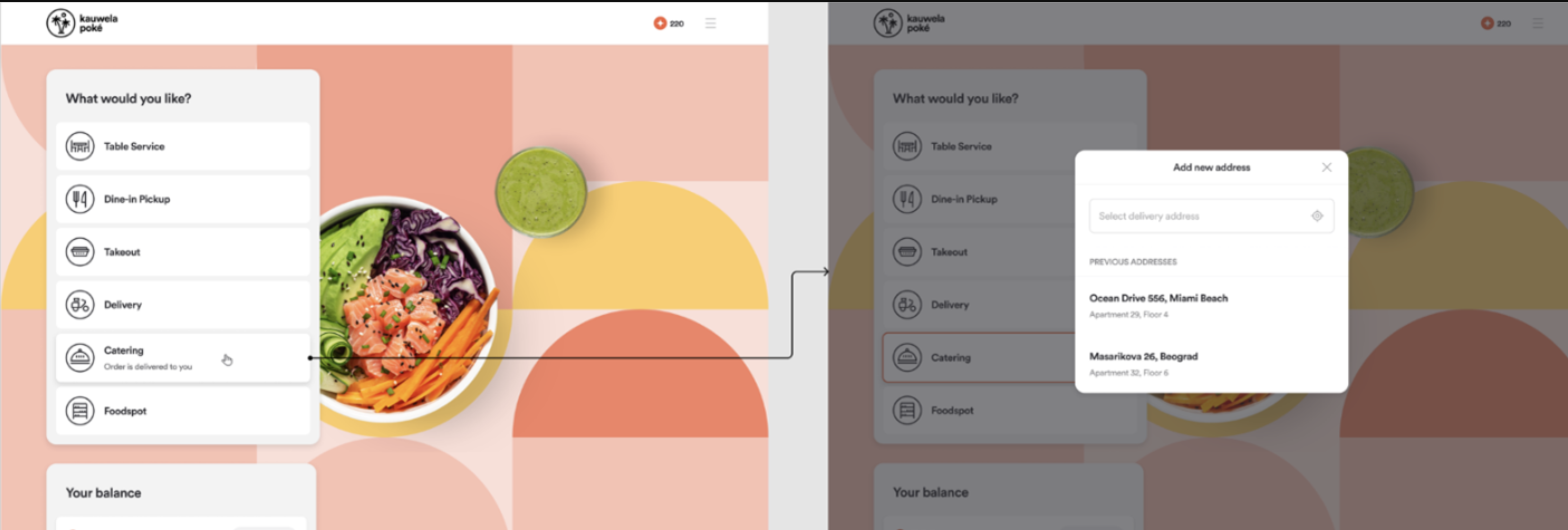
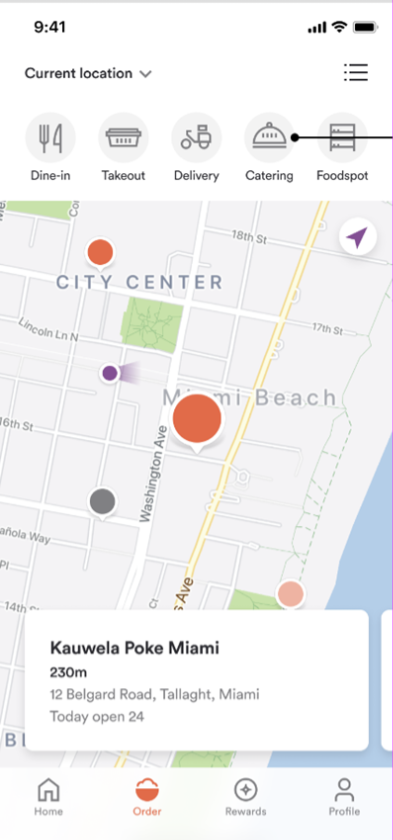
- If the Catering Delivery Order Type is enabled in the MC, the Customer will see as an extra button within the
Order Type navigation list on the home screen. Upon pressing the Catering Delivery button, the
Catering nearest-store Delivery ordering flow will be initiated - The Catering Delivery will use the same base of delivery addresses that are saved into the User’s account, allowing them
to be easily selected, edited, and managed within the ordering flow - Once the valid delivery address is selected, the User will be directed to the Menu page of the nearest open
Store that delivers to the selected address
| Web App | Mobile App |
|---|---|
|
|
Choosing Delivery Date and Time
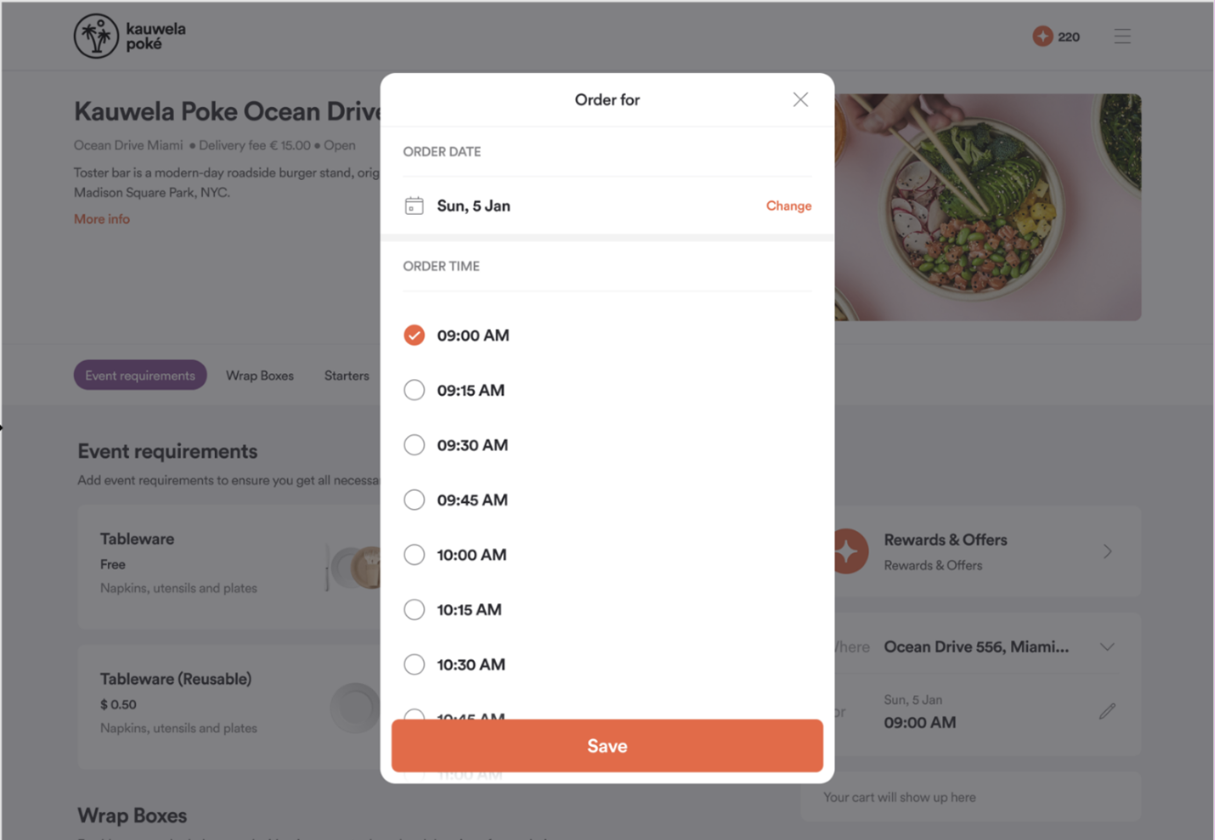
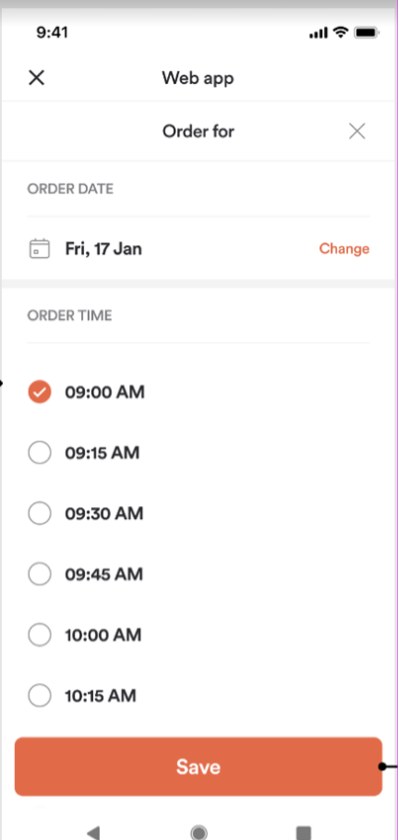
After the Menu page finishes loading, the Delivery Time and Date configuration will appear automatically,
allowing the User to specify the Time and Date first. To determine the first available timeslot, as well as the
date range offered for scheduling Catering Orders, we will consider several factors, including the Catering-specific settings that have been configured in the MC, which determine how many days in advance
Orders can be placed for a specific Store:
- The Catering-specific Opening Hours of the Store, as well as any Special Dates that have been
configured in the MC - The Catering-specific Order notice period that has been specified in the MC
ASAP time for Catering Orders doesn’t exist, and the time slots will be displayed with intervals of 15 minutes between each option.
| Web App | Mobile App |
|---|---|
|
|
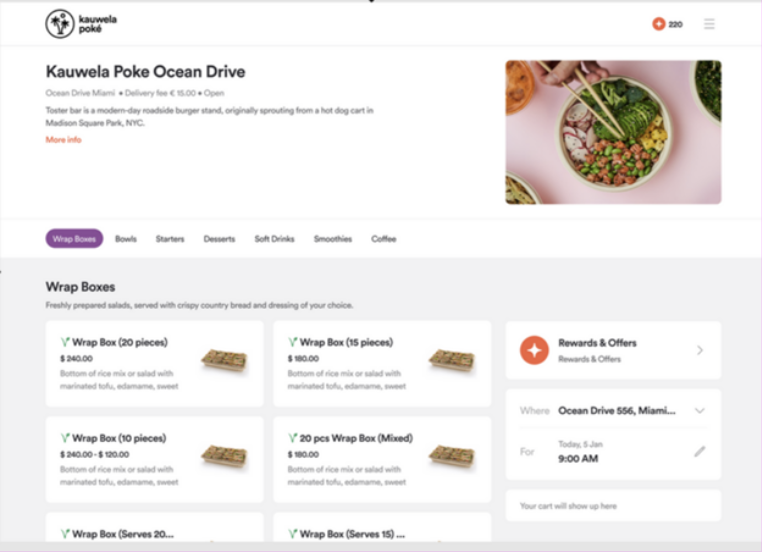
Building and configuring the Catering Order
- Once the Store is selected, the Delivery Fee will be displayed at the top of the Store info section as well
into the Cart calculations. When determining Delivery Fee we will take into account the Catering-specific
Delivery Zone Fee Rate configured in the MC and the chosen Delivery Address - The User will also be able to modify, edit, or change the chosen Delivery Address, as currently allowed within the
default Delivery ordering process taking into account logged-in and guest user experience - The menu displayed will be based on Catering Delivery specific Menu Items that have been set up in the
Management Center. To know more about how to assign Order Types to Menu Items check
How to change Item? - The Discounts that are available to be added to the Order will also be based on Catering Delivery specific
Discounts that have been set up in the Management Center. To know more about how to assign Order Types to
specific Discounts check
What are Discount Conditions? - Additionally, to go to the Checkout and place the Order, the User must meet the
Minimum Order Amount specified in the MC for the selected Store and Catering Delivery Zone. If the
Minimum Order Amount is not met, the Checkout button will be disabled, preventing the User from proceeding with
the checkout process
| Web App | Mobile App |
|---|---|
|
|
Specifying Catering event details information
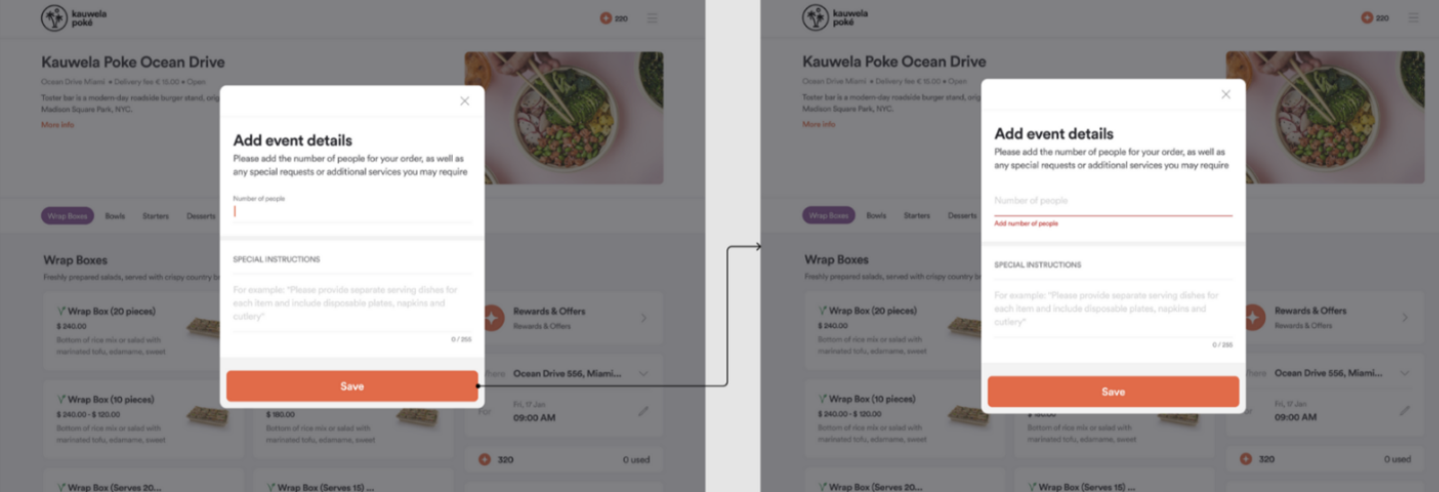
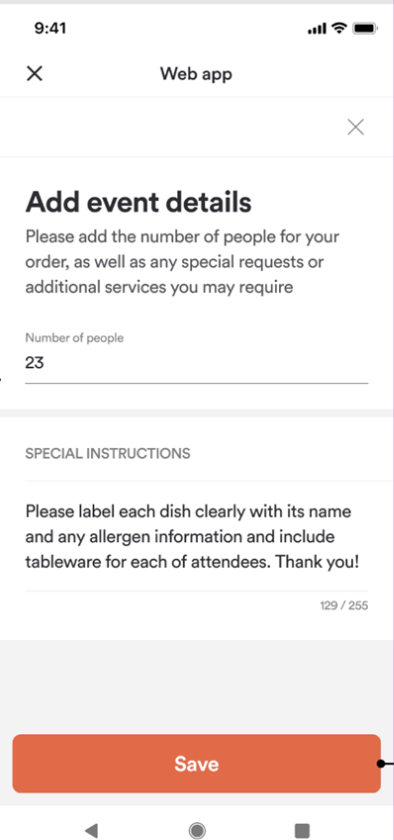
- When the User clicks on the Checkout button, the event details configuration screen will appear automatically, providing
them with the option to enter Catering-specificOrder information, including the number of attendees and special
instruction comment related to the Order - The number of attendees is required information and the User wont be able to proceed with the ordering process without providing it. If
they try, a validation error message will be displayed - After the User has entered event details information and clicked on the save button, they will be automatically redirected to the
Checkout page to complete the Order. If the User is not already logged in, they will be presented with a
registration screen first from where can create an account or continue to checkout as a Guest User
| Web App | Mobile App |
|---|---|
|
|
Checkout & Order process finalization
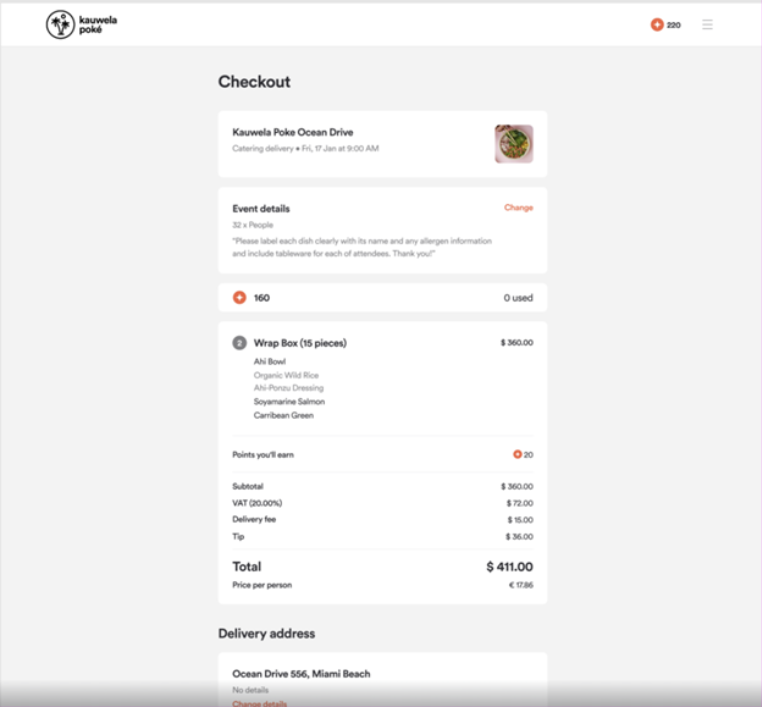
- The Checkout page has been updated to include a new event details component that allows Users to modify the data entered
in the event details configuration screen on the previous step. The number of attendees information is a required field and cannot be
removed from the Checkout page. If they try to leave the field empty and save, a validation error will be displayed. If the
User did not provide an Order comment, only the number of attendees information will be shown - The calculation section located below the Order total information displays the price per attendee. This calculation is performed
by dividing the total price of an Order by the number of attendees specified within the event details modal - Aside from the event details component and price per attendee calculation, the Checkout page contains exactly the same
information and functionality as we currently have for the default Delivery Order Type - A registered Customer will be able to collect Loyalty Points for their Catering Orders based on
Loyalty configurations set in the Management Center for this Order Type.
| Web App | Mobile App |
|---|---|
|
|
Order confirmation process & Cancellations
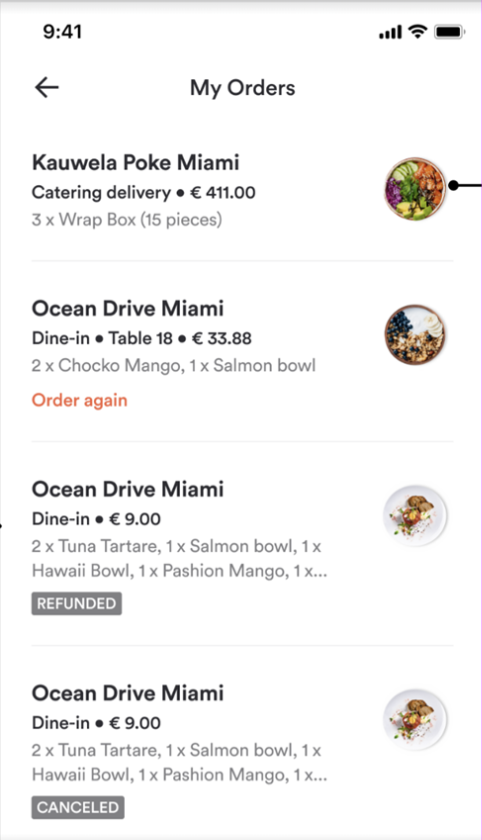
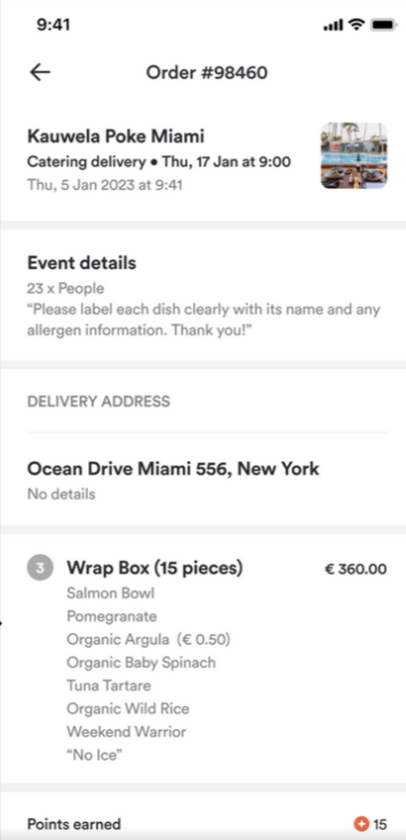
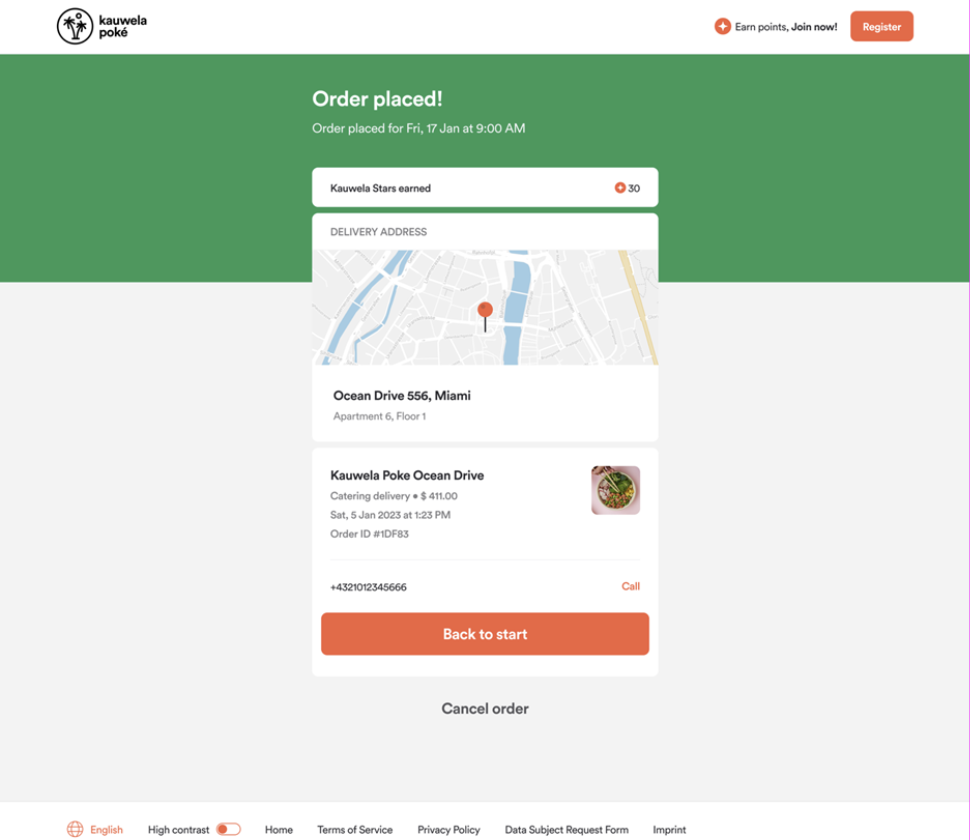
- Once a Catering Order is placed, the User can access the receipt page from the My Orders component on the home
screen and the dedicated receipt list from their profile. The receipt shows all Order details page, including the event details
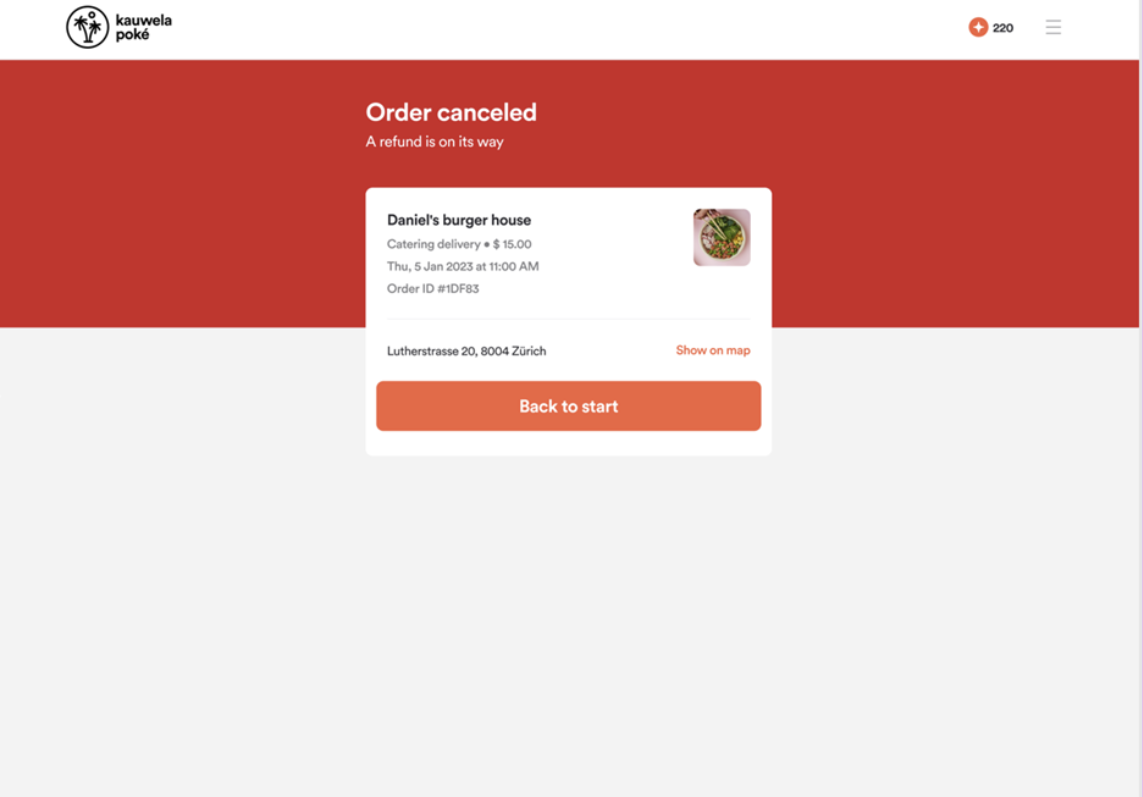
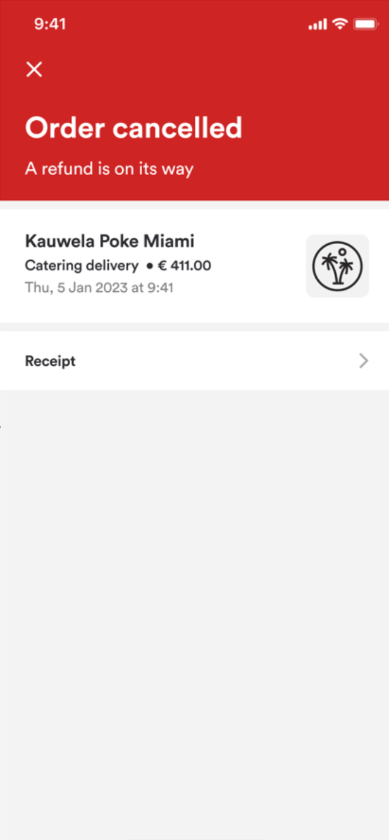
specified during the checkout process - Users can cancel a Catering Order until the Catering-specific deadline configured in the
Management Center has passed. Once the deadline has passed, the Cancel button will be automatically hidden. If the
User cancels the Order, they will be presented with the Order cancellation confirmation screen and the receipt
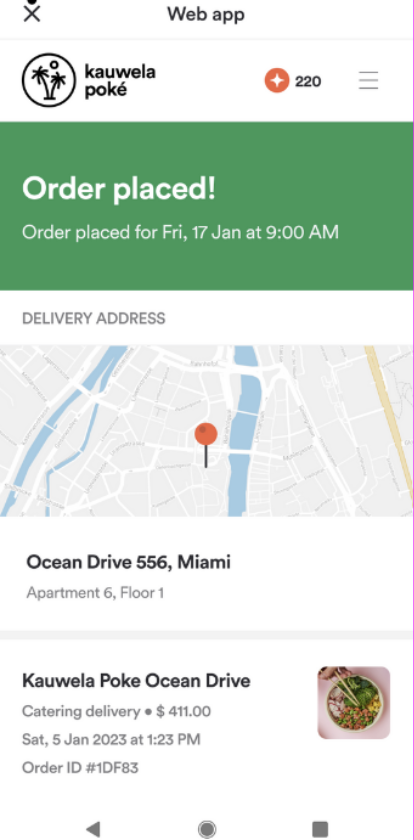
will be updated - On the Mobile App after closing the web view, the User will be returned to the Store Finder page
Confirmations
| Web App confirmation | Mobile App confirmation |
|---|---|
|
|
Cancellations
| Web App cancellation | Mobile App cancellation |
|---|---|
|
|
Confirmation email
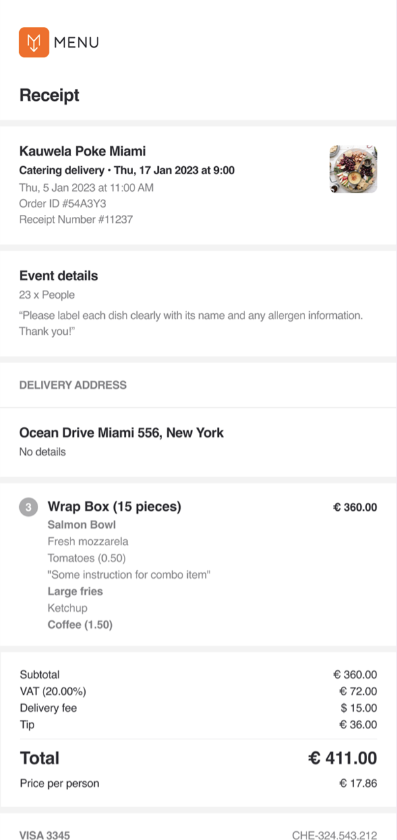
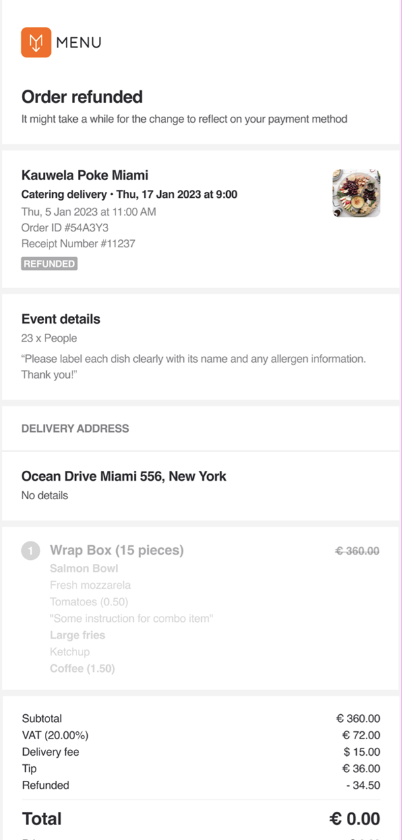
- Once the Catering Order is placed, the User will receive an email receipt for the Catering Order at the
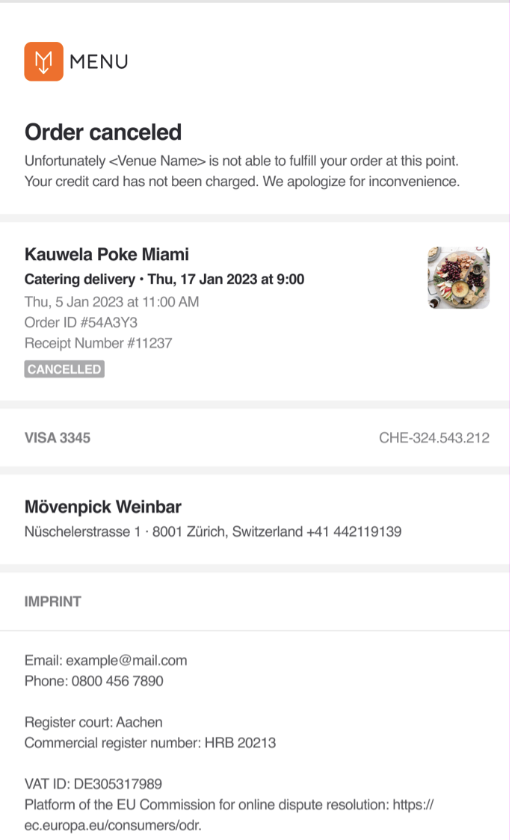
designated email address - If there is any Cancellation or Refund the User will receive an email receipt for the
Catering Order at the designated email address
| Receipt | Order refunded | Order Cancelled |
|---|---|---|
|
|
|
Reminders
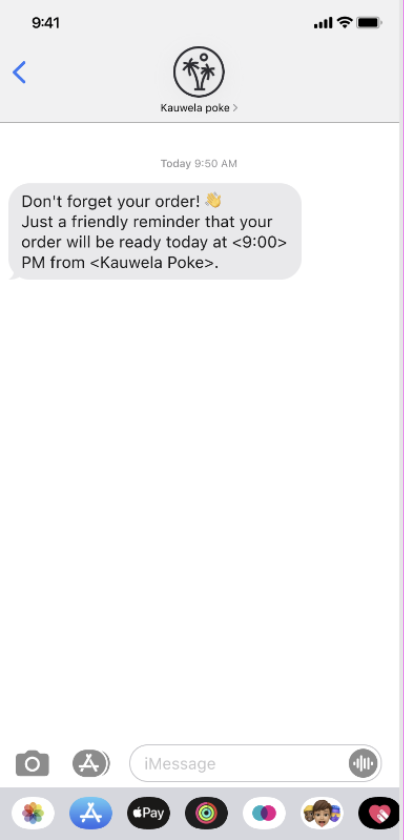
- For Orders using the Web App, with our scheduled ordering reminder functionality for Catering Orders we will
send SMS notifications to remind Users of their Orders. Also, take in mind that since Catering Orders are not
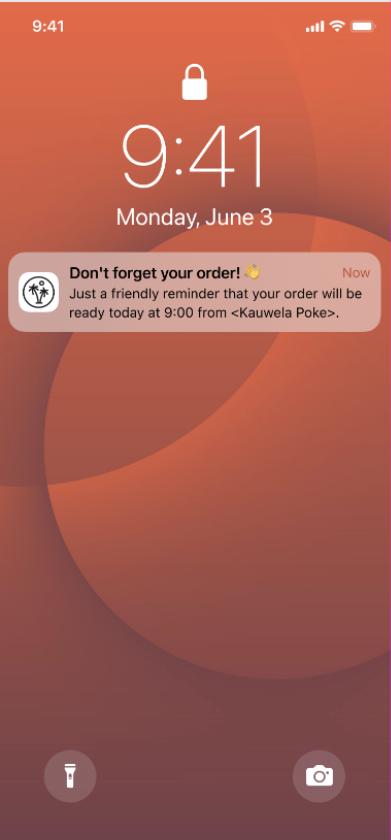
displayed on the restaurant Tablet App, Users will not receive order-ready SMS notifications - For Orders using the Mobile App, we will send popup notifications to remind Users of their Orders
| Web App | Mobile App |
|---|---|
|
|
