Cart Abandonment
The Cart abandonment page in PAR Ordering lets you track carts that customers start but do not complete, and automatically send recovery reminders to bring them back. Use this page to review your brand's cart activity and configure cart recovery settings.
This feature is available at the brand level only.
Prerequisites
- You must have the Analytics permission group to access the Cart abandonment page and the Carts tab.
- You must have the Brand Settings manage permission to view or edit the Configuration tab.
Cart recovery notifications are sent to registered customers only. Guest carts appear in the Carts tab but do not receive recovery messages.
Navigate to Cart Abandonment
- In Management Center, select your brand at the All stores level.
- In the left sidebar, select Analytics > Cart abandonment.
The page opens on the Carts tab by default.
Carts Tab
The Carts tab displays a list of carts for your brand.
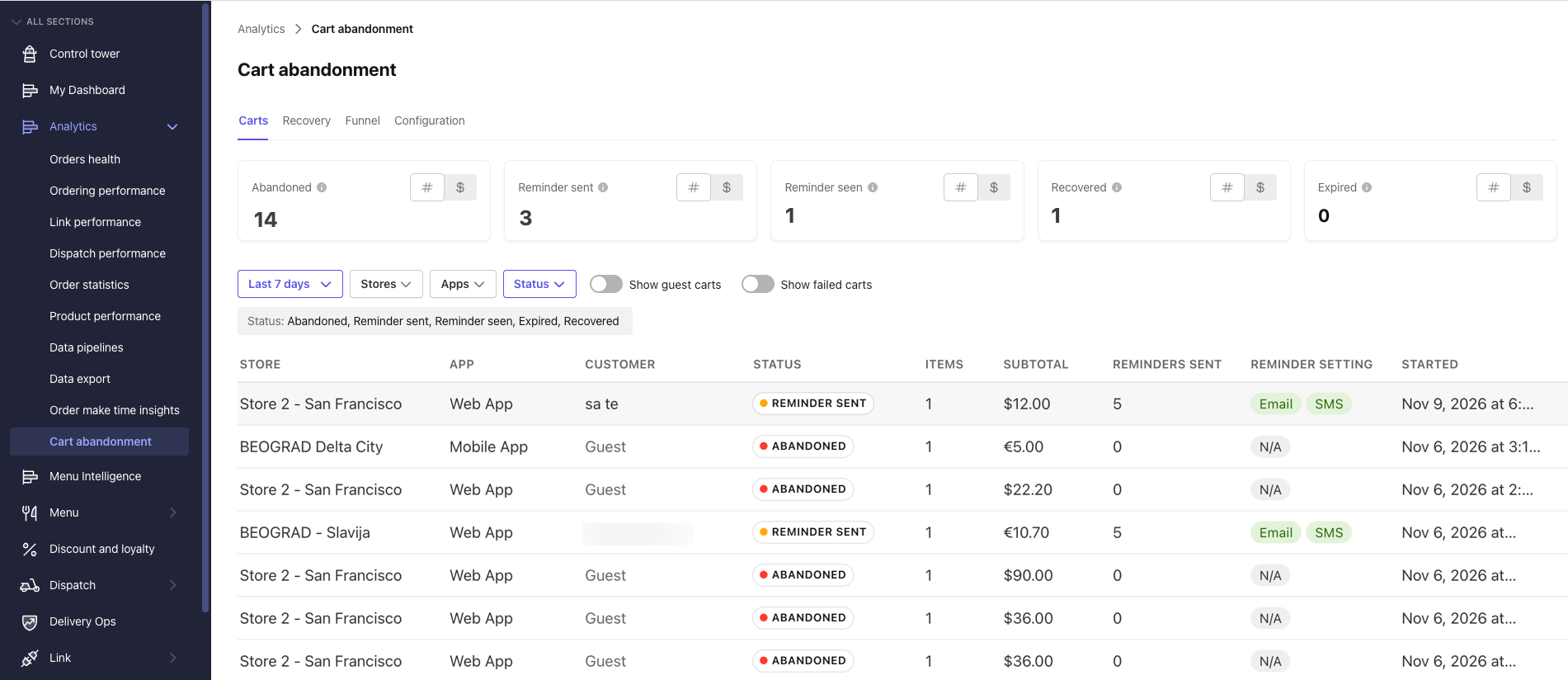
Use the filters at the top of the Carts tab to narrow your results:
- Date range: Select a start and end date. Cart data is available for up to 90 days.
- Store: Filter by a specific location.
- App: Filter by ordering channel (for example, Web App or Mobile App).
- Status: Filter by cart status. See Cart Statuses for a complete list.
Cart Statuses
| Status | Description |
|---|---|
| In progress | The customer has an active cart. |
| Abandoned | The cart was left idle longer than the configured Abandoned after time. No reminder has been sent yet. |
| Reminder sent | A recovery reminder has been sent to the customer. |
| Reminder seen | The customer opened the recovery link or tapped the push notification. |
| Recovered | The customer returned to their cart and placed an order after receiving a reminder. |
| Completed | The customer placed an order without receiving a reminder. |
| Expired | The cart reached its expiration date without being completed or recovered. |
Show Failed Carts
Failed carts are hidden by default. To include them in the list, turn on the Show failed carts toggle. When this toggle is on, broken carts appear in the table with their failure reason visible in the cart details.
Failed carts do not receive cart recovery notifications.
View Cart Details
Click any row in the Carts tab to open the cart details panel. The panel includes:
- The items in the cart
- A timeline of cart events, including when the cart was started, abandoned, notified, and last active
- For failed carts: the failure reason and a link to the related entry in Analytics > Error logs
- For completed or recovered carts: a link to the associated order
Guest carts appear in the list labeled Guest. Guest carts are tracked but do not receive recovery notifications.
Cart data is retained for 90 days.
Configuration Tab
Use the Configuration tab to enable cart recovery and configure your notification schedule.
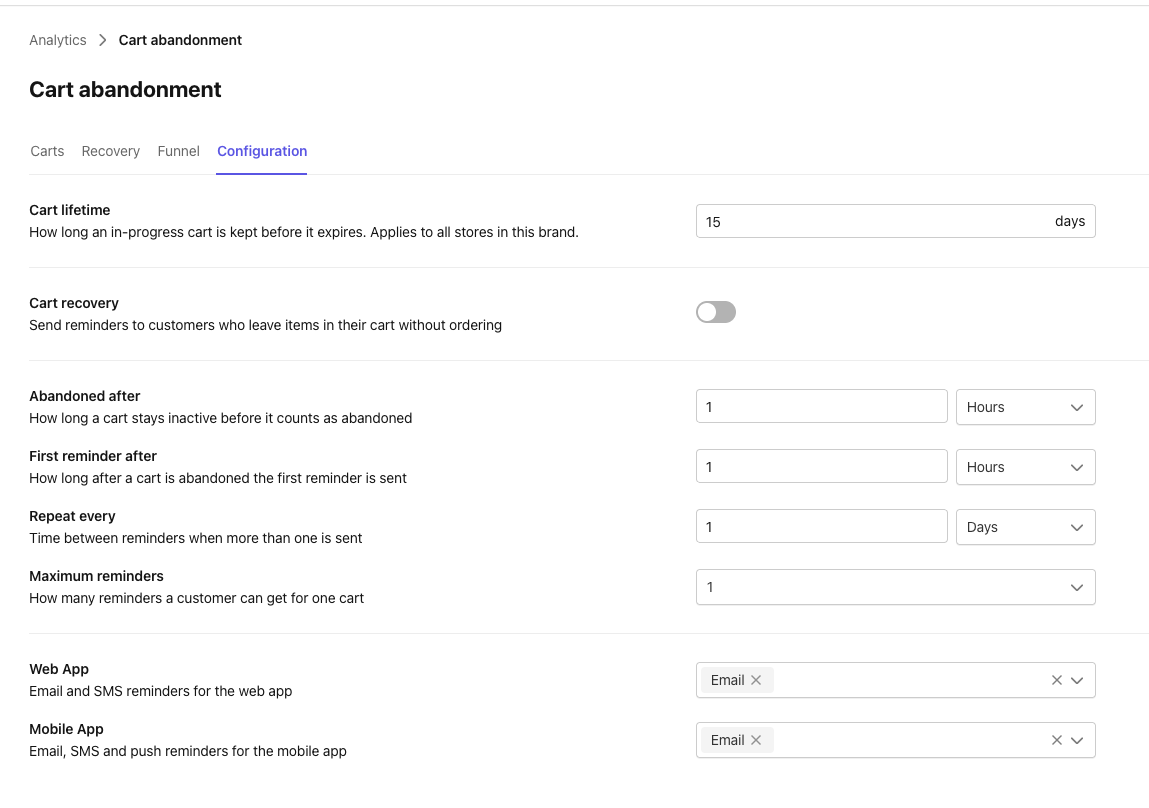
You must have the Brand Settings manage permission to access this tab. Users with Analytics-only access cannot view or edit these settings.
Configure Cart Recovery Settings
-
In Management Center, select your brand at the All stores level.
-
In the left sidebar, select Analytics > Cart abandonment.
-
Select the Configuration tab.
-
Turn on the Cart recovery toggle.
-
Configure the following timing settings:
Setting Description Allowed Range Abandoned after How long a cart must be idle before it is marked as abandoned 15 minutes – 30 days First reminder after How long after a cart is abandoned to send the first recovery message 0 minutes – 30 days Repeat every How long to wait between repeat reminder messages 60 minutes – 30 days -
Set Maximum reminders to the number of reminders to send per abandoned cart (1–5).
-
Under Message types, select at least one notification channel: Email, Push, or SMS.
-
Under Apps, select at least one ordering channel: Web App or Mobile App.
-
Click Save.
A success message appears when your settings are saved.
You can configure your settings before turning on the Cart recovery toggle. Settings are saved but no messages are sent until you enable the toggle.
The total time span of your reminder schedule (from abandonment through the last message) must be less than your brand's cart lifetime. If your schedule would run past the cart lifetime, a warning appears on the page. To adjust the cart lifetime, go to Configurations > Menu (Menu configuration). Cart lifetime and cart recovery settings are configured separately.
Message Customization
Recovery messages use your brand's default notification copy. To customize the subject line, body text, and other message elements, update your notification templates in Customization Center.
Push notifications are supported for Web App and Mobile App ordering channels. For customers ordering through the Punchh mobile app, recovery messages are delivered by email and SMS only.