Modifier Code Management
Modifier codes are short kitchen-facing identifiers you can attach to products in your menu to communicate preparation variations to the kitchen, without changing the customer-facing product name. When a guest selects a product with modifier codes assigned, the selected code prints on the kitchen ticket and is sent to your POS system so kitchen staff can identify the correct variant at a glance.
Modifier codes are available to brands with the Menu V2 permission. If you do not see the Modifier Codes page in Management Center, contact your PAR Ordering representative.
Creating Modifier Codes at the Brand Level
The brand-level library is the home for all modifier codes. Create all codes here first, and stores will inherit them automatically.
-
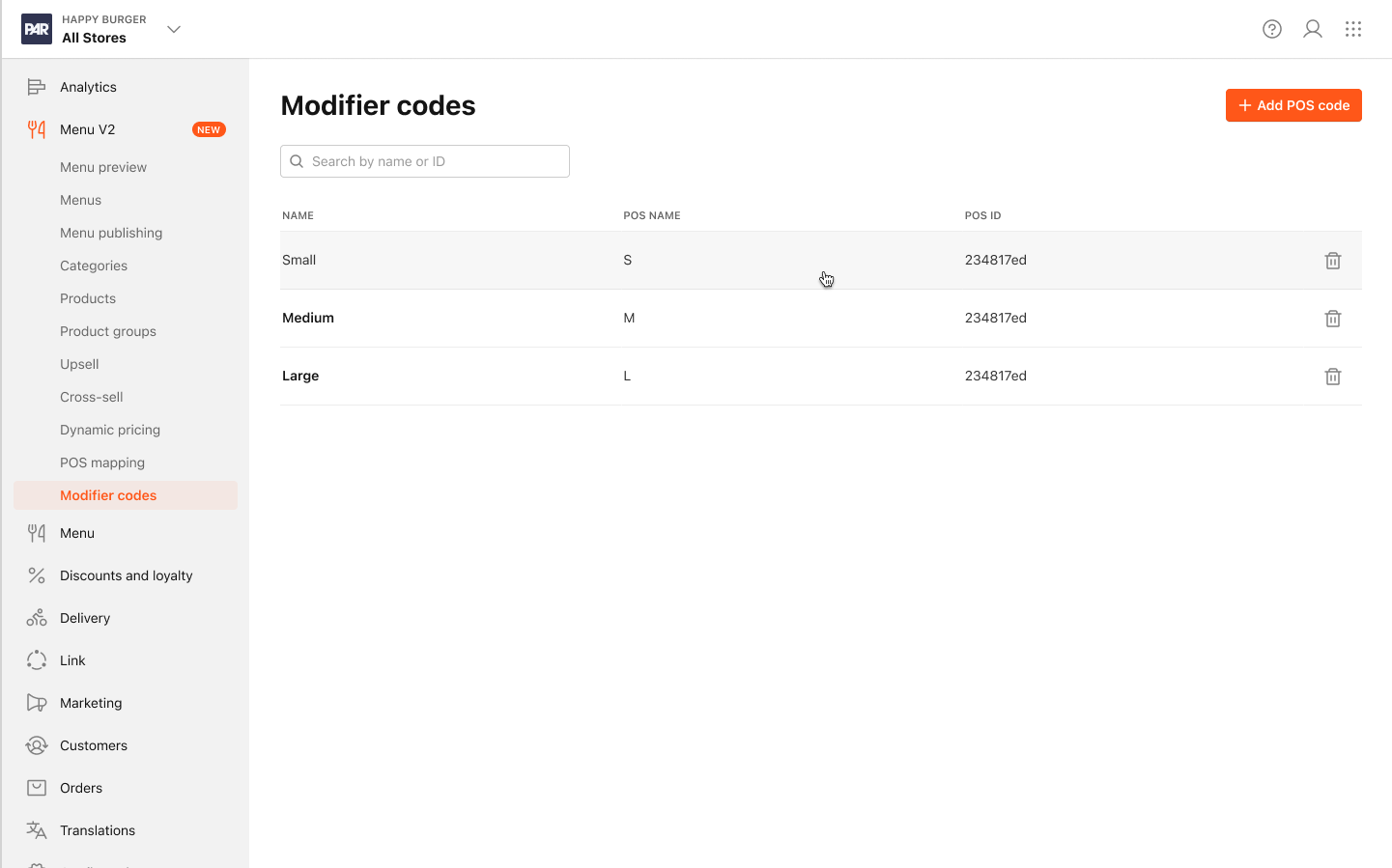
In the Management Center, go to Brand > Menu > Modifier Codes.
-
Click Add Modifier Code.
-
Fill in the following fields:
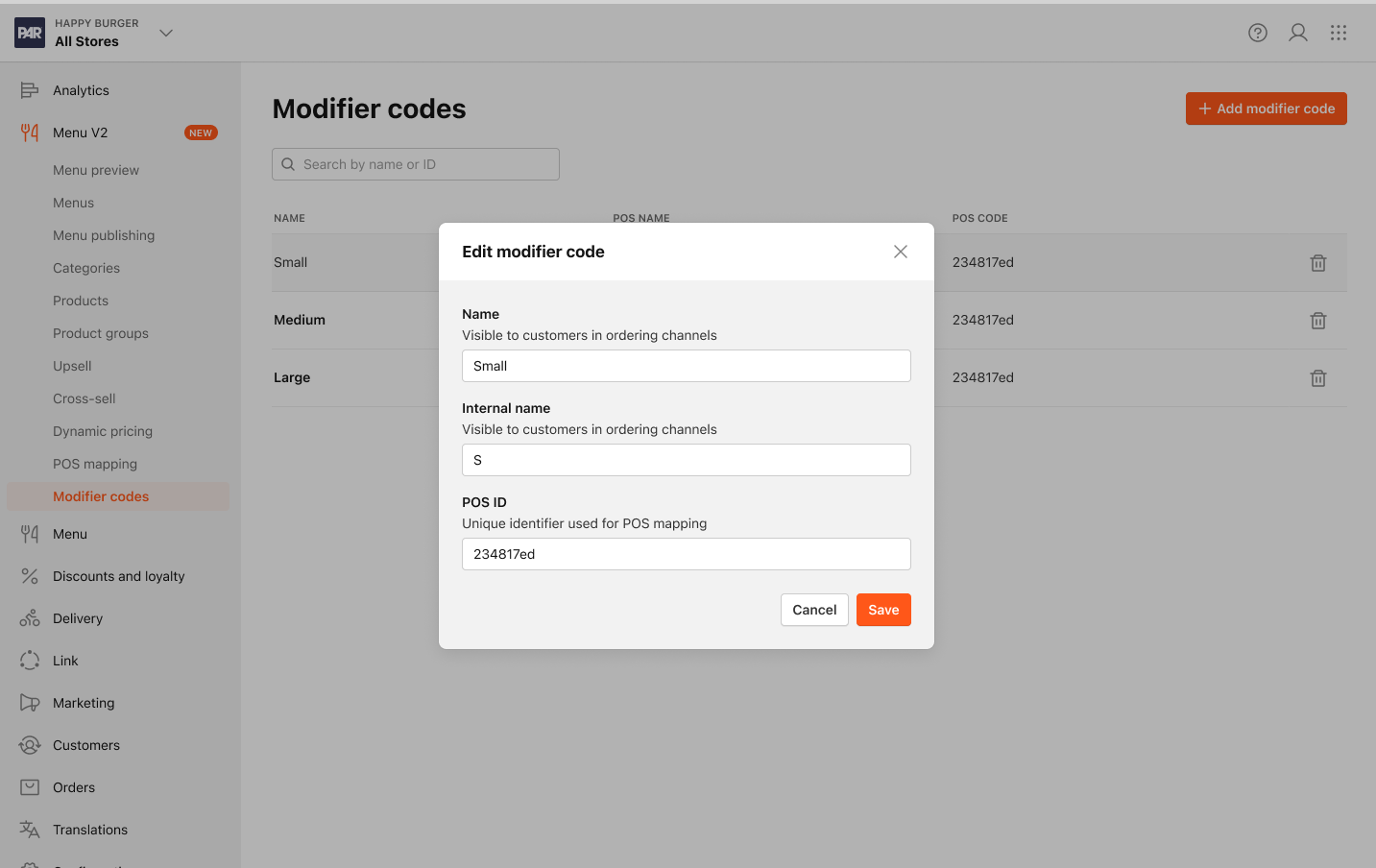
Field Description Requirements Name Human-readable label shown to operators and optionally to guests as a selectable option Required Internal Name/Modifier Code* Short kitchen-facing code printed on kitchen tickets and sent to your POS * Modifier Code is the name customers will see in the app. 2–5 characters; letters and numbers only (A–Z, 0–9); auto-uppercased on input; required POS System ID The external ID that maps this code to a SKU in your POS system Required -
Click Save.
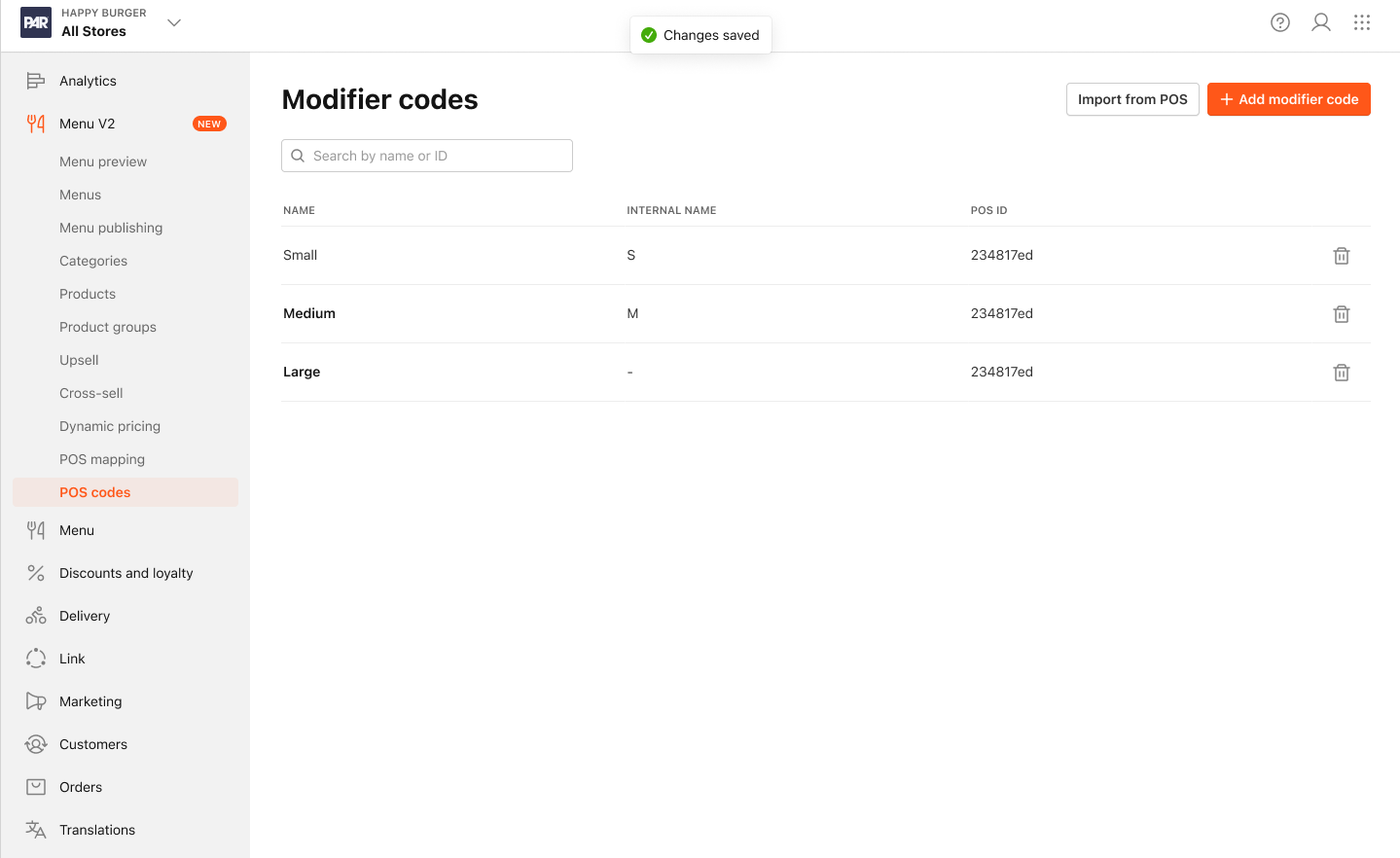
If you enter a code that doesn't meet the format requirements, you'll see one of the following validation messages: Code length must be 2–5 characters Code can only contain letters and numbers. These are intentional constraints. Codes are automatically uppercased as you type.
Deleting a modifier code at the brand level removes it from the library and drops it from all products it was assigned to across all stores. If you need the code back, you must re-create it at the brand level.
Managing Modifier Codes at the Store Level
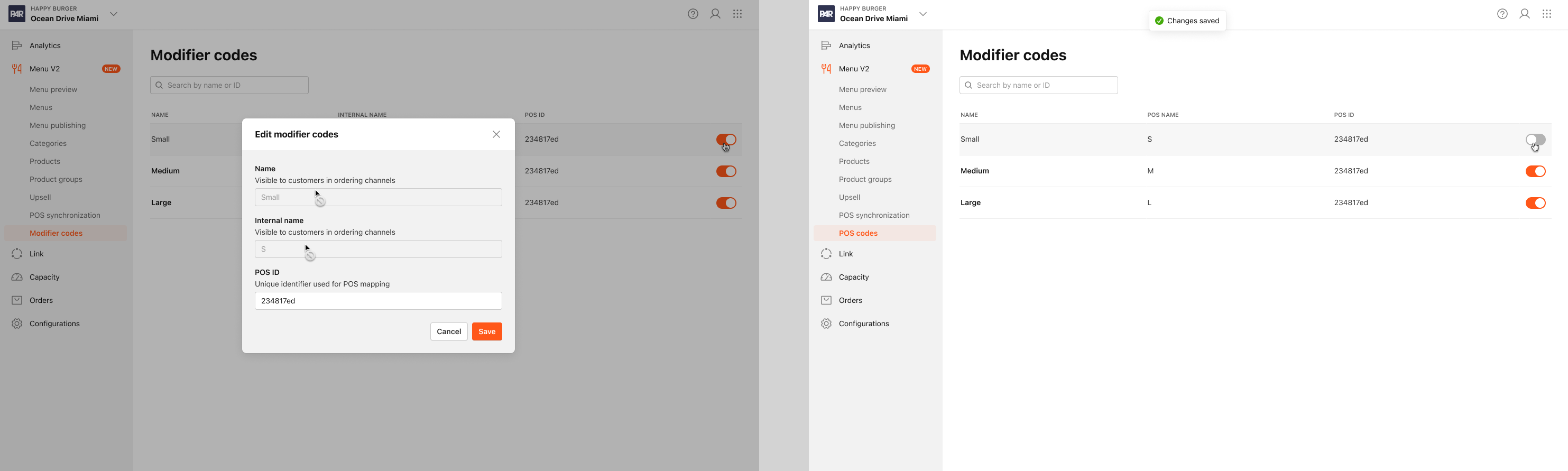
Stores inherit modifier codes from the brand library (shown with a link icon in the list). Store admins can:
- Override the POS System ID for that specific venue — for example, if one location uses a different POS identifier for the same variant.
- Disable (hide) a code at that venue so it doesn't appear on that store's products.
- Restore to brand defaults to undo any overrides.
Store admins cannot create new codes or change the code name or short code. Only brand admins manage the brand library.
To manage modifier codes at the store level:
-
Go to Store > Menu > Modifier Codes.
-
Select the code you want to update.
-
Edit the POS System ID, toggle the code on or off, or click Restore to brand defaults.
-
Click Save.
Assigning Modifier Codes to a Product
After creating modifier codes at the brand level, you can assign them to individual products. Product-to-code assignments are made at the brand level and inherited by all stores. At the store level, admins can hide a specific inherited code from a specific product, but they cannot add codes that don't already exist in the brand library.
-
Go to Brand > Menu > Products.
-
Select the product you want to edit.
-
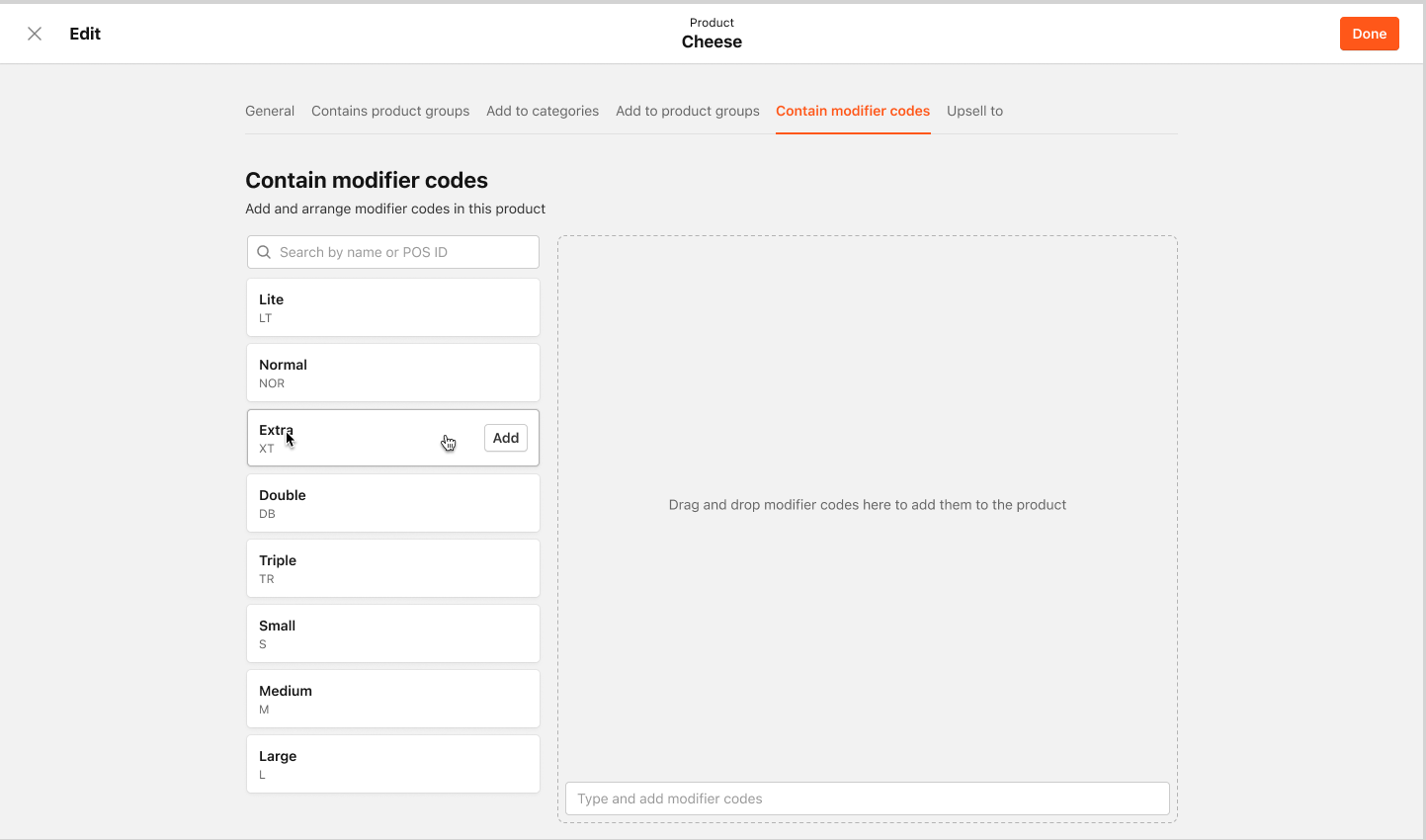
Click the Contains modifier codes tab.
-
Drag codes from the brand library into the product's assigned list. The order you arrange them controls the order guests see them in the web app and kiosk.
-
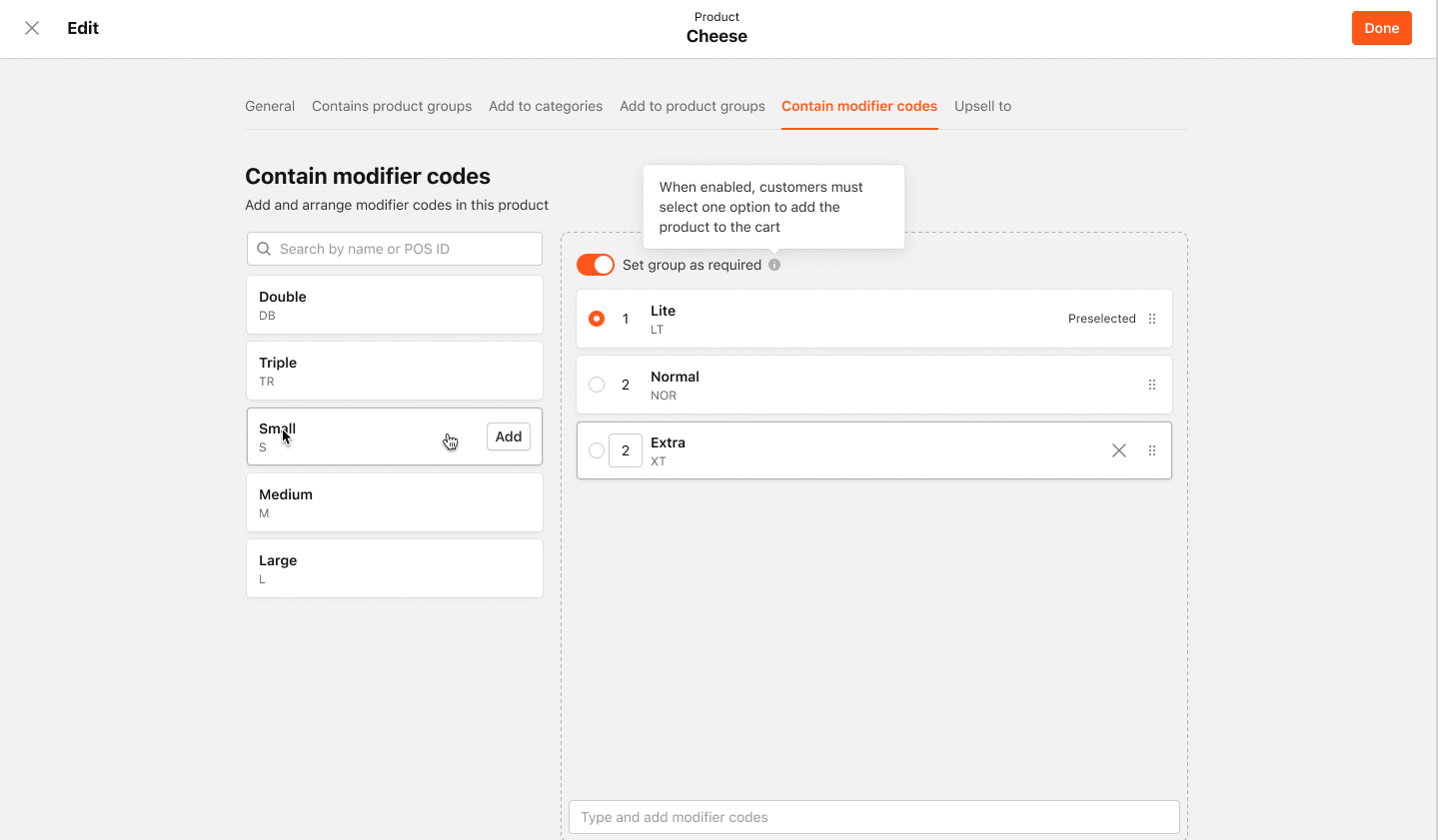
(Optional) Select Set as preselected for one code to auto-select it when a guest opens the product modal.
-
(Optional) Enable the Set group as required toggle so customers must choose at least one of the modifiers. One code is auto-preselected so the guest's checkout flow is never blocked.
Important: If you enable Modifier codes required without designating a preselected code, you'll see this validation message: Select a preselected modifier code while this option is enabled. You must set a preselected code before you can save.
-
Click Done.
What Guests and Kitchens See
Guest Experience (Web App and Kiosk)
In the product modal, guests see modifier codes displayed as pill-style selectors in the order you set on the brand product edit screen. The code's Name (not the short code itself) is what appears to the guest. If you marked a code as preselected, it's already selected when the guest opens the modal.
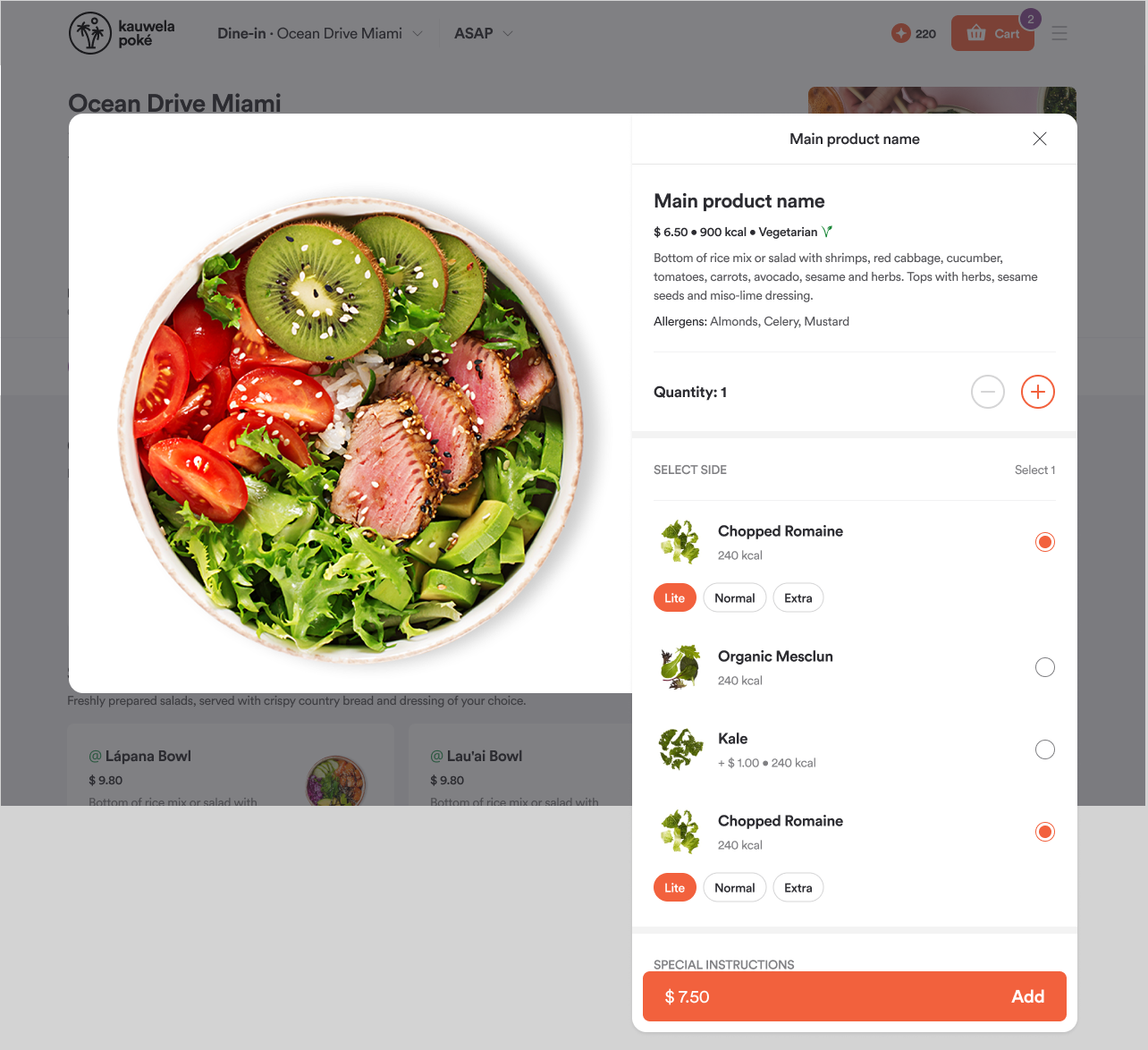
If guests report they can't add a product to their cart, check whether Modifier codes required is enabled and whether the brand library for that product is correctly populated. An empty library, combined with the required toggle being turned on, results in no selectable options at checkout.
Kitchen Ticket
The short modifier code (for example, "NO") prints on the kitchen ticket alongside the product name so kitchen staff can identify the variant at a glance. The product name on the guest-facing receipt stays the same regardless of which code was selected.
PAR POS Pricing
This section applies only to brands integrated with PAR POS.
For PAR POS brands, modifier codes interact with your POS integration in two ways:
- Outbound: When an order is sent to PAR POS, each line item's modifier code is included in the order with its POS System ID, name, and price. PAR POS uses the POS System ID to ring up the correct SKU.
- Inbound: PAR POS Menu Sync pulls modifier code pricing back into your menu. If a modifier code has a price synced from PAR POS, that price overrides the menu price on the line item at order time. The menu price serves as a fallback when no POS price has synced.
If you notice a price discrepancy between your menu and what PAR POS rings up, check whether the modifier code at the venue level has a synced POS price and whether the menu price is set differently.
Permissions
Modifier code access is controlled by the Menu V2 permission:
| Permission Level | What You Can Do |
|---|---|
| Read Menu V2 | View modifier code lists |
| Manage Menu V2 | Create, edit, delete, assign, and toggle modifier codes |
If you can't see the Modifier Codes page, verify that your user role has the Menu V2 permission enabled.
Troubleshooting
| Issue | Likely Cause | What to Do |
|---|---|---|
| Can't save a modifier code | Code length or character validation failed | Make sure the code is 2–5 characters and uses only letters and numbers (A–Z, 0–9). |
| "Modifier codes required" toggle won't save | No preselected code is designated | Select one code as preselected before saving. |
| Guest can't add a product to their cart | Required toggle is on but no preselected code is set or available | Go to Brand → Menu Products → [Product] → Contains modifier codes and verify the assigned codes. |
| Store admin can't edit the short code | By design — only brand admins control the code name and short code | Direct the store admin to the brand admin for changes to the code name or short code. |
| POS price doesn't match the menu price | A synced PAR POS price is overriding the menu price | Check the synced POS price on the modifier code at the venue level. The menu price is the fallback when no POS price has synced. |
| Code is missing at one store only | Code is disabled at that venue | Go to Store → Modifier Codes and re-enable the code or select Restore to brand defaults. |
| Code is missing at all stores | Code was deleted at the brand level | Re-create the code at the brand level — stores will re-inherit it automatically. |
| POS isn't ringing up the correct SKU | Incorrect POS System ID at the brand or venue level | Check the POS System ID at the brand level, then check whether a venue-level override is set. |
