How to Add and Remove Report Recipient?
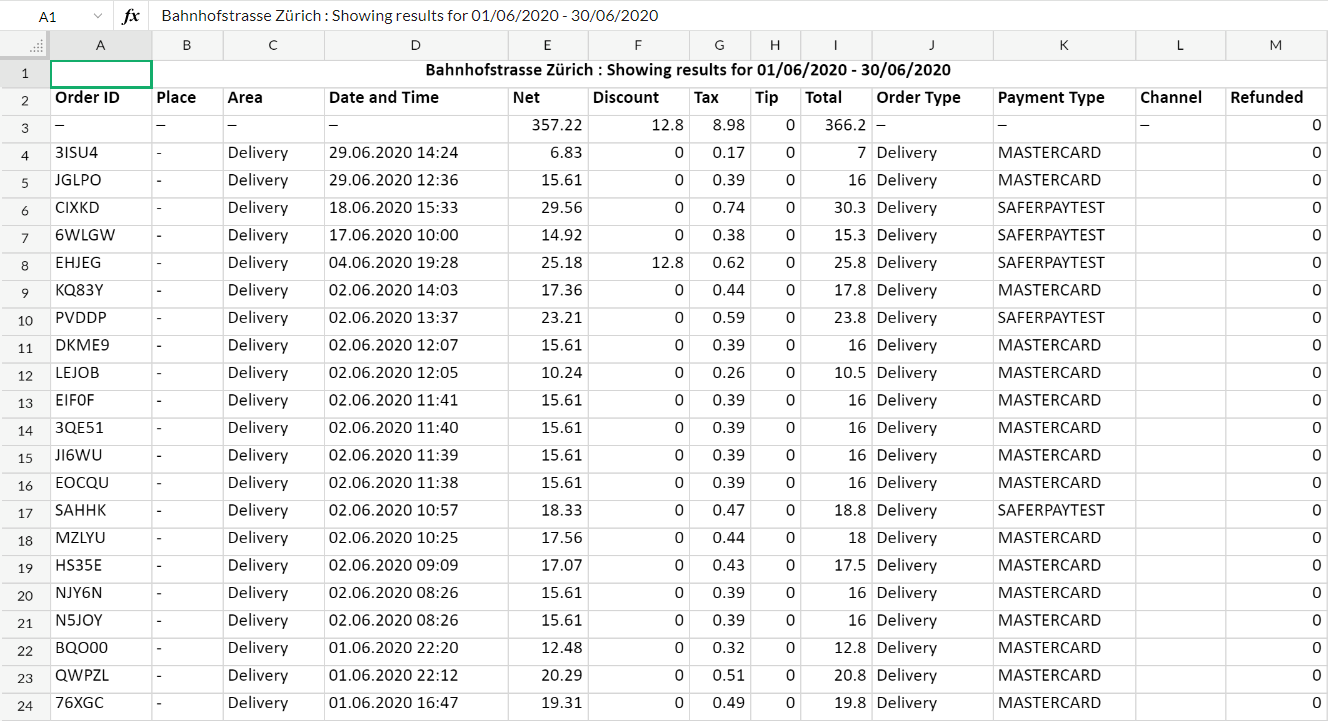
Report Recipients are receiving transaction reports that are sent daily at 10 am (in the Store's local timezone) and report all of the Store's revenue for the day. If the Venue does not have any Report Recipients registered, then no daily transaction report is sent.
Example of Report displayed in .xsl file:
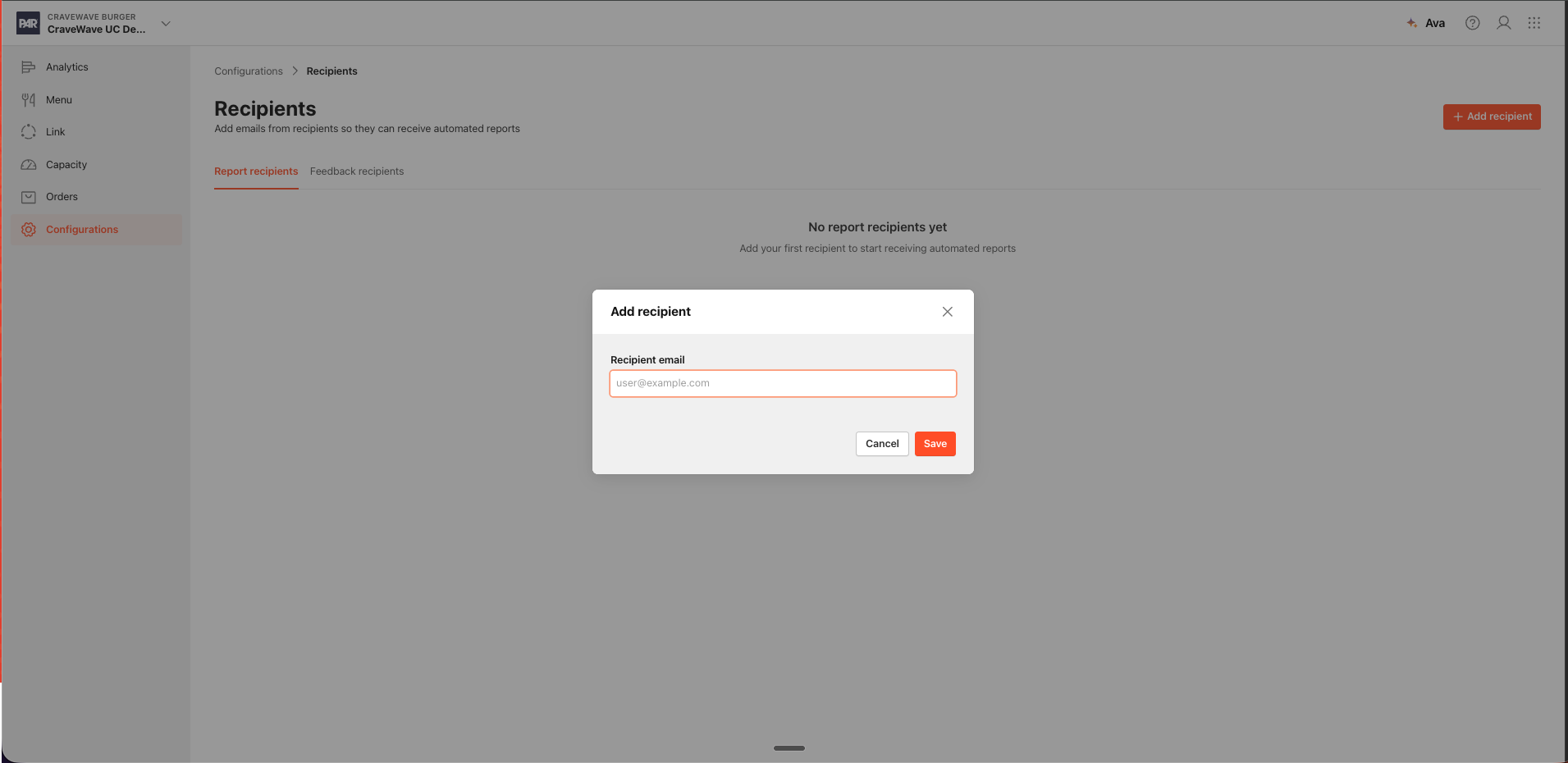
To add Report Recipient in the Management Center:
- Select a Store for which a Recipient gets a Report
- Navigate to Configurations > Recipients
- Select Report Recipients tab
- Click on ADD REPORT RECIPIENT
- Enter Recipient's email in the Recipient email field
- Click SAVE to complete the action
Report Recipient is now added to the email recipient base.
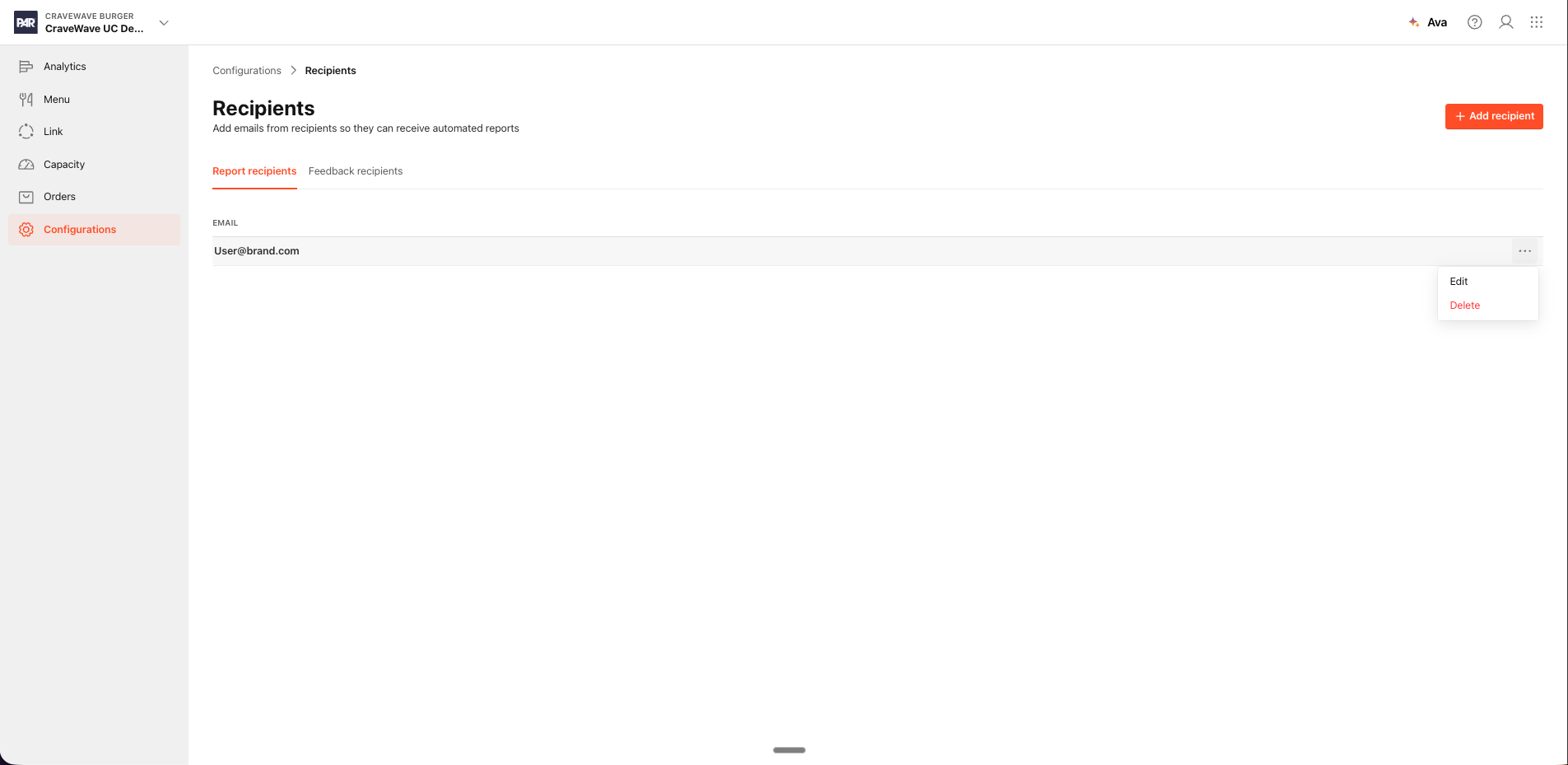
To edit Report Recipient from the Management Center:
- In Report Recipients tab, navigate to Recipient email field
- Select on the email address or click on the 3 dots next to the field where the Recipient email is displayed
- Select Edit
- edit the email address and press Save
To remove Report Recipient from the Management Center:
- In Report Recipients tab, navigate to Recipient email field
- Click on the 3 dots next to the field where the Recipient email is displayed
- Select Delete
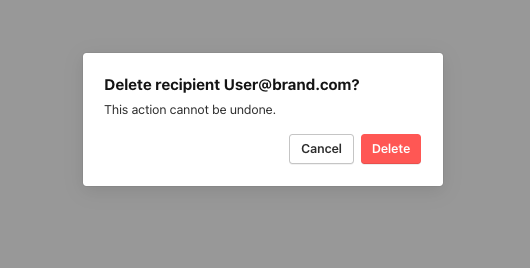
- Confirmation model is presented, select delete again to confirm.