How to Add and Remove Monitoring Recipient?
To add Monitoring Recipient:
- Select the Store you want to monitor
- Navigate to Configurations > Recipients > Report Recipient tab
- Click on ADD RECIPIENT in the Monitoring section
- New Add Recipient form appears
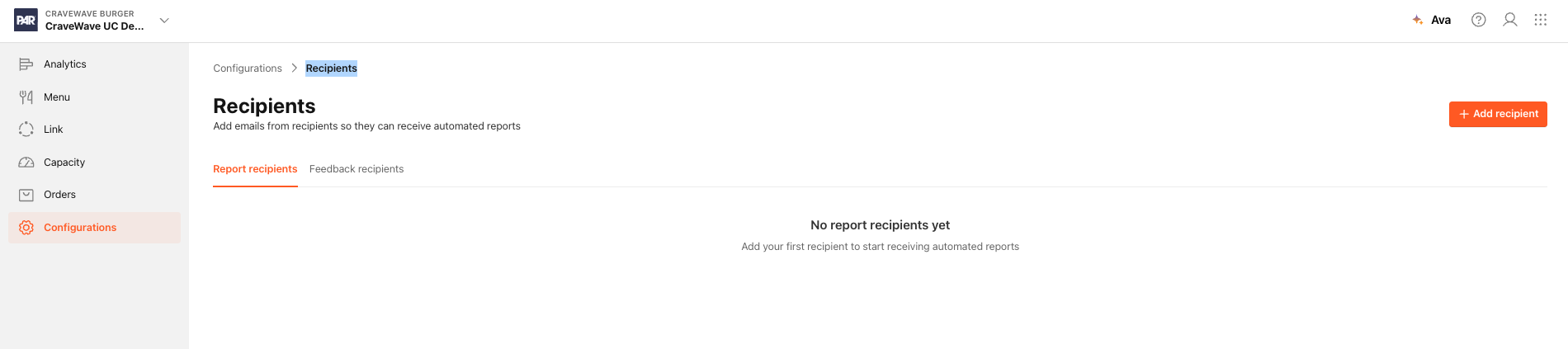
Recipient Email: Email of the recipient to which all the alerts are sent
Subscribe to: Check the boxes to select the component that triggers an alert email when experiencing connectivity issues
- For API POS integrations: Tablet and Order Failure
- For Printer integration: Printer, Tablet and Order Failure
- For Windows POS integration: Windows POS Service, Tablet, Order Failure
NOTE: Components depend on the Venue integration type. The two listed components are offered for Plain integration and API POS integration.
- Enter all the necessary data
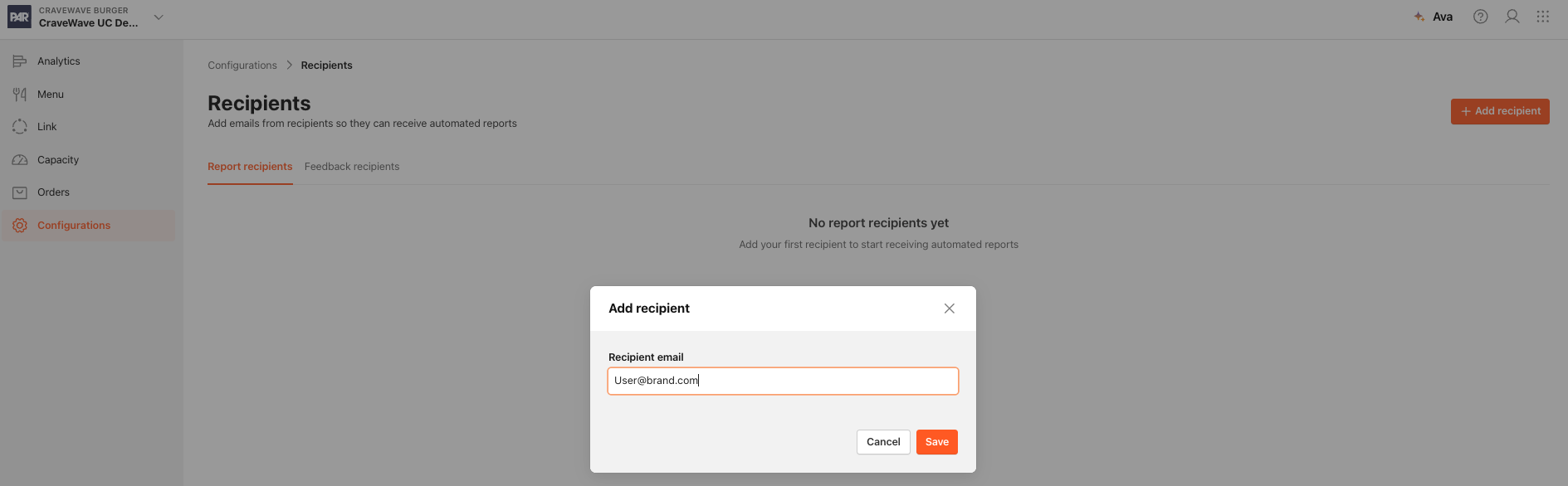
- Click SAVE to complete the action
To remove a recipient:
- Select the Store you want to remove the user from
- Navigate to Configurations > Recipients > Report Recipient tab
- Click on *the user *in the Monitoring section to edit or add 3 dots to be able to delete.
