Custom Fees - Store Level
To be able to use custom fees, follow the set up guide for your POS from the below articles.
Setting Up Custom Fees - PAR POS
Setting Up Custom Fees - Toast POS
Ensure custom fees have been set up at a brand level, follow the set up guide from below article. Custom Fees - Brand level
Editing a Fee
Steps:
Navigate to: Store-level fee list.
Click a fee to open the configuration modal.
Editable: Only the Fee Amount.
Non-editable: All other settings.
Enable/Disable:
- Use the toggle switch.
- A "Changes saved" notification appears.

Fee Visibility in Reports and Receipts
Included in:
-
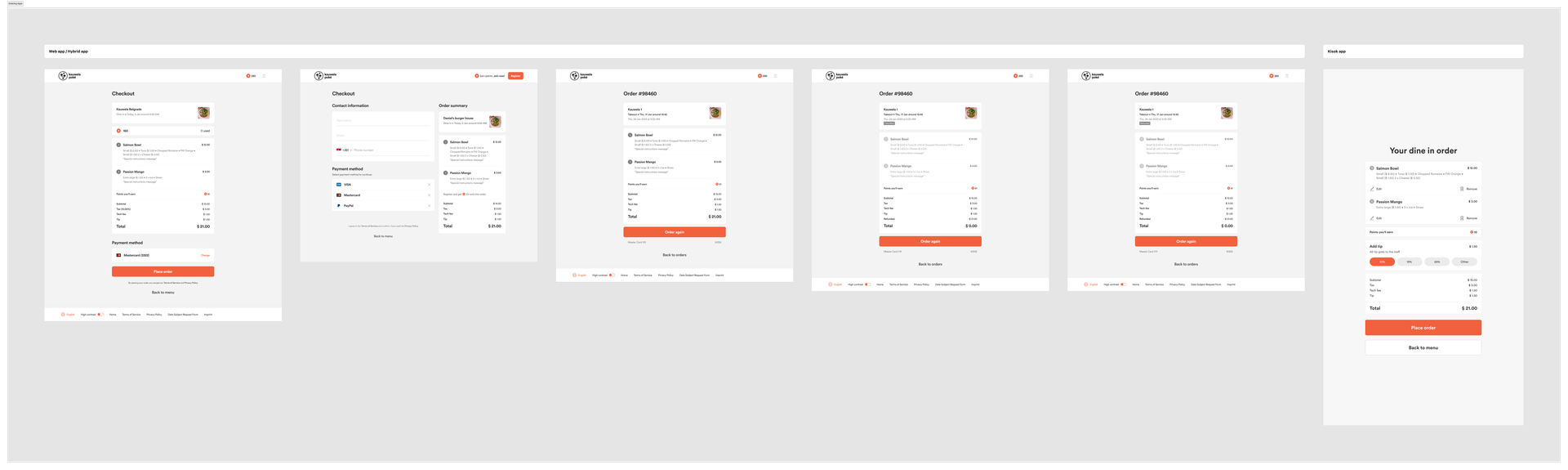
Ordering Apps (Web, Mobile, Kiosk)
-
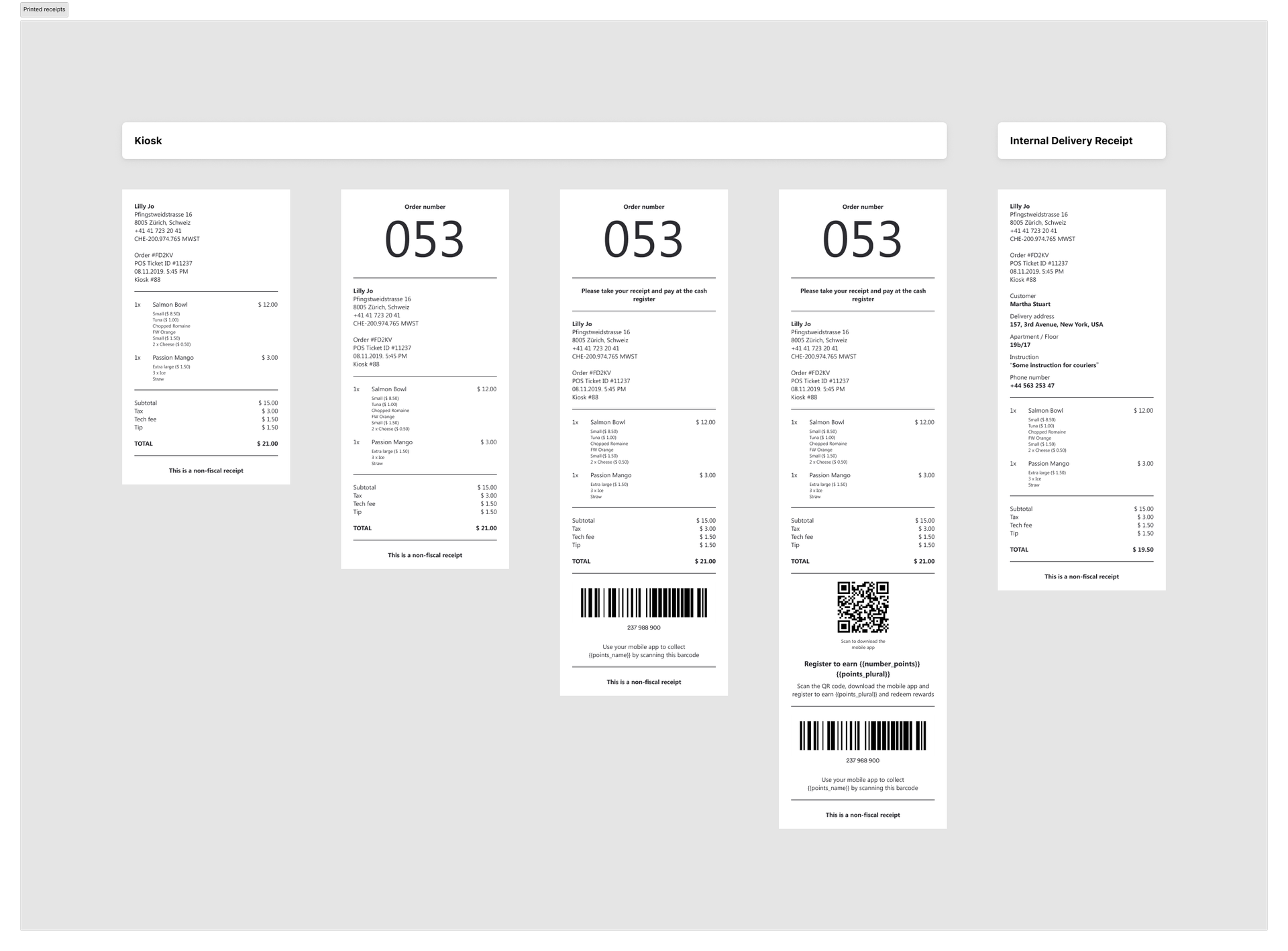
Printed Receipts
-
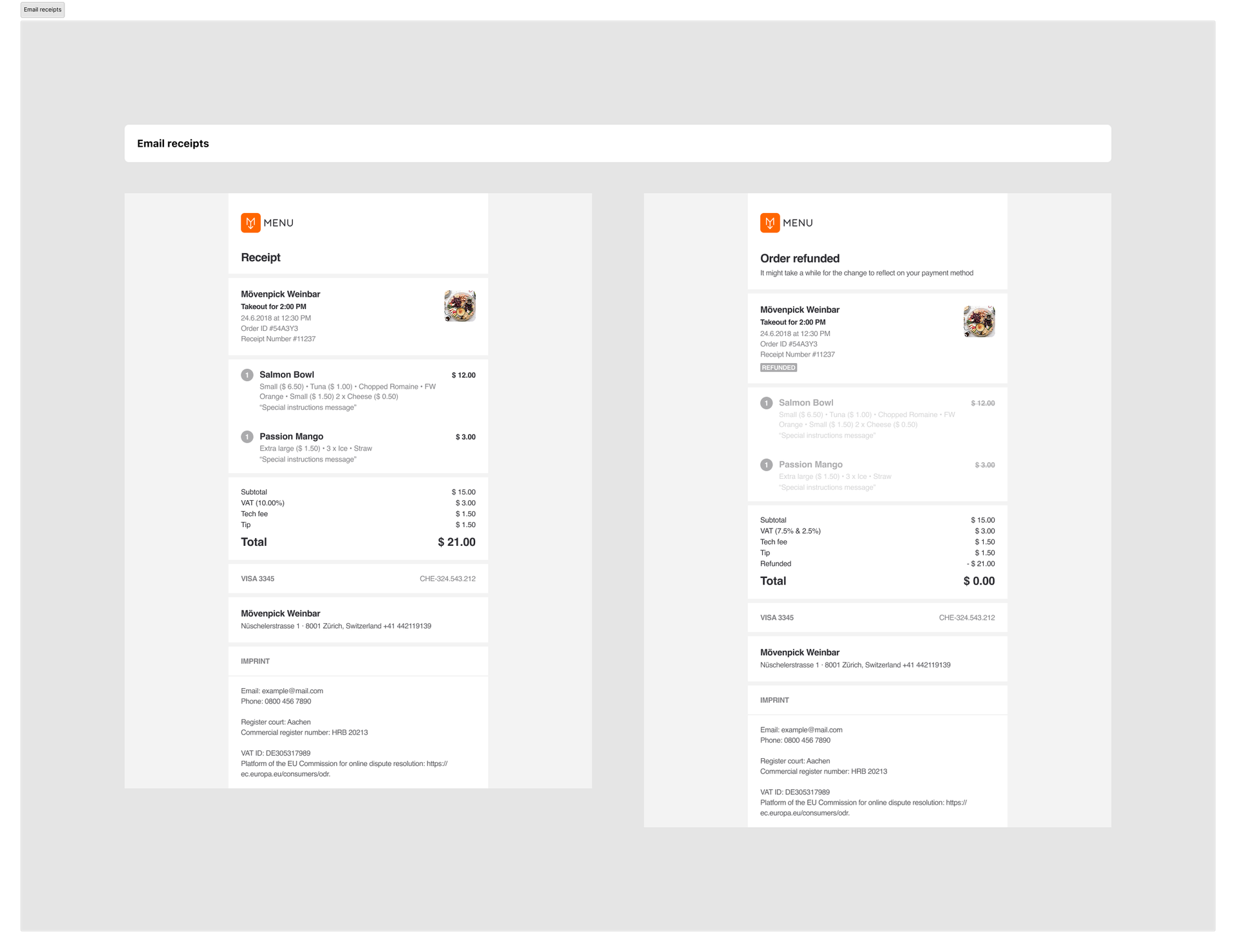
Email Receipts
-
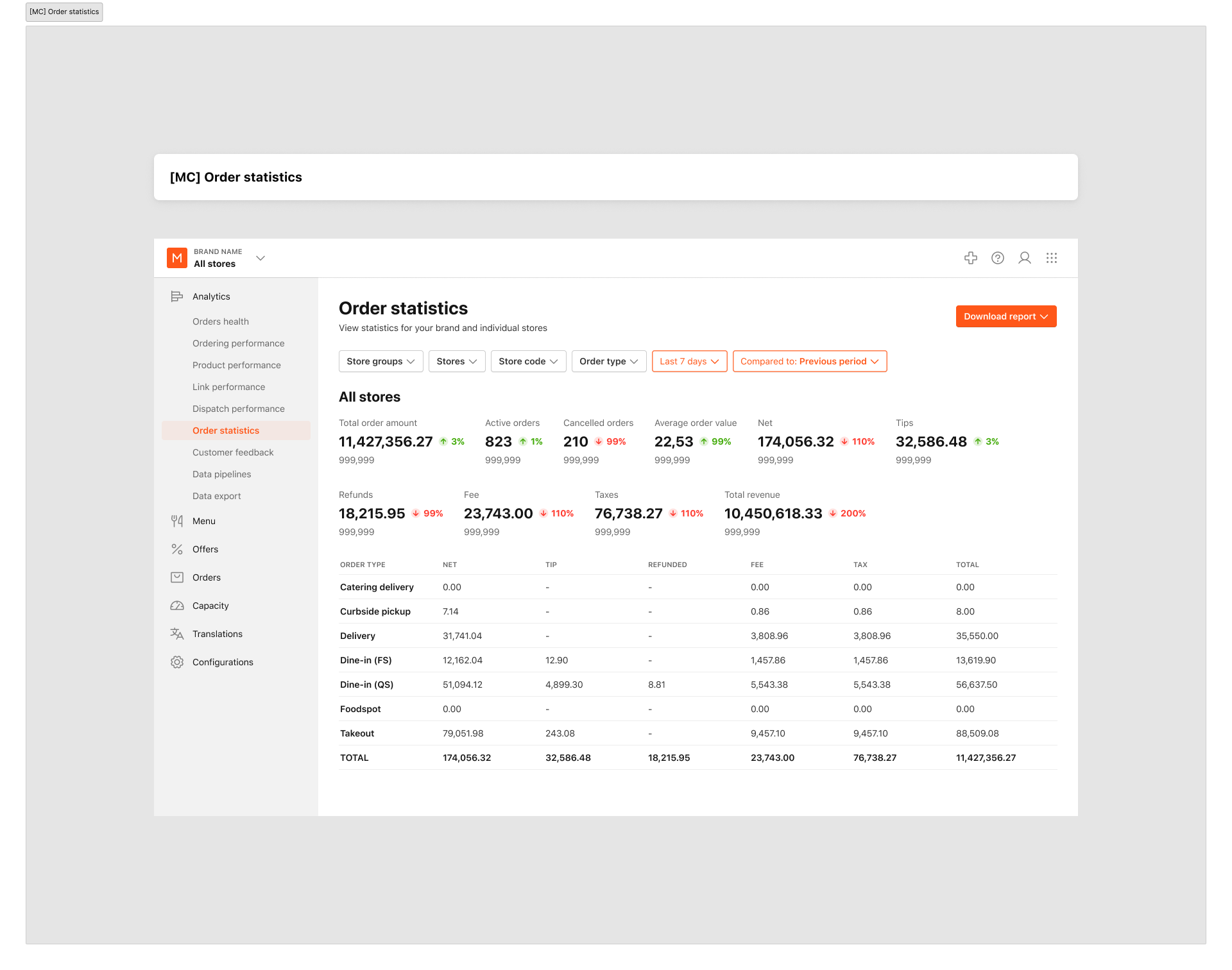
Brand Order Statistics
-
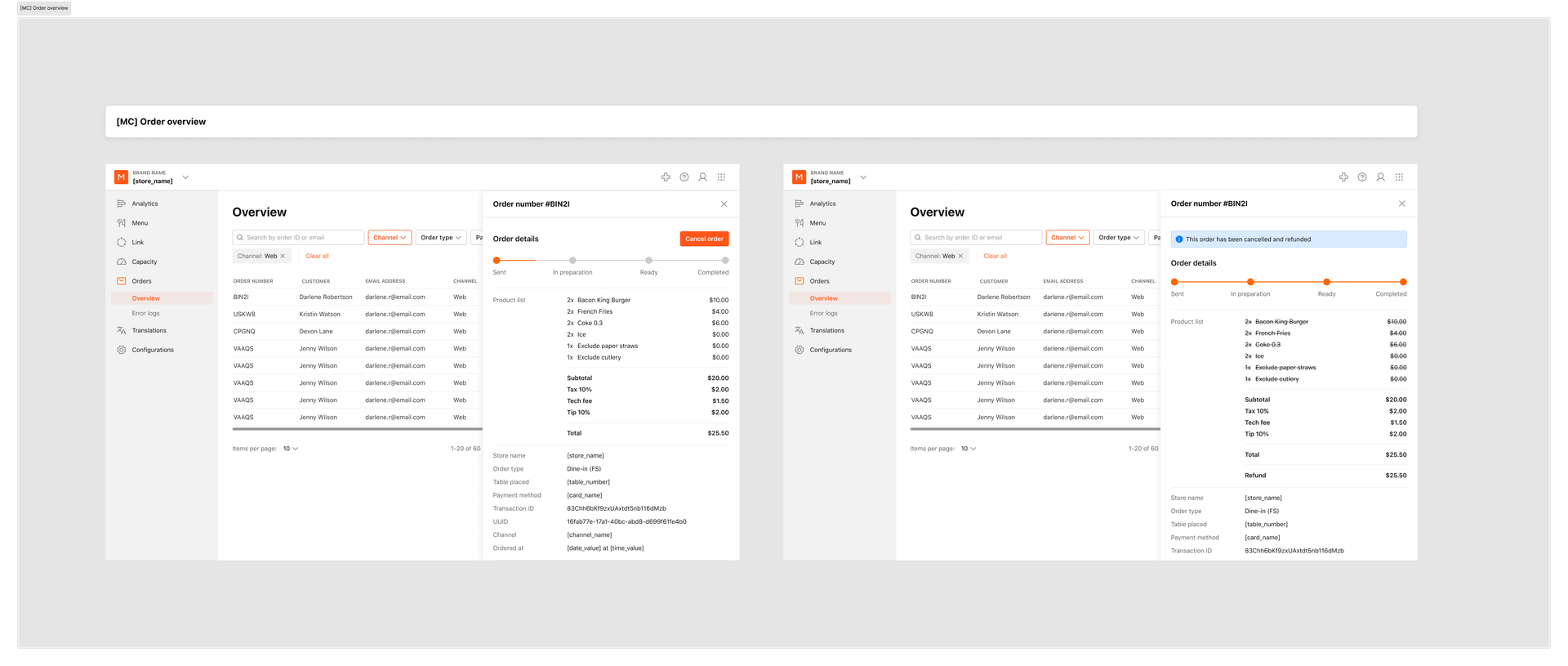
Store Order Overview (default and refunded)
-
Note: Custom fees are non-taxable and appear below tax in all receipts and checkout screens.