Custom Fees - Brand Level
To be able to use custom fees, follow the set up guide for your POS from the below articles.
Setting Up Custom Fees - PAR POS
Setting Up Custom Fees - Toast POS
Custom fees can only be applied to orders using Menu v2.
Creating a Fee
Steps:
Navigate to:
Brand Level Configuration > Taxes and Fees > Fee Tab
Click the Add button to open the Fee Configuration modal.
Fill in required fields:
- Fee Name
- Ordering Channels
- Order Types
- Fee Type (Percentage or Flat)
- Fee Amount
Validation:
- Errors are shown for missing fields.
- If the fee fails to save, a generic error message appears.
Success:
- Modal closes.
- Fee appears in the table.
- A success notification is shown.
- Fee is distributed to all stores under the brand.
Notes:
- No restrictions on duplicate Fee Names, Order Types, or Channels.
- Multiple fees can exist for the same conditions.
Editing a Fee
Steps:
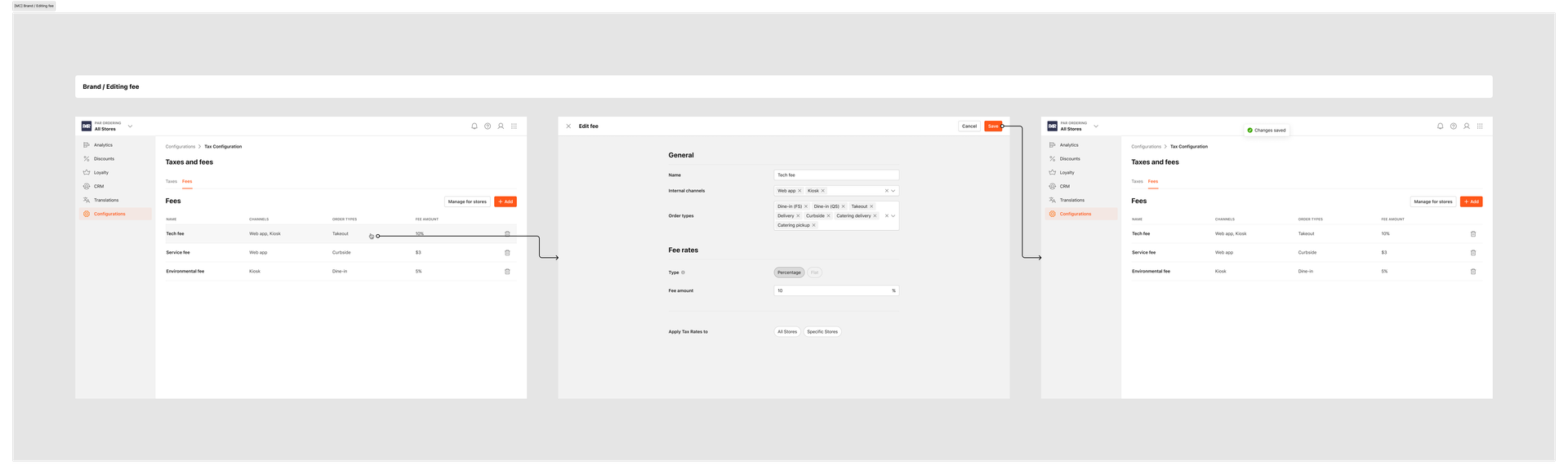
Click an existing fee in the table to open the edit modal.
Editable Fields:
- Fee Name
- Ordering Channels
- Order Types
- Fee Amount
Non-editable: Fee Type (locked after creation)
Propagation of a Fee
- Distribute updated fee to All Stores or Specific Stores.
- If not propagated, changes apply only to new stores.

Deleting a Fee
Steps:
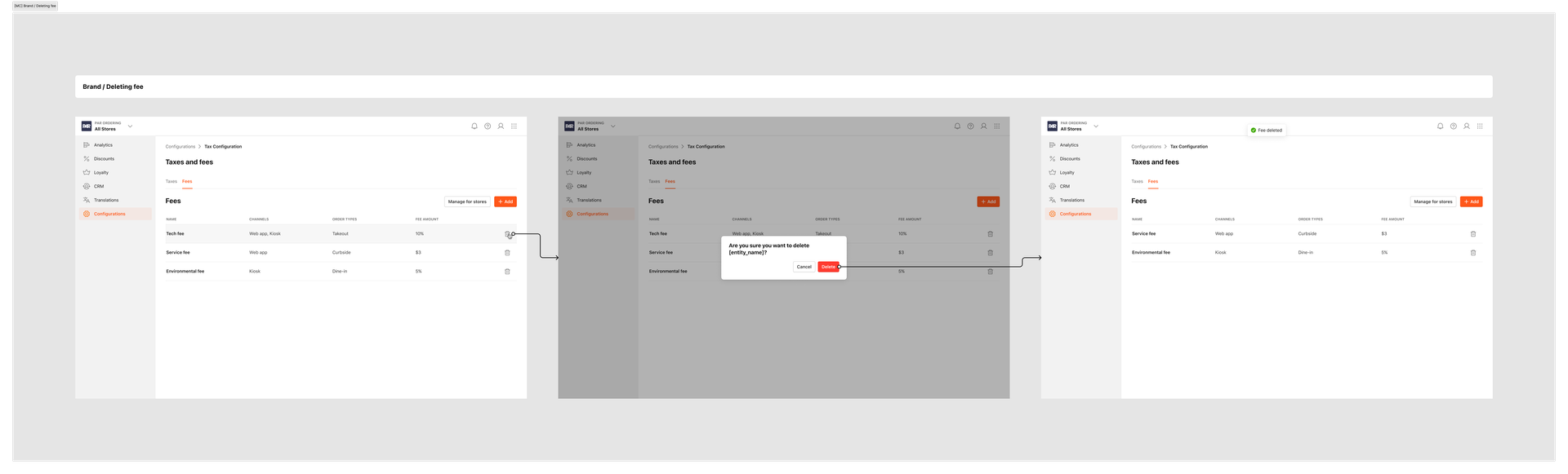
Click the trash icon next to the fee.
Confirm deletion in the dialog.
Result:
- Fee is removed from the table and all stores.
Managing Fees for Stores (Brand Level)
Steps:
Click the Manage for Store button.
In the modal:
- Left panel: List of all fees.
- Right panel: Store list split into Activated and Deactivated.
Actions:
- Select stores individually or in bulk.
- Activate or Deactivate fees.
- Toast confirms the action.

