Inventory COGS Details Report
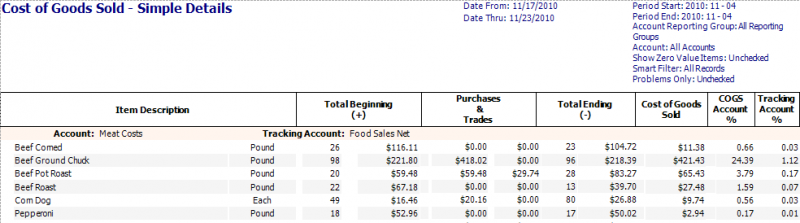
Use this report to view the item count, cost at beginning, purchases and trades, ending count and cost, cost of goods sold, COGS account percentage and tracking account percentage. Use this report to view your cost of goods by item and group.
Parameters
- Period Start: Select the beginning period to view.
- Period End: Select the ending period to view.
- Account Reporting Group: Select the group of accounts to view.
- Account: Select the account to view.
- Show Zero Value Items: Put a check in this box to view items that do not have counts or purchases for the periods selected.
- Smart Filter: Enter a choice - All items, only estimated items, only counted items, only not counted items.
- Problems Only: Put a check in this box to view ONLY items with negative usage.
Columns
- 'ITEM DESCRIPTION' column: Local Description for Unit level report; Master Description for MU and Admin report.
- 'TOTAL BEGINNING' column: Count of Reporting Measure and Value of items from the Ending Count last period.
- 'PURCHASES & TRADES' column: Value of purchases and trades for this period. If you have traded items that are recipied, these are shows as full recipes not individual items.
- 'TOTAL ENDING' column: Count of Reporting Measure and Value of items from this period.
- 'COST OF GOODS SOLD' column: = Total Beginning + Purchases + Trades – Total Ending.
- 'COST OF GOODS % ' column: = Cost of Goods Sold for this Item/Total Cost of Goods for this Account.''
- 'TRACKING ACCOUNT %' column = Cost of Goods Sold for this Item/Tracking Account.