Workday Integration System Setup
This article walks you through creating an Integration System with a Field Override Service in your Workday instance. This process allows your integration to retrieve additional fields, including standard Workday fields and calculated fields.
Instructions
If you already have an Integration System set up in Workday to filter the employees being synced, add your additional fields to that same system rather than creating a new one. Only one Integration System can be used.
Step 1: Create the Integration System and Field Override Service
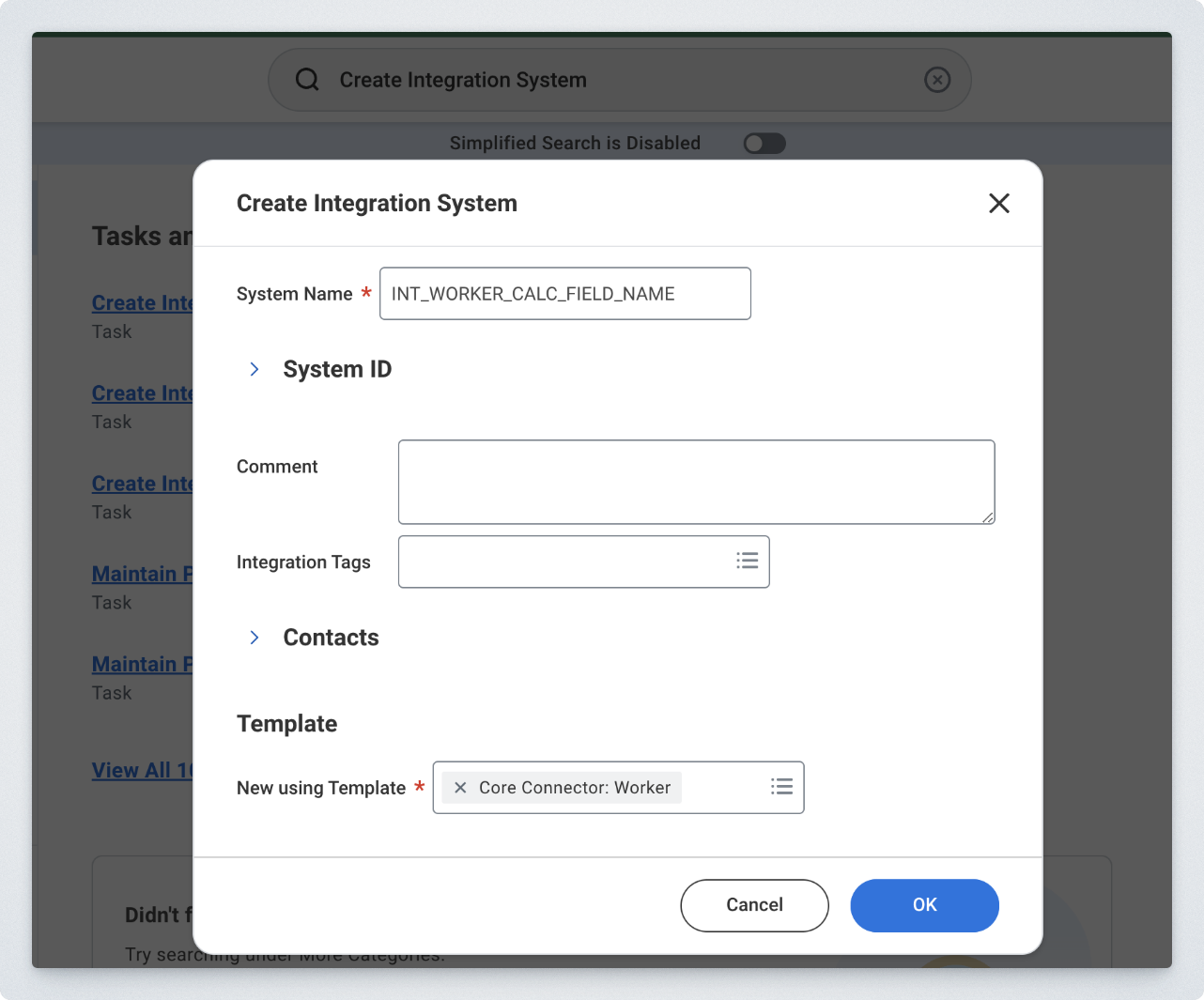
- Search for and select the Create Integration System task in your Workday instance.
- Give your Integration System a name, ensure that the template is Core Connector: Worker, and select OK.
- Ensure that the Template is Core Connector: Worker.
- The name doesn't matter, but we suggest a naming convention that you will remember.
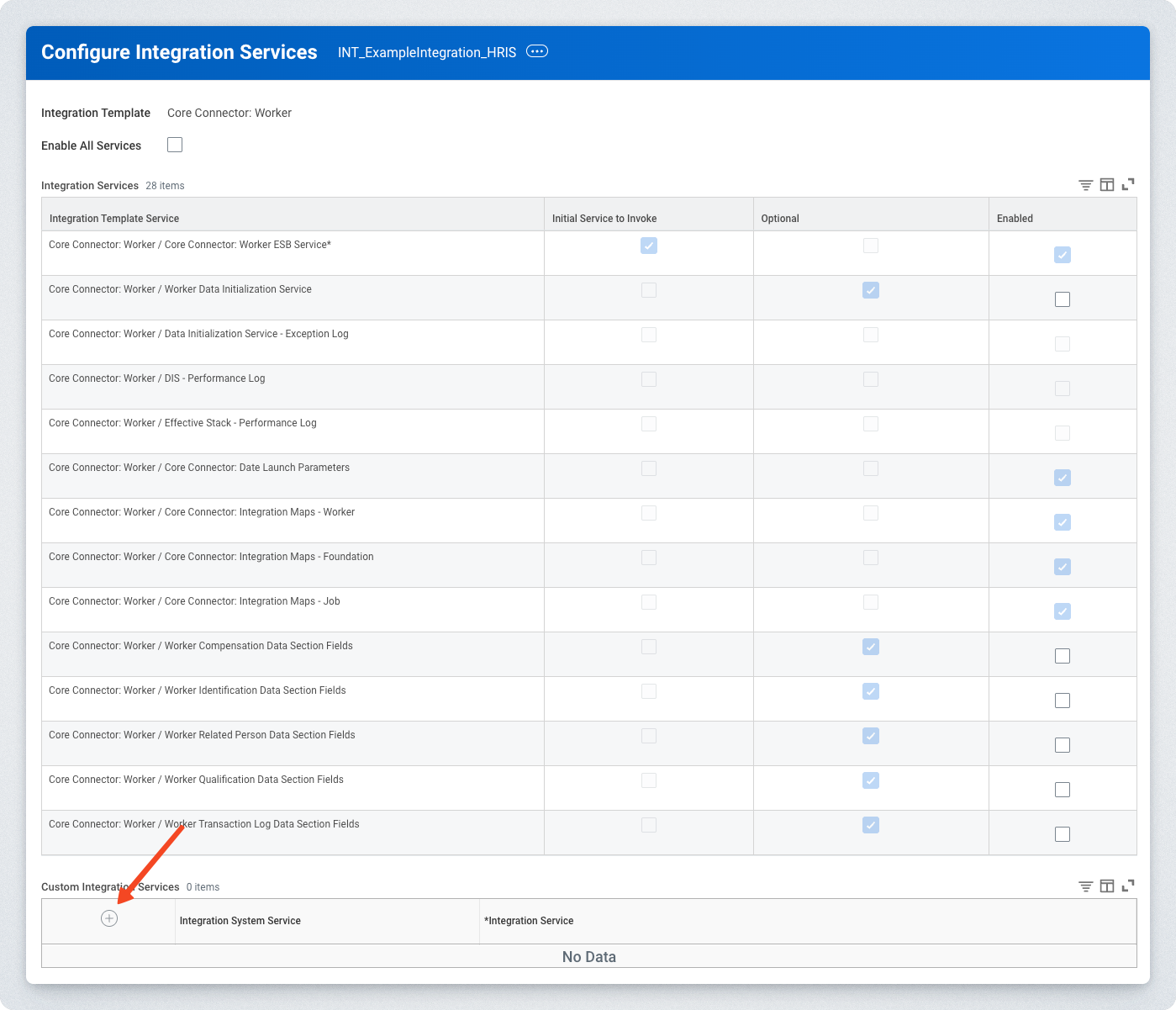
- After clicking OK, a Configure Integration Services pop-up appears. Scroll down to the bottom and add a Custom Integration Services record.
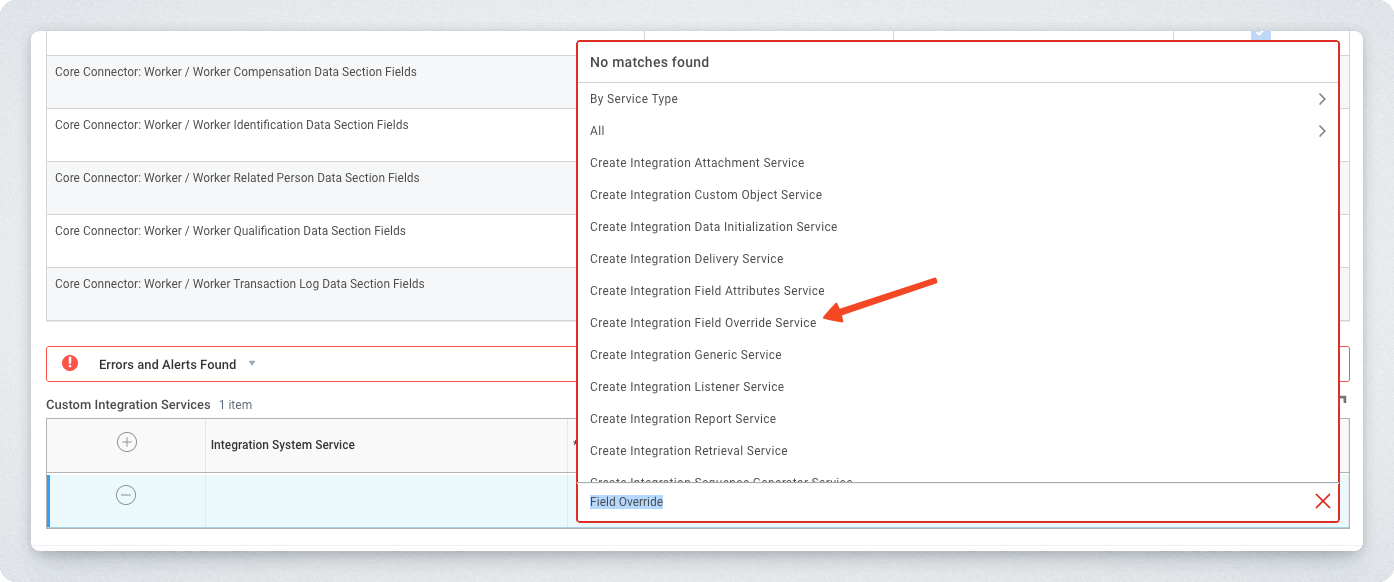
- Under the Integration Service column of the newly created row, search for and select Create Integration Field Override Service.
- In the Create Integration Field Override Service pop-up, give the Field Override Service a name and select the Worker Business Object.
- We suggest something like "INT_".
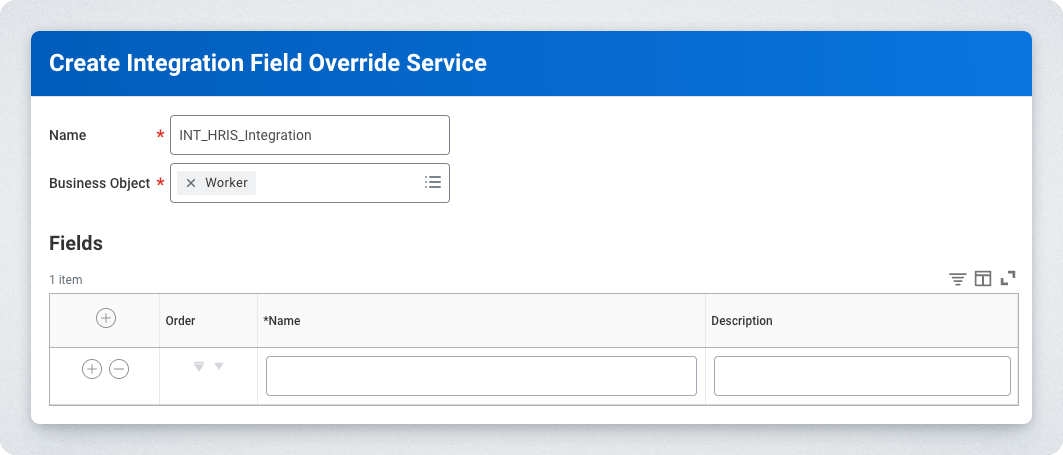
- We suggest something like "INT_".
- In the Fields section, add the names of all the fields you will be adding to the integration, then select OK.
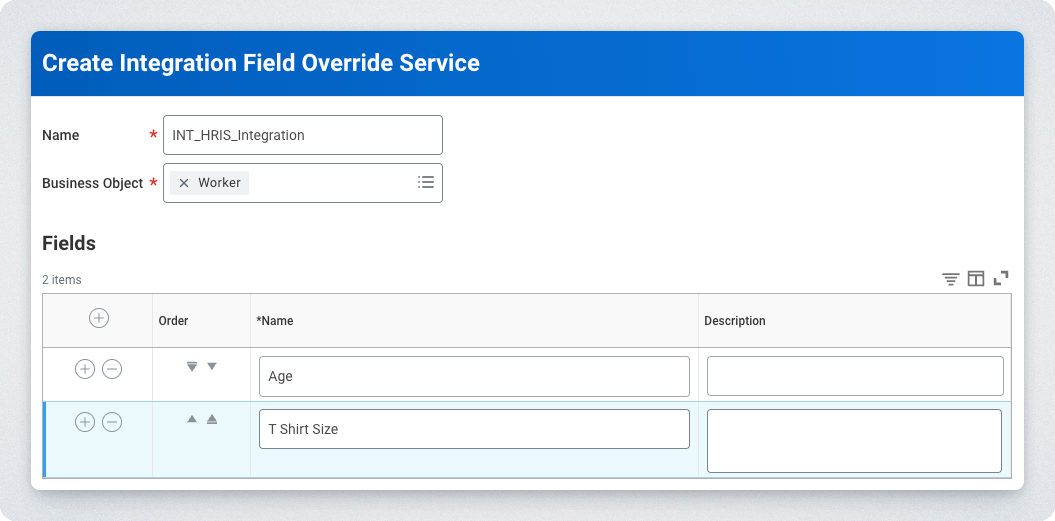
- You will be taken back to the Configure Integration Services pop-up. Finish the initial creation of the Integration System by selecting OK.
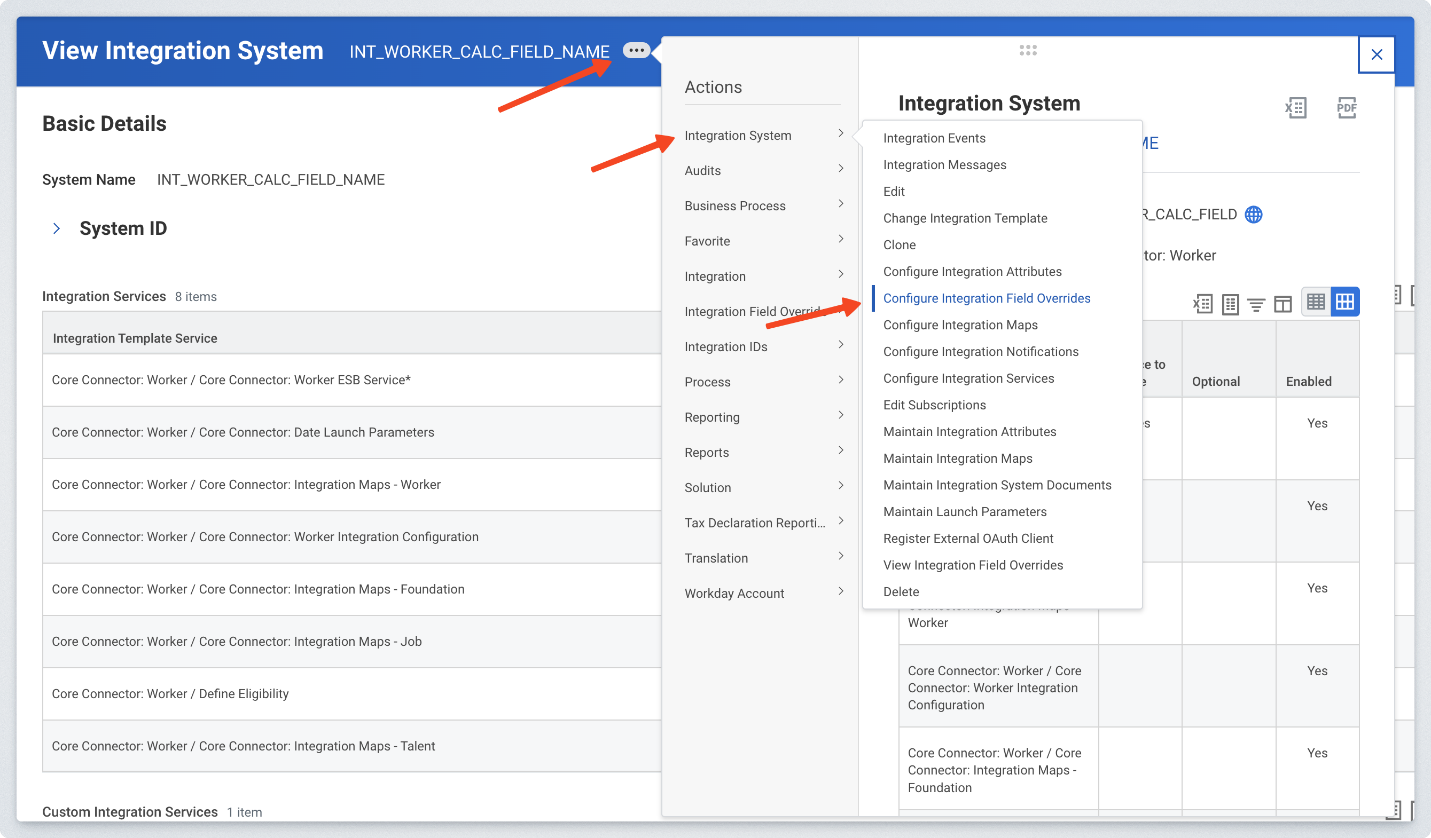
- On the Integration System page, navigate to Integration System > Configure Integration Field Overrides.
- Find the name of your Field Override Service on the left side of the page, configure your field overrides, and select OK.
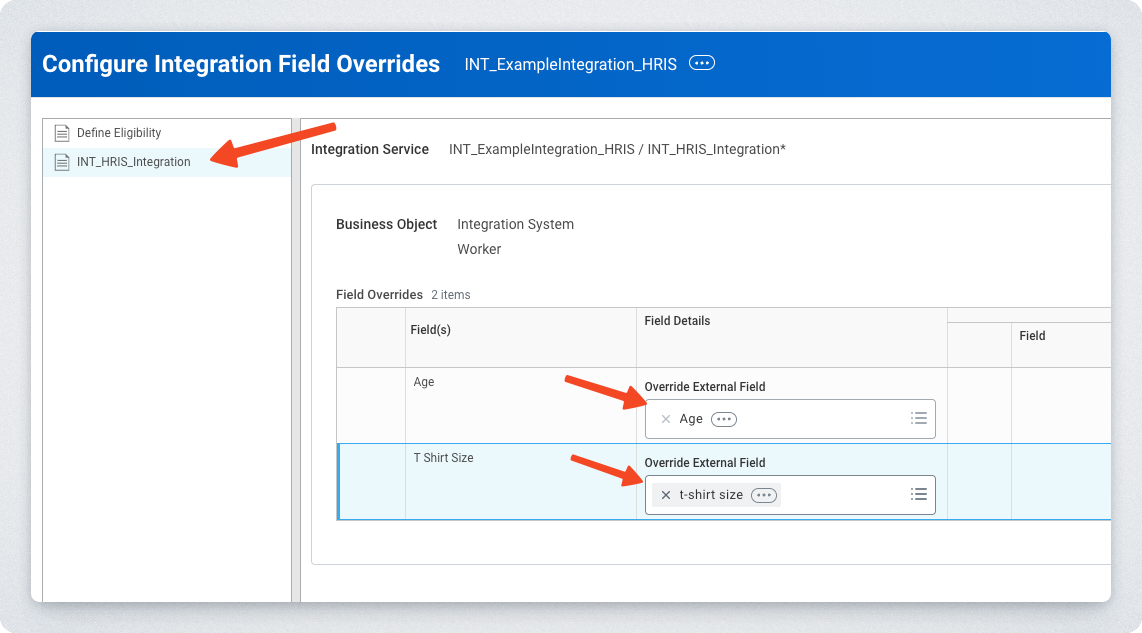
Step 2: Find the Integration System ID
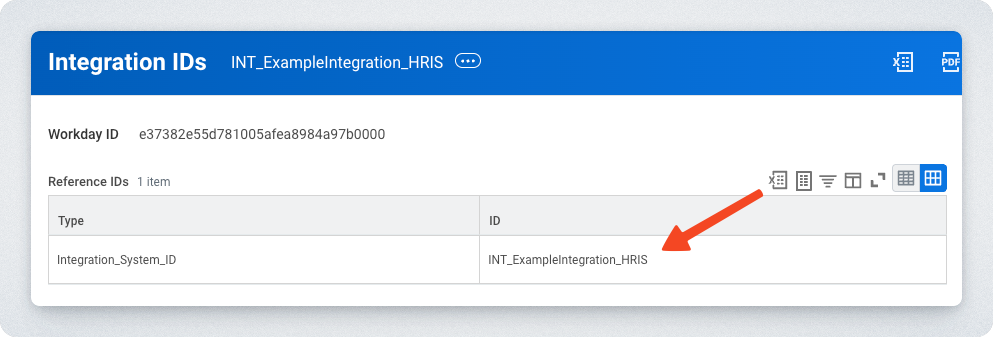
- Back on the Integration System page, navigate to Integration IDs > View IDs.
- If you've navigated away from the Integration System, you can find it again through the View Integration System task.
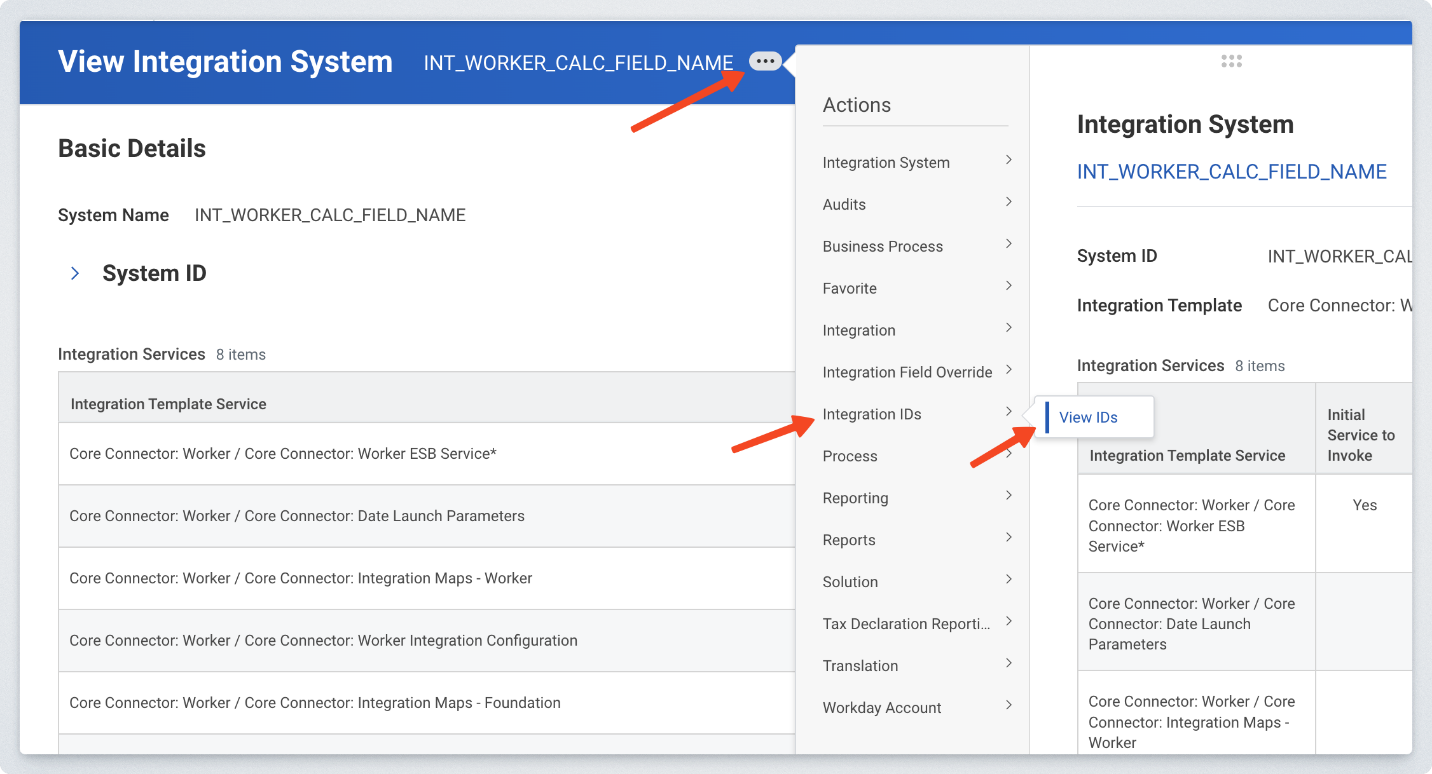
- If you've navigated away from the Integration System, you can find it again through the View Integration System task.
- Copy and use the ID value of the Integration System you created.
Submitting Your Integration Details
Once you have completed the steps above, send the Integration System ID to the PAR OPS team you're working with.