Export Accounting and Purchases
The Export Accounting and Export Purchases activities in PAR OPS are designed to streamline the transfer of financial data from the platform to your configured accounting system. These tools allow users to export invoice and purchase data in standardized formats, ensuring compatibility with third-party accounting software. In addition to exporting, these activities support document control by enabling users to manage approval workflows and lock or unlock documents to prevent unauthorized changes after export. This article provides step-by-step guidance for accessing these features, selecting and exporting data, and ensuring data integrity throughout the process.
How do I export accounting files?
Fields marked as * on the entry form are required.
- Go to Export Accounting
- Enter Export criteria
- Select Export
How do I export purchase files?
Fields marked as * on the entry form are required.
- Go to Export Purchases
- Enter Date Range
- Select the Complete tab
- Select each document to export
- Select Export
- Select Export Type
- Select Invoice/AP Voucher
- Select Export
How is the default location for exported files changed?
These instructions are for Chrome as that is the recommended browser for use with PAR OPS.
-
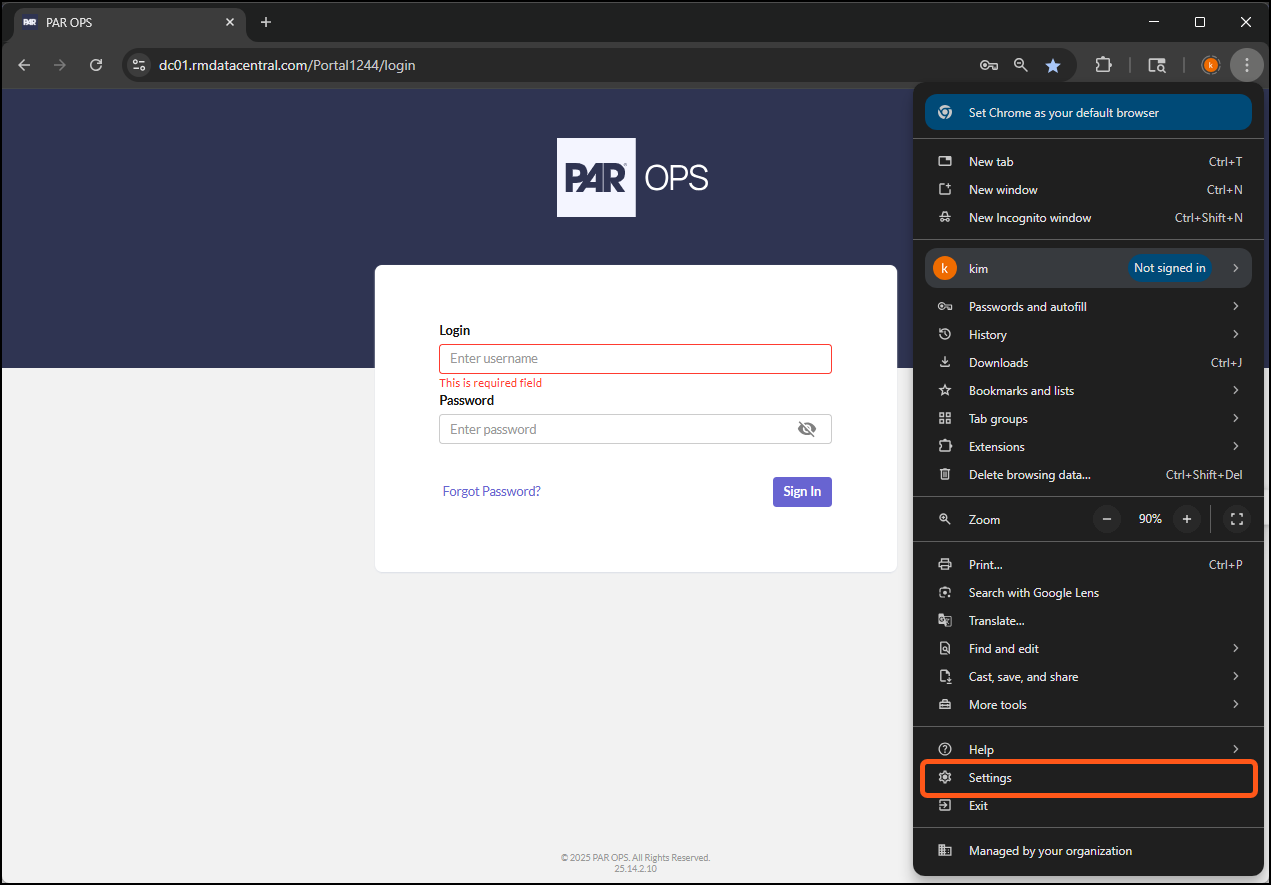
Open the Browser settings by selecting the ellipsis in the upper right-hand corner.
-
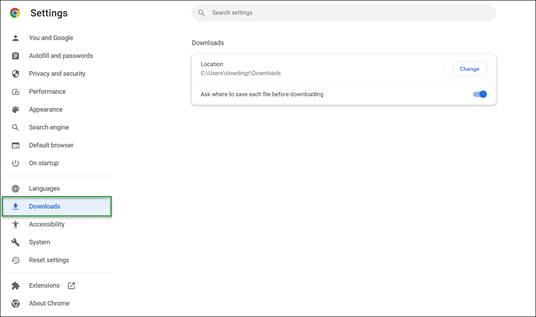
Navigate to Downloads.
-
Review Location tab, select Change to designate the file path that all downloaded files will automatically save to. Toggle the “Ask where to save each file before downloading” to prompt you to chose where you want the file to be saved every time you download or export anything from this browser.
How is the browser cache cleared in Chrome?
Clearing your browser cache may resolve some error messages and other strange behavior that you may experience with any web page including the Portal. Additionally, you can log into the Portal by launching Incognito Mode or Private Browser Mode. This is the same as logging in with a fresh, cache-free browser.
-
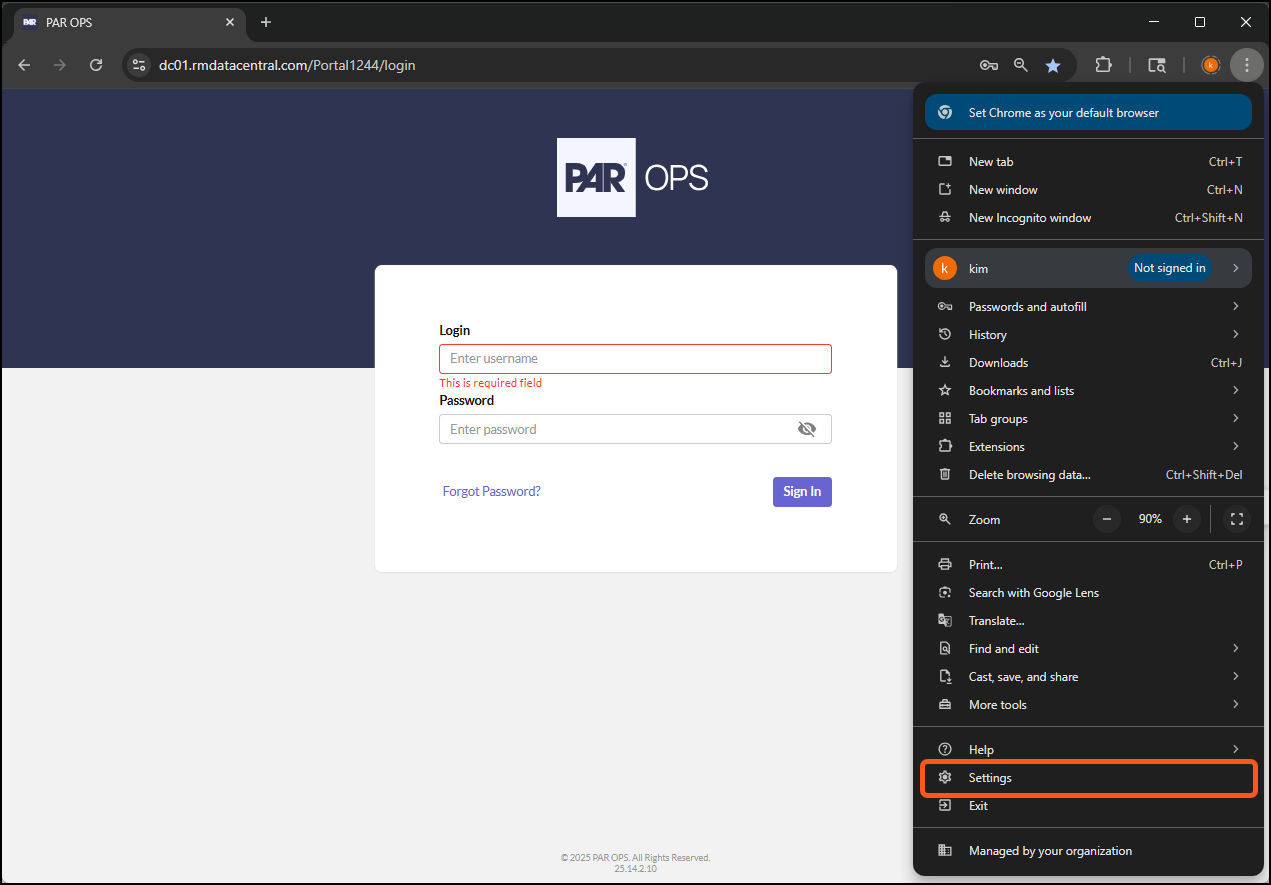
Open the Browser settings by selecting the ellipsis in the upper right-hand corner.
-
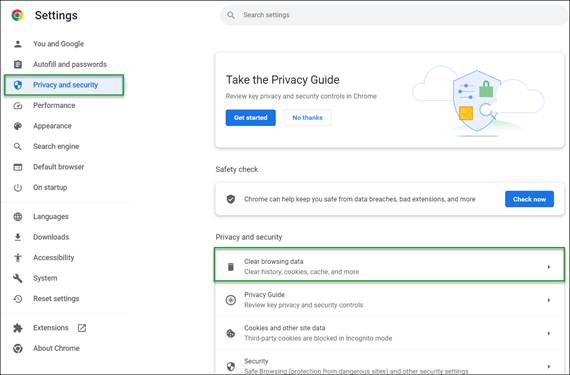
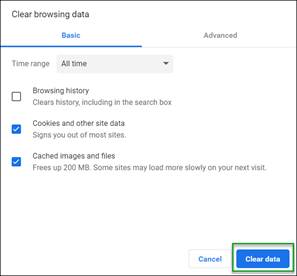
Navigate to Privacy and security. Select the Clear browsing data tab.
-
Select the following options and click Clear data.
-
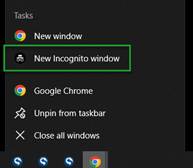
Incognito mode can be utilized by right clicking on the Chrome logo in your Windows toolbar and selecting New Incognito window.
-
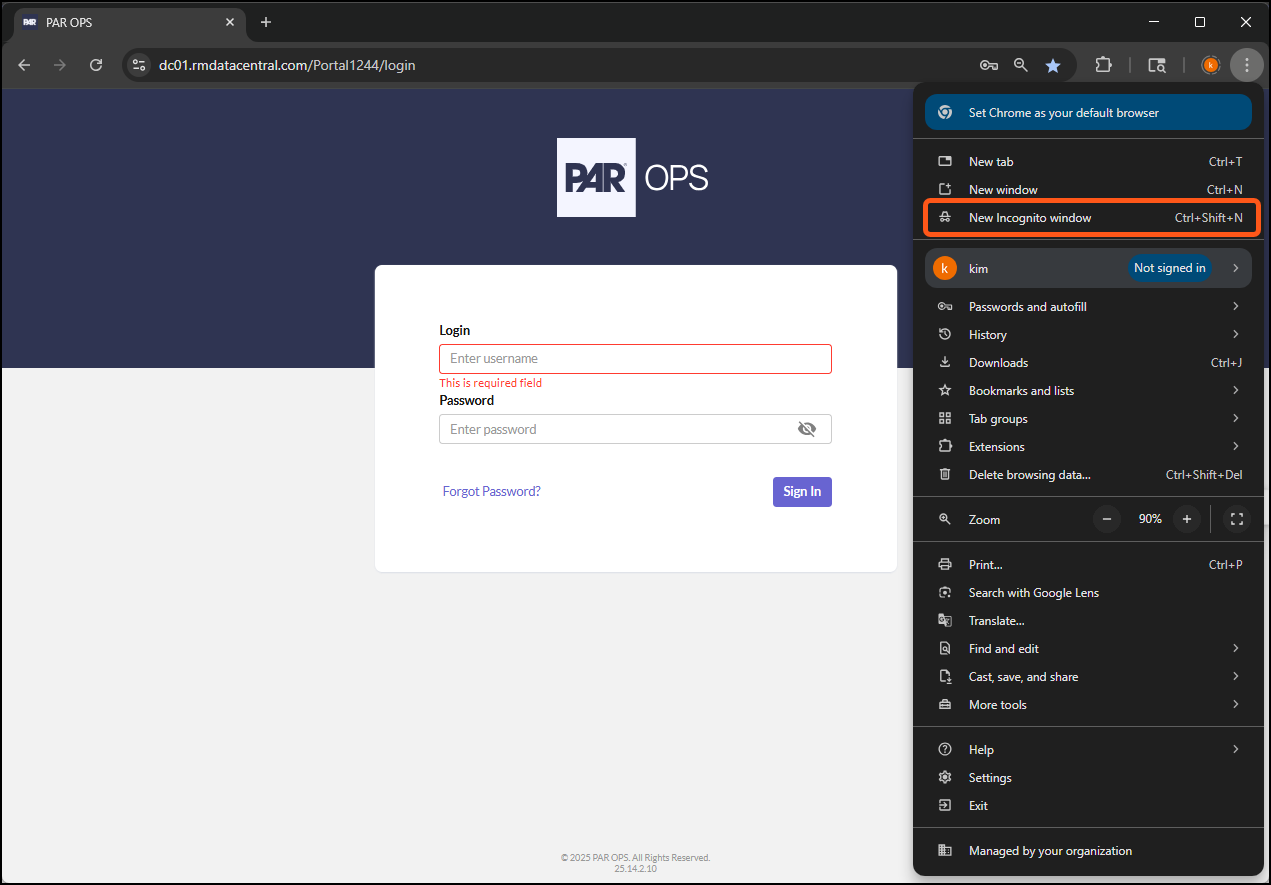
If you are already in a Chrome Browser window, you can open a new Incognito window by clicking the ellipsis in the upper right-hand corner and selecting New Incognito window or by pressing Ctrl+Shift+N.
How Do I Reprocess General Ledger (GL) Journal Entries (JE) for API Integrations?
The GL formats covered include: Daily Sales JE’s, end of period Inventory JE’s, and Transfer JE’s. This function is available for above-store or administrator logins only.
- Go to the Export Accounting Activity.
- In the Export Type field, select the appropriate PAR OPS GL format for export to your accounting software.
- This should be the same format that is configured for your integration export. If you are unsure of the format to select here feel free to reach out to PAROPSSupport@partech.com and a member of our support team will help guide you to the appropriate selection.
- Choose the date or date range that you want to export.
- Choose at least one store that you have access to that you would like to export.
- If an existing JE is found for a store for one of the dates selected an error will be generated in logs and nothing will be exported to the accounting software. To export for this date the existing entry must be removed from your accounting software prior to attempting this reprocess.
- Select Export to queue up the export.
- If there are no errors queuing up the reprocess request, you will see the following message:
Export Accounting Webhook
Successfully submitted to External Integration. - This does not mean that the data was successfully sent to your accounting software, only that your request has been queued up in our background processes to initiate the reprocess request.
- If there are no errors queuing up the reprocess request, you will see the following message:
In most cases, the reprocess request will only take a few minutes to complete. If you have not seen the data in your accounting software within 1 hour, please refer to the integration logs in the Reports section of the PAR OPS portal. If you see no errors in the logs that would indicate that an error happened during processing the request, or if you're unsure of an error message in the logs, please reach out to PAROPSSupport@partech.com
What is the "NetSuite is not Active" Error?
If there are errors with the data sent to our backend queues for this reprocess request, you will see a message that reads:
Export Accounting Webhook
NetSuite is not Active. Please reach out to PAR OPS Support
This error should provide you with instructions on next steps. If you are unsure how to resolve this error, please reach out to PAROPSSupport@partech.com
What is the Export Accounting Activity Configuration Error?
If required (*) selections for Export Method and Export Format appear at the bottom of the Export Accounting activity, there is a configuration issue with your login. Please reach out to PAROPSSupport@partech.com with your login name to have your configuration updated.
How Do I Reprocess Unlocked Invoices and Credit Memos for API integrations?
This function is available for above-store or administrator logins only.
- Go to the Export Purchases Activity.
- Select the Date Range dropdown and choose the desired Date Range.
- Select the Complete tab.
- Select the checkbox next to the invoice(s) you want to export.
- Select Export to begin the process of exporting this invoice.
- If there are no errors queuing up the reprocess request, you will see the following message:
Export Accounting Webhook
Successfully submitted to External Integration. - This does not mean that the data was successfully sent to your accounting software, only that your request has been queued up in our background processes to initiate the reprocess request.
The invoice will not immediately move from the Complete tab to the Locked tab. Once the invoice has successfully exported, it will automatically lock. Please do not Lock the invoice after clicking export as this will prevent the integration from successfully exporting it.
- If there are no errors queuing up the reprocess request, you will see the following message:
In most cases, the reprocess request will only take a few minutes to complete. If you have not seen the data in your accounting software within 1 hour, please refer to the integration logs in the Reports section of the PAR OPS portal. If you see no errors in the logs that would indicate that an error happened during processing the request, or if you're unsure of an error message in the logs, please reach out to PAROPSSupport@partech.com
What is the "AP Exports are not Active for this Subscription Group" Error?
If there are errors with the data sent to our backend queues for this reprocess request, you will see a message that reads:
Export Purchases Webhook
AP Exports are not active for this Subscription Group.
This error should provide you with instructions on next steps. If you are unsure how to resolve this error, please reach out to PAROPSSupport@partech.com
What is the Export Accounting Activity Configuration Error?
If, after selecting Export, you see an Export Configuration popup that prompts you to select a required (*) Export Type, there is a configuration issue with your login. Please reach out to PAROPSSupport@partech.com with your login name to have your configuration updated.
How Do I Export an Invoice that has Already Been Sent to Accounting Software?
If an invoice has previously been sent to your accounting software and you have made an adjustment in PAR OPS to that invoice and now need to resend that invoice manually, please follow the steps below.
- Delete or remove the invoice from your accounting software.
- Go to the Export Purchases activity.
- Select the invoice.
- Select the Unlock button in the header ribbon.
- Go to the Purchase Managemen t activity.
- Incomplete the invoice.
- Recomplete the invoice.
- Return to the Export Purchases Activity.
- Select the Date Range dropdown and choose the desired Date Range.
- Select the Complete tab.
- Select the checkbox next to the invoice(s) you want to export.
- Select Export to begin the process of exporting this invoice.
- If there are no errors queuing up the reprocess request, you will see the following message:
Export Accounting Webhook
Successfully submitted to External Integration. - This does not mean that the data was successfully sent to your accounting software, only that your request has been queued up in our background processes to initiate the reprocess request.
The invoice will not immediately move from the Complete tab to the Locked tab. Once the invoice has successfully exported, it will automatically lock. Please do not Lock the invoice after clicking export as this will prevent the integration from successfully exporting it.
- If there are no errors queuing up the reprocess request, you will see the following message:
If you do not first delete or remove the invoice from your accounting software when you try and export the invoice again, we will receive an error from your accounting software, and the invoice will not be successfully sent and the invoice will be relocked.
After the invoice has been unlocked, we will automatically attempt to resend the invoice again the next business day if the invoice falls within the acceptable invoice date range that is configured.
FAQ
Who cares about Export Accounting and Purchases?
These tools are primarily used by accounting and finance teams for managing general ledger data and invoice reconciliation, store-level users who complete and approve invoices, and system administrators who configure export formats and troubleshoot issues.
What is the goal of Export Accounting and Purchases?
The goal is to streamline the transfer of financial data from operational systems to accounting platforms like Great Plains, ensure data integrity by locking exported invoices, and support accurate financial reporting through configurable export formats and validation tools
What other reports or activities are impacted by Export Accounting and Purchases?
These tools impact several related reports and activities, including the General Ledger Export Report, DBS Calculation Scheme, POS Sales and Taxes Reports, Formats Activity for export configuration, and integrations with your accounting system.