Squirrel POS v2 Category to Punchh Group Mapping
In Squirrel’s back office, users may be used to “categories”. These categories are further broken up, when used by Punchh, into a Major Group and a Family Group. Punchh will receive the Major Group ID and Family Group ID for items, instead of the Category Name, which is all that can be seen in the Squirrel Back Office.
Items Received by Punchh
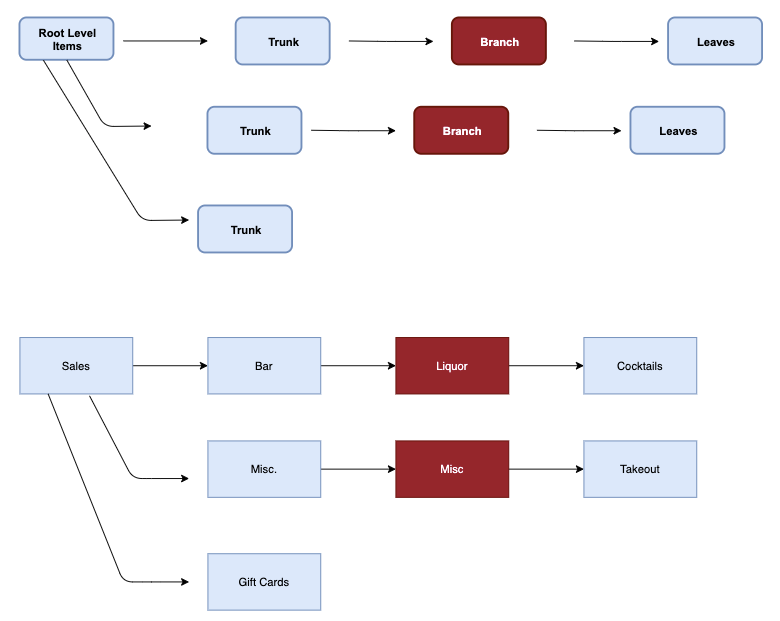
As far as what is and is not being received on the Punchh end, this can get a little confusing. The best analogy to understand this is to think of categories as a tree. See the following diagram as an example.
- Items second from the root level (the “Trunk”) will be received.
- The lowest-level items (the “Leaves”) will be received.
- Items that are held within a high-level folder, but do not contain additional items within themselves (Branches), will be ignored.
| Tree Part | Example | Received? |
|---|---|---|
| Root | “Sales” | Received by Punchh |
| Trunk | “Bar” | Received by Punchh |
| Branch | “Liquor” | Ignored by Punchh |
| Leaves | “Cocktails” | Received by Punchh |
In the following diagram, blue items represent those that will be received by Punchh, whereas red items will be ignored.
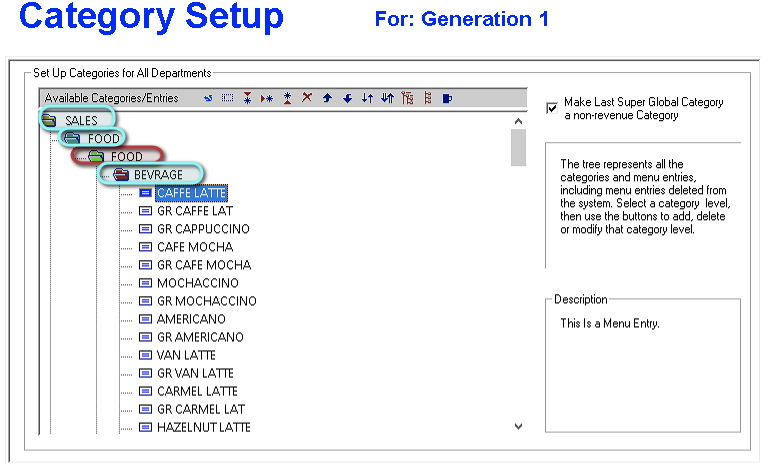
If you compare the preceding diagram with a Squirrel configuration, as shown in the following screen shot from Squirrel, you can see the categories that will be received by Punchh and those that will be ignored.
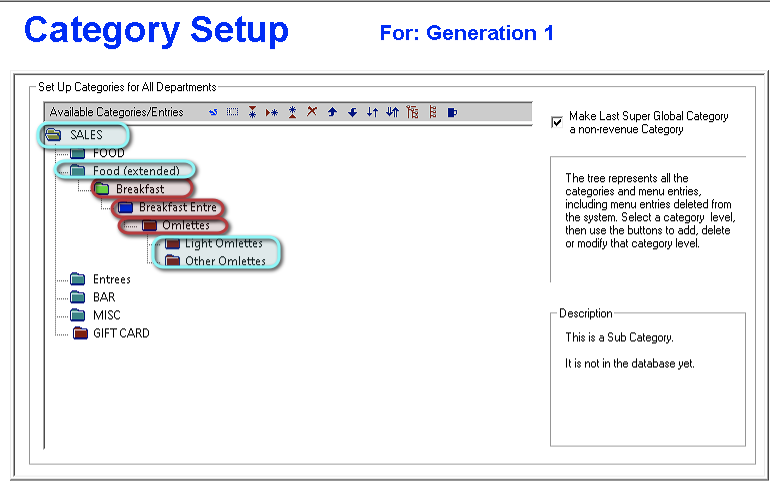
If the category trees are much larger, the same rules apply regarding those that will be received by Punchh. For example, in the following larger tree, Punchh is still receiving only the top-level, second-level, and lowest-level items. All of the mid-level items, those extra branches, are being ignored.
Family to Major Group Mapping
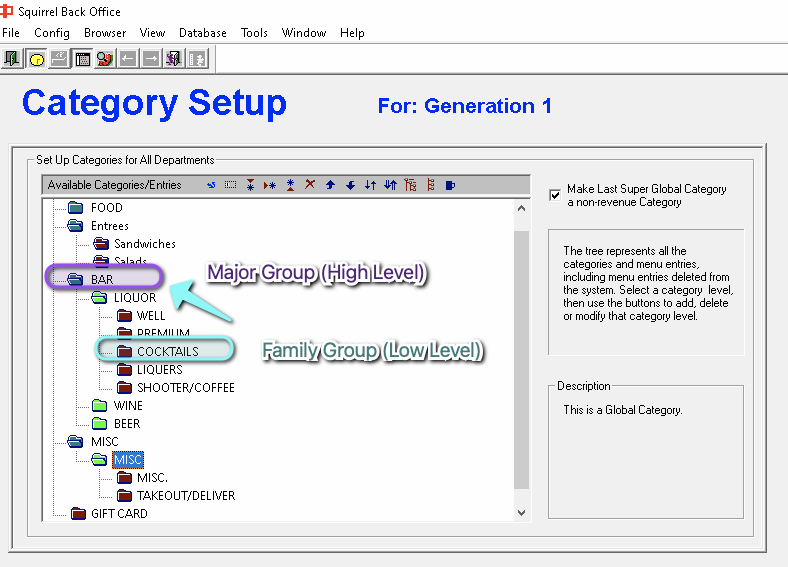
In the following image, you can see that the lowest-level items, the Family Groups, are mapped to the highest-level item, the Major Group.
This is further recognized by the GroupMapping.csv file, which will show you the mapping (see below).
How Can I View Which Items Are Being Mapped and to Where?
You can view the document that outlines the Major Group and Family Group mappings by locating the following:
File Location: C:\Program Files (x86)\Punchh\Logs
File Naming Convention: {Store Number}-{Store Name}_GroupMapping.csv
Example: If your store is the Dallas location, which is ID 2, your GroupMapping.csv file will be named 2-Dallas_GroupMapping.csv.
NOTE: The GroupMapping.csv file will automatically update every day at midnight. To manually force an update, restart the Punchh service from the Back of House computer.
The GroupMapping.csv file will display as shown in the following image. From this you can see that, for example, in line “2”, the Family Group “FOOD” (ID 2) is being mapped to Major Group “FOOD” (also ID 2).
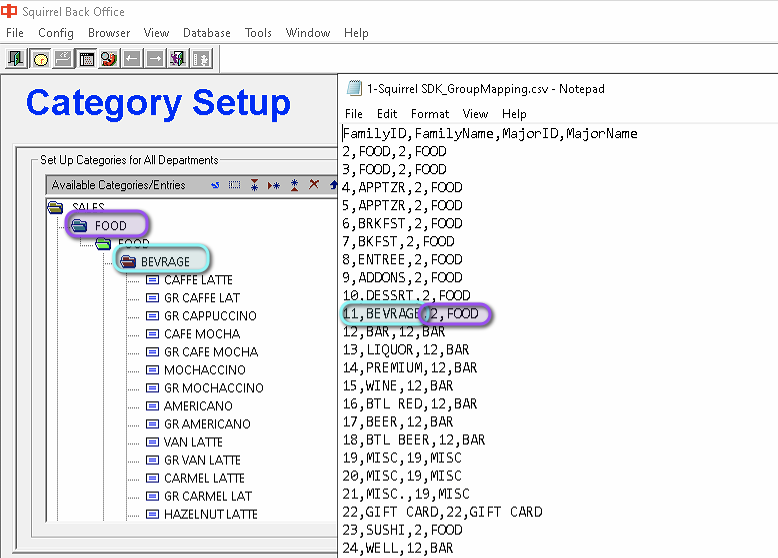
From the following image, you can see the mapping in action with the “Bevrage” and “Food” categories. Remember that the “leaves” are mapping back to their “trunk”, so in this case, “BEVRAGE” (Family Group) is mapping back to “FOOD” (Major Group).
Why Does Punchh Not Map From the Categories Directly?
In the Squirrel database, there are times that you can see multiple categories sharing the same name. This can create confusion and a data collision in Punchh. As a result, Punchh elected to focus on separate IDs so that such confusion, or any other data-related issues, do not interrupt service or cause unforeseen discrepancies.
